

Welcome to the third lesson of the course . On We have deployed the layout necessary for conducting lab work. In this lesson, we will explore the fundamental principles of working with logs on , familiarize ourselves with event handlers, and examine the mechanisms for log protection. The theoretical part, as well as a complete recording of the video lesson, can be found below.
To collect logs from devices, they must be registered on FortiAnalyzer. There are two registration options.
- The first option is to enable the 'send logs to FortiAnalyzer' feature on the registering device and specify its IP address. After that, a registration request for this device is sent to FortiAnalyzer. The administrator must approve or deny the received request. If the administrative domain technology is activated, FortiGate can be added to either the main ADOM (which is called root, with which we worked in the previous lesson) or to a custom ADOM that is designated for FortiGate devices.
- The second option is the so-called Device Registration Wizard. Device registration occurs directly on FortiAnalyzer. For registration, information about the device being registered is required—its serial number, IP address, device type, and operating system version. If the data verification is successful, the device is added to the FortiAnalyzer list. If the administrative domain technology is activated, the device will automatically register in the appropriate administrative domain. If you have created several such administrative domains, you will need to register the device from the administrative domain into which you want to add it.
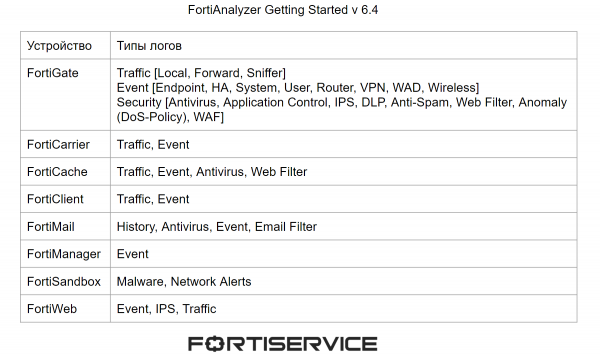
Each device generates logs of various types. The main types of logs that Fortinet devices can generate are shown in the image below.
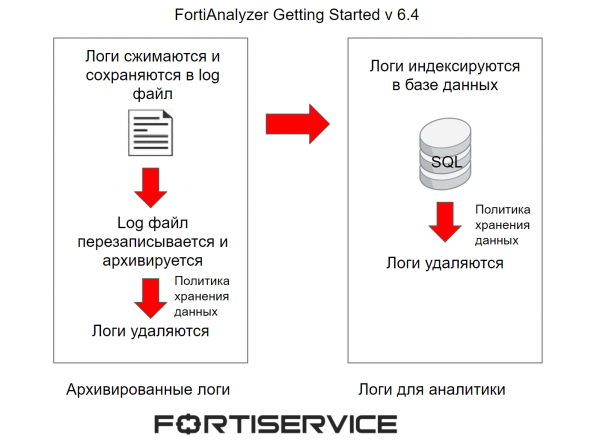
We discussed the initial processing of logs in the last lesson, but I think it's worth refreshing our memory. The logs that arrive at FortiAnalyzer are compressed and saved in a log file. When this file reaches a certain size, it is overwritten and archived. These logs are called archived logs. They are considered offline logs because they cannot be analyzed in real-time. For viewing, they are only available in RAW format. The data retention policy within the administrative domain determines how long these logs will be stored in the FortiAnalyzer memory.
At the same time, the logs are indexed in an SQL database to support analytics. These logs are analyzed in FortiAnalyzer in real-time using the Log View, FortiView, and Reports mechanisms. The data retention policy within the administrative domain determines how long these logs will be stored in the FortiAnalyzer memory. After the logs are deleted from the FortiAnalyzer memory, they may remain archived, but this depends on the data retention policy in the administrative domain.
The process of log processing is schematically presented in the figure below.
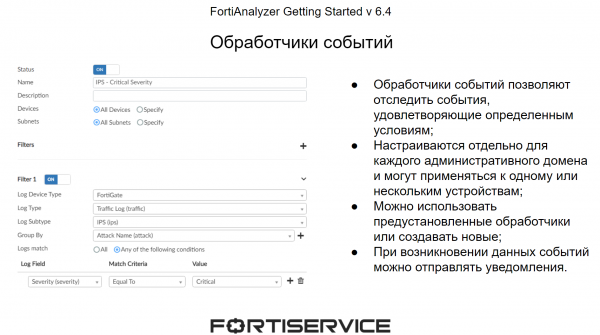
When logs are sent to the device, they are checked by event handlers. These allow for tracking relevant events using predefined conditions. The conditions are set for the parameters contained in the RAW log format. For each administrative domain in the system, there is a set of preset events, but if necessary, custom event handlers can be created. The main benefit of event handlers is that when relevant events occur, the system can send notifications — to email or syslog servers, also via SNMP. This allows for a quick response to events occurring in the network.
Now let's talk about log protection. Since logs hold important information about network activities, they need to be safeguarded against potential loss due to various failures, as well as external compromise. The first technology that can help secure logs during various failures is RAID. It allows you to split the available disk space into several logical segments so that if one or more disks fail (depending on the type of RAID), the data will not be lost. The main types of RAID that can be utilized in FortiAnalyzer are presented in the figure below.
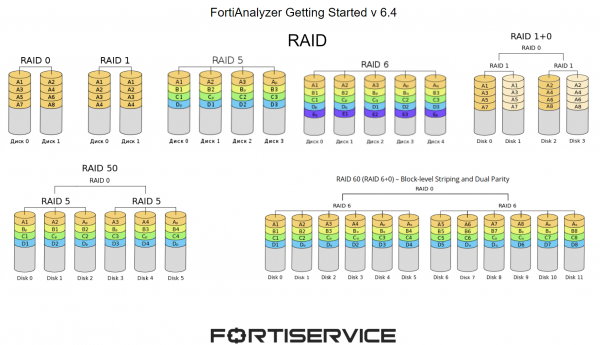
- RAID 0 distributes information across 2 or more disks. The main goal is speed and performance. If one or more disks fail, the entire disk array will be affected;
- RAID 1 distributes copies of information across 2 or more disks. If one disk fails, the disk array will continue to operate normally;
- RAID 5 distributes information across several disks, and also allocates one disk in each so-called "information chain" for recovery data. If one disk fails, the disk array will continue to operate normally;
- RAID 6 operates similarly, only it allocates two disks for recovery data;
- RAID 10 combines the options of RAID 0 and RAID 1. This allows you to continue working with the information if 2 disks fail (one from each RAID; otherwise, it will be impossible to read the information);
- RAID 50 combines the functionality of RAID 0 and RAID 5. In this case, stable information operation will continue even if one disk fails in each RAID 5;
- RAID 60 combines the functionality of RAID 0 and RAID 6. In this case, stable information operation will continue even if two disks fail in each RAID 6.
The next mechanism is log backups. There are several backup options – from the Log View menu, where you can use a specific filter to save the necessary logs, or from Log Browse, where you can download recorded log files. There is also the option to back up logs to external servers using the CLI interface.
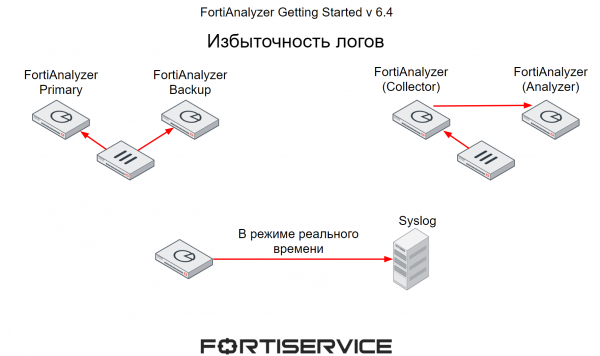
Another mechanism for protecting critical information contained in logs is redundancy. There are also several options available.
- The first method allows devices to send logs to two FortiAnalyzers — one as the primary and the other as a backup.
- The second method we discussed in the last lesson — one FortiAnalyzer operates in collector mode, gathering logs from various devices. Collected logs are sent on a schedule to the FortiAnalyzer operating in Analyzer mode. If the second one fails, the collector can forward logs to another FortiAnalyzer.
- The third option is to transmit logs from the FortiAnalyzer to external servers, such as a Syslog server. In this case, the log transmission will occur in real-time.
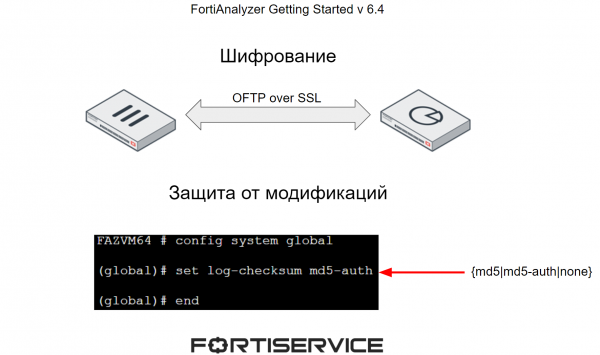
To protect logs from compromise, two main mechanisms are used:
- Encryption of the data transmission channel between the FortiAnalyzer and other devices;
- Log modification protection through the addition of a checksum.
The video lesson presents the theoretical material discussed above, as well as practical aspects of working with logs — filtering, viewing in various modes, and configuring event handlers. Enjoy the lesson!
In the next lesson, we will look closely at the aspects of working with reports. To not miss it, subscribe to our .
You can also follow updates on the following resources:
Source: habr.com
