


From Selectel: this is the second part of the translation of the article on browser fingerprints (). Today we will discuss the legality of collecting browser fingerprints from different users by third-party services and websites, and how one can protect against information gathering.
So what about the legality of collecting browser fingerprints?
We studied this topic in detail but couldn't find specific laws (this refers to US legislation — ed. note). If you can point to any laws that regulate the collection of browser fingerprints in your country, please let us know.
However, in the European Union, there are laws and directives (specifically, GDPR and the ePrivacy Directive) that regulate the use of browser fingerprints. It is quite legal, but only if the organization can prove the necessity of such work.
Additionally, consent from the user is required to use the information. However, to this rule:
- When a browser fingerprint is required for the 'sole purpose of ensuring transmission of a communication over an electronic communications network.'
- When the collection of browser fingerprints is necessary for customizing the user interface of a specific device. For example, when you surf the web from a mobile device, browser fingerprint collection and analysis technology is engaged to provide you with a tailored version.
Similar laws likely exist in other countries as well. So the key point here is that a service or website needs the user's consent to work with browser fingerprints.
But there's a problem — the issue isn't always clear. Most often, users are shown just a banner saying 'I agree to the terms of use.' Yes, the banner always includes a link to the terms themselves. But who reads them?
So usually, users give permission for the collection of browser fingerprints and the analysis of this information when they click the 'agree' button.
Test Your Browser Fingerprint
Okay, we discussed what data can be collected above. But what about the specific case — your own browser?
To understand what information can be collected through it, it's easiest to use the resource It will show what an external observer can obtain from your browser.
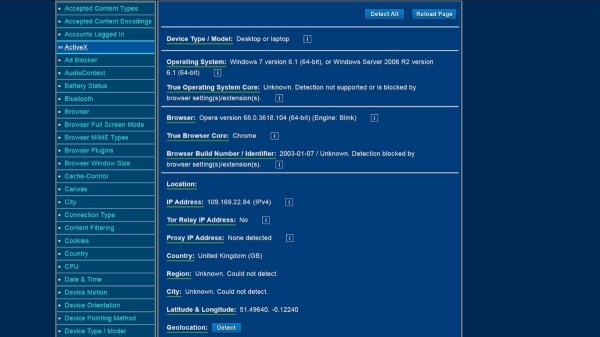
Do you see this list on the left? This is by no means everything; the rest of the list will appear as you scroll down the page. The city and region in the screenshot are not displayed due to the use of a VPN by the authors.
There are also a few other websites that help conduct a browser fingerprinting test. They are by EFF and , an open-source site.
What is browser fingerprint entropy?
It is an assessment of the uniqueness of your browser's fingerprint. The higher the entropy value, the higher the uniqueness of the browser.
The entropy of a browser fingerprint is measured in bits. You can check this metric on the Panopticlick website.
How accurate are these tests?
Overall, they can be trusted since they collect exactly the same data as third-party resources. This is if you assess data collection point by point.
However, when it comes to assessing uniqueness, things aren't as good, and here's why:
- Testing sites do not account for random fingerprints that can be obtained, for example, through Brave Nightly.
- Websites like Panopticlick and AmIUnique have vast archives of data that contain information about old and outdated browsers whose users underwent testing. So if you take the test with a new browser, you will likely receive a high uniqueness score for your fingerprint, even though hundreds of other users are using the same browser version as you.
- Finally, they do not take into account screen resolution or window resizing of the browser. For instance, the font may be too large or too small, or the text may be difficult to read due to the color. Whatever the reason, tests do not consider this.
Overall, uniqueness fingerprint tests are not useless. They are worth trying out to understand your entropy level. But it's best to simply evaluate what information you are sharing externally.
How to protect yourself from browser fingerprint collection (simple methods)
It should be noted right away that completely blocking the formation and collection of a browser fingerprint is not possible — this is a fundamental technology. If you want to protect yourself 100%, you simply need to avoid using the internet.
However, the amount of information collected by third-party services and resources can be reduced. Tools like these can help.
Firefox browser with modified settings
This browser is decent when it comes to protecting user data. Recently, developers have safeguarded Firefox users from third-party fingerprint tracking.
However, the level of protection can be increased. To do this, you need to go into the browser settings by entering "about:config" in the address bar. Then, select and change the following options:
- webgl.disabled — set to "true".
- geo.enabled — set to "false".
- privacy.resistFingerprinting — set to "true". This option provides a basic level of protection against browser fingerprinting. However, it is most effective when combined with other options from the list.
- privacy.firstparty.isolate — change to "true". This option allows blocking cookies from first-party domains.
- media.peerconnection.enabled — an optional setting, but if you are using a VPN, you should select it. It helps prevent WebRTC leaks and expose your IP.
Brave browser
Another user-friendly browser that offers serious protection for personal data. The browser blocks various trackers, uses HTTPS wherever possible, and blocks scripts.
In addition, Brave provides the opportunity to block most fingerprinting tools.
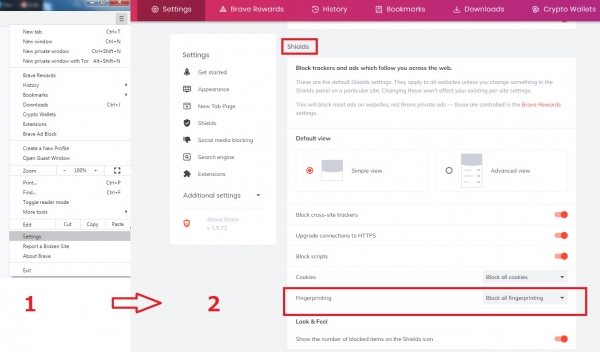
We used Panopticlick to assess the level of entropy. Compared to Opera, it showed 16.31 bits instead of 17.89. The difference is not enormous, but it is there.
Brave users have proposed numerous ways to protect against browser fingerprinting. There are so many details that they can't all be listed in one article. All the details .
Specialized browser extensions
Extensions are a sensitive topic, as they can sometimes increase the uniqueness of a browser's fingerprint. Whether to use them or not is up to the user.
Here’s what can be recommended:
- — modifies user-agent values. You can set it to refresh every "10 minutes", for example.
- — protects against various types of fingerprinting.
- — does pretty much the same thing as Chameleon.
- — protects against digital fingerprinting via canvas.
It's better to use one extension rather than all at once.
Tor browser without Tor Network
It's unnecessary to explain what Tor browser is on Habr. By default, it provides a range of tools for protecting personal data:
- HTTPS everywhere.
- NoScript.
- Blocking WebGl.
- Blocking canvas image extraction.
- Changing the OS version.
- Blocking information about the time zone and language settings.
- All other features for blocking tracking tools.
However, the Tor network is not as impressive as the browser itself. Here's why:
- It operates slowly. This is because there are about 6,000 servers while the number of users is around 2 million.
- Many sites block Tor traffic — for example, Netflix.
- There are leaks of personal information, one of the most serious occurred in 2017.
- Tor has a strange relationship with the US government — it could be called a close cooperation. Furthermore, the government financially .
- You can connect to .
In general, it is possible to use the Tor browser without the Tor network. It's not that easy to do, but it is quite feasible. The task is to create two files that will disable the Tor network.
It's best to do this in Notepad++. Open it and add the following lines in the first tab:
pref(‘general.config.filename’, ‘firefox.cfg’);
pref(‘general.config.obscure_value’, 0);
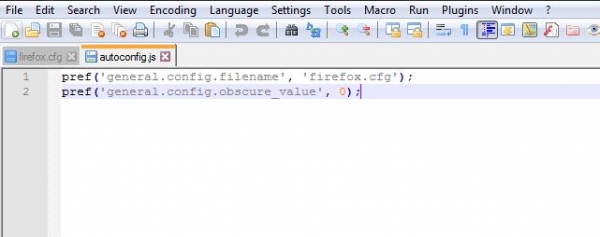
Then go to Edit — EOL Conversion, select Unix (LF), and save the file as autoconfig.js in the Tor Browser/ defaults/ pref directory.
Then open a new tab and copy these lines:
//
lockPref(‘network.proxy.type’, 0);
lockPref(‘network.proxy.socks_remote_dns’, false);
lockPref(‘extensions.torlauncher.start_tor’, false);
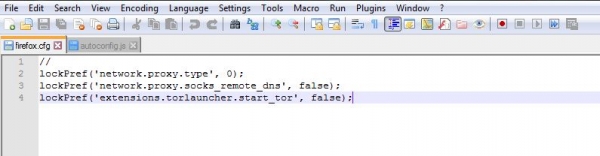
The file name is firefox.cfg, and it should be saved in Tor Browser/Browser.
Now everything is ready. After starting, the browser will show an error, but you can ignore it.

And yes, disabling the network will not affect the browser fingerprint. Panopticlick shows an entropy level of 10.3 bits, which is much lower than with the Brave browser (it was 16.31 bits).
The files mentioned above can be downloaded .
In the third and final part, we will talk about more hardcore methods of disabling tracking. We will also discuss personal data protection and other information using VPN.
Source: habr.com
