

Among our clients are companies that use Kaspersky solutions as a corporate standard and manage antivirus protection independently. It might seem that they are not well-suited for a virtual desktop service where the provider manages the antivirus. Today, I will show how customers can manage protection themselves without compromising the security of virtual desktops.
In we have already explained in general how we protect our clients' virtual desktops. The antivirus within the VDI service helps to strengthen the protection of cloud machines and allows for independent monitoring.
In the first part of the article, I will show how we manage the solution in the cloud and compare the performance of 'cloud' Kaspersky with traditional Endpoint Security. The second part will focus on the possibilities of independent management.
How we manage the solution
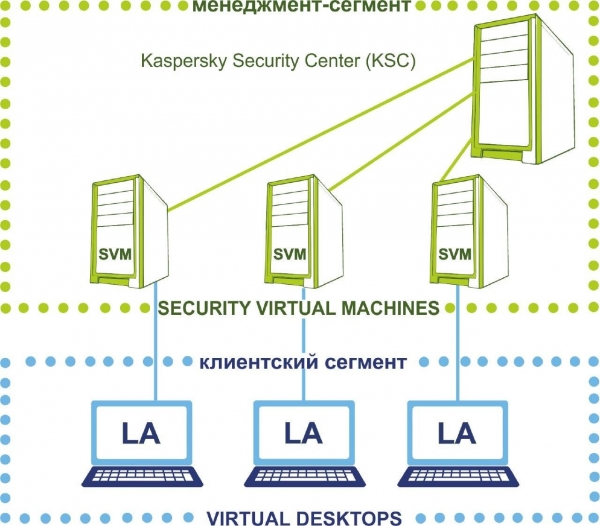
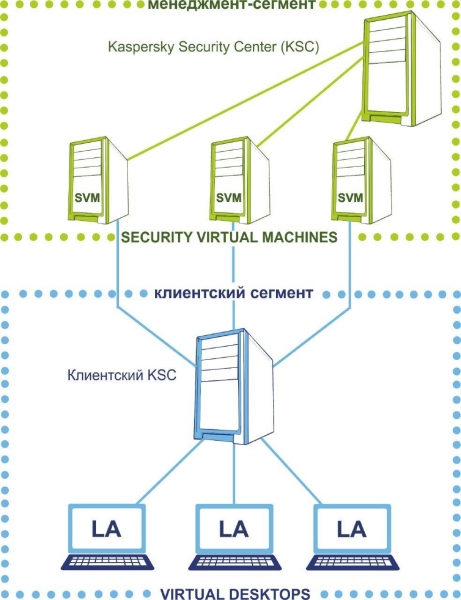
Here is what the architecture of the solution looks like in our cloud. For the antivirus, we allocate two network segments:
- client segment, where the users' virtual workstations are located,
- management segment, where the server part of the antivirus is located.
The management segment remains under the control of our engineers; the customer does not have access to this part. The management segment includes the main KSC administration server, which contains license files and activation keys for client workstations.
Here is what the solution consists of in terms of 'Kaspersky Lab.'
- A light agent (LA)is installed on users' virtual desktops. It does not check files but sends them to the SVM and waits for a 'verdict from above.' As a result, the resources of the user desktop are not spent on antivirus activity, and employees do not complain that 'VDI is slow.'
- A separate security virtual machine (SVM)performs checks. This is a dedicated security device that hosts malware databases. During checks, the load is placed on the SVM: the light agent communicates through it with proxy server.
- Kaspersky Security Center (KSC) which manages the security virtual machines. This is the console with task and policy settings that will be applied to end devices.
This operating scheme promises a savings of up to 30% of the hardware resources of the user's machine compared to an antivirus on the user's computer. Let's see how it works in practice.
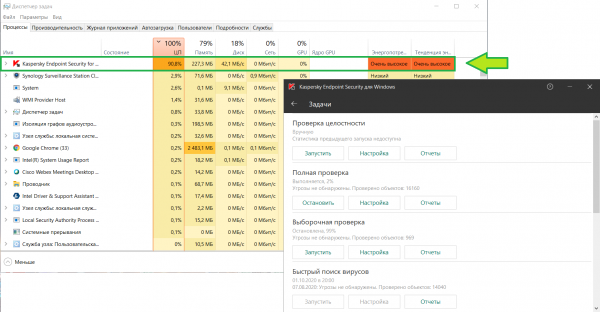
For comparison, I took my work laptop with Kaspersky Endpoint Security installed, ran a scan, and checked the resource consumption:
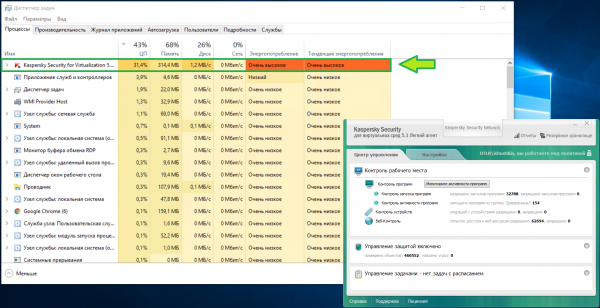
Here is the same situation on a virtual desktop with similar specifications in our infrastructure. Memory usage is roughly the same, but CPU load is half as much:
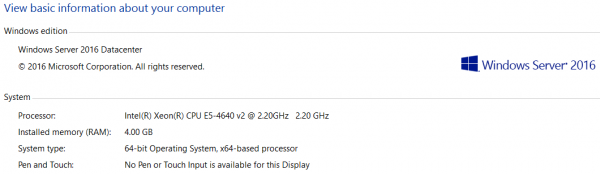
The KSC itself is also quite resource-intensive. We allocate
enough for the administrator to work comfortably. See for yourself:
What remains under the control of the customer
So, we have addressed the tasks on the provider's side, now we will provide the customer with control over the antivirus protection. To do this, we create a child KSC server and move it to the client segment:
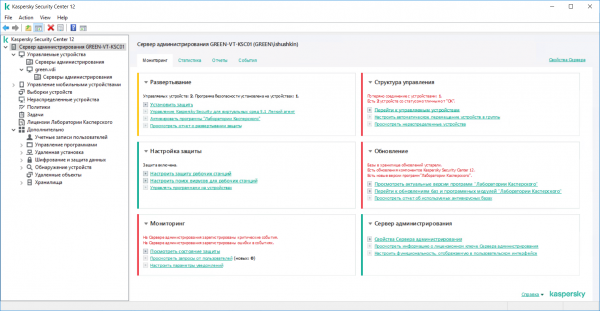
Let's log into the console on the client KSC and see what settings the customer will have by default.
Monitoring. On the first tab, we see the dashboard. It's immediately clear which problem areas need attention:
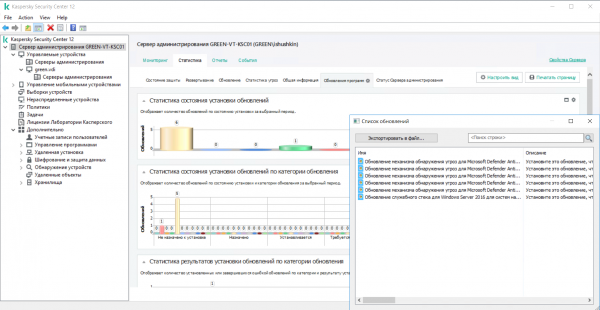
Let's move on to the statistics. Here are a few examples of what can be viewed.
Here, the administrator will immediately see if updates are not installed on any machines
or if there is another issue related to the software on the virtual desktops. Their
update may affect the security of the entire virtual machine:
In this tab, one can analyze the detected threats down to the specific threat found on protected devices:
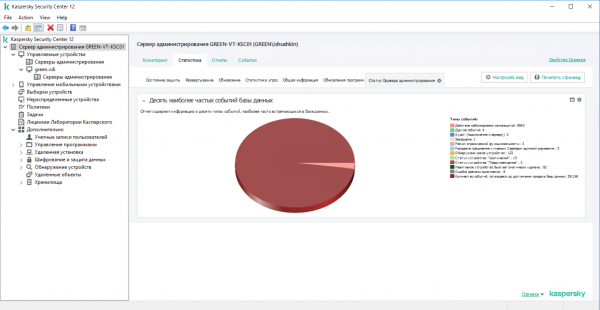
The third tab contains all possible options for pre-configured reports. Customers can create their reports from templates, selecting which information will be displayed. It is possible to set up scheduled email delivery or view reports locally from the
administration server (KSC).
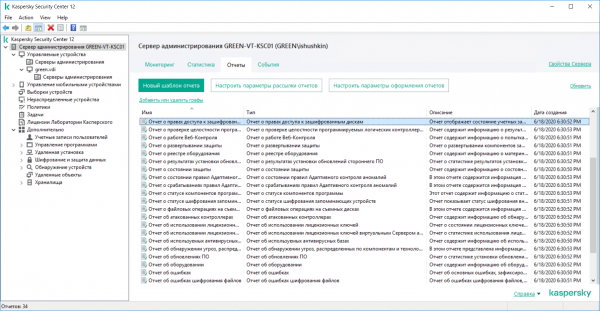
Administration groups. To the right, we see all managed devices: in our case – virtual desktops managed by the KSC server.
They can be grouped together to create common tasks and group policies for different departments or for all users at once.
As soon as the client creates a virtual machine in the private cloud, it is immediately recognized in the network, and Kaspersky sends it to unallocated devices:
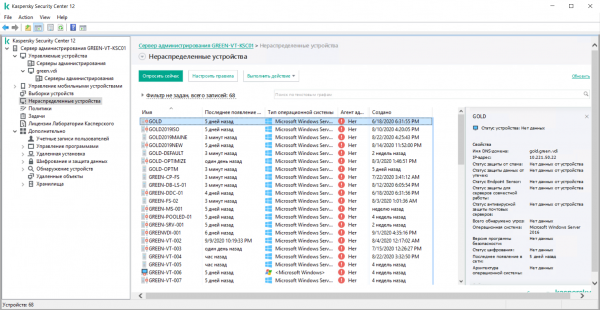
Group policies do not apply to unallocated devices. To avoid manually distributing virtual desktops across groups, rules can be used. This automates the assignment of devices to groups.
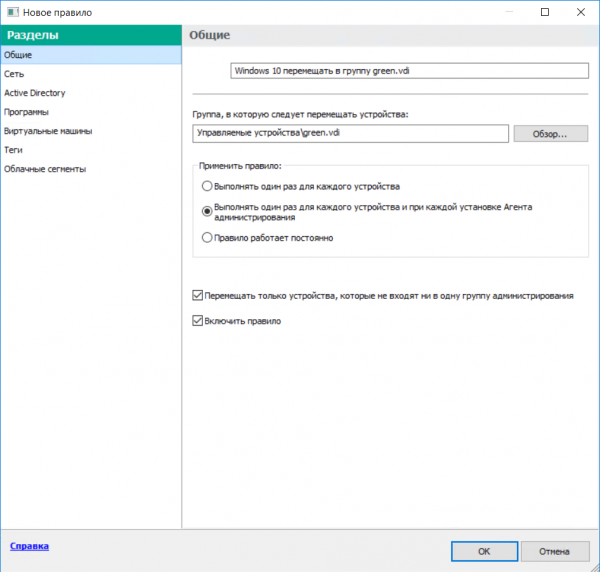
For example, virtual desktops with Windows 10 but without the administration agent installed will fall into the group VDI_1, while those with Windows 10 and the agent installed will go into the group VDI_2. Similarly, devices can also be automatically allocated based on their domain affiliation, their location in different networks, and specific tags that the client can set based on their tasks and needs.
To create a rule, simply launch the device grouping wizard:
Group Tasks. Using tasks, KSC automates the execution of specific rules at a certain time or upon certain events, for example: a virus scan is carried out during non-working hours or when the virtual machine is 'idle', which in turn reduces the load on the VM. This section conveniently allows scheduling scans on virtual desktops within a group, as well as updating virus databases.
Here is the full list of available tasks:
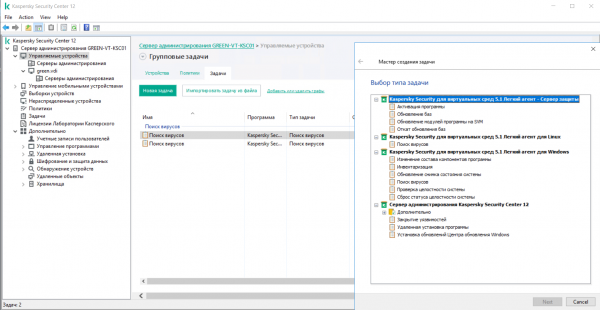
Group Policies. From the child KSC, the client can independently distribute protection to new virtual desktops, update signatures, configure exclusions
for files and networks, generate reports, and manage all types of scans of their machines. This includes restricting access to specific files, sites, or hosts.
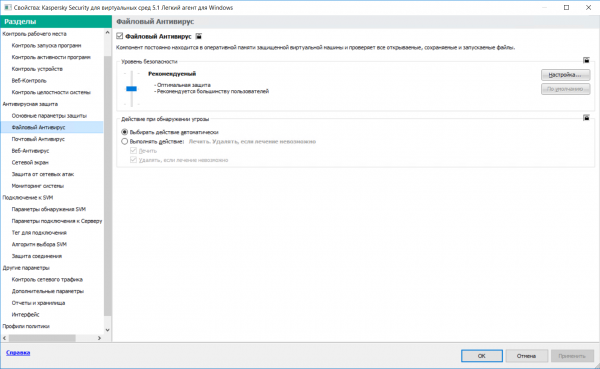
Policies and rules from the main server can be re-enabled if something goes wrong. In the worst case, if configured incorrectly, lightweight agents will lose connection with the SVM and leave virtual desktops unprotected. Our engineers will immediately receive a notification about this and will be able to enable policy inheritance from the main KSC server.
These are the main settings I wanted to discuss today.
Source: habr.com
