

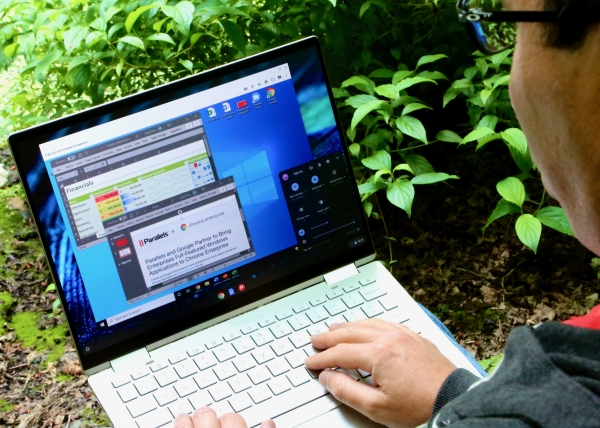
The Parallels team has launched Parallels Desktop for Chromebook Enterprise, enabling Windows to run directly on corporate Chromebook devices.
«Modern enterprises are increasingly choosing to operate — whether remotely, in the office, or in a hybrid model — on Chrome OS. We are pleased that Parallels has collaborated with us to implement support for both traditional and modern Windows applications in Parallels Desktop for Chromebook Enterprise, making it easier for organizations to transition to cloud-based devices and workflows.», — said Google's Vice President of Chrome OS, John Solomon.
«In developing Parallels Desktop for Chromebook Enterprise, we leveraged Parallels' expertise in innovative software development gained over more than 22 years. Our company has long been focused on creating solutions that enable multiple operating systems and applications to run on a single device to enhance work efficiency.— shares Nikolai Dobrovolsky, Senior Vice President at Parallels.. — Parallels Desktop not only allows users to work on a Chromebook with Chrome OS software and fully functional Windows applications, but it also offers numerous other features. For instance, users can transfer text and images between Windows 10 and Chrome OS, freely print from applications to shared Chrome OS printers, or use printers that are only available in Windows 10. Moreover, it supports saving Windows files on the Chromebook device, in the cloud, or both.».
«Today, IT strategies in companies almost always include cloud support, as the popularity of flexible cloud solutions that enhance productivity is on the rise. New HP Elite c1030 Chromebook Enterprise models will come equipped with Parallels Desktop for Chromebook Enterprise: a revolutionary product that transforms the views of both executives and employees regarding cloud interaction, making it easy to run Windows applications on Chrome OS.— notes Maulik Pandya, Vice President and General Manager of Cloud Client Solutions at HP Inc.
The complete integration of Windows and Chrome OS via Parallels Desktop helps achieve work tasks even faster.
Run multiple fully functional Windows and Chrome OS applications simultaneously. Work with Microsoft Office and other fully functional Windows applications directly on corporate Chromebook devices. Add trend lines to Excel charts, citation descriptions in Word, and your own fonts or headers and footnotes in PowerPoint (all these features are not available in other versions of Microsoft Office), without closing the Chrome OS applications. No need to reboot or use unreliable emulators anymore.
Install and run any company-approved fully functional Windows applications on your Chromebook device. Work at maximum efficiency using all tools and functionalities of Windows applications, including commercial ones. You won't face difficulties completing tasks that require fully functional Windows software.
No internet? No problem! Launch Windows applications on Chromebook even without an internet connection or in low-speed environments and work anywhere — away from the city, on a plane, and anywhere where connection quality leaves much to be desired.
Increased productivity and full integration. Shared clipboard. Transfer texts and images between Windows and Chrome OS in any direction: from Windows to Chrome OS and vice versa.
Shared user profile. Windows user folders ('Desktop', 'Documents', and 'Downloads') are redirected to the Windows files section of Chrome OS so that Chrome OS applications can access the relevant files without creating copies. Moreover, this allows Chrome OS to access files in these folders even when Windows OS is not running.
Shared user folders. You can make any Chrome OS folder shared between Chrome OS and Windows (including cloud folders, such as those in 'Google Drive' or OneDrive) and save Windows application files in it.
Dynamic screen resolution. Changing the screen resolution in Windows has become even easier: just resize the Windows 10 window by dragging its corner or edge.
Support for fullscreen mode for Windows 10. You can maximize the Windows 10 window to the full screen of your Chromebook device by clicking the 'Maximize' button in the upper-right corner. Alternatively, you can open Windows separately on a virtual desktop and easily switch between Chrome OS and Windows using a swipe gesture.
Opening web pages on Windows on your preferred platform. In Windows 10, you can configure how web pages are opened when clicking links appropriately in
Chrome OS or in your usual Windows browser (Chrome, Microsoft Edge, Internet Explorer, Firefox, Brave, Opera, etc.).
Binding Windows applications to files opened in Chrome OS. Windows applications are fully integrated with the 'Open with' feature of Chrome OS. You can set the desired Windows application as the default option for certain file types or open a file in Windows.
Printing made easy. Printers in Chrome OS can also be added to Windows 10. Additionally, support for printers available only in Windows 10 is maintained (you may need to install the appropriate printer drivers for Windows 10).
Standard virtualization capabilities. Pause and resume Windows operation. You can pause the Windows OS at any moment and instantly resume it when returning to the task being performed.
Working with Windows applications using the mouse, touchpad, and keyboard of the Chromebook.
Cursor synchronization. Use the mouse when working in Chrome OS and Windows as usual. The cursor appearance will automatically change depending on the OS.
Scrolling and zooming. Windows applications fully support scrolling and zooming functions using the touchpad, mouse, or touchscreen.
Sound. Sound playback in Windows applications is already implemented. Future updates are planned to add microphone support.
Disk performance. The Parallels virtual disk technology provides higher performance figures compared to a standard NVMe (non-volatile memory) driver.
Network. The Windows OS uses the network connection of Chrome OS, even if it is a tunnel. VPNYou can also configure VPN network usage in Windows.
Ease of deployment and license management. Minimal involvement of technical support. To install and activate Parallels Desktop, as well as to subsequently load the provided IT department's ready-to-run Windows image, a Chromebook user simply needs to click the Parallels Desktop icon. Correct loading will be ensured by verifying the SHA256 checksum. CPU and RAM resources will be allocated automatically based on the current performance of the Chromebook device.
Windows OS Management. Administrators can prepare a Windows image considering both Chromebook users and the IT department. The full-featured Windows OS supports domain connections as well as the use of group policies and
other management tools. Thus, your instance of the Microsoft operating system will comply with all corporate security standards. Additionally, by disabling the 'Shared User Profile' function, features such as roaming profiles, folder redirection, and FSLogix will become available.
Integration with the Google Admin Console. The Google Admin Console can be used to perform the following tasks: o Activating and deactivating Parallels Desktop on individual user devices:
- deployment of the corporate Windows image on individual user devices;
- specifying the required disk space for downloading and operating the Windows virtual machine;
- disabling the command line for managing virtual machines on individual user devices;
- enabling or disabling anonymous data collection regarding the operation of the Parallels Desktop product.
Chrome OS Security Standards. Thanks to deploying Windows in a secure isolated environment from Google, any risks to Chrome OS are eliminated.
Convenient licensing model. User-based licensing imposes no restrictions on employee operations. IT specialists can easily track the statuses of user licenses, purchase and implement additional modules at any time, or renew licenses based on consumed resources through the Google Admin Console.
Low total cost of ownership and high user satisfaction. Consolidate hardware resources, reduce costs, and travel light. Now all the Windows 10 and Chrome OS applications and files that corporate Chromebook users may need will be at their fingertips. There's no longer a need to purchase and maintain a PC for fully functional Windows applications (or worry about where to put it when traveling) or install a useless VDI solution when there’s no Internet access.
Premium Parallels Support. When you purchase a Parallels Desktop license for Chromebook Enterprise, each customer receives support rights. You can request support by phone or email through the Parallels My Account portal. There, you can also track open requests and their status. Parallels Desktop technical support specialists provide business-class assistance. Additionally, answers to various questions about Parallels Desktop can be found in the user guide, administrator guide, and online knowledge base.
Future updates for Parallels Desktop for Chromebook Enterprise plan to add new features, including support for cameras, microphones, and USB devices.
Availability, Free Trial, and Pricing
Parallels Desktop for Chromebook Enterprise is available for purchase today. The cost of an annual subscription for a single user is $69.99. To learn more about the product and download a fully functional trial version with 5 user licenses, provided for free for 1 month, visit parallels.com/chrome.
Source: habr.com
