

The release of Chrome OS 89 has taken place, built on the Linux kernel, with the upstart system manager, ebuild/portage build tools, open components, and web browser Chrome 89. The user environment of Chrome OS is limited to the web browser, and standard applications are replaced by web applications; however, Chrome OS features a full multi-window interface, desktop, and taskbar. The Chrome OS 89 build is available for most current models of Chromebook. Enthusiasts have created unofficial builds for typical computers with x86, x86_64, and ARM processors. The source code is distributed under the Apache 2.0 open license.
This release is timed with the project's tenth anniversary, hence it includes many significant innovations. The main changes in Chrome OS 89 are:
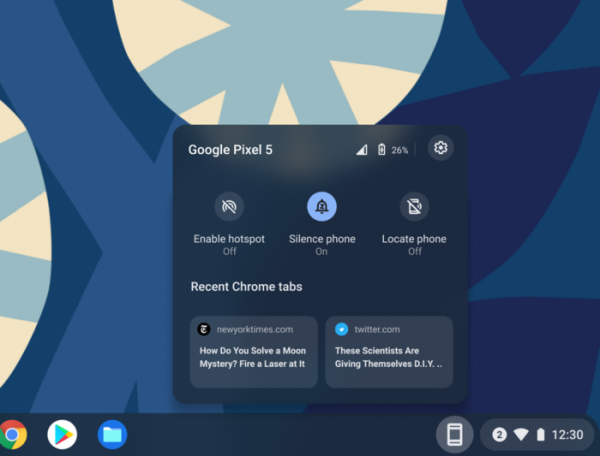
- Phone Hub has been added, a smartphone management center that allows users to perform common actions from their Chromebook, such as viewing incoming messages and notifications from an Android-based smartphone, monitoring battery level, accessing hotspot settings, and locating the smartphone. Additionally, Phone Hub enables users to view the contents of tabs recently opened on their smartphone directly in the Chromebook browser. Device activation for Phone Hub is done in the 'Settings > Connected devices', after which a specific icon with additional functions appears in the quick settings panel.

- The range of devices that can utilize the Wi-Fi Sync feature, designed for synchronizing wireless network settings across multiple devices, has been expanded. For example, the Wi-Fi password is saved in the user profile and is automatically applied when the user logs in from other devices, eliminating the need to manually re-enter the Wi-Fi connection password on a new device. Wi-Fi settings can now be shared among different devices running Chrome OS and Android linked to the same Google account.
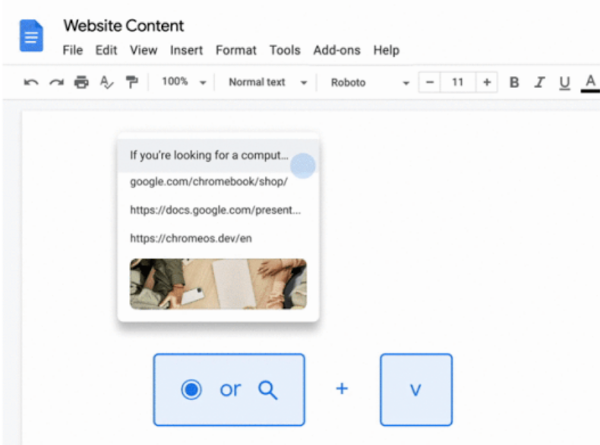
- The clipboard has implemented the MultiPaste feature, allowing you to save the history of the last five copy operations. You can paste multiple saved items at once or select any of them through the interface that appears when you press the 'Launcher + V' combination. For example, you can now copy several fragments to the clipboard without switching between windows and then paste them all at once into the desired form.

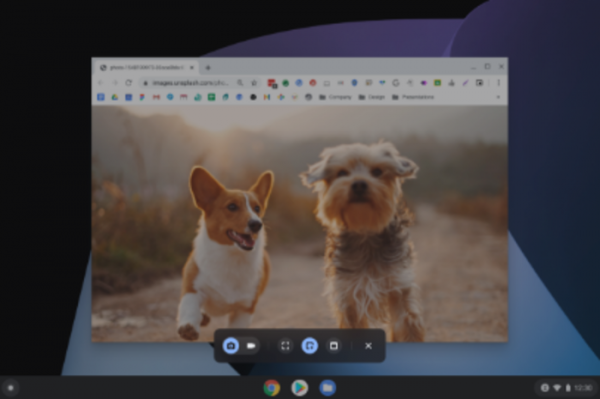
- A new interface for creating screenshots and screencasts has been introduced, which can be accessed via the quick settings menu. The interface can also be triggered by pressing the 'Ctrl + Windows' combination. Immediately after creating a screenshot, a menu appears at the bottom, allowing you to edit the captured image or start recording a video of your actions on the screen.

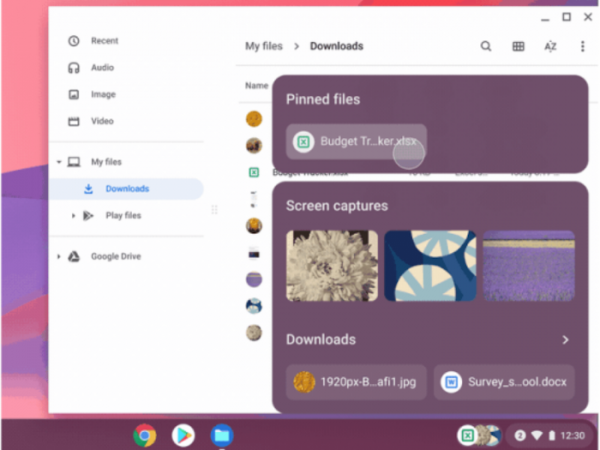
- A new 'Tote' icon has appeared in the panel next to the quick settings menu, allowing one-click access to recently saved screenshots, pinned files, or downloads.

- The camera application has integrated a feature for scanning QR codes. To scan a QR code, click the icon with a QR code image on the right side of the window.
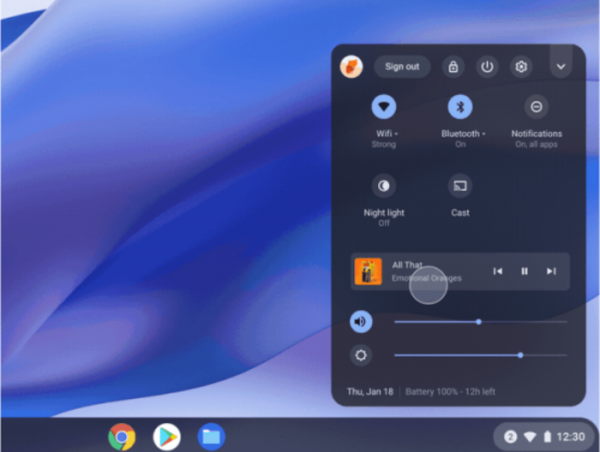
- Media file playback control has been simplified — playback control buttons from browsers or Android apps are now displayed in the quick settings menu panel. Users can quickly pause/resume playback or switch to the next track and pin the media player to the panel.

- New options for sharing files, images, and links have been added. For applications and websites, a Share button is now displayed, allowing you to directly send a file, image, or link to another application. For example, using the Share button, you can quickly send an image from the Files app to a text editor. In one of the upcoming releases, the Nearby Share feature is expected, enabling fast and secure file transfers between nearby Chrome OS and Android devices of different users.
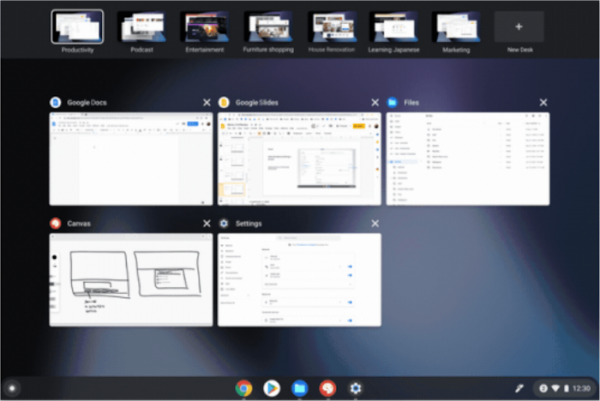
- The capabilities related to virtual desktops have been expanded. Up to 8 desktops can now be created. virtual desktops and rearranging them in any order using the drag & drop mechanism. The menu displayed when right-clicking has been enhanced with buttons to pin the window to a specific virtual desktop or to display the window on all desktops. The ability to use the Alt+Tab combination for viewing windows tied to the current virtual desktop or for all windows without separating them by desktops has been implemented.

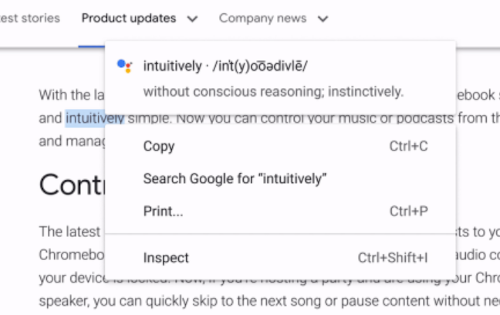
- The context menu displayed when right-clicking on a highlighted word or phrase now includes the Quick Answers feature, which allows for additional information, such as displaying data from a dictionary, performing translations, or converting units.

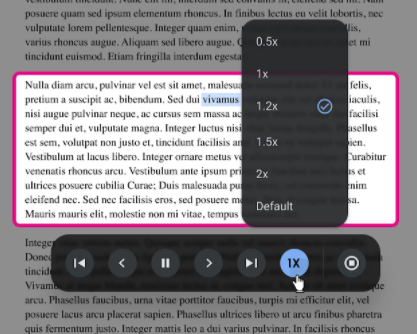
- Additional settings have been added to the text-to-speech feature for selected blocks (select-to-speak). For instance, on-the-fly adjustments to the pace, pausing reading, and switching to reading other excerpts have become possible.

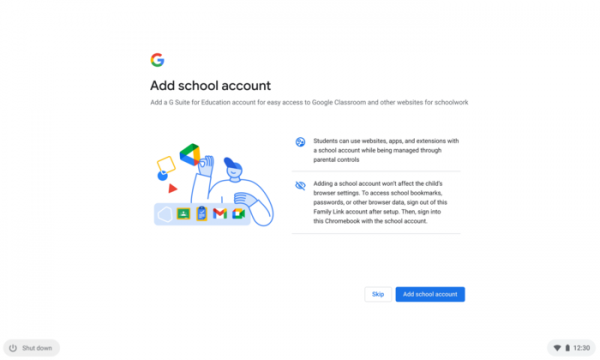
- The parental control mode 'Family Link' has been integrated into the initial setup wizard of the new Chromebook, allowing parents to immediately link their child's school account and monitor their activity on the device.

- The printing subsystem has been enhanced with support for scanning functions provided in multifunction devices that combine a printer and scanner. Scanning is conducted through the new Scan application.
- The icons of the built-in applications have been updated.
Source: opennet.ru
