

Hello, esteemed readers of the TS Solution blog, we continue our series of articles for NGFW CheckPoint solutions in the SMB segment. For your convenience, you can familiarize yourself with the model range, study the characteristics and capabilities in , and then we suggest moving on to unpacking and initial setup using real equipment, the Check Point 1590. .
For those who are just getting acquainted with the SMB model range — suitable for small offices or branches with up to 200 people (when choosing the 1590 model). One of the features of this family is the support for wireless connectivity, which can be useful when there are devices in the infrastructure that have a WiFi adapter or when the NGFW requires Internet access via mobile communication. For the listed tasks, you will need the following technologies: WiFi, LTE. This article discusses:
- Enabling and configuring the WiFi operating mode of the NGFW.
- Enabling and configuring the LTE operating mode of the NGFW.
- General conclusions about wireless technologies for NGFW.
NGFW and WiFi
Returning to the second part of our series, we had the option for wireless user connection turned off, so you'll need to go to the tab Device → Network → Wireless
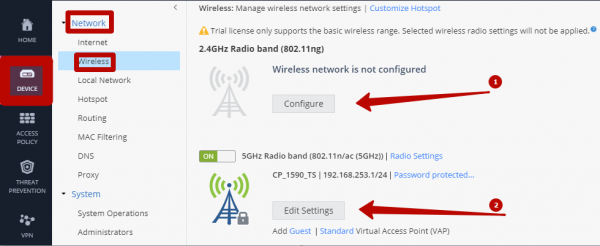
In the screenshot I provided, there are two possible operating modes for WiFi:
- 2.4 GHz — a frequency supported by most generations of various wireless devices.
- 5 GHz — a frequency that is the modern standard for working with wireless devices, supported by all modern smartphones, tablets, and laptops.
From the screenshot (above), it's also worth noting that I have already enabled the 5 GHz operating mode, let's configure the 2.4 GHz mode together, for this click the button ‘Configure’.
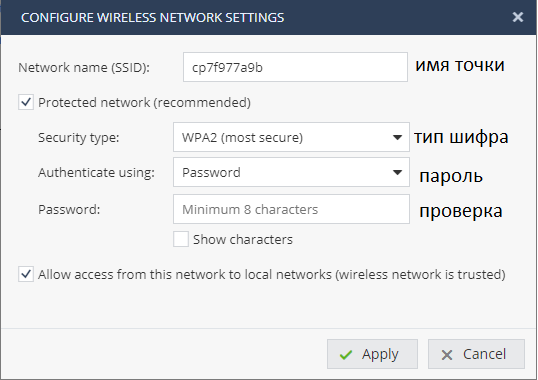
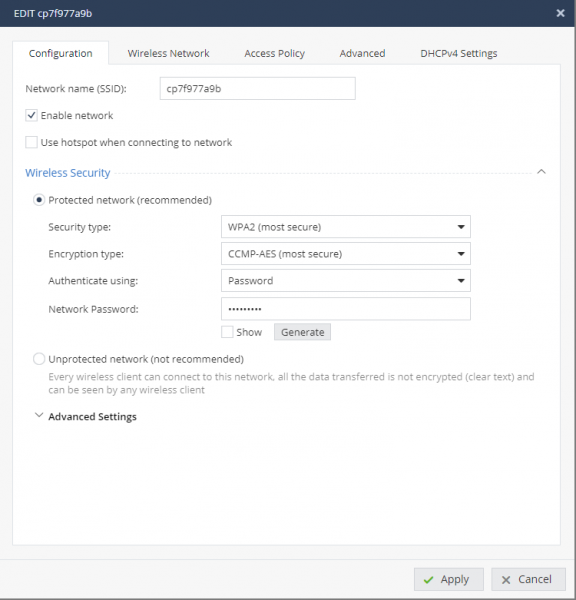
In the access point creation window, we are prompted to specify a standard set of parameters. As an authentication method, you can use a password or a Radius server. The option 'Allow access from this network to local networks' controls your wireless clients' access to internal resources that are behind the Check Point NGFW. Once your access point is configured, you will be able to change more parameters.
Available Settings
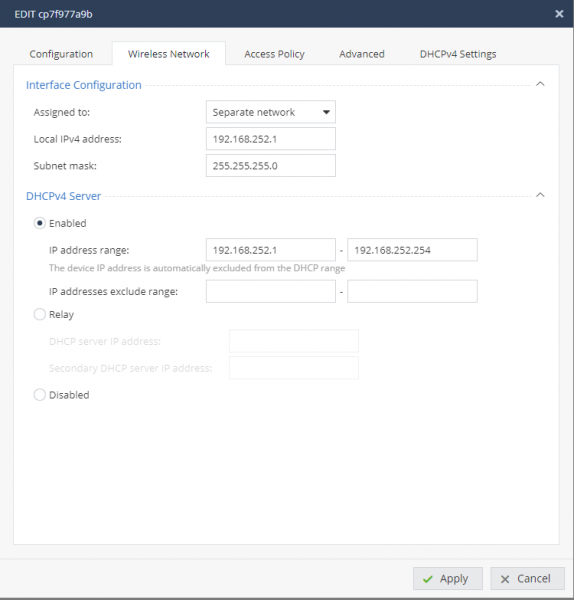
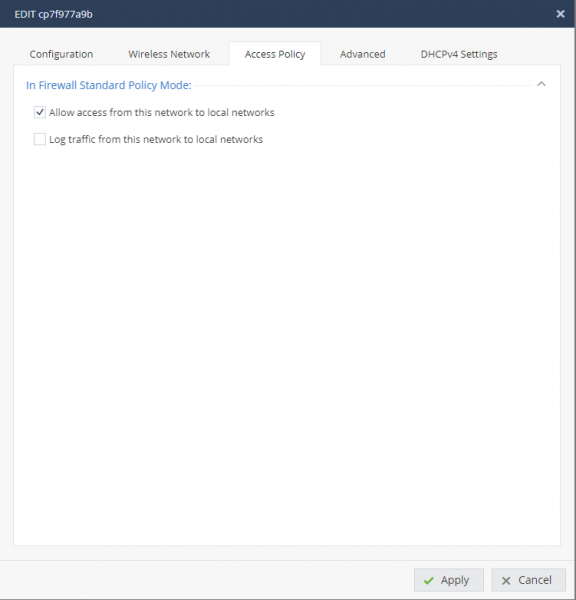
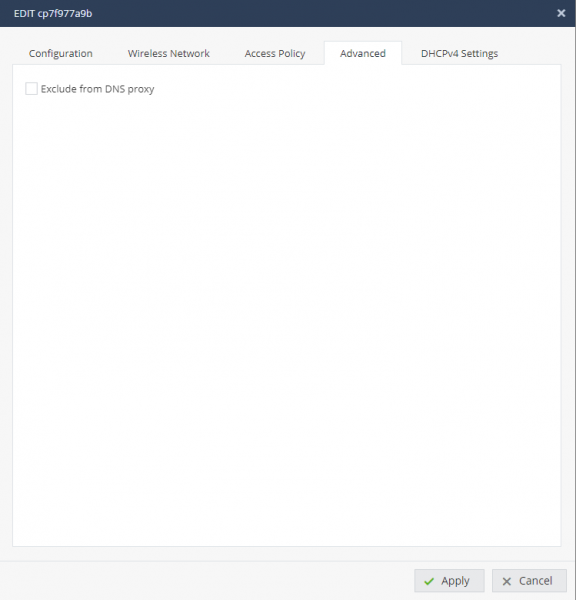
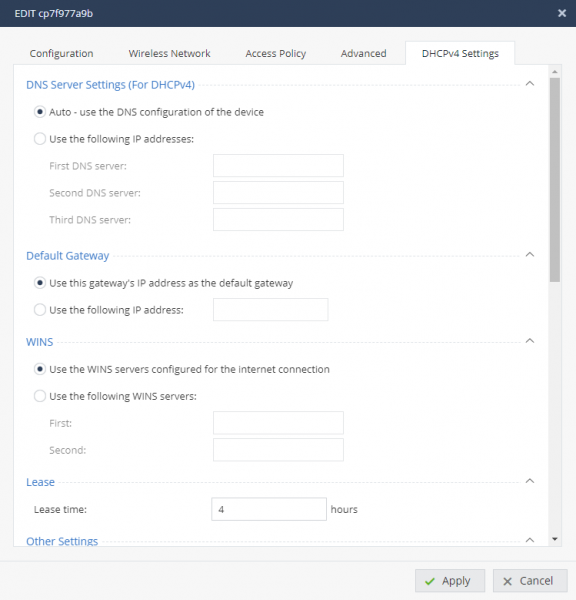
After the tested device has connected to your access point, we can ensure it is on our network, go to the tab: Logs & Monitoring → Status → Wireless Active Devices
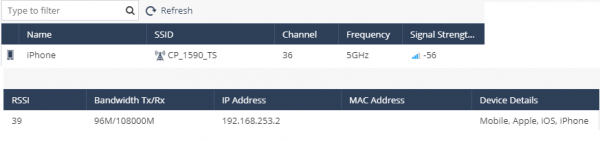
If you click on an object with a name, you will see the properties of the connected client:
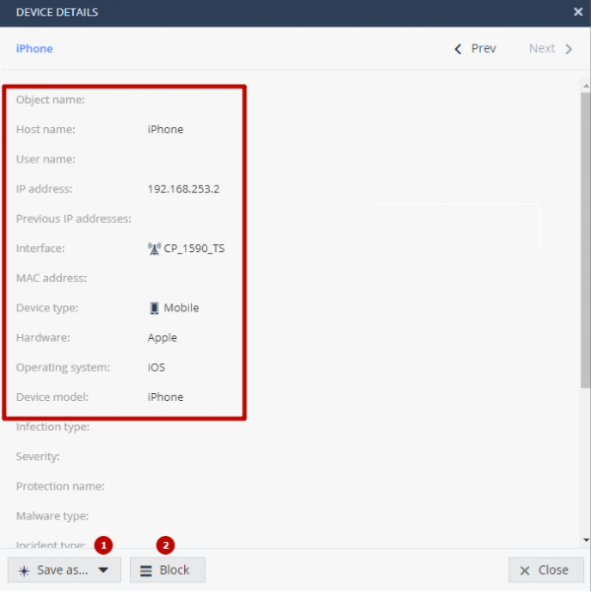
In addition to device information, I find the following options useful:
- save the object for use in rules (1);
- block access for this client (2).
Next, based on our settings for the Application Blade (in CheckPoint terminology one of the modules) — access to potentially dangerous links is prohibited.
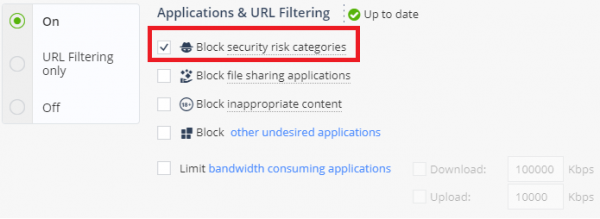
Let's try to open one of the categories on a mobile device, connecting via WiFi to the NGFW Check Point and consequently accessing the Internet through it.

Output: The user was unable to access the website that falls under the category — Anonymizer.
Thus, we have reviewed the basic setup for connecting users via WiFi, which is convenient in small offices where there are quite a few wireless devices. At the same time, the Check Point NGFW solution allows you to protect your users from vulnerabilities and malicious content, providing flexible control over wireless hosts. I would also like to mention the administration via the mobile application, the method was described in one of our .
NGFW and LTE
Models 1570 and 1590 come with an LTE modem that allows you to use Micro/Nano SIM and thereby establish a 4G connection. For the curious, we will leave a brief reminder under the spoiler.
Instructions for installing the SIM
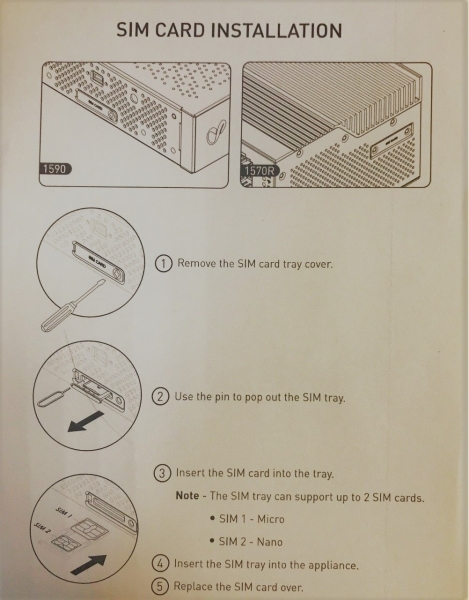
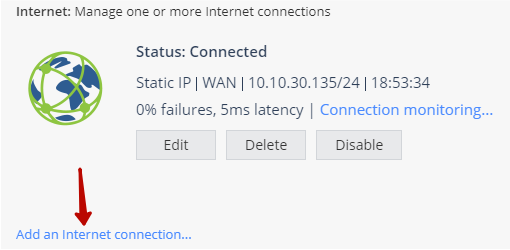
So, you have installed the SIM, after which you need to return to the Gaia Portal and go to the next section Device → Network → Internet. By default, you will have one WAN connection established, you need to create a new connection by following the red arrow.
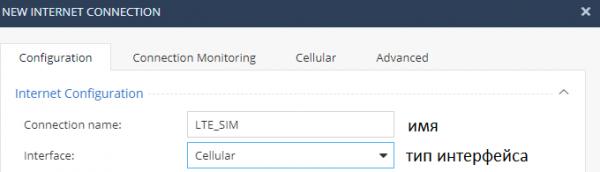
Where we will need to specify the connection name, define the interface type (in our case Cellular)
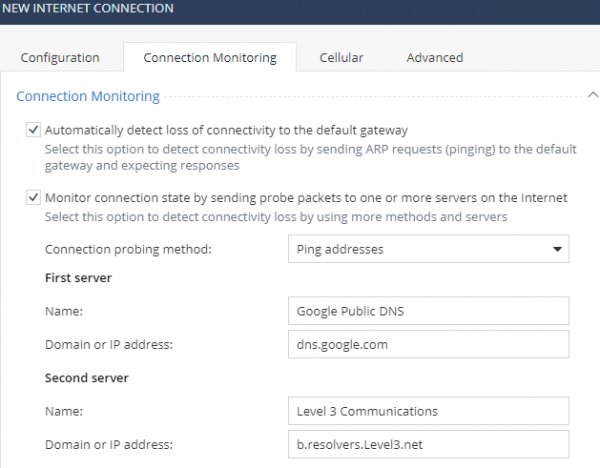
Additionally, we will open the tab "Connection Monitoring", here you have the option to automatically send: ARP requests to the default route, ICMP packets to specified sources; I would note that you can specify your own resources for monitoring.
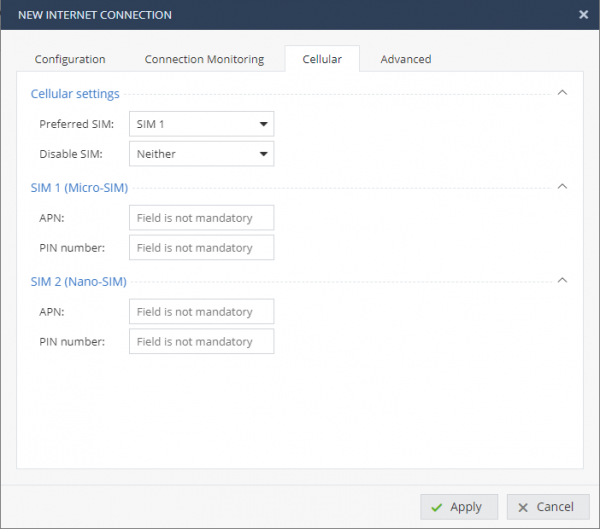
Tab "Cellular" is responsible for the selection of priorities between SIM cards, entering authentication data if required (APN, PIN).
In the tab "Advanced" allows you to set network settings:
- settings for the interface (MTU, MAC)
- QOS
- ISP Redundancy
- NAT
- DHCP
After you create a new type of connection, you will find the table of Internet connections in Device → Network → Internet:
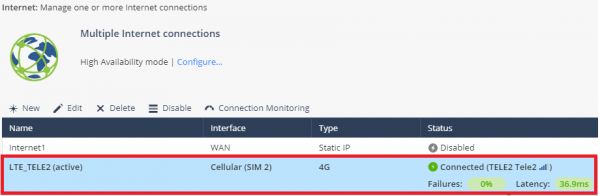
In the screenshot above, we see a new connection 'LTE_TELE2', which you probably guessed is a SIM from the provider Tele2. The table provides information about the signal level, shows the percentage of packet loss, and the latency time. Additionally, it is possible to open the option Connection Monitoring.
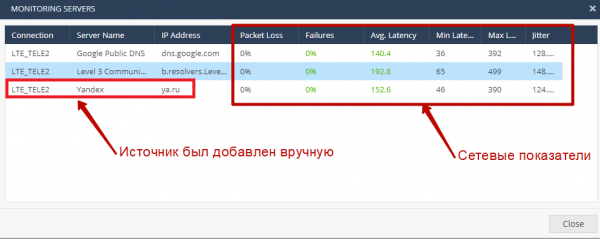
In the monitoring window, we see the results of requests sent to three servers, one of which is custom (ya.ru). Here it displays:
- the percentage of packet loss;
- the percentage of network errors;
- response time (average, minimum, and maximum);
- jitter.
If you are interested in system information about the LTE modem on the NGFW Check Point, you should go to Logs & Monitoring → Diagnostics → Tools → Monitor Cellular Modem:
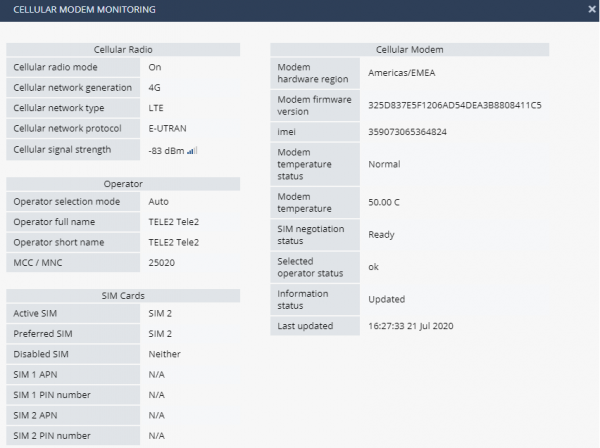
Next, we analyzed the Internet speed for the end host connected to the NGFW via WiFi (5 GHz), while the gateway uses an LTE connection to send packets to the global network. The values obtained were compared to a situation where the same geographic location is used, but the phone connects to the Internet directly. The results are conveniently hidden under a spoiler.
SpeedTest Results
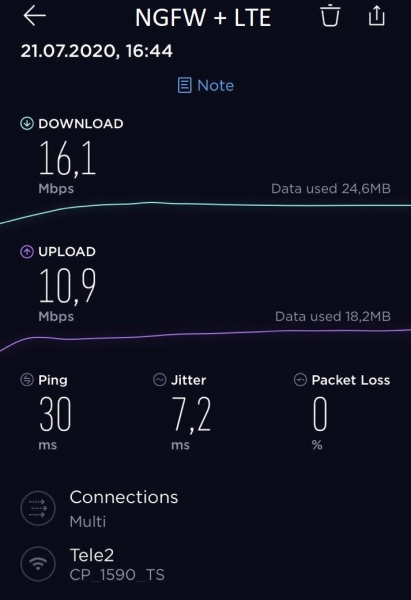
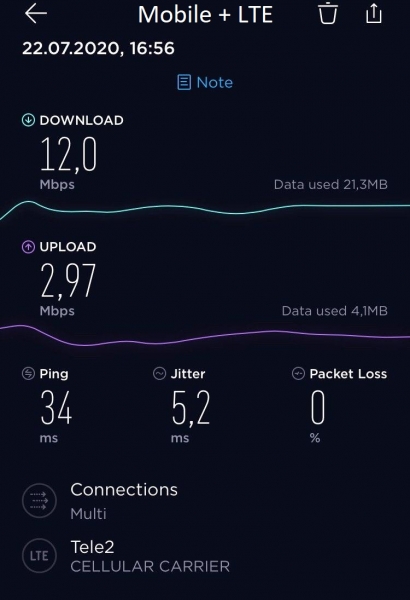
Of course, these indicators have inaccuracies and their own characteristics, let's put forward a hypothesis: NGFW 1590 enhances the power of the incoming cellular signal through two external antennas. This statement is indirectly supported by the SpeedTest results, conducted under the same conditions, showing reduced Ping and delay times to the same resource.
The object
NGFW + LTE
Mobile + LTE
Ping (ms)
30
34
Jitter (ms)
7.2
5.2
Download speed (Mbp/s)
16.1
12
Upload speed (Mbp/s)
10.9
2.97
To assess the effectiveness of the external antennas of the NGFW Check Point 1590, we measured the signal reception level, after which we performed a similar measurement for the phone using the engineering menu. The results are presented below:
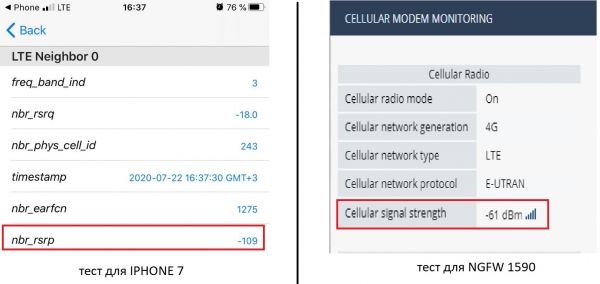
Accordingly, the reception power level is considered optimal when its negative value approaches 0. The obtained value for the phone was (-109 dBm), and for the modem (-61 dBm). This generally confirms our hypothesis and indicates the stability of the NGFW family SMB LTE connection.
General conclusions
In summary of today's section, we examined two technologies, WiFi and LTE, which are supported by the Check Point models 1570 and 1590.
For small offices and branches, it's not always possible to set up separate wireless access points, so the NGFW will help organize a wireless network and, most importantly, protect those users.
As for the LTE modem based on NGFW, I believe the following use cases will be in demand:
- The lack of an ability to connect via cable for Internet access. In this case, you will have to use mobile connectivity to ensure Internet connection. This scenario is also relevant for specific companies whose activities require a 'mobile' placement of their network infrastructure, regardless of conditions (terrain, availability of wired connections, etc.).
- Redundancy of the main wired access channel. I remind you that the NGFW supports working with two SIM cards, which increases the reliability of your infrastructure in case of a failure with one of the wired links. You can also manually switch on the LTE connection, depending on the use case.
. Stay tuned for updates (, , , , ).
Source: habr.com
