

Hello, Habr! You may have heard that a new Windows Terminal is coming soon. We've already written about it. . Our colleague Scott Hanselman has prepared some tips on how to work with the new terminal. Join us!
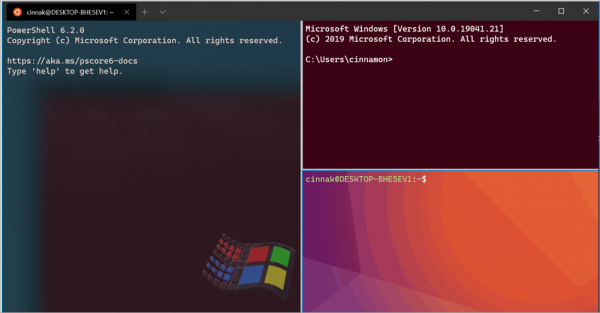
So, you've downloaded Windows Terminal and... what's next?
At first, you may not be thrilled. After all, it’s still a Terminal, and it won’t hold your hand.
1) Review the
2) Settings are expressed in . You'll have better success if your JSON file editor is something like and supports JSON schema and intellisense.
- Check your default settings! For clarity, here’s my (which is by no means perfect). I set requestedTheme, alwaysShowTabs, and defaultProfile.
3) Decide on keyboard shortcuts. Windows Terminal has .
- Any key you press can be remapped.
4) Does the styling meet your desires?
- At there are several themes for the terminal.
- And here are dozens of , their color solutions can be visually explored. .
5) Want to take it to the next level? Explore background images.
- You can set background images or even GIFs. More details .
6) Specify your startingDirectory.
- If you're using WSL, you may eventually want your starting directory to be located in the .
7) You can still use Far, GitBash, Cygwin, or cmder if you want. Details can be found in .
8) Explore the Windows Terminal command line arguments.
- You may know that you can launch Windows Terminal using 'wt.exe', but now you can also use command-line arguments! Here are a few examples:
wt ; split-pane -p "Windows PowerShell" ; split-pane -H wsl.exe
wt -d .
wt -d c:github
At this stage, you can customize as much as you want. Create different icons, pin them to the taskbar, go all out. Also, check out subcommands like new-tab, split-pane, and focus-tab.
9) I recorded , demonstrating to a person accustomed to Mac and Linux how to set up Windows Terminal with WSL (Windows Subsystem for Linux); you might find it interesting.
Please share your tips, profiles, and favorite terminal themes below!
Source: habr.com
