

Hello, Habr! Today we will build a system that uses Spark Streaming to process Apache Kafka message streams and write the processing results to the AWS RDS cloud database.
Imagine a credit organization tasked with processing incoming transactions "on the fly" across all its branches. This can be done for the rapid calculation of the open currency position for the treasury, limits, or financial results from transactions, etc.
How to implement this case without magic and spells — read on! Let's go!

Introduction
Certainly, processing large volumes of data in real time offers vast opportunities for use in modern systems. One of the most popular combinations for this is the tandem of Apache Kafka and Spark Streaming, where Kafka creates a stream of incoming message packets, and Spark Streaming processes these packets over a specified time interval.
To enhance the application's fault tolerance, we will use checkpoints. With this mechanism, when the Spark Streaming module needs to recover lost data, it only has to revert to the last checkpoint and resume computations from there.
Architecture of the developed system
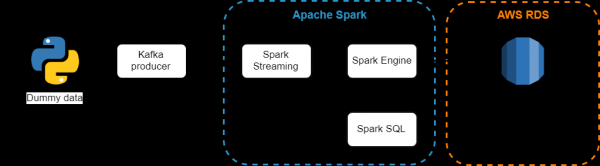
Components used:
- — is a distributed messaging system with publish-subscribe capabilities. It is suitable for both offline and online consumption of messages. To prevent data loss, Kafka messages are saved to disk and replicated within the cluster. The Kafka system is built on top of the ZooKeeper synchronization service;
- — Spark component for processing streaming data. The Spark Streaming module is built using a micro-batch architecture, where a data stream is interpreted as a continuous sequence of small data packets. Spark Streaming receives data from various sources and combines it into small packages. New packages are created at regular time intervals. At the beginning of each time interval, a new package is created, and any data received during this interval is included in the package. The increase in the package stops at the end of the interval. The length of the interval is defined by a parameter called the batch interval.
- — combines relational processing with Spark's functional programming. Structured data is understood as data having a schema, meaning a consistent set of fields for all records. Spark SQL supports input from multiple sources of structured data and, with the available schema information, can efficiently extract only the necessary fields of records, as well as providing DataFrame API interfaces.
- — is a relatively inexpensive cloud relational database, a web service that simplifies the setup, operation, and scaling, managed directly by Amazon.
Setting up and running a Kafka server
Before using Kafka, ensure that Java is available, as the JVM is required for operation:
sudo apt-get update
sudo apt-get install default-jre
java -version
Let's create a new user to work with Kafka:
sudo useradd kafka -m
sudo passwd kafka
sudo adduser kafka sudo
Next, download the distribution from the official Apache Kafka website:
wget -P /YOUR_PATH "http://apache-mirror.rbc.ru/pub/apache/kafka/2.2.0/kafka_2.12-2.2.0.tgz"Extract the downloaded archive:
tar -xvzf /YOUR_PATH/kafka_2.12-2.2.0.tgz
ln -s /YOUR_PATH/kafka_2.12-2.2.0 kafka
The next step is optional. The default settings do not allow for full exploitation of all features of Apache Kafka. For example, deleting topics, categories, and groups that messages can be published to. To change this, we will edit the configuration file:
vim ~/kafka/config/server.propertiesAdd the following to the end of the file:
delete.topic.enable = trueBefore starting the Kafka server, you need to start the ZooKeeper server. We'll use the helper script that comes with the Kafka distribution:
cd ~/kafka
bin/zookeeper-server-start.sh config/zookeeper.properties
Once ZooKeeper has started successfully, in a separate terminal, we will start the Kafka server:
bin/kafka-server-start.sh config/server.propertiesLet's create a new topic called Transaction:
bin/kafka-topics.sh --create --zookeeper localhost:2181 --replication-factor 1 --partitions 3 --topic transactionWe will ensure that the topic with the required number of partitions and replication has been created:
bin/kafka-topics.sh --describe --zookeeper localhost:2181 
We will skip the moments of testing the producer and consumer for the newly created topic. More details on how to test sending and receiving messages are provided in the official documentation — . Now we move on to writing a producer in Python using the KafkaProducer API.
Writing the producer
The producer will generate random data — 100 messages every second. By random data, we mean a dictionary consisting of three fields:
- Branch — the name of the credit organization sales point;
- Currency — the currency of the transaction;
- Amount — the amount of the transaction. The amount will be a positive number if it's a purchase of currency by the Bank and negative if it's a sale.
The code for the producer looks as follows:
from numpy.random import choice, randint

def get_random_value():
    new_dict = {}

    branch_list = ['Kazan', 'SPB', 'Novosibirsk', 'Surgut']
    currency_list = ['RUB', 'USD', 'EUR', 'GBP']

    new_dict['branch'] = choice(branch_list)
    new_dict['currency'] = choice(currency_list)
    new_dict['amount'] = randint(-100, 100)

    return new_dict
Next, using the send method, we send a message to the server, to the required topic, in JSON format:
from kafka import KafkaProducer

producer = KafkaProducer(bootstrap_servers=['localhost:9092'],
                             value_serializer=lambda x:dumps(x).encode('utf-8'),
                             compression_type='gzip')
my_topic = 'transaction'
data = get_random_value()

try:
    future = producer.send(topic=my_topic, value=data)
    record_metadata = future.get(timeout=10)

    print('--> The message has been sent to a topic:
            {}, partition: {}, offset: {}'
            .format(record_metadata.topic,
                record_metadata.partition,
                record_metadata.offset ))

except Exception as e:
    print('--> It seems an Error occurred: {}'.format(e))

finally:
    producer.flush()
When running the script, we get the following messages in the terminal:
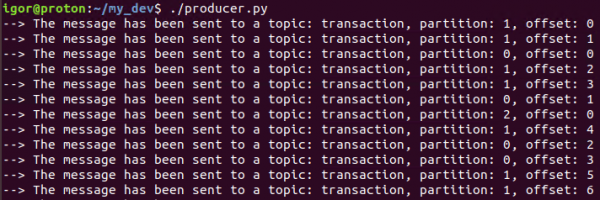
This means that everything is working as we wanted — the producer generates and sends messages to the required topic.
The next step will be to install Spark and process this stream of messages.
Installing Apache Spark
Apache Spark — is a versatile and high-performance cluster computing platform.
In terms of performance, Spark surpasses popular implementations of the MapReduce model, while providing support for a wider range of computation types, including interactive queries and stream processing. Speed plays a crucial role when processing large volumes of data, as it allows for interactive operations without wasting minutes or hours waiting. One of the key advantages of Spark that ensures such high speed is its ability to perform computations in memory.
This framework is written in Scala, so it is necessary to install it first:
sudo apt-get install scalaDownload the Spark distribution from the official website:
wget "http://mirror.linux-ia64.org/apache/spark/spark-2.4.2/spark-2.4.2-bin-hadoop2.7.tgz"Extract the archive:
sudo tar xvf spark-2.4.2/spark-2.4.2-bin-hadoop2.7.tgz -C /usr/local/sparkAdd the Spark path to the bash file:
vim ~/ .bashrcAdd the following lines through the editor:
SPARK_HOME=/usr/local/spark
export PATH=$SPARK_HOME/bin:$PATH
Run the command below after making changes to bashrc:
source ~/ .bashrcDeploying AWS PostgreSQL
Next, we need to deploy the database where we will upload the processed information from the streams. For this, we will use the AWS RDS service.
Log into the AWS console —> AWS RDS —> Databases —> Create database:
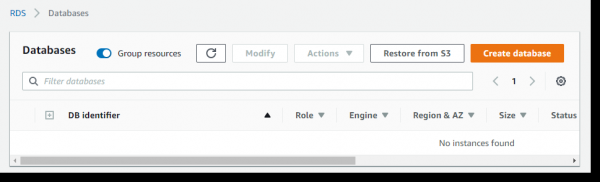
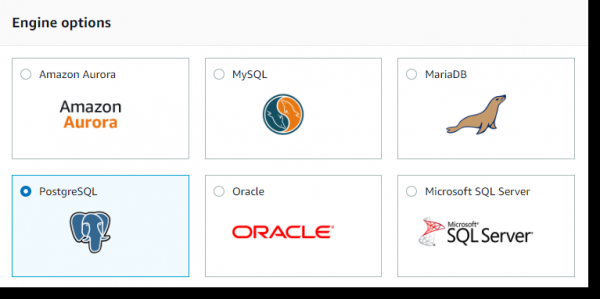
Select PostgreSQL and click the Next button:
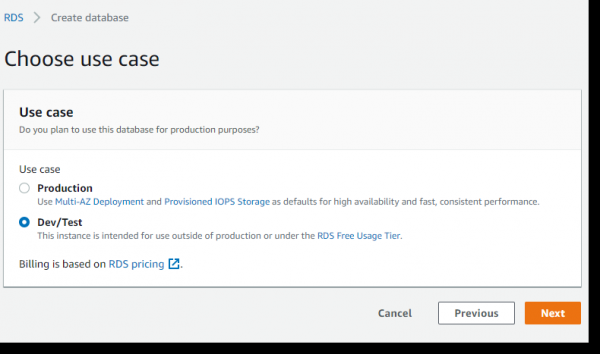
Since this example is examined solely for educational purposes, we will be using a minimal free server (Free Tier):
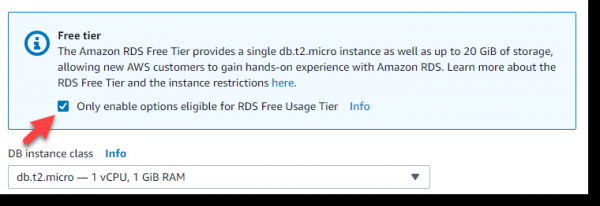
Next, check the box in the Free Tier section, and after that, we will automatically be offered an instance of class t2.micro — although it's a bit weak, it's free and quite suitable for our task:
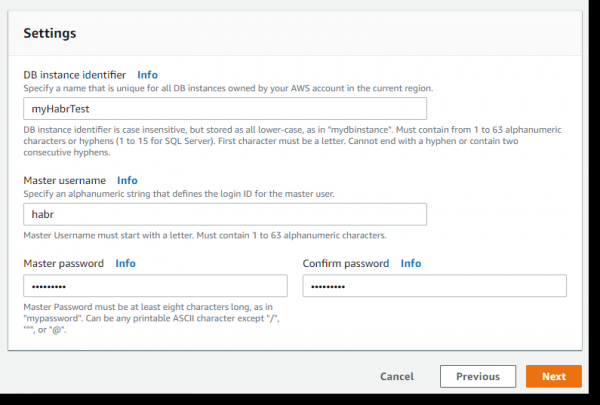
Next are very important details: the instance name, master username, and password. We will name the instance: myHabrTest, master user: habr, password: habr12345 and click the Next button:
On the next page, there are parameters that determine the availability of our DB server from the outside (Public accessibility) and port accessibility:
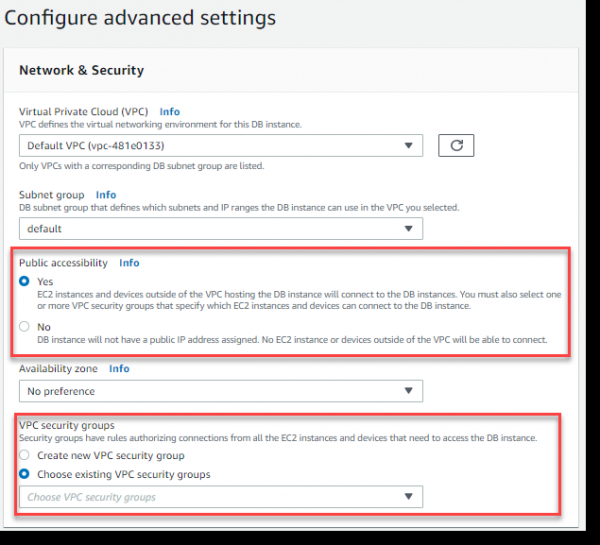
Let's create a new setting for the VPC security group that will allow external access to our DB server via port 5432 (PostgreSQL).
In a separate browser window, go to the AWS console under VPC Dashboard —> Security Groups —> Create security group:

We set a name for the Security group — PostgreSQL, description, specify which VPC this group should be associated with and click the Create button:

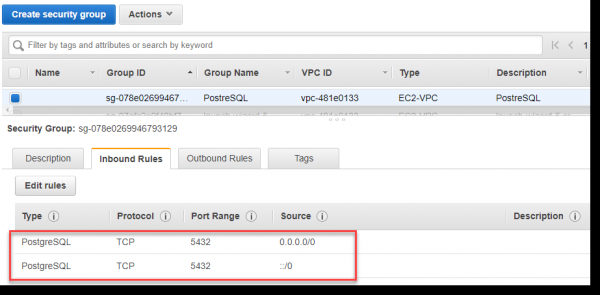
We fill in the Inbound rules for port 5432 for the newly created group, as shown in the image below. You can manually specify the port or select PostgreSQL from the Type dropdown list.
Strictly speaking, the value ::/0 means incoming traffic is available to the server from everywhere in the world, which is not necessarily correct canonically, but for the sake of this example, we’ll allow ourselves to use this approach:
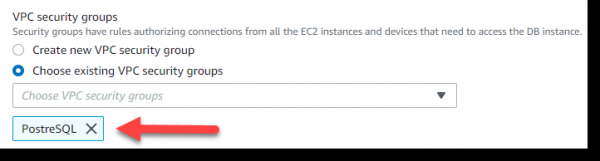
We return to the browser page where we have 'Configure advanced settings' open and select in the VPC security groups section —> Choose existing VPC security groups —> PostgreSQL:
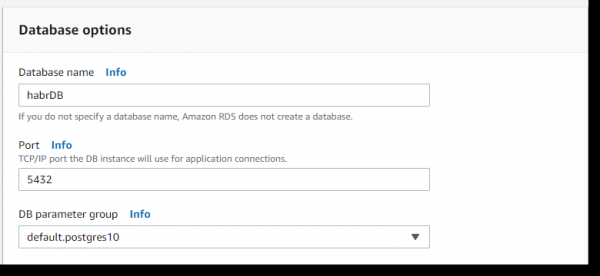
Next, in the Database options section —> Database name —> we set the name — habrDB.
The remaining settings, except perhaps for disabling backup (backup retention period — 0 days), monitoring, and Performance Insights, can be left as default. Click the Create database:
Stream handler
The final step will be to develop a Spark job that will process the new data coming from Kafka every two seconds and write the results to the database.
As mentioned earlier, checkpoints are the main mechanism in Spark Streaming that should be set up to ensure fault tolerance. We will use checkpoints and, in the event of a procedure failure, the Spark Streaming module will need to return to the last checkpoint and resume operations from there.
You can enable a checkpoint by setting a directory in a fault-tolerant, reliable file system (e.g., HDFS, S3, etc.) where the checkpoint information will be saved. This is done using, for example:
streamingContext.checkpoint(checkpointDirectory)In our example, we will use the following approach, namely that if checkpointDirectory exists, the context will be recreated from the checkpoint data. If the directory does not exist (i.e., it is being executed for the first time), the function functionToCreateContext is called to create a new context and set up the DStreams:
from pyspark.streaming import StreamingContext

context = StreamingContext.getOrCreate(checkpointDirectory, functionToCreateContext)
We create a DirectStream object to connect to the 'transaction' topic using the createDirectStream method of the KafkaUtils library:
from pyspark.streaming.kafka import KafkaUtils

sc = SparkContext(conf=conf)
ssc = StreamingContext(sc, 2)

broker_list = 'localhost:9092'
topic = 'transaction'

directKafkaStream = KafkaUtils.createDirectStream(ssc,
                                [topic],
                                {"metadata.broker.list": broker_list})
Parsing incoming data in JSON format:
rowRdd = rdd.map(lambda w: Row(branch=w['branch'],
                                       currency=w['currency'],
                                       amount=w['amount']))

testDataFrame = spark.createDataFrame(rowRdd)
testDataFrame.createOrReplaceTempView("treasury_stream")
Using Spark SQL, we perform a simple grouping and output the result to the console:
select
    from_unixtime(unix_timestamp()) as curr_time,
    t.branch                        as branch_name,
    t.currency                      as currency_code,
    sum(amount)                     as batch_value
from treasury_stream t
group by
    t.branch,
    t.currency
Getting the query text and executing it via Spark SQL:
sql_query = get_sql_query()
testResultDataFrame = spark.sql(sql_query)
testResultDataFrame.show(n=5)
Then, we save the aggregated data into a table in AWS RDS. To save the aggregation results into the database table, we will use the write method of the DataFrame object:
testResultDataFrame.write
    .format("jdbc")
    .mode("append")
    .option("driver", 'org.postgresql.Driver')
    .option("url","jdbc:postgresql://myhabrtest.ciny8bykwxeg.us-east-1.rds.amazonaws.com:5432/habrDB")
    .option("dbtable", "transaction_flow")
    .option("user", "habr")
    .option("password", "habr12345")
    .save()
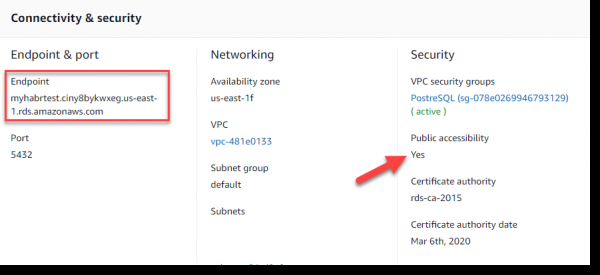
A few words about configuring the connection to AWS RDS. We created the username and password in the "Deploying AWS PostgreSQL" step. As the database server URL, we should use the Endpoint displayed in the Connectivity & security section:
To ensure the correct integration of Spark and Kafka, the job should be run via spark-submit using the artifact spark-streaming-kafka-0-8_2.11. Additionally, we will also apply the artifact for interaction with the PostgreSQL database, transmitted via —packages.
For the flexibility of the script, we will also extract the message server name and the topic from which we want to receive data as input parameters.
It’s time to run and check the system's functionality:
spark-submit
--packages org.apache.spark:spark-streaming-kafka-0-8_2.11:2.0.2,
org.postgresql:postgresql:9.4.1207
spark_job.py localhost:9092 transaction
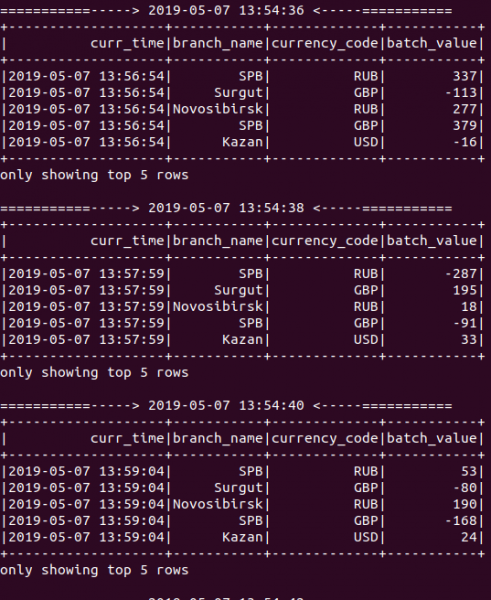
It worked! As seen in the image below — during the application's operation, new aggregation results are displayed every 2 seconds because we set the batching interval to 2 seconds when creating the StreamingContext object:
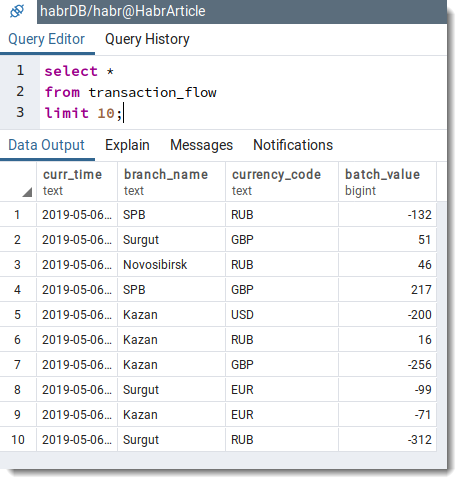
Next, we make a simple query to the database to check the presence of records in the table transaction_flow:
Conclusion
This article discussed an example of stream processing using Spark Streaming in conjunction with Apache Kafka and PostgreSQL. With the growing volumes of data from various sources, the practical value of Spark Streaming for creating streaming applications and real-time applications is hard to overestimate.
You can find the complete source code in my repository on .
I would be happy to discuss this article, I look forward to your comments, and I hope for constructive criticism from all interested readers.
Wishing you success!
Ps. Initially, it was planned to use a local PostgreSQL database, but considering my love for AWS, I decided to move the database to the cloud. In the next article on this topic, I will show how to implement the entire above-described system in AWS using AWS Kinesis and AWS EMR. Stay tuned!
Source: habr.com
