

Next, there will be instructions on setting up AWS MFA and subsequently installing and configuring AWS CLI.
Unfortunately, this mandatory procedure took me half a working day. To help other uncertain AWS users 😉 like myself not to waste precious time on the mundane task, I decided to create a guide.
Even for a sandbox account, the setup of is generally a mandatory requirement. That's the case for us.
MFA Setup
- Install
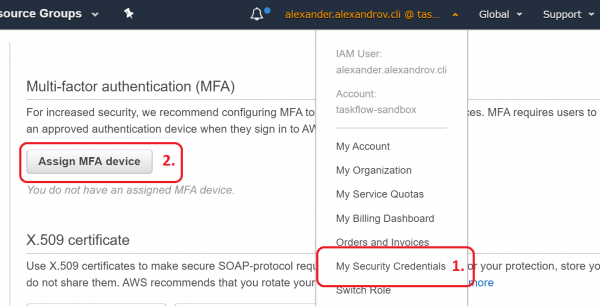
- Go to
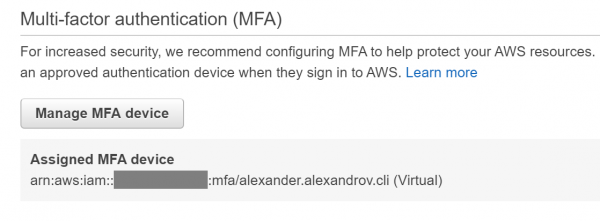
- -> Assign MFA Device

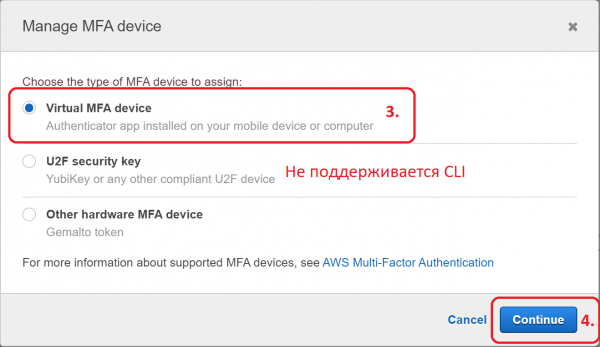
- Virtual MFA Device

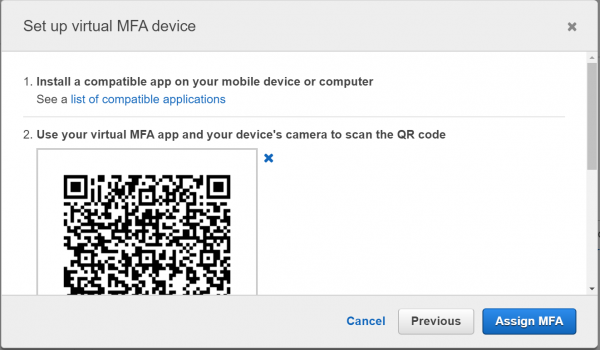
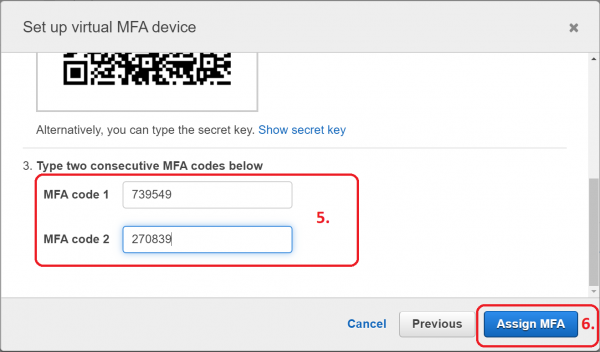
- Follow the on-screen instructions


- The virtual device is ready

Installing AWS CLI
Setting up a named profile
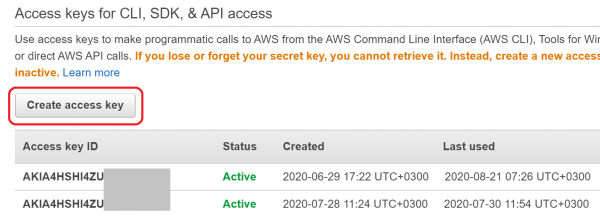
- -> Create access key

- Copy the key to your clipboard. You will need it in the next step.
$ aws configure --profile
AWS CLI with MFA
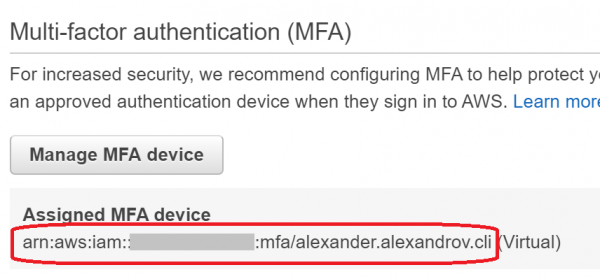
- Copy the ARN of the virtual device

aws sts get-session-token --profile --serial-number --token-code
The one-time password should be obtained from the mobile application configured earlier.- The command will output JSON, the individual fields of which need to be substituted into the corresponding AWS_ACCESS_KEY_ID, AWS_SECRET_ACCESS_KEY, AWS_SESSION_TOKEN environment variables.
I decided to automate through ~/.bash_profile
This script requires .
#!/usr/bin/env bash

aws_login() {
    session=$(aws sts get-session-token "$@")
    echo "${session}"
    AWS_ACCESS_KEY_ID=$(echo "${session}" | jq -r '.Credentials.AccessKeyId')
    export AWS_ACCESS_KEY_ID
    AWS_SECRET_ACCESS_KEY=$(echo "${session}" | jq -r '.Credentials.SecretAccessKey')
    export AWS_SECRET_ACCESS_KEY
    AWS_SESSION_TOKEN=$(echo "${session}" | jq -r '.Credentials.SessionToken')
    export AWS_SESSION_TOKEN
}

alias aws-login-dev='aws_login --profile <имя dev профиля> --serial-number <ARN виртуального устройства> --token-code '
alias aws-login-prod='aws_login --profile <имя prod профиля> --serial-number <ARN виртуального устройства> --token-code '
Usage:
$ aws-login-devI hope this guide helps you avoid wandering through the official documentation 😉
Source: habr.com

 Russian
 Italian
 German
 Polish
 Estonian
 Albanian
 Bulgarian
 Croatian
 Czech
Czech Danish
 Dutch
Dutch English
 French
 Hungarian
 Latvian
 Norwegian
 Portuguese
 Romanian
 Slovak
 Slovenian
 Spanish
 Swedish