

In this article, I will discuss the features of the Cockpit tool. Cockpit is designed to simplify the administration of Linux operating systems. In brief, it allows you to perform the most common tasks of a Linux administrator through a user-friendly web interface. Features of Cockpit include: installation and checking for system updates and enabling auto-updates (the patching process), user management (creating, deleting, changing passwords, blocking, granting superuser rights), disk management (creating, editing LVM, creating, mounting file systems), network configuration (teaming, bonding, IP management, etc.), managing systemd units and timers.
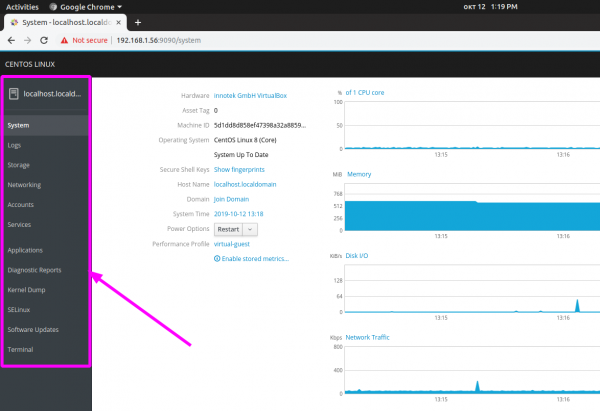
Interest in Cockpit has been fueled by the release of CentOS 8, where Cockpit is already built into the system and only needs to be activated with the command 'systemctl enable --now cockpit.service'. On other distributions, manual installation from the package repository will be required. We will not cover the installation here; please refer to
After installation, we need to navigate to port 9090 of the server where Cockpit is installed (i.e. :9090). For example, :9090
Enter your usual login and password for the local account and check the box 'Reuse my password for privileged tasks' to be able to run some commands as a privileged user (root). Naturally, your account must have permission to execute commands via sudo.
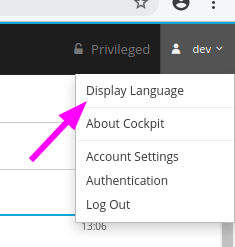
After logging in, you will see a beautiful and intuitive web interface. First, switch the interface language to English, as the translation is simply terrible.
The interface is very clear and logical; on the left, you will see the navigation panel:
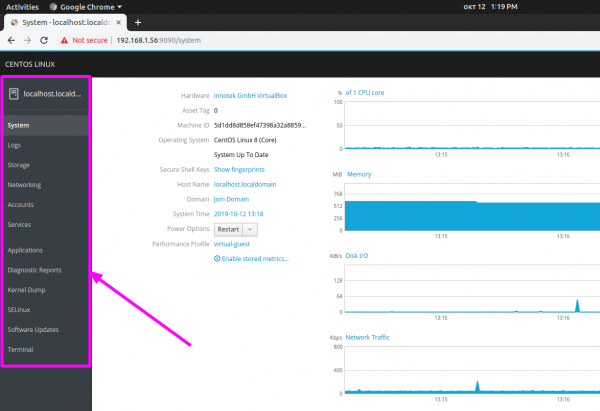
The starting section is called 'system', where you can see information about the server's resource utilization (CPU, RAM, Network, Disks):
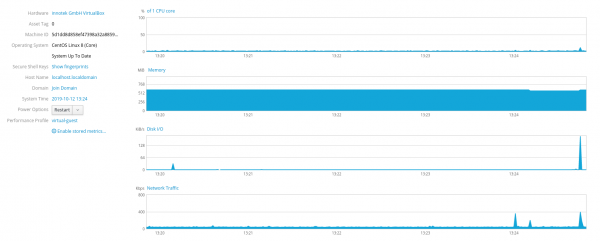
To view more detailed information, for example, about disks, simply click on the corresponding label, and you will be taken to another section (storage):
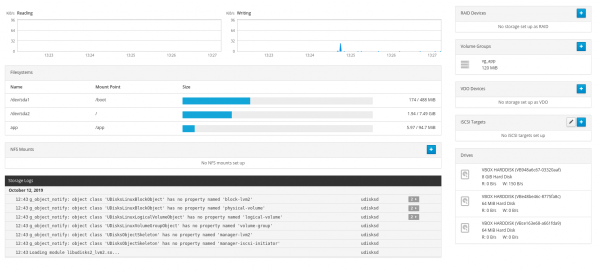
Here, you can also create LVM:
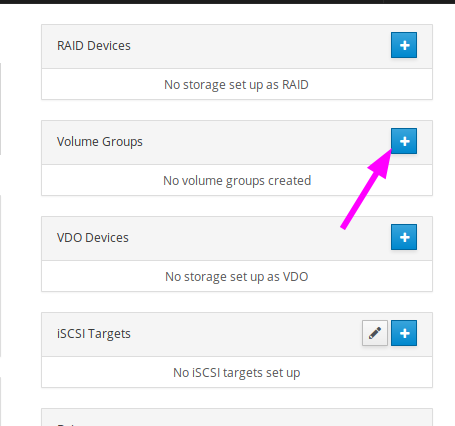
Choose a name for the VG group and the disks you want to use:
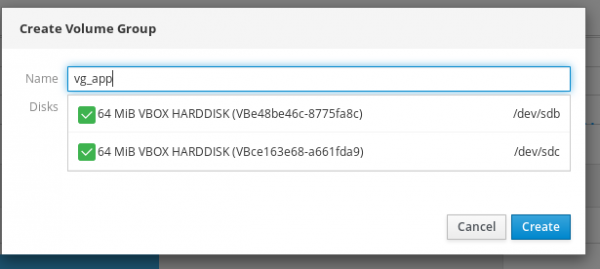
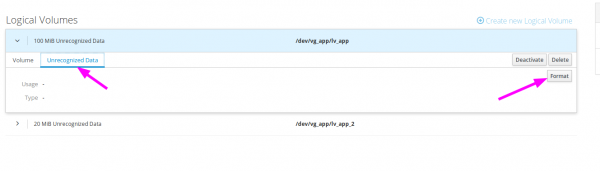
Specify a name for the LV and select the size:
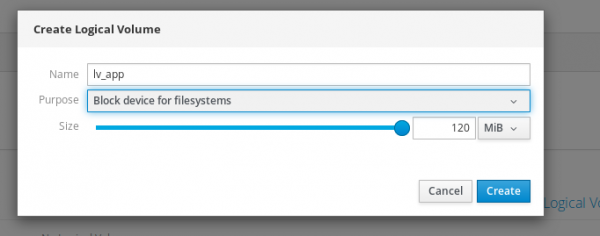
And finally, create the file system:
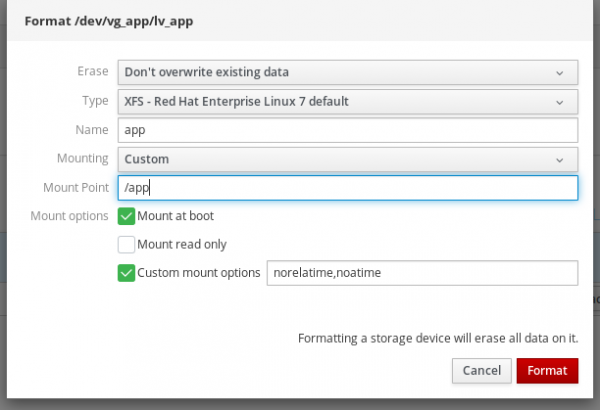
Note that Cockpit will automatically write the necessary line to fstab and mount the device. You can also specify specific mounting options:
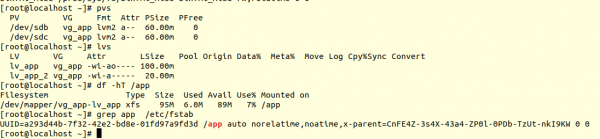
This is how it looks in the system:
Here you can expand or shrink file systems, add new devices to the vg group, etc.
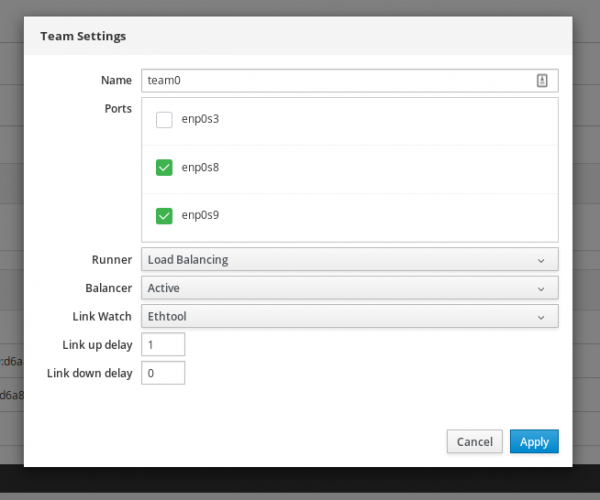
In the 'Networking' section, you can not only change typical network settings (IP, DNS, mask, gateway) but also create more complex configurations such as bonding or teaming:
Here's what a finished configuration looks like in the system:
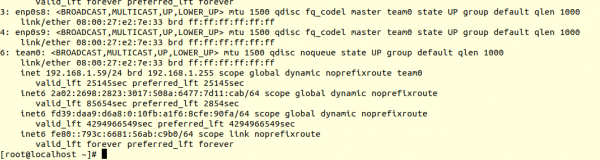
Agree that setting it up via vinano would be a bit longer and more complicated, especially for beginners.
In 'services', you can manage systemd units and timers: stop them, restart them, remove them from autostart. It's also very quick to create your own timer:
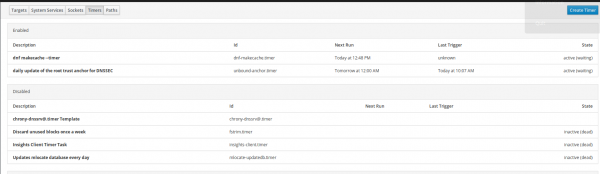
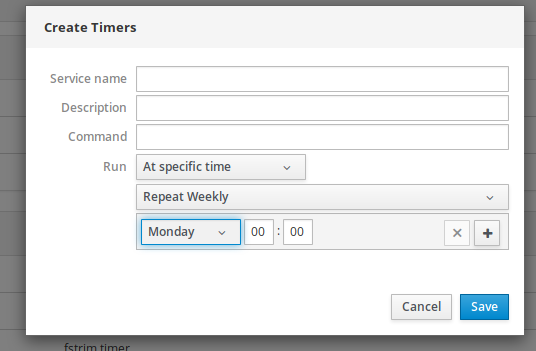
The only thing that is poorly done: it is unclear how often the timer is triggered. You can only see when it was last started and when it will start again.
In 'Software updates', as one might easily guess, you can view all available updates and install them:
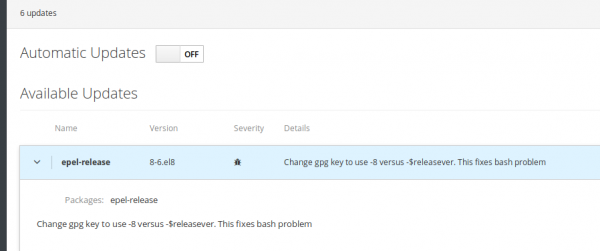
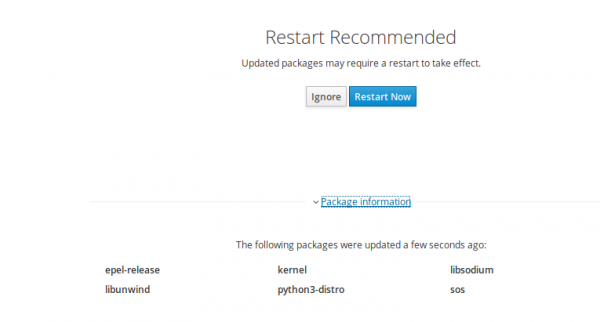
The system will notify us if a reboot is required:
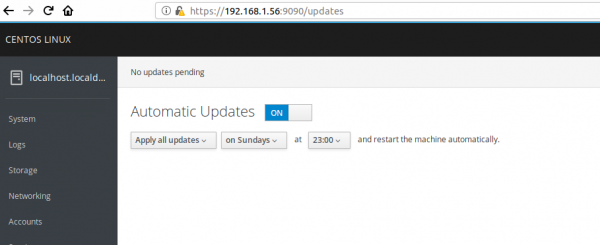
You can also enable automatic system updates and customize the update installation time:
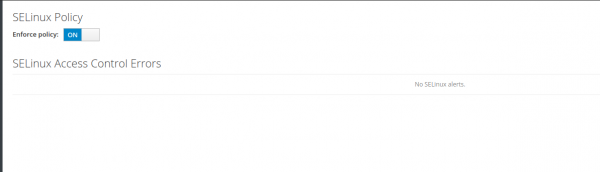
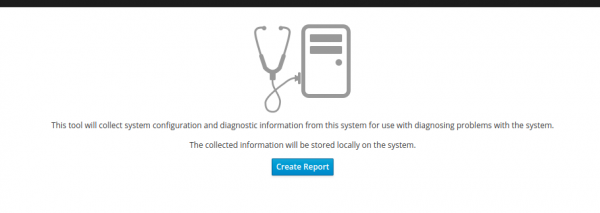
Additionally, in Cockpit, you can manage SeLinux, create a sosreport (useful when communicating with vendors to resolve technical issues):
User management is implemented as simply and clearly as possible:
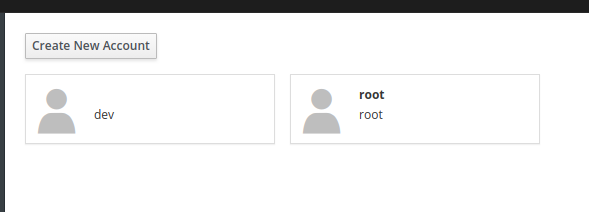
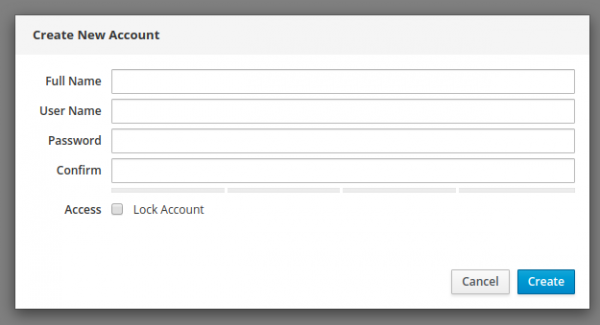
By the way, you can add SSH keys.
Finally, you can read system logs and sort them by importance:
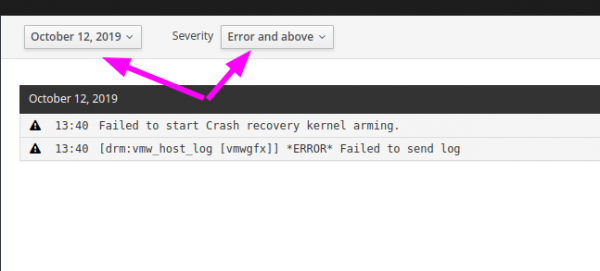
We went through all the main sections of the program.
Here's a brief overview of the capabilities. Whether to use Cockpit or not is entirely up to you. In my opinion, Cockpit can solve several problems and reduce server maintenance costs.
Key advantages:
- The entry barrier for administering Linux OS is significantly lowered thanks to such tools. Standard and basic actions can be performed by almost anyone. Administration can be partially delegated to developers or analysts to reduce costs and speed up operations. Now, instead of typing pvcreate, vgcreate, lvcreate, mkfs.xfs, creating a mount point, editing fstab, and finally typing mount -a, you just need to click the mouse a couple of times.
- You can relieve Linux administrators from routine tasks so they can focus on more complex issues.
- You can reduce the number of human errors. Agree that it's harder to make a mistake through a web interface than through the console.
My identified drawbacks:
- Limitations of the utility. It only allows for basic operations. For instance, you cannot immediately extend LVM after increasing the disk on the virtualization side; you need to first enter 'pvresize' in the console and only then can you continue working through the web interface. You cannot add a user to a certain group, change directory permissions, or analyze used space. A more comprehensive functionality would be desirable.
- The 'Applications' section did not function correctly.
- You cannot change the console color. Personally, I can only work comfortably with a light background and dark text:

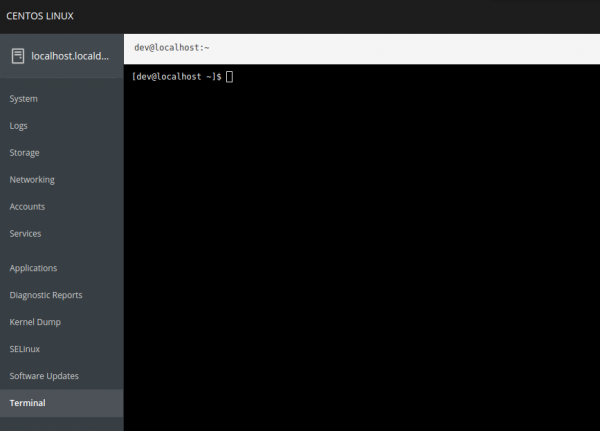
As we can see, the utility has great potential. If its functionality is expanded, performing many tasks could become even faster and simpler.
upd: there is also an option to manage multiple servers from one web interface by adding the required servers to the 'Machines dashboard'. This functionality, for example, can be useful for mass updating several servers at once. Read more in the .
Source: habr.com
