

NoteI apologize for the serious typo in the first version of the note. Thank you to all the readers who reported the mistake.
God Mode is a convenient way to access Windows commands in one window. Let's look at how to use this mode.
God Mode is a special option that has been available in Windows for a long time, providing you quick access to most commands from control panelHabr posted about this feature in Windows 7. However, significant changes in the interface in Windows 10 have made this option even more relevant.
God Mode, or the Master Control Panel of Windows, saves you significant time by eliminating the need to search through various windows and screens for the Control Panel command you need.
God Mode has always been considered a tool for advanced users and Windows developers, but it can be useful for anyone who wants a collection of commands available in one place. Since Microsoft no longer provides a convenient shortcut to the control panel in Windows 10, God Mode can be a fast and easy way to access all key commands. How to set up and use God Mode in Windows 10?
First, ensure that you are logged into your Windows 10 computer with an account that has administrative rights. To check this, go to 'Settings', select 'Accounts', and then look at the 'Your info' setting to confirm your account is designated as an administrator.
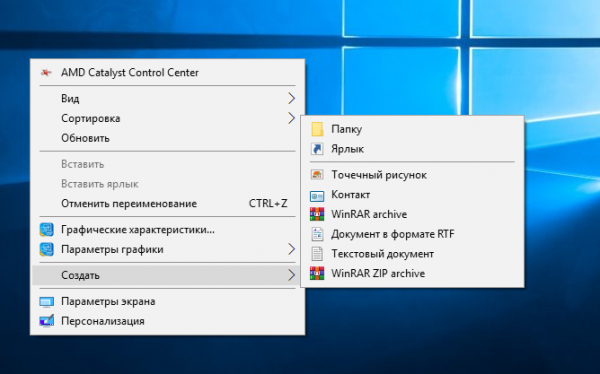
Next, right-click on any empty area of the desktop. In the context menu, go to 'New' and select 'Folder':
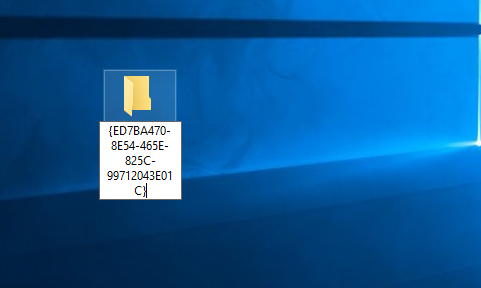
Right-click on the new folder icon and rename it to GodMode.{ED7BA470-8E54-465E-825C-99712043E01C}, and then press Enter:
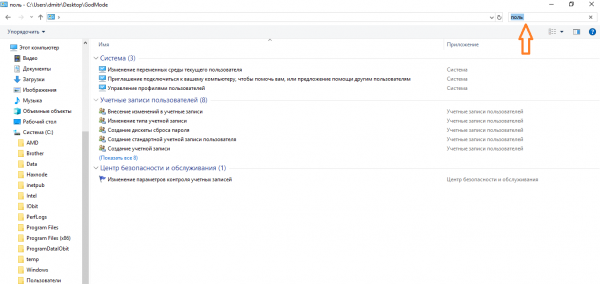
Double-click the icon, and a window will open displaying all available commands. Note that the commands are organized using Control Panel applets, so you can browse different categories, including Autoplay, Administrative Tools, File History, Explorer Options, Programs and Features, Color Management, Troubleshooting, Devices and Printers, User Accounts, and Security and Maintenance:

Additionally, you can search for a specific command or applet in the God Mode window. Just enter a keyword or term in the search field to get relevant results:
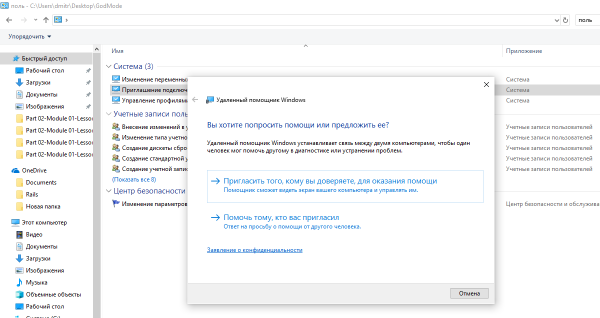
When you see the command you need, simply double-click on it to run:
Finally, you can move the GodMode folder icon to a different location. However, the desktop is the most convenient place to keep it.
Source: habr.com
