

The idea for this article came up spontaneously from a discussion in the comments section of a previous article. .
The issue is that the internal specifics of our services involve storing a vast number of small files. Currently, we have hundreds of terabytes of such data. We have encountered some obvious and not-so-obvious pitfalls and have successfully navigated through them.
Therefore, I’m sharing our experience, which may be helpful to someone.
The First Problem: "No Space Left on Device"
As mentioned in the previously referenced article, the problem is that while there are free blocks on the file system, inodes have run out.
You can check the number of used and free inodes with the command df -ih:
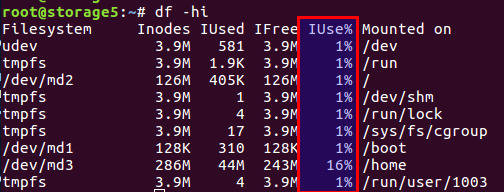
I won’t reiterate the article; to summarize, the disk has both blocks specifically for data and blocks for metadata, which are the inodes (index nodes). Their number is determined at the initialization of the file system (specifically referring to ext2 and its successors) and does not change thereafter. The balance between data blocks and inodes is calculated from average data; in our case, with many small files, this balance should shift towards having more inodes.
Linux already provides options with different balances, and all these pre-calculated configurations are in the file /etc/mke2fs.conf.
Thus, during the primary initialization of the file system via mke2fs, you can specify the desired profile.
Here are a few examples from the file:
    small = {
        blocksize = 1024
        inode_size = 128
        inode_ratio = 4096
    }

    big = {
        inode_ratio = 32768
    }

    largefile = {
        inode_ratio = 1048576
        blocksize = -1
    }
You can select the necessary usage option with the "-T" option when invoking mke2fs. You can also manually specify the required parameters if there is no ready-made solution.
More details are described in the manuals for mke2fs.conf and mke2fs.
An aspect not covered in the previously mentioned article is that you can specify the data block size. Obviously, larger blocks make sense for large files, while smaller blocks are preferable for smaller ones.
However, it’s important to consider an interesting aspect such as the processor architecture.
At one point, I realized that for large photo files, I needed a larger block size. It was in a home environment, on a home file storage system named WD based on ARM architecture. Without much thought, I set the block size to either 8k or 16k instead of the standard 4k, having previously measured the savings. Everything was great until the storage itself failed, even though the disk was intact. When I placed the disk in a regular computer with a standard Intel processor, I got a surprise: unsupported block size. We were stuck. The data was there and everything seemed fine, but it was impossible to read it. i386 processors and similar ones cannot work with block sizes that do not match the memory page size, which is exactly 4k. In short, the situation ended with the use of user-space utilities, which were slow and disappointing, but the data was saved. If anyone is interested — look up the name of the utility. fuseext2. The moral: Either think through all scenarios in advance or don’t act like a superhero and use standard settings for laypeople.
UPD. As noted by the user , I clarify that for i386, the block size must not exceed 4k, but it does not necessarily have to be exactly 4k; sizes of 1k and 2k are acceptable.
So, how we solved the problems.
First, we faced the issue when a multi-terabyte disk was filled with data, and we could not redesign the file system configuration.
Second, a quick solution was required.
As a result, we concluded that we needed to change the balance by reducing the number of files.
To decrease the number of files, we decided to combine files into a single archive. Given our specifics, we grouped all files from a certain period into one archive and conducted archiving with a cron job nightly.
We have chosen a zip archive. The previous article suggested tar, but it has one difficulty: it does not have a directory, and the files are processed in sequence (it's not called "tar" for nothing — it's short for "Tape Archive", a legacy from tape drives), that is, if you need to read a file at the end of the archive, you have to read the entire archive since there are no offsets for each file relative to the beginning of the archive. Therefore, this is a lengthy operation. In zip, everything is much better: it has that very directory and file offsets inside the archive, and the access time to each file does not depend on its location. In our case, we could set the compression option to "0", as all the files have already been compressed in gzip.
Clients retrieve files through nginx, and according to the old API, only the file name is specified, for example:
http://www.server.com/hydra/20170416/0453/3bd24ae7-1df4-4d76-9d28-5b7fcb7fd8e5
To unpack files on the fly, we found and connected the nginx-unzip-module () and configured two upstreams.
As a result, we ended up with the following configuration:
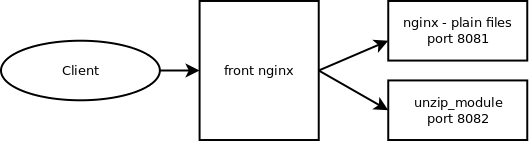
The two hosts in the settings looked like this:
server {
  listen *:8081;

  location / {
    root      /home/filestorage;
  }
}
server {
listen *:8082;
location ~ ^/hydra/(\d+)/(\d+)/(.*)$ {
root /home/filestorage;
file_in_unzip_archivefile "/home/filestorage/hydra/$1/$2.zip";
file_in_unzip_extract "$2/$3";
file_in_unzip;
}
}
And the configuration of the upstreams on the higher-level nginx:
upstream storage {
  server server.com:8081;
  server server.com:8082;
}
How it works:
- The client goes to the front nginx
- Front nginx tries to serve the file from the first upstream, that is, directly from the file system
- If the file is not there — it tries to serve from the second upstream, which attempts to find the file inside the archive
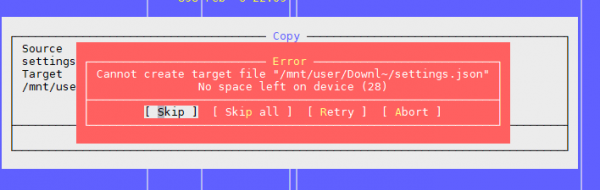
The second problem: again "No space left on device"
This is the second issue we encountered when there are many files in the directory.
We try to create a file, the system complains that there is no space. We change the file name and try to create it again.
It works.
It looks something like this:

Checking inodes yielded nothing — there are many free.
Checking space — the same.
We thought maybe there are too many files in the directory, and there is a limit on this, but again no: Maximum number of files per directory: ~1.3 × 10^20
And it is possible to create a file if you change the name.
The conclusion is that the problem lies in the file name.
Further searches showed that the issue is with the hashing algorithm when building the directory index; with a large number of files, collisions are observed, along with all the consequences. You can read more about it here:
This option can be disabled, but... searching for a file by name may become unpredictably lengthy while scanning through all files.
tune2fs -O "^dir_index" /dev/sdb3
In general, as a temporary solution, it might work.
Moral: having many files in a directory is usually a bad idea. It's not advisable.
Typically, nested directories are created based on the first letters of the file name or other parameters, such as dates; in most cases, this helps.
However, the overall number of small files is still problematic, even if they are categorized into directories — then refer to the first issue.
Problem three: how to view a list of files if there are many
In our situation, where we have many files, we inevitably face the issue of how to view the contents of a directory.
The standard solution is the command ls.
Okay, let's see the result with 4,772,098 files:
$ time ls /home/app/express.repository/offercache/ >/dev/null

real	0m30.203s
user	0m28.327s
sys	0m1.876s
30 seconds... that's a bit much. The main time is spent processing files in user space, not on kernel work.
But there is a solution:
$ time find /home/app/express.repository/offercache/ >/dev/null

real	0m3.714s
user	0m1.998s
sys	0m1.717s
3 seconds. 10 times faster.
Hooray!
UPD.
An even faster solution from the user — disabling sorting with ls
time ls -U /home/app/express.repository/offercache/ >/dev/null
real	0m2.985s
user	0m1.377s
sys	0m1.608s
Problem four: high LA when working with files
At times, there's a need to copy a bunch of files from one machine to another. Often, this results in a significant increase in LA, as it heavily depends on the performance of the disks themselves.
The most reasonable choice is to use SSDs. Truly great. The only question is the cost of multi-terabyte SSDs.
But if the disks are ordinary, files need to be copied, and this is also a production system where overload leads to unhappy client complaints? There are at least two useful tools: nice and ionice.
nice — reduces the priority of the process, hence the scheduler allocates more time quanta to other, higher-priority processes.
In our practice, setting nice to the maximum helped (19 is the minimum priority, -20 is the maximum).
ionice — correspondingly adjusts input/output priority (I/O scheduling)
If you are using RAID and it suddenly needs to sync (after a failed reboot or if RAID recovery is needed after a disk replacement), in certain situations it makes sense to reduce the sync speed so that other processes can function adequately. You can use the following command to do this:
echo 1000 > /proc/sys/dev/raid/speed_limit_max
Problem five: How to synchronize files in real-time
We have the same massive amounts of files that need to be backed up to the second server to avoid… Files are constantly being written, so in order to minimize loss, they need to be copied as quickly as possible.
Standard solution: Rsync over SSH.
This is a good option, unless you need to do it every few seconds. With so many files, even if you don’t copy them — you still need to know what has changed, and comparing several million files takes time and puts load on the disks.
That is, we need to know right away what needs to be copied, without running comparisons every time.
The solution is — lsyncd. is a daemon that watches for changes in a local directory, aggregates them, and after a certain period, starts rsync to synchronize them. Details and setup are described in the post " — . It also works through rsync, but additionally monitors the file system for changes using inotify and fsevents, initiating copying only for those files that have appeared or changed.
Problem six: how to understand who is loading the disks
This is probably known to everyone, but for completeness: there is a command for monitoring the disk subsystem iotop — similar to top, which shows the processes that are most actively using the disks.

By the way, the old trusty top also allows you to understand if there are disk problems or not. There are two most relevant parameters for this: Load Average and IOwait.
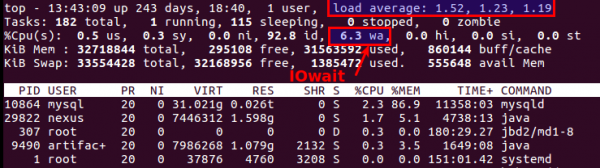
The first shows how many processes are waiting to be served; generally, more than 2 means something is going wrong. During active backups to the server, we allow up to 6-8; after that, the situation is considered abnormal.
The second indicates how busy the CPU is with disk operations. IOwait >10% is a cause for concern, although on servers with specific loads we consistently see 40-50%, which is actually normal.
I will conclude here, although there are likely many issues we have not encountered, and I will gladly await comments and descriptions of interesting real cases.
Source: habr.com
