

The goal
When committing in git, we mention any task from Jira by name in the comment, after which two things happen:
- in GitLab, the task name turns into an active link to it in Jira.
- In Jira, a comment is added to the task with links to the commit and the user who made it, and the text of the mention is also included.
Settings
- We need a Jira user with write-level permissions. You can use an existing one, but it's important to remember that all comments in Jira when mentioning tasks from git will come from this user, so it's better to create a new one, let's call it GitLab, and add it to Jira with write permissions on all your projects.
- We need a GitLab user with admin rights in each of the projects that we will connect. Integration is set up separately for each project.
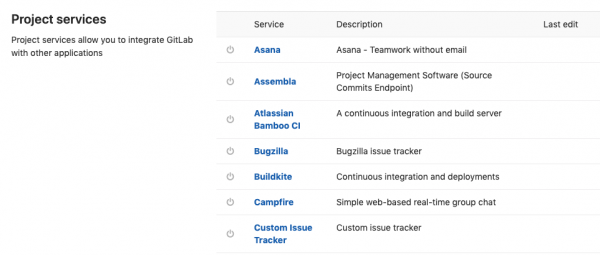
- In GitLab, we open the project, go to Settings -> Integrations. Scroll down, we see Project services with a long list of services that can be connected.

- We find Jira in this list, a form appears

- We check the box Active, to activate the connection.
- As seen from the form, it is possible to configure the desired behavior for commits and merge requests separately.
- We enter Web URL of your company in Jira, for example 'https://companyname.atlassian.net'
- Jira API url — fills in if you have another Jira instance; by default, the value will be used. Web URL.
- Fields Username/Email and Password/Token are filled in according to whether you are using Jira Server or Jira Cloud. In the case of Jira Server, you enter the Username and the password of the user under whose name comments will be added. In the case of Jira Cloud, you provide the email and token, which can be obtained. .
- Field Transition ID(s). If you want, for example, that when mentioning a task, it automatically gets closed, then in this field you need to specify the transition ID to the closed state. This ID can be obtained via the API:
https://companyname.atlassian.net/rest/api/2/issue/ISSUENAME-123/transitionswhere ISSUENAME-123 is the name of any task in the desired state. You will receive a JSON with an array of transitions from which you can take the needed id.
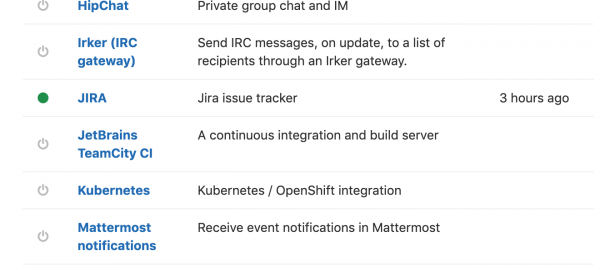
As a result in GitLab, in Settings -> Integrations Jira now has a green indicator:

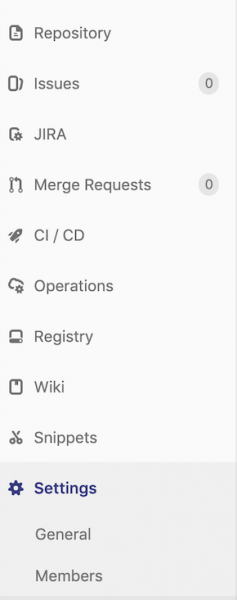
and in the project menu, an item will appear Jira, which leads to the corresponding project in Jira:

Usage:
When writing a comment to the commit (no matter which tool we use to work with git), we can add the task names in plain text (without quotes or any special characters like @)
bugfix XPROJECT-123, XPROJECT-124a comment will drop for the corresponding task:

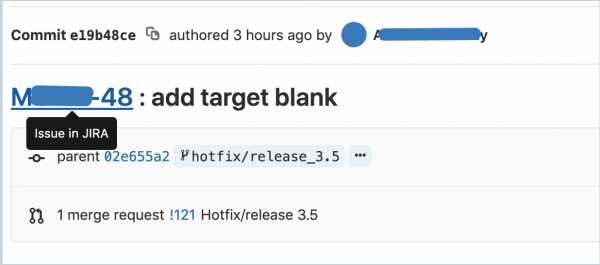
and an active link will appear in GitLab:
Source: habr.com
