

How is accounting managed in companies today? Usually, it involves a 1C package installed on the accountant's local computer, used by a full-time accountant or an outsourced specialist. An outsourcer may concurrently manage several client companies, sometimes even competing ones.
With this approach, access to bank accounts, crypto-protection funds, electronic document flow, and other important services is set up directly on the accountant's computer.
What does this mean? It means everything is in the accountant's hands, and if they decide to set up the business owner, they can do it in an instant.
Are You Kidding? (2008)
In this article, we will explain how to securely confine all services, including 1C, in one cloud, so you have the option to disable all services with a single click, even if the accountant has flown off to a fairy-tale Bali.
What can possibly happen? Two real cases
System Administrator from Wall Street
The wife of our co-founder, an experienced accountant, was approached last month by a major restaurant chain in Moscow for assistance. The restaurant stored all its databases on its server, managed by a permanent system administrator from the restaurant team.
Right during the accountant's work, the system administrator visited an online casino and caught a virus that destroyed the entire database. Who did they blame? Correct, the accountant who had just arrived.
The heroine was very fortunate that her husband is a managing partner at a hosting service and understands such matters. After lengthy arguments over the phone (our colleague was already ready to head over and confront the admin), evidence was found and the culprit was punished. However, the database was lost, meaning there was no happy ending for the system administrator.
Laptop Stuck in Someone Else's Apartment
This is an old story about other acquaintances of ours.
An experienced 64-year-old woman reliably managed the accounting for an online store selling Chinese gadgets using 1C. The client and database were stored on the laptop issued to her at work. This was convenient: easy to print from office printers, the database was small enough to fit on a netbook, and she could take it home or to the dacha.
Then a tragedy occurred: on Friday evening, she was taken to the hospital with a stroke. The netbook was left at home because the accountant was responsible and took work for the weekend.
Of course, the laptop was retrieved, the accountant recovered, but if we were to replace the stroke with coronavirus in this situation today, the operation to retrieve the computer from a locked apartment takes on an entirely different scale.
Can two cats and a Labrador open the door for you? Even if the neighbor waters the plants and feeds the cats, will she give you back your computer?
But let's move on to 1C in the cloud — what deployment and working options are available?
What options exist for working with 1C in the cloud?
Option 1. Client + corporate application server + database
This is suitable for large companies that require the services of an entire team of accountants. This is quite an expensive option (it requires many additional licenses), which we will not consider, as this article is about setting up an accountant's work for a small firm.
Option 2. 1C: Fresh
1C: Fresh is quite a convenient way to work with 1C through a browser. No setup is required: when renting such a license, the franchise company will configure everything for you, and you will receive a login and password.
But there are two downsides:
✗ High price: the basic rate for one application requires payment for at least six months for two workstations — 6808 r.
✗ You cannot configure the VPS server yourself, on which many companies operate simultaneously. You are given a key only for your room in a dormitory, on a shared hosting principle.
In Fresh, there is also the 1C: BusinessStart configuration, which, under a promotion, costs 400 r. per month. The configuration options are significantly limited; without a promotion, the subscription costs 1000 r., and it must also be paid for at least six months.
Option 3: your own VPS with the 1C client and database installed
This option is suitable for small companies where 1-2 accountants work — they can comfortably operate even without installing the 1C: Enterprise application server and SQL server.
The main advantage of this approach is that the rented VPS can serve as a full-fledged working computer for the accountant with RDP access.
When all databases, documents, and access are stored on a VPS controlled by you, you don't have to worry about locked laptops in an apartment or the accountant running off with the system administrator to an island, taking all documents and funds from the account. You can disable access with a single click by removing the user.
This method is also good for the following reasons:
- When the accountant works with 1C products, 1C generates many Word, Excel, and Acrobat documents. When the 1C client is running on the accountant's computer, all documents are saved on their laptop. Working on a VPS means everything is saved on the virtual machine.
- 1C databases and documents do not get onto the accountant's personal computer at all (when using 1C: Fresh, documents would need to be downloaded).
- The ability to integrate the VPS into the corporate network via VPN and provide the accountant with secure access to internal resources (when using 1C: Fresh, the accountant's personal computer would need to be connected to a secure local network for this).
- You can set up secure integration of 1C: Enterprise with external systems: EDI, personal accounts of banks, government services, etc. In case of using 1C: Fresh, access to many critical services would need to be configured on the accountant's personal computer.
And of course, the price. Renting a virtual machine with a 1C license will cost about 1500 rubles per month if you choose the royal tariffs from expensive hosting providers. This is not much more than the minimal basic package of 1C: Fresh services and significantly cheaper than other subscriptions. Payment can be made monthly.
The license can be purchased from any franchisee, and the price depends on the configuration of the package of products and services, and after the expiration period, you will have to pay for support through the 1C: ITS portal to receive updates.
If you take from us, we offer a virtual machine with the pre-installed 1C: Enterprise client for such purposes (just contact our support with a description of your task). Renting a virtual machine costs approximately 800 rubles per month, and the cost of renting a 1C license for one workplace will be another 700 rubles. We provide support free of charge, and our specialists update 1C: Enterprise if you write to technical support.
For an accountant, everything will look exactly the same — a familiar desktop, icons, and you can even set familiar wallpapers. Now, let's get to the point: how to create and configure such a cloud, access to which can be disabled with a single button.
Order a VPS with built-in 1C:Enterprise
For an accountant, the ideal OS is Windows. Based on our experience, for the comfortable operation of one or two employees with the file server version of 1C:Enterprise, a configuration with two processing cores, at least 4-5 GB of RAM, and a fast 50 GB SSD will suffice.
We do not automate services until we are sure of what clients need, so its connection is not yet automated, and ordering a server with 1C needs to be done through the ticket system. We will set everything up for you manually.
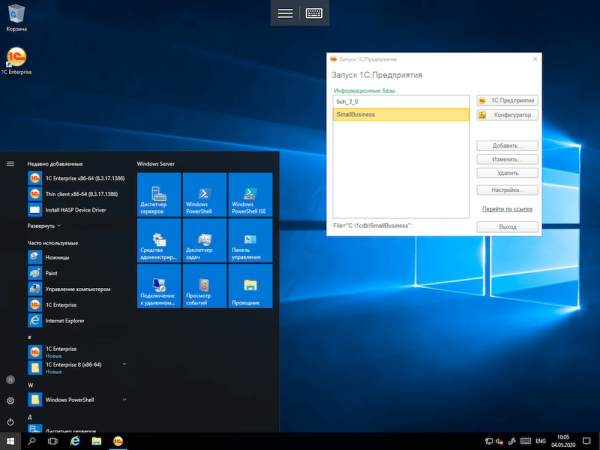
When you connect to the created virtual machine via RDP, you can expect to see something like this.
Transferring the 1C database
The next step is to export the database from the previously installed version of 1C:Enterprise on the accountant's computer.
Then it needs to be uploaded to the virtual server via FTP, through any cloud storage, or by connecting a local drive to the VPS using the RDP client.
Next, it is necessary to add the database in the client program: we show how to do this in the screenshots.
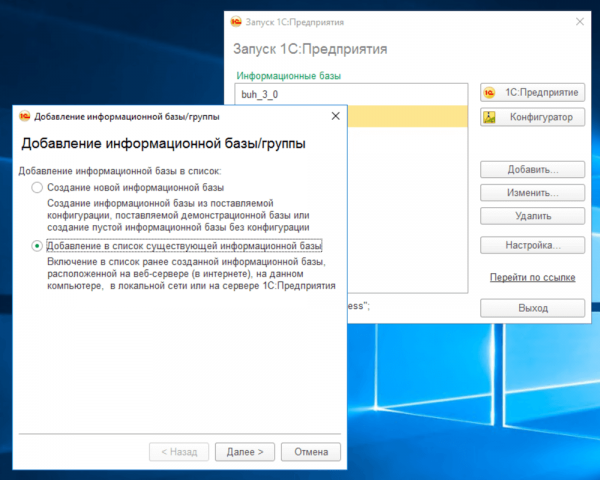
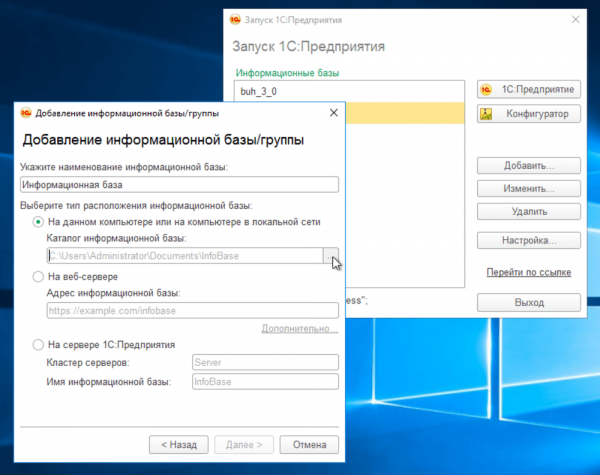
After successfully adding the 1C:Enterprise database, it is ready to work on your own VPS. All that remains is to set up remote desktops for users and integrate with various external systems such as online banking accounts or electronic document management services.
Setting up remote desktops
By default, Windows Server allows no more than two simultaneous RDP sessions for system administration. Using them for work is technically not difficult (just add a non-privileged user to the appropriate group), but it violates the terms of the license agreement.
To deploy full-fledged Remote Desktop Services (or RDS), you need to add server roles and components, activate the licensing server or use an external one, as well as install separately purchased client licenses (RDS CAL).
We can help with this too: you can purchase RDS CAL from us simply by writing We will take action next: we will install them on our licensing server and configure the remote desktop services.
However, if you would like to set everything up yourself, we won't deprive you of the pleasure.
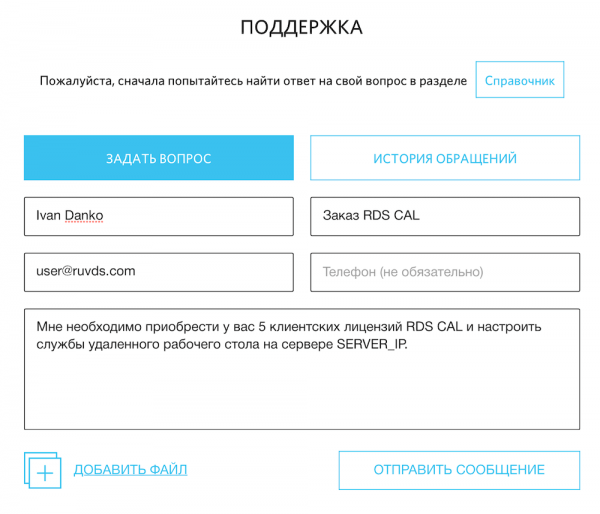
After configuring RDS, the accountant can start working with 1C: Enterprise on the virtual server as if it were a local machine. Don't forget to install the standard accounting software on the VPS: office suite, third-party browser, Acrobat Reader.
Now, we need to take care of connecting the 1C client to the bank's personal accounts.
Setting up integration with banks
In 1C: Enterprise, there is a DirectBank technology for direct data exchange with banks, without needing additional software. It allows you to download statements and send payment documents without exporting them to files, if the bank supports such an interaction standard (otherwise, you'll have to resort to using text files in 1C format, but that's okay — now they are saved on the virtual machine).
First, a bank account is created in the accounting program (if it has not been created yet), and then its form needs to be opened in the organization card and the command 'Connect 1C: DirectBank' selected. The exchange settings can be loaded into 1C: Enterprise either automatically or manually: refer to the bank's website for detailed instructions. In some cases, integration with 1C products needs to be separately enabled in the personal account.
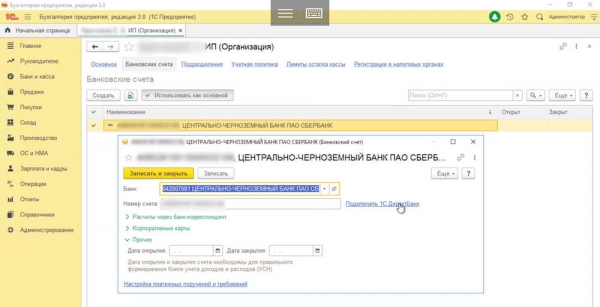
For the setup, login and password to the company's personal account in the bank may be required. Usually, two-factor authentication (2FA) via SMS is used at this point.
Another popular option, a secure hardware token, is not suitable for us due to the use of a virtual server. Additionally, the secure media would need to be removed from the company's premises and handed over to the remote-working accountant, losing control over it.
The option with login/password and 2FA via SMS can also be unsafe, although the DirectBank technology only allows for receiving statements and sending payment documents. To make a payment, these documents will need to be certified with an electronic signature stored on a secure physical medium of the client or on the bank's side. In the first case, there are no problems: if the external accountant does not have access to the token, they will only be able to generate documents.
In the case of a cloud digital signature, an SMS with a one-time code for payment confirmation is usually sent to the same phone number used for authentication in the personal account. Some banks have resolved this issue themselves, allowing clients to exchange data via DirectBank without 2FA. In this case, the accountant will only be able to download statements and send documents, but will not have access to the funds or even the personal account.
There is another option for separating access levels: many banks allow the use of an account on the State Services through the unified identification and authentication system (). The manager simply needs to go to their account settings, select the "Organizations" tab, and invite an employee. Once that person accepts the invitation, they can find their bank in the "Access to systems" section (after setting up integration with it) and grant the user access to the personal account. At this point, there is no need to provide them with the phone or token used to sign payment documents.
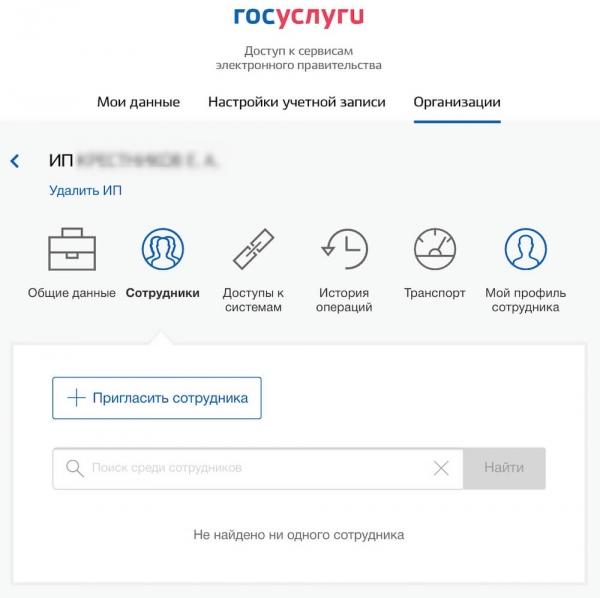
Connecting to EDS services
Document exchange services are convenient, and the universal remote work has made them essential. The 1C:Enterprise client integrates with them, but legally significant EDS requires the use of a qualified electronic signature.
It can only be stored on a flash drive or in a cloud service that has the relevant certificates from domestic regulators.
You cannot upload an electronic signature to any media or store it on a VPS, so typically an accountant works with electronic document management from a local computer by connecting a flash drive. Certified cryptographic protection software (known as a cryptographic provider) and a public electronic signature certificate are installed on it. Its private key is stored on the flash drive, which must be physically connected to the computer to sign documents in programs that support this function. Browser plugins will be needed to work with EDI through a web interface.
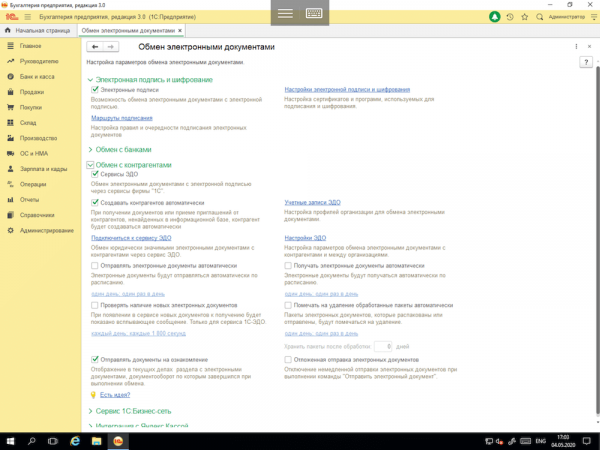
To avoid deploying a critical business system on the personal computer of a remote employee, a VPS will also be useful; however, the physical token option will not work here.
It's hard to say how the cryptographic provider will behave in a virtual environment, especially when trying to pass a USB port through a VPS via an RDP client. This leaves cloud-based electronic signatures without a physical medium, but not all EDI services offer such a service. By the way, it costs about a thousand rubles a year, not counting the subscription fee for the document exchange service, which depends on volume.
The good news is that almost all popular Russian services have long established mutual roaming for documents, so you can connect to any of them. The bad news is that it's impossible to completely abandon paper, as there will always be counterparties who do not use EDI.
Setting up access to services using certificates
Many services allow authentication and authorization without a username and password using client SSL certificates, which can also be installed on a VPS instead of the accountant's computer.
Similarly, authentication can be configured on corporate web resources. Here's how to do it:
- Purchase a trusted Certificate Authority to sign and verify client SSL certificates;
- Create client SSL certificates signed by the trusted certificate;
- Configure web servers to request and verify client SSL certificates;
- Install client certificates for remote desktop users on the VPS.
The deployment theme of 1C: Enterprise for small businesses on virtual servers is broad; we have described only one method suitable for ensuring accounting security.
VPS can sometimes serve well and help avoid the installation of critical IT solutions and the transfer of private corporate data to the specialist's personal computer when working remotely.
We hope this article was helpful to you.
Source: habr.com
