

This article discusses how graphics work in Linux and the components that make it up. It contains many screenshots showcasing various desktop environment implementations.
If you have trouble distinguishing KDE from GNOME or are aware of the differences but want to learn about other alternatives, this article is for you. It serves as an overview, and while it includes many names and some terms, the material will also be useful for beginners considering Linux.
The topic may also interest advanced users when setting up remote access and implementing thin clients. I often come across seasoned Linux users who assert, "on the server, there's only the command line, and I do not plan to study graphics in detail, as it's all needed for novice users." However, even Linux experts often discover the usefulness of the "-X" option in the ssh command with surprise and delight (and for this, it's beneficial to understand how the X server works and its functions).
I have been teaching Linux courses at "" for almost 15 years, and I am confident that many of the over five thousand individuals I've trained read and likely write articles on Habr. The courses are always very intensive (the average course lasts five days), covering topics that ideally require at least ten days to familiarize fully. During the course, depending on the audience (if beginners or seasoned administrators gathered) as well as from the "questions from the audience," I decide what to explain in more detail and what to cover more superficially, allowing more time for command line utilities and their practical applications. There are quite a few topics that I have to sacrifice a bit. These include “The History of Linux,” “Differences in Linux Distributions,” “About Licenses: GPL, BSD,...,” “About Graphics and Desktop Environments” (the topic of this article), among others. It’s not that they’re unimportant, but often there are many more pressing “here and now” questions, and we only have five days… Nevertheless, for a general understanding of the Linux operating system's basics and the available variety (to have a broader perspective on this vast and immense world called “Linux,” even when using a particular Linux distribution), studying these topics is useful and necessary.
Throughout the article, I will include links for those who wish to delve deeper into the subject, such as links to Wikipedia articles (pointing to the more comprehensive/useful version when both English and Russian versions are available).
For the main examples and screenshots, I used the openSUSE distribution. Any other community-developed distribution with a large number of packages in the repository could have been used. It is difficult, but possible, to demonstrate a variety of desktop environments on a commercial distribution, as they often only use one or two of the most well-known desktop environments. This approach limits developers in releasing a stable, well-tuned OS. In this system, I installed all the DM/DE/WM (explanation of these terms below) that I found in the repository.
The screenshots with 'blue borders' were taken on openSUSE.
The screenshots with 'white borders' were taken on other distributions, which are indicated in the screenshot.
The screenshots with 'gray borders' were sourced from the internet as examples of desktop arrangements from previous years.
So, let's get started.
Main components that make up graphics
I will highlight three main components and list them in the order they are initiated at system startup:
- DM (Display Manager);
- Display Server;
- DE (Desktop Environment).
Additionally, as important sub-points of Desktop Environment:
- Apps Manager/Launcher/Switcher (the 'Start' button);
- WM (Window Manager);
- various software provided with the desktop environment.
More details on each point.
DM (Display Manager)
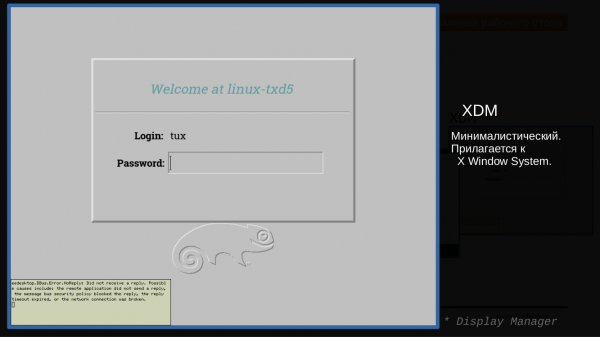
The first application that starts when 'graphics' is initiated is DM (Display Manager). Its main tasks are:
- to ask which users to allow into the system, request authentication data (password, fingerprint);
- to choose which desktop environment to launch.
Currently, various distributions widely use:
- (replaced ),
- ,
- ,
- .
- Fly-DM (used in AstraLinux) can also be mentioned.
A list of existing DMs is kept up-to-date in
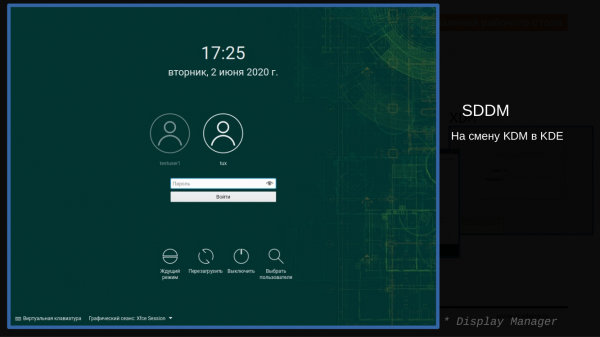
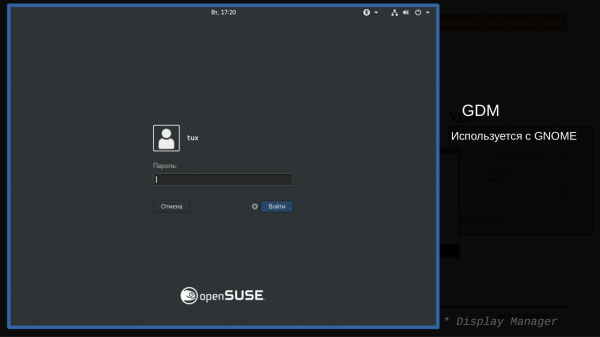
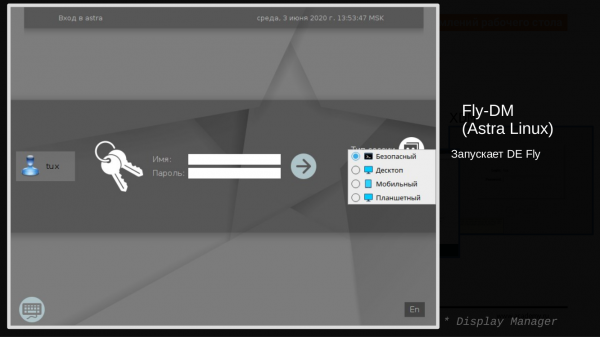
It's worth noting that the following screenshots use the same display manager LightDM, but in different distributions (the names of the distributions are indicated in parentheses). Evaluate how differently this DM can appear due to the work of designers from various distributions.
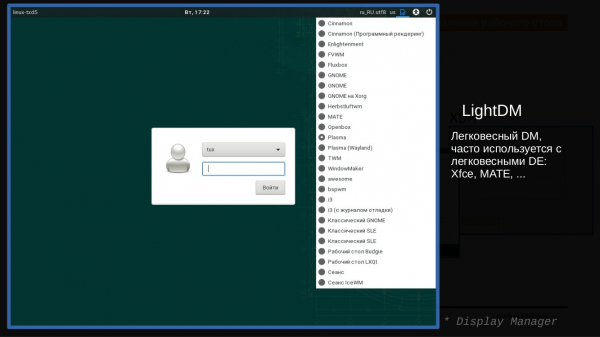
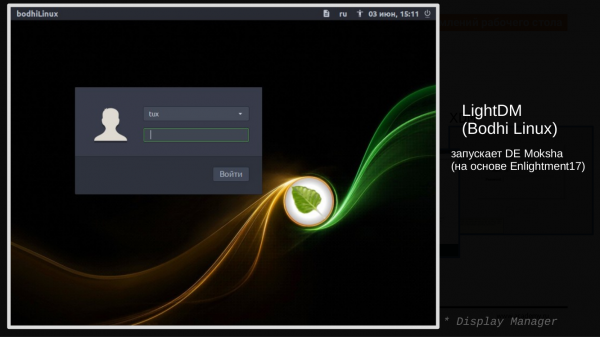
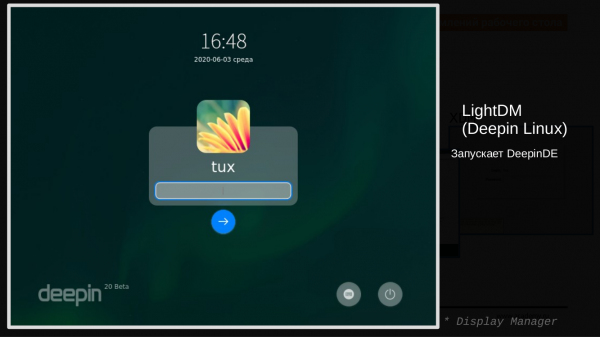
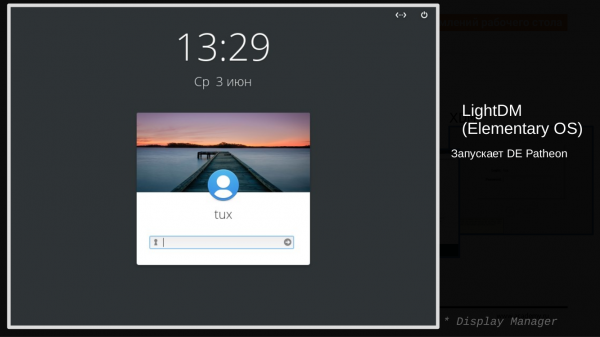
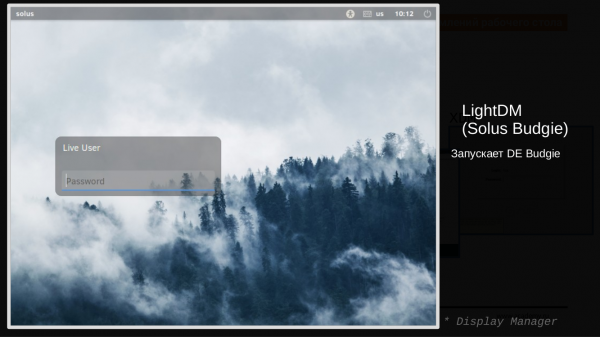
The main point in this diversity is to understand that there is an application responsible for launching graphics and granting user access to those graphics, and there are different implementations of this application, differing in appearance and slightly in functionality (selection of themes, user selection, version for visually impaired users, ability for remote access via the protocol ).
Display Server
Display Server is a foundation for graphics, with the primary task of working with the graphics card, monitor, and various input devices (keyboard, mouse, touchpads). This means that the application (for example, a browser or text editor) that is rendered in 'graphics' does not need to know how to work directly with devices, nor does it need to be aware of drivers. X Window handles all of that.
When talking about Display Server, for many years in Linux, and in Unix, it meant the application or colloquially X (the X’s).
Currently, in many distributions, replacement technology .
You can also read about:
- ,
- ,
- (required for remotely launching graphical applications, for example using PuTTY).
First, let's start X and a few graphical applications in it.
Practical guide to 'starting X and applications in it'
I will perform everything from the newly created user webinaruser (it would be easier, but no safer to perform everything from root).
- Since X needs access to devices, I grant access: I identified the list of devices by looking at the errors when starting X in the log (/home/webinaruser/.local/share/xorg/Xorg.77.log)
% sudo setfacl -m u:webinaruser:rw /dev/tty8 /dev/dri/card0 /dev/fb0 /dev/input/*
- After that, I start X:
% X -retro :77 vt8 &
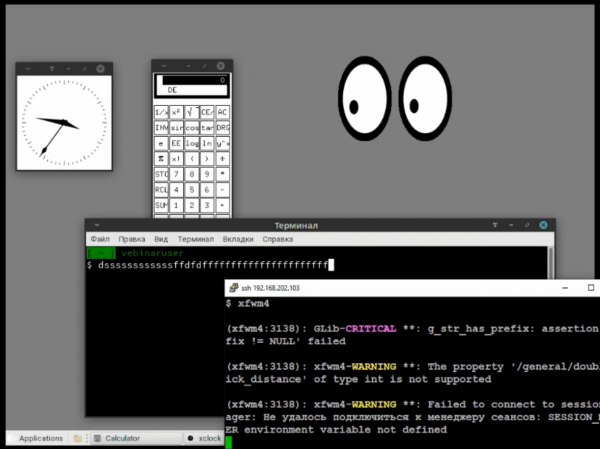
Options: * -retro — start with a "gray" classic background instead of the default black; * :77 — set the screen number (any reasonable number can be used, only :0 is likely already occupied by an already running graphics instance); * vt8 — specifies the terminal, here /dev/tty8, on which the X instances will be displayed.
- Starting a graphical application:
First, we set the variable that the application will use to understand which of my running X instances to send the drawing instructions to:
% export DISPLAY=":77"
You can view the list of running X instances like this:
ps -fwwC X
After setting the variable, you can start applications in our X instances — for example, I will start a clock:
% xclock -update 1 &
% xcalc &
% xeyes -g 200x150-300+50 &
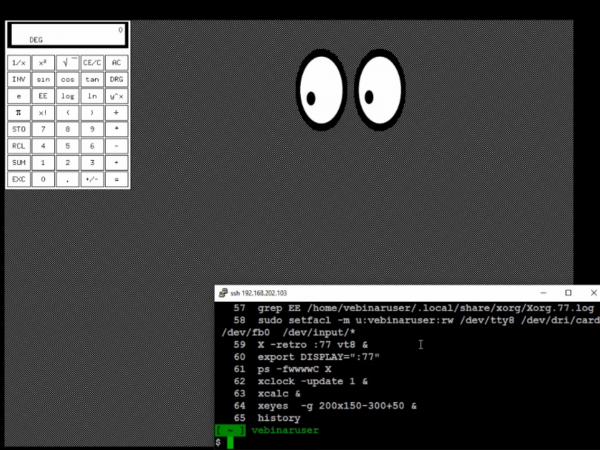
Main ideas and conclusions from this fragment:
- X needs access to devices: the terminal, graphics card, input devices,
- The X instances do not display any interface elements — it is a gray (if with the "-retro" option) or black canvas of certain dimensions (for example, 1920×1080 or 1024×768) used to run graphical applications.
- The movement of the "cursor" indicates that the X instances track the position of the mouse and pass this information to the applications running in them.
- X instances also capture key presses from the keyboard and relay this information to the applications.
- The DISPLAY variable tells graphical applications which screen to use (every X instance starts with a unique screen number) and thus which running instances on my machine to draw X on. (There is also the option to specify a remote machine in this variable and send output to X instances running on another machine in the network.) Since X instances were launched without the -auth option, there is no need to deal with the XAUTHORITY variable or the xhost command.
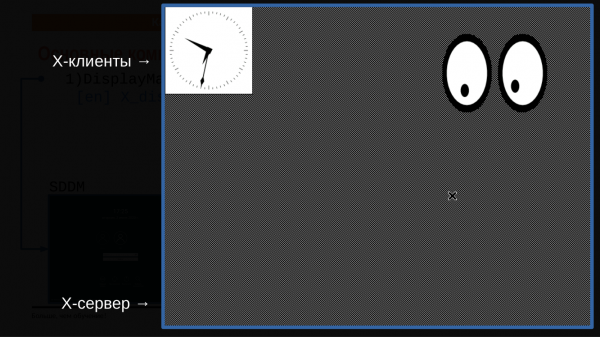
- Graphical applications (or X clients) are rendered in X — without the ability to move/close/change them using "-g (Width)x(Height)+(OffsetFromLeft)+(OffsetFromTop)". With a minus sign indicating offsets from the right and bottom edges.
- There are two terms worth mentioning: the X server (referred to as X's) and X clients (any graphical application running in X's). There is some confusion in understanding this terminology, as many interpret it in the exact opposite way. When I connect from a "client machine" (in remote access terminology) to a "server" (in remote access terminology) to display a graphical application from the server on my monitor, the X server runs on the machine where the monitor is (that is, on the "client machine," not on the "server"), while X clients launch and operate on the "server," even though they are displayed on the monitor of the "client machine."
DE Components
Next, let's break down the components that usually make up the desktop.
DE Components: Start Button and Taskbar
We'll start with the so-called Start Button. This is often a separate applet used on the Taskbar. There is typically also an applet for switching between running applications.
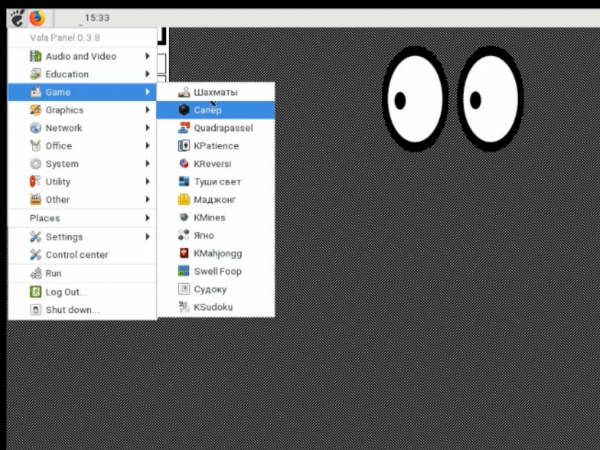
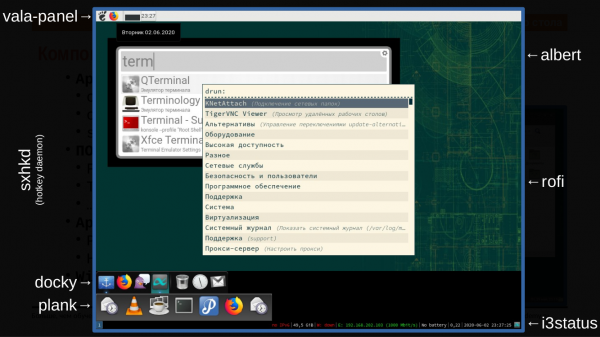
Looking at different desktop environments, I would generalize these applications under the common name "Apps Manager (Launcher/Switcher)," meaning a tool for managing applications (launching and switching between running ones), along with examples of utilities that fall into this category.
- It can take the form of a Start Button on a classic (full-width at one edge of the screen) Taskbar:
○ xfce4-panel,
○ mate-panel/gnome-panel,
○ vala-panel,
○ tint2. - Additionally, we can separately highlight "MacOS-like taskbars" (not full-width at the edge of the screen), although many taskbars can be displayed in both formats. Here, the key difference is mostly visual — the presence of "icon zoom effect on hover."
○ docky,
○ latte-dock,
○ cairo-dock,
○ plank. - And/or services that launch applications when "hotkeys" are pressed (many desktop environments have a similar component that allows the setup of custom hotkeys):
○ sxhkd.
- There are also various menu-like "launchers" (from English: Launch):
○ dmenu-run,
○ rofi -show drun,
○ albert,
○ grun.
DE Components: WM (Window Manager)
WM (Window Manager) is an application that manages windows, adding the capability:
- window movement across the desktop (including standard dragging with the Alt key held down from any part of the window, not just the title bar);
- resizing windows, for example, by dragging from the 'window frame';
- adds a 'title' to the window interface and minimize/maximize/close buttons for the application;
- the concept of which application is in 'focus'.
I will list the most well-known ones (with the default DE in parentheses):
- (GNOME3),
- (Mate),
- (GNOME2),
- (Cinnamon),
- (KDE),
- (XFCE),
- .
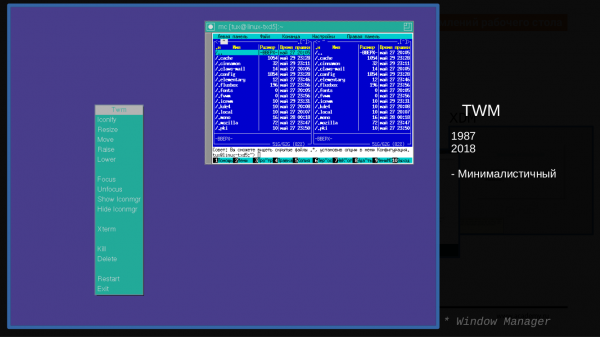
I will also list the 'old WMs with elements of DE'. That is, in addition to the window manager, they have elements like the 'Start' button and 'Taskbars', more characteristic of full-fledged DEs. Although how can they be 'old' when both IceWM and WindowMaker have released their updated versions in 2020? It seems more correct to say 'veterans':
- ,
- ,
- , , , ,
- …
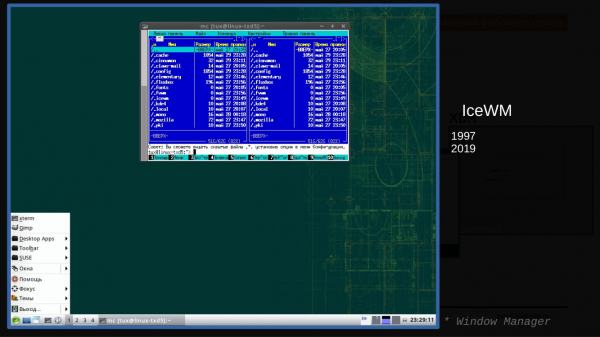
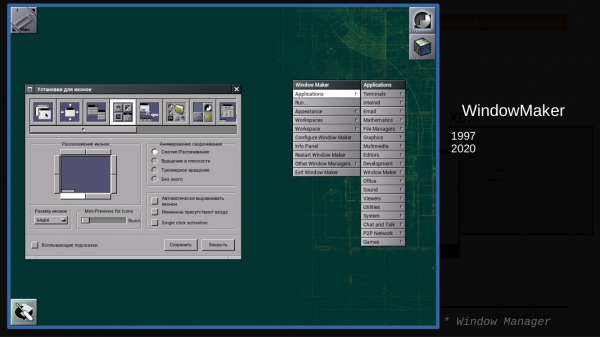
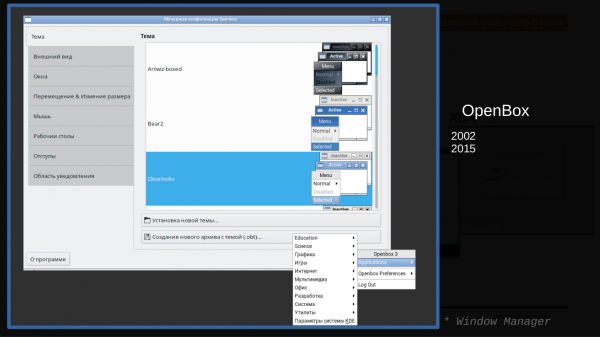
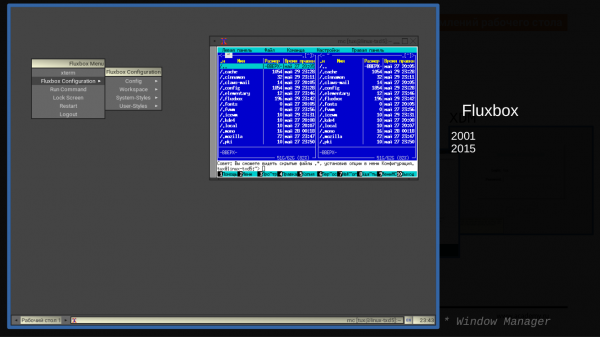
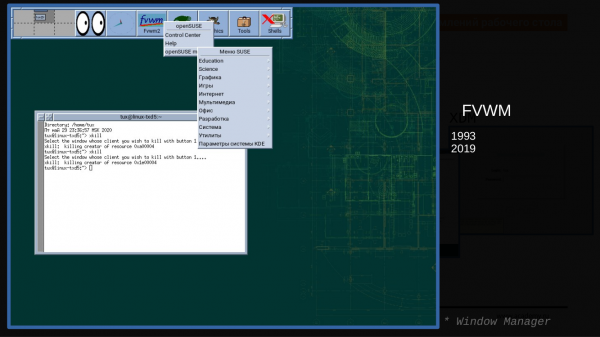
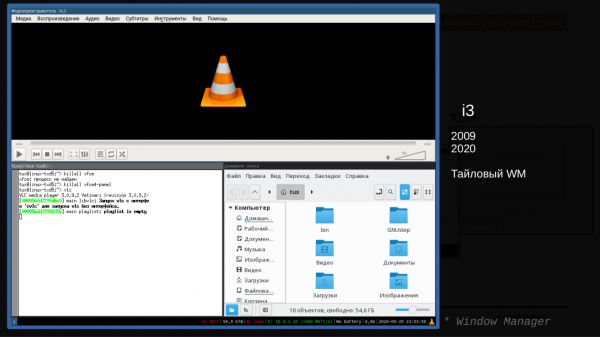
In addition to the 'classic' ('stacking window managers'), it is worth noting separately , which allow windows to be arranged in a 'brickwork' manner across the screen, and for some applications, a separate workspace for each running application on the full screen. This is somewhat unfamiliar for people who have not used them before, but since I have been using such an interface for quite a while, I can say that it is quite convenient, and you quickly get used to this interface, after which 'classic' window managers do not seem comfortable.
- ,
- ,
- ,
- ,
- ,
- qtile,
- bspwm,
- herbstluftwm,
- …
- twin,
- .
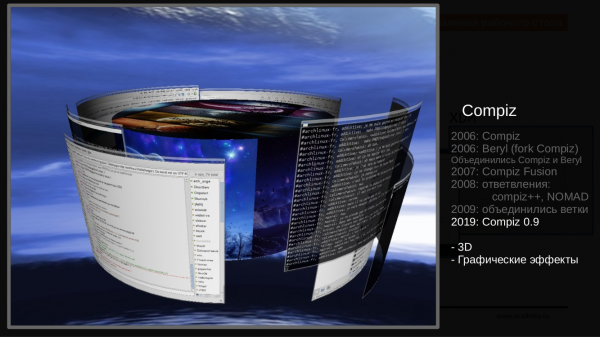
It is also worth mentioning the project and the notion of 'Composite Window Manager', which utilizes hardware acceleration capabilities to display transparency, shadows, and various 3D effects. About 10 years ago, there was a boom of 3D effects on Linux desktops. Now, many of the window managers integrated into DEs partially use compositing capabilities. Recently, a new product has appeared, — a product with similar functionality to Compiz under Wayland.
A detailed list of various window managers can also be viewed in the .
DE Components: others
It is also worth noting the following desktop components (here I use established English terms to describe application types — these are not the names of the applications themselves):
- Applets:
- Software (Widget toolkit) — often comes with a certain "minimal set" of software:
DE (Desktop Environment)
From the above components, the so-called "Desktop Environment" is formed. Often, all its components are developed using the same graphic libraries and design principles, thereby maintaining a consistent style for the appearance of applications.
The following desktop environments currently exist:
The most widely used are considered GNOME and KDE, with XFCE closely following them.
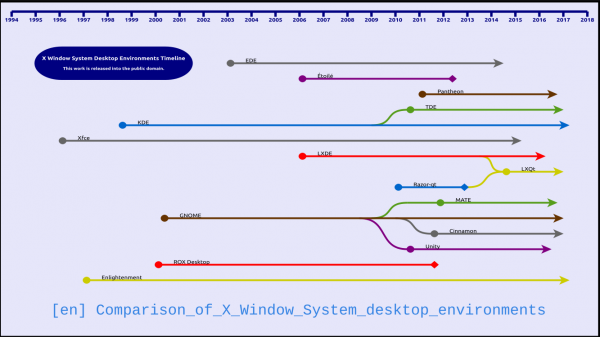
A comparison based on various parameters in tabular form can be viewed in the corresponding .
Variety of DE
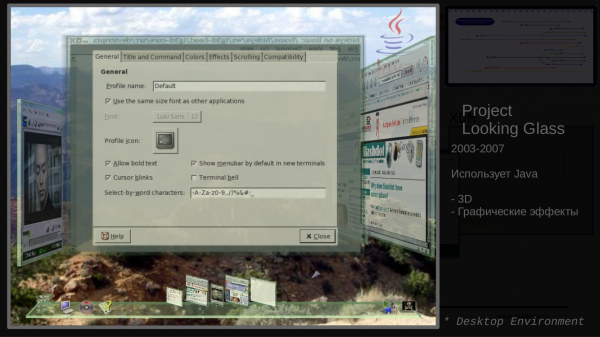
There are even interesting examples from history: from 2003 to 2007, a "3D desktop" called "Project Looking Glass" was created for Linux by Sun. I used this desktop myself, or rather "played around with it," as it was difficult to use. This "3D design" was written in Java at a time when there were no 3D-supporting graphics cards. Therefore, all effects were processed by the CPU, and the computer had to be very powerful; otherwise, everything worked slowly. But it looked beautiful. Three-dimensional application tiles could be turned and flipped. You could rotate within a cylinder of the desktop with panorama wallpapers in 360 degrees. There were several beautiful applications: for example, listening to music in the form of "changing CD discs" etc. You can find a video on YouTube about this project, but the quality of those videos is likely to be poor since there was no capability to upload high-quality video back then.
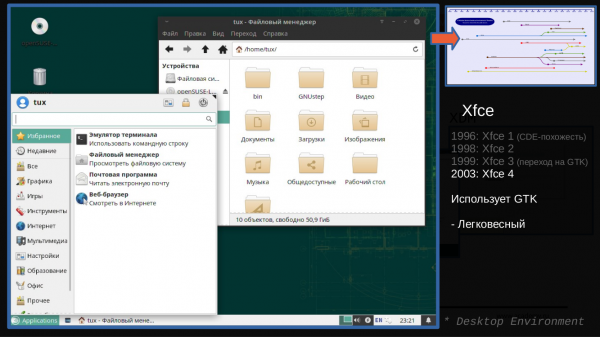
Lightweight desktop. This project has been around for quite a while, since 1996. In recent years, it has gained popularity, as a counter to the heavier KDE and GNOME, for many distributions that require a lightweight and "classic" desktop interface. It has many settings and a large number of its own programs: terminal (xfce4-terminal), file manager (thunar), image viewer (ristretto), text editor (mousepad).
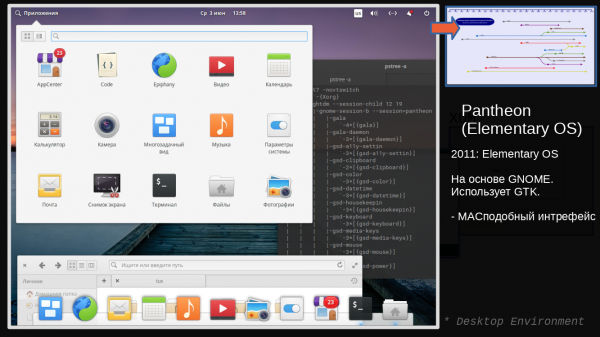
Used in the distribution 'Elementary OS'. Here, we can say that there are 'desktop environments' developed and used within one specific distribution and not widely utilized (to say the least, 'not at all utilized') in other distributions. At least, they haven't gained popularity yet and haven't convinced a large part of the audience of the advantages of their approach. Pantheon aims to build an interface similar to macOS.
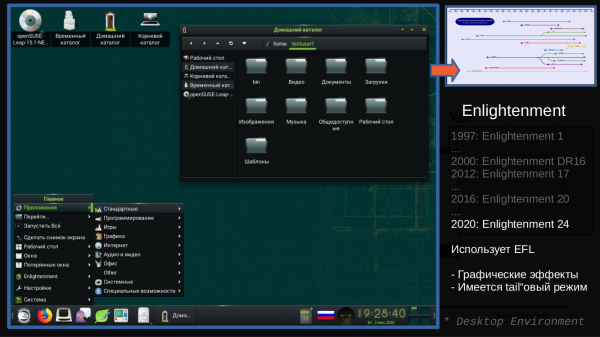
Option with a dock panel:
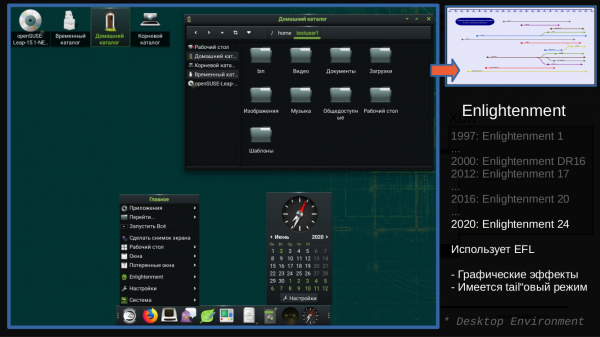
A strong emphasis on graphical effects and widgets (even from the times when other desktop environments did not have widgets on the desktop, such as calendar/clocks). It uses its own libraries. There is a large set of its 'beautiful' applications: terminal (Terminology), video player (Rage), image viewer (Ephoto).
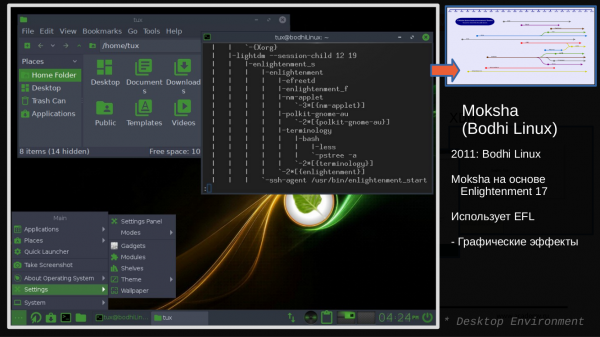
This is a fork of Enlightenment17, which is used in the BodhiLinux distribution.
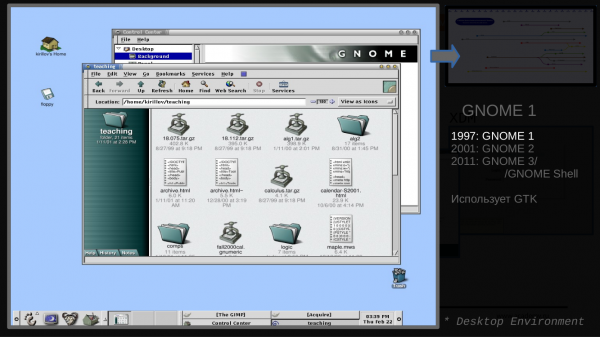
Originally a 'classic' desktop interface created in contrast to KDE, which was written using the QT library, at that time distributed under a license not very suitable for commercial distributions.
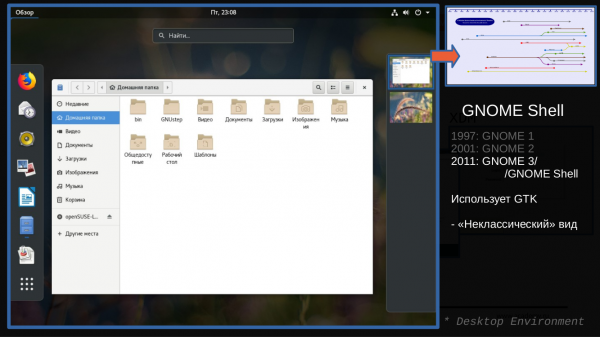
Starting from version three, GNOME was shipped with the GNOME Shell, which has a 'non-classical appearance,' not appealing to all users (any sharp changes in interfaces are difficult for users to accept). As a consequence — the emergence of fork projects that continue the development of this desktop in a 'classic' style: MATE and Cinnamon. It is used by default in many commercial distributions. It has a large number of settings and its own applications.
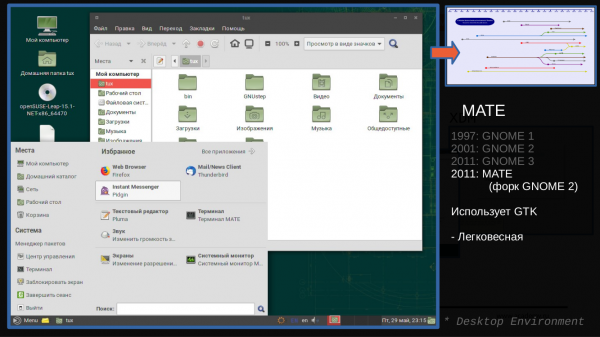
It appeared based on GNOME2 and continues the development of this interface. It has a large number of settings and application forks that were used back in GNOME2 (new names are used) to avoid confusing the forks with their new version for GNOME3).
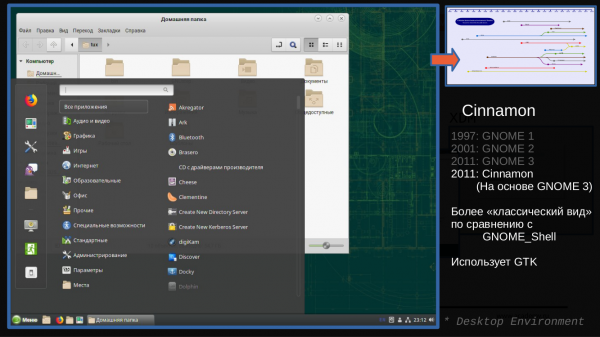
A fork of GNOME Shell, providing users with an interface in the 'classic' style (as it was in GNOME2).
It has a large number of settings and the same applications as for GNOME Shell.
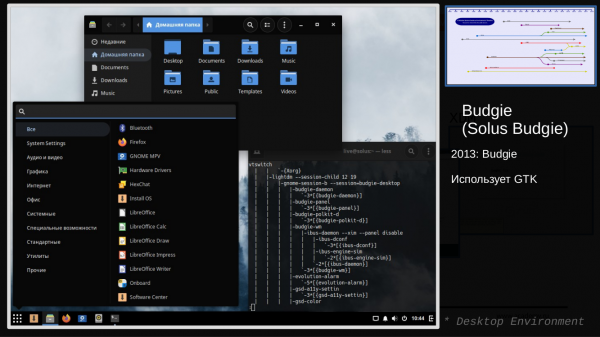
A fork of GNOME in the 'classic' style, which was developed within the Solus distribution but is now also offered as an independent desktop on various other distributions.
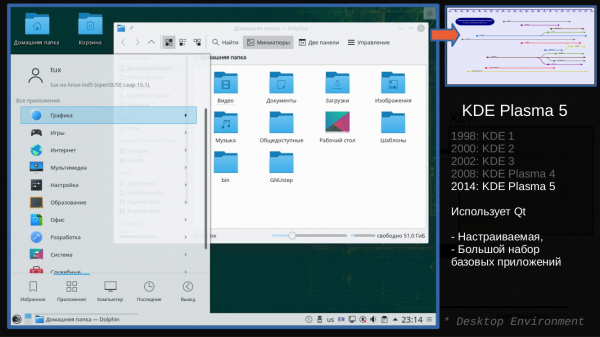
(or, as it is often referred to, simply KDE)
A desktop environment developed under the KDE project.
It has a vast number of settings accessible to the average user through the graphical interface, along with many graphical applications developed within this workspace.
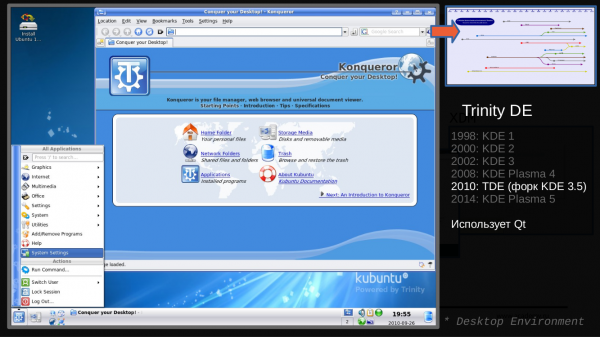
In 2008, KDE released its new implementation KDE Plasma (the desktop engine was heavily rewritten). As with GNOME/MATE, not all KDE fans liked this change. As a result, a fork of the project emerged, continuing the development of the previous version, called TDE (Trinity Desktop Environment).
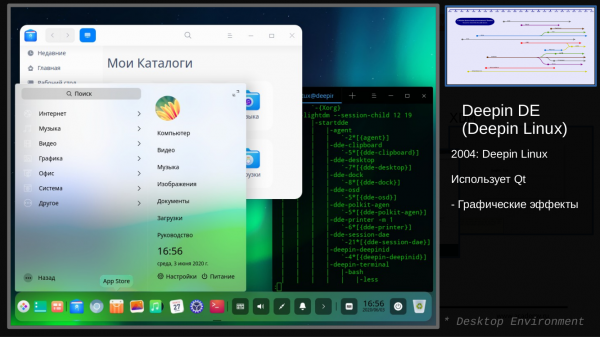
One of the new desktop environments, written using Qt (the same framework used for KDE). It offers many settings and has a quite beautiful (although subjective) and well-designed interface. It is developed as part of the Deepin Linux distribution. There are also packages available for other distributions.
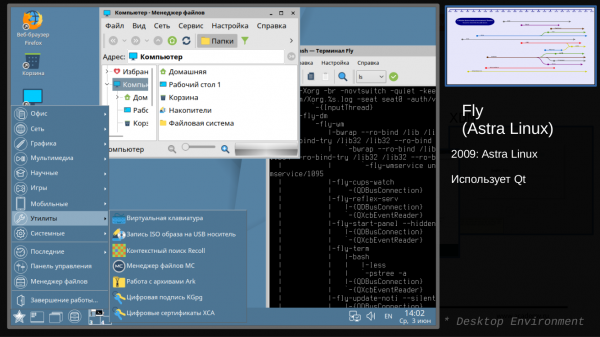
Fly
An example of a desktop environment written using Qt. It is developed as part of the Astra Linux distribution.
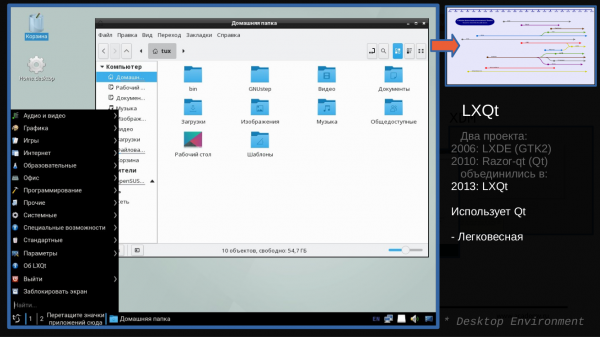
A lightweight desktop environment. Like several previous examples, it is written using Qt. It is essentially a continuation of the LXDE project and a result of the merger with the Razor-qt project.
As you can see, the desktop in Linux can look very different, and there's an interface suitable for everyone's taste: from very beautiful and with 3D effects to minimalist designs, from 'classic' to unusual, from resource-hungry to lightweight, from large screens to tablets/smartphones.
I hope that I have managed to provide an overview of the main components that make up graphics and the desktop in the Linux operating system.
The material for this article was tested in July 2020 during a webinar. It can be viewed here. .
That's all. I hope it was helpful. If you have any questions or comments, feel free to write. I'd be happy to respond. Also, come and learn at !
Source: habr.com
