

As we know, humans are lazy creatures.
Especially when it comes to choosing a strong password.
I believe every administrator has faced the issue of using easy and standard passwords at some point. This phenomenon is quite common among the upper echelons of company management. Yes, indeed, among those who have access to secret or commercial information, and it would be extremely undesirable to deal with the consequences of a password leak/hack and subsequent incidents.
In my experience, there was a case where in an Active Directory domain with password policy enabled, accountants independently came up with the idea that a password like 'Pas$w0rd1234' fits the policy's requirements perfectly. The result was widespread usage of this password everywhere you looked. It sometimes only differed by a few digits.
I really wanted to have the ability not only to enable a password policy and define the character set but also to filter against a dictionary. To exclude the possibility of using such passwords.
Microsoft kindly informs us via a link that anyone who knows how to handle a compiler, an IDE, and can correctly pronounce C++ can compile the necessary library for themselves and use it as they see fit. Your humble servant is not capable of such things, so I had to look for a ready-made solution.
After a long hour of searching, two solution options were presented to my eyes. I am, of course, talking about the OpenSource solution. After all, there are paid options—from A to Z.
Option №1.
No commits for about two years. The native installer works inconsistently, requiring manual adjustments. It creates its own separate service. When updating the password file, the DLL does not automatically pick up the modified content; you need to stop the service, wait for a timeout, edit the file, and restart the service.
Not great!
Option №2.
The project is active, alive, and doesn't even need a push to keep going.
Setting up the filter involves copying two files and creating several registry entries. The password file is not in a lock, meaning it is editable and, according to the author's design, is simply read every minute. Additionally, with extra registry entries, you can perform further customization of both the filter itself and the intricacies of the password policy.
So.
Given: Active Directory domain test.local
test workstation Windows 8.1 (which is irrelevant for the task conditions)
PassFiltEx password filter
- Download the latest release from the link
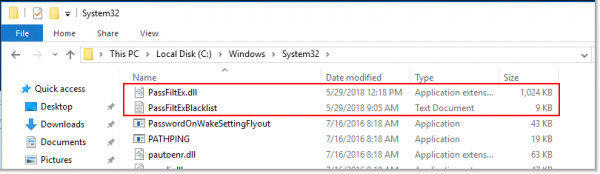
- Copying PassFiltEx.dll downward API support (simultaneously with this in C:\Windows\System32 (or %SystemRoot%\System32).
Copying PassFiltExBlacklist.txt downward API support (simultaneously with this in C:\Windows\System32 (or %SystemRoot%\System32). If necessary, add your own templates

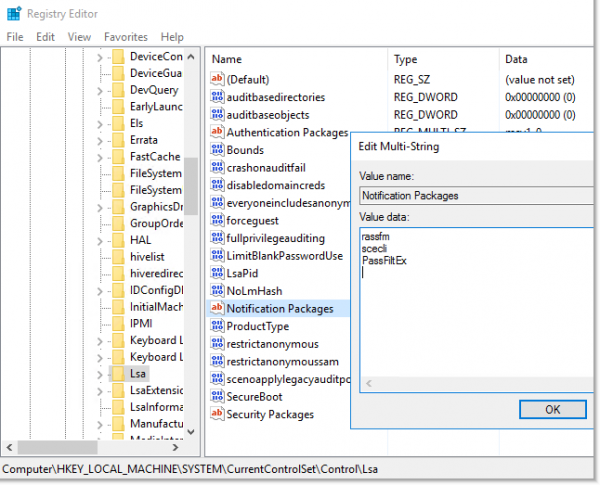
- Editing the registry branch: HKLM\SYSTEM\CurrentControlSet\Control\Lsa => Notification Packages
Add PassFiltEx to the end of the list. (No need to specify the extension.) The full list of packages used for verification will look like this: "rassfm scecli PassFiltEx«.

- Restart the domain controller.
- Repeat the above procedure for all domain controllers.
You can also add the following registry entries, which provide greater flexibility in using this filter:
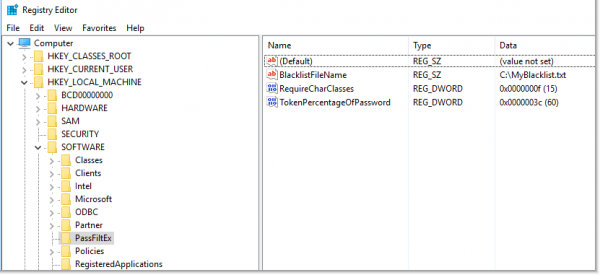
Section: HKLM\SOFTWARE\PassFiltEx — created automatically.
- HKLM\SOFTWARE\PassFiltExBlacklistFileName, REG_SZ, Default: PassFiltExBlacklist.txt
BlacklistFileName — allows you to specify a custom path to the file with password templates. If this registry entry has an empty value or does not exist, the default path will be used, namely — %SystemRoot%\System32. You can even specify a network path, BUT you must remember that the password template file must have clear read, write, delete, and modify permissions.
- HKLM\SOFTWARE\PassFiltExTokenPercentageOfPassword, REG_DWORD, Default: 60
TokenPercentageOfPassword — allows you to specify the percentage occurrence of the mask in the new password. By default, the value is 60%. For example, if the occurrence percentage is set to 60 and the template file contains the string starwars, then the password Starwars1! will be rejected, while the password starwars1!DarthVader88 will be accepted since the percentage occurrence of the string in the password is less than 60%
- HKLM\SOFTWARE\PassFiltExRequireCharClasses, REG_DWORD, Default: 0
RequireCharClasses — allows for extending password requirements beyond the standard complexity requirements of Active Directory. The built-in complexity requirements necessitate 3 out of 5 possible different types of characters: Uppercase, Lowercase, Digit, Special, and Unicode. With this registry key, you can set your own password complexity requirements. The value that can be specified is a set of bits, each representing the corresponding power of two.
That is — 1 = lowercase, 2 = uppercase, 4 = digit, 8 = special character, and 16 = Unicode character.
Thus, with a value of 7, the requirements will be “Uppercase, AND lowercase, AND digit”, and with a value of 31 — “Uppercase, AND lowercase, AND digit, AND special character, AND Unicode character.”
You can even combine — 19 = “Uppercase, AND lowercase, AND Unicode character.” 
A few rules for creating template files:
- Templates are case-insensitive. Thus, an entry in the file starwars, and StarWarS, will be recognized as the same value.
- The blacklist file is re-read every 60 seconds, so you can edit it freely; new data will be used by the filter in a minute.
- Currently, there is no support for Unicode in pattern checking. That is, you can use Unicode characters in passwords, but the filter will not trigger. This is not critical, as I have not seen users who use passwords in Unicode.
- It is advisable to avoid empty lines in the template file. In debugging, an error is visible when loading data from the file. The filter works, but why have unnecessary exceptions?
For debugging, batch files are included in the archive, allowing you to create a log and then analyze it using, for example,
This password filter uses Event Tracing for Windows.
The ETW provider for this password filter is 07d83223-7594-4852-babc-784803fdf6c5.For example, you can set up event tracing to start after the next reboot:
logman create trace autosessionPassFiltEx -o %SystemRootbugPassFiltEx.etl -p "{07d83223-7594-4852-babc-784803fdf6c5}" 0xFFFFFFFF -ets
The trace will start after the next system reboot. To stop:
logman stop PassFiltEx -ets && logman delete autosessionPassFiltEx -ets
All these commands are specified in the scripts StartTracingAtBoot.cmd, and StopTracingAtBoot.cmd..
For one-time verification of filter operation, you can use StartTracing.cmd, and StopTracing.cmd..
To conveniently read the debug output of this filter in Microsoft Message Analyzer it is recommended to use the following settings:
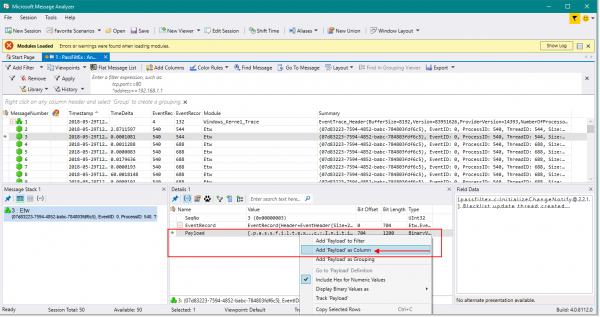
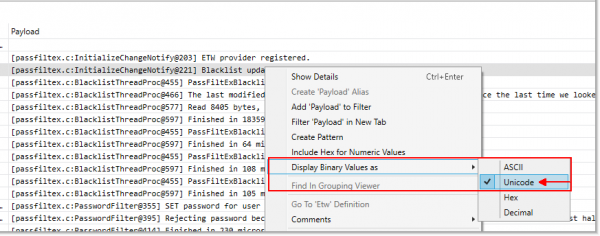
When stopping the log and parsing in Microsoft Message Analyzer it all looks approximately like this:
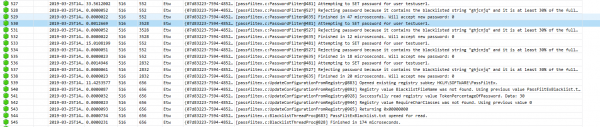
Here it is clear that there was an attempt to set a password for the user — the magical word tells us about this SET in the debug. And the password was rejected due to its presence in the template file and more than 30% match in the entered text.
With a successful password change attempt, we see the following:

There is some inconvenience for the end user. When attempting to change a password that appears in the template file list, the on-screen message lacks intelligence and ingenuity compared to the standard message when failing the password policy.
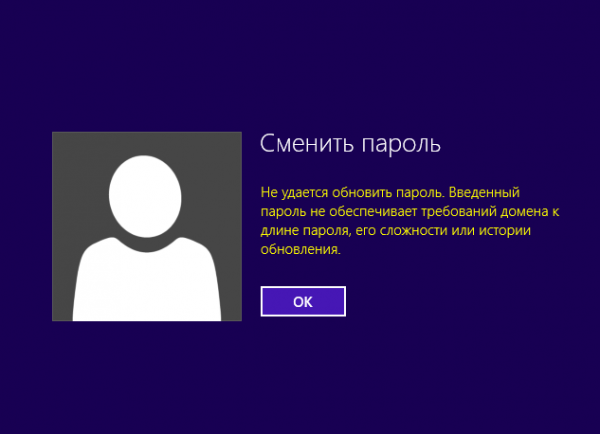
Therefore, be prepared for calls and screams: "I entered the password correctly, but it doesn't work."
Conclusion.
This library allows you to prohibit the use of simple or standard passwords in the Active Directory domain. Say "No!" to passwords like: "P@ssw0rd", "Qwerty123", "ADm1n098".
Yes, undoubtedly, users will love you even more for such care about their security and the need to come up with complicated passwords. And, perhaps, the number of calls and requests for password help will increase. But security comes at a cost.
References to resources used:
Article on Microsoft regarding the custom password filter library:
PassFiltEx:
Link to the release:
Password lists:
DanielMiessler lists:
Wordlist from weakpass.com:
Wordlist from berzerk0 repo:
Microsoft Message Analyzer:
Source: habr.com
