

Periodically, with the aim of moving to the CRS, I interview at various large companies, mainly in St. Petersburg and Moscow for DevOps positions. I've noticed that many companies (many good companies, for example, Yandex) ask two similar questions:
- What is an inode?
- What reasons can lead to a disk write error (or, for example: why can disk space run out, the essence is the same).
As often happens, I was confident that I knew this topic well, but as soon as I started explaining — gaps in my knowledge became apparent. To systematize my knowledge, fill in the gaps, and avoid embarrassment in the future, I’m writing this article, which may also be useful to someone else.
I will start 'from the bottom', i.e., with the hard drive (ignoring USB drives, SSDs, and other modern gadgets, let’s consider any old 20 or 80 GB disk, as its block size is 512 bytes).
A hard drive cannot address its space byte by byte; conditionally, it is divided into blocks. Block numbering starts from 0. (This is called LBA, more details here: )
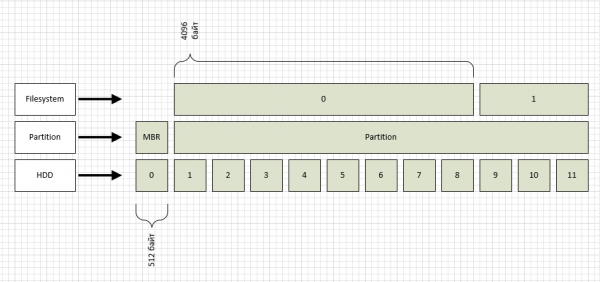
As shown in the diagram, I labeled the LBA blocks as the HDD level. By the way, you can check the block size of your disk like this:
root@ubuntu:/home/serp# blockdev --getpbsz /dev/sdb
512
One level above is the partition, one for the entire disk (again for simplicity). There are two main types of partitioning: msdos and gpt. Specifically, msdos is the old format, supporting disks up to 2TB, while gpt is the new format, capable of addressing up to 1 zettabyte of 512-byte blocks. In our case, we have an msdos type partition, as shown in the diagram, starting from block #1, while block 0 is used for the MBR.
In the first partition, I created an ext2 file system, which by default has a block size of 4096 bytes, as also reflected in the diagram. You can check the file system's block size like this:
root@ubuntu:/home/serp# tune2fs -l /dev/sdb1
tune2fs 1.42.9 (4-Feb-2014)
Filesystem volume name:
Last mounted on:
Filesystem UUID:          a600bf40-f660-41f6-a3e6-96c303995479
Filesystem magic number:  0xEF53
Filesystem revision #:    1 (dynamic)
Filesystem features:      ext_attr resize_inode dir_index filetype sparse_super large_file
Filesystem flags:         signed_directory_hash
Default mount options:    user_xattr acl
Filesystem state:         clean
Errors behavior:          Continue
Filesystem OS type:       Linux
Inode count:              65536
Block count:              261888
Reserved block count:     13094
Free blocks:              257445
Free inodes:              65525
First block:              0
Block size:               4096
Fragment size:            4096
Reserved GDT blocks:      63
Blocks per group:         32768
Fragments per group:      32768
Inodes per group:         8192
Inode blocks per group:   512
Filesystem created:       Fri Aug  2 15:02:13 2019
Last mount time:          n/a
Last write time:          Fri Aug  2 15:02:14 2019
Mount count:              0
Maximum mount count:      -1
Last checked:             Fri Aug  2 15:02:13 2019
Check interval:           0 ()
Reserved blocks uid:      0 (user root)
Reserved blocks gid:      0 (group root)
First inode:              11
Inode size:               256
Required extra isize:     28
Desired extra isize:      28
Default directory hash:   half_md4
Directory Hash Seed:      c0155456-ad7d-421f-afd1-c898746ccd76
The parameter we need is "Block size."
Now, the interesting part: how do we read the file /home/serp/testfile? The file consists of one or more file system blocks that store its data. Knowing the file name, how do we find it? Which blocks should we read?
This is where inodes come into play. The ext2fs file system has a "table" that holds information about all inodes. The number of inodes in the case of ext2fs is set when creating the file system. We look for the relevant numbers in the parameter "Inode count" from the tune2fs output, meaning we have 65536 inodes. The inode contains the information we need: the list of file system blocks for the requested file. How do we find the inode number for a given file?
The correspondence between the name and inode number is in the directory, and a directory in ext2fs is a special type of file, meaning it also has its own inode number. To break this vicious circle, a "fixed" inode number of "2" was assigned for the root directory. Let's look at the contents of inode number 2:
root@ubuntu:/# debugfs /dev/sdb1
debugfs 1.42.9 (4-Feb-2014)
debugfs:  stat

Inode: 2   Type: directory    Mode:  0755   Flags: 0x0
Generation: 0    Version: 0x00000000:00000002
User:     0   Group:     0   Size: 4096
File ACL: 0    Directory ACL: 0
Links: 3   Blockcount: 8
Fragment:  Address: 0    Number: 0    Size: 0
 ctime: 0x5d43cb51:16b61bcc -- Fri Aug  2 16:34:09 2019
 atime: 0x5d43c247:b704301c -- Fri Aug  2 15:55:35 2019
 mtime: 0x5d43cb51:16b61bcc -- Fri Aug  2 16:34:09 2019
crtime: 0x5d43b5c6:00000000 -- Fri Aug  2 15:02:14 2019
Size of extra inode fields: 28
BLOCKS:
(0):579
TOTAL: 1
As can be seen, the directory we need is located in block number 579. In it, we will find the node number for the home folder, and so on in the chain, until we see the node number for the requested file in the serp directory. If anyone wants to check whether the number is correct and whether the necessary information is there, it's not difficult. We do:
root@ubuntu:/# dd if=/dev/sdb1 of=/home/serp/dd_image bs=4096 count=1 skip=579
1+0 records in
1+0 records out
4096 bytes (4.1 kB) copied, 0.000184088 s, 22.3 MB/s
root@ubuntu:/# hexdump -c /home/serp/dd_image
From the output, you can read the names of the files in the directory.
Here I come to the main question: "What reasons can lead to a write error"?
Naturally, this will happen if there are no free blocks left in the file system. What can be done in this case? Besides the obvious "delete something unnecessary", it should be remembered that in ext2,3, and 4 file systems, there is such a thing as "Reserved block count". Looking at the listing above, we have "13094" of such blocks. These blocks are only available for writing to the root user. However, if a quick solution is needed, they can be made available to everyone, resulting in a little free space:
root@ubuntu:/mnt# tune2fs -m 0 /dev/sdb1
tune2fs 1.42.9 (4-Feb-2014)
Setting reserved blocks percentage to 0% (0 blocks)
That is, by default, 5% of your disk space is unavailable for writing, and considering the size of modern disks, this can amount to hundreds of gigabytes.
What else could happen? Another possible situation is when there are free blocks but no inodes left. This usually occurs if there are many files in your file system that are smaller than the size of the file system block. Considering that 1 inode is spent on 1 file or directory, and we have a total of (for this file system) 65536 inodes — this scenario is more than real. You can see this clearly from the output of the df command:
serp@ubuntu:~$ df -hi
Filesystem     Inodes IUsed IFree IUse% Mounted on
udev             493K   480  492K    1% /dev
tmpfs            493K   425  493K    1% /run
/dev/xvda1       512K  240K  273K   47% /
none             493K     2  493K    1% /sys/fs/cgroup
none             493K     2  493K    1% /run/lock
none             493K     1  493K    1% /run/shm
none             493K     2  493K    1% /run/user
/dev/xvdc1       320K  4.1K  316K    2% /var
/dev/xvdb1        64K   195   64K    1% /home
/dev/xvdh1       4.0M  3.1M  940K   78% /var/www
serp@ubuntu:~$ df -h
Filesystem      Size  Used Avail Use% Mounted on
udev            2.0G  4.0K  2.0G   1% /dev
tmpfs           395M  620K  394M   1% /run
/dev/xvda1      7.8G  2.9G  4.6G  39% /
none            4.0K     0  4.0K   0% /sys/fs/cgroup
none            5.0M     0  5.0M   0% /run/lock
none            2.0G     0  2.0G   0% /run/shm
none            100M     0  100M   0% /run/user
/dev/xvdc1      4.8G  2.6G  2.0G  57% /var
/dev/xvdb1      990M  4.0M  919M   1% /home
/dev/xvdh1       63G   35G   25G  59% /var/www
As clearly visible in the /var/www section, the number of free filesystem blocks and the number of free inodes differ significantly.
In case you run out of inodes, I can't suggest any spells, as they don't exist (if I'm wrong, let me know). Therefore, for partitions where many small files are generated, it's important to choose the filesystem wisely. For example, in btrfs, inodes cannot run out, as new ones are dynamically created as needed.
Source: habr.com
