

TL;DR: After a few days of experimenting with I decided to install it on a separate SSD. However, it turned out to be not so straightforward.
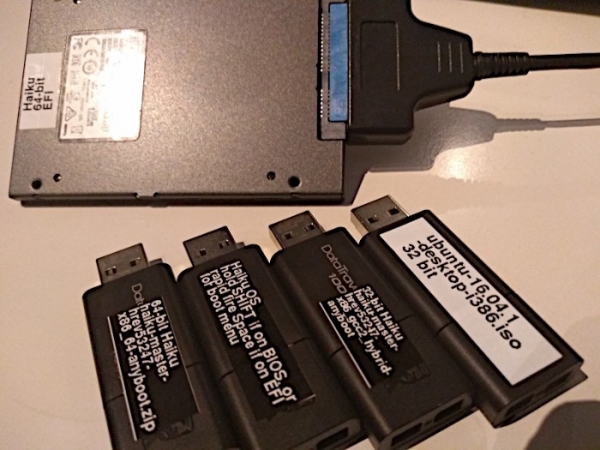
Intensive work is underway to test the loading of Haiku.
I learned about Haiku, an unexpectedly good operating system for PCs. Now it's the fourth day, and I wanted to do more 'real work' with this system, but the partition included in the Anyboot image is too small for that. So I grab a brand-new 120GB SSD, preparing for a smooth installation process... And I hit a snag!
Installation and booting usually receive heightened attention and affection, as they are the first and most crucial impressions. There is hope that the log of my 'beginner' experience will prove useful to the Haiku development team in their ongoing efforts to debug an operating system that 'just works'. I’ll take all the errors on myself!
I believe that the situation with USB booting will be particularly important, as not every user is ready to use the primary SATA disk (not to mention NVMe…) for experiments with a completely unfamiliar operating system. I think USB booting is the most likely scenario for the majority of users who decide to try Haiku on real hardware. Developers should seriously consider this.
Developer's comment:
We have just started supporting EFI, quickly writing a beta version that boots on EFI-supported machines. The results obtained so far are far from the desired level of support. I don't know if we should document the current work or just focus on achieving the proper result, after which everything can be documented.
This sounds reasonable, and there is hope that ultimately everything will be much better than it is now. For now, I can only check what has been done today. Let's get started...
The Anyboot image is too small
Although the Anyboot image is surprisingly easy to write to a regular flash drive, there isn’t enough space on the Haiku partition for installing additional software.
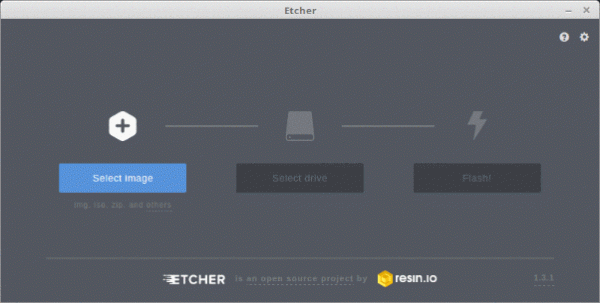
Writing the Anyboot image to the flash drive is relatively simple, but as a result, there is not enough space for real work.
Quick solution: increase the size of the default Haiku partition.
So for real work with Haiku, it is still necessary to install it using the Installer application.
The installer does everything necessary in one place
Remember the great Mac OS X installer?
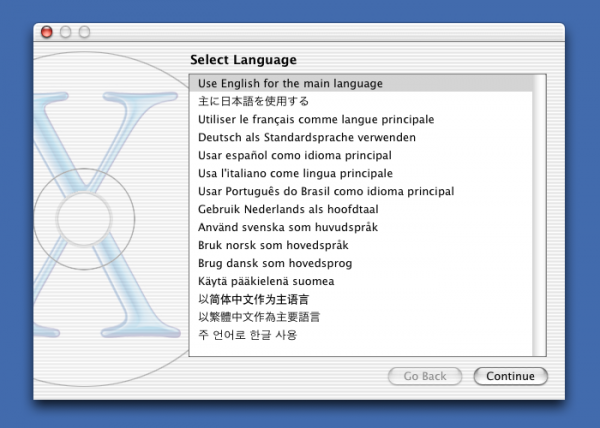
Mac OS X 10.2 Installer
It:
- initializes disks (writes GPT, GUID partition table)
- creates partitions (EFI, primary) using 'common sense' (to optimize disk usage)
- marks the boot partition (sets the bootable flag)
- copies files
In other words, it does 'everything' without unnecessary hassle for the user.
On the other hand, there's the Installer for Haiku, which simply copies files and leaves the rest, too bulky and complicated for the user, even for those with experience, to understand immediately. Especially if the system needs to boot both from BIOS and EFI.
What should I do?
I can't say for sure, but I suspect this:
- Open DriveSetup
- Select the device for installation
- Disk->Initialize->GUID Partition Map…->Continue->Write Changes->OK
- Right-click on the empty space on the device where the system will be installed
- Create…->Enter 256 as the size->EFI system data (not entirely sure)->Write Changes
- Right-click on 'EFI system data' on the device where the system will be installed
- Initialize->FAT32 File System…->Continue->Enter name: 'EFI', FAT size: 32->Format->Write Changes
- Repeat right-click on empty space on the desired device
- Create…->Enter the partition name: Haiku, partition type: Be File System->Create->Write Changes
- Right-click on EFI->Mount
- Launch Installer->confused by the tech slang->Continue->To disk: Haiku (ensured that it's the same partition I created earlier)->Install
- In the file manager, copy the EFI directory from the current system to the EFI partition (I assume this is necessary for EFI booting)
- [translator's note: removed this point from the translation; briefly — the author did not quite manage to create a hybrid system for booting both EFI and BIOS]
- I turn it off
- I connect the newly created disk to the port from which the system will definitely boot [strangely, I didn’t have to do this. — translator's note]
- I turn it on
It seems clear: a tool is needed that does everything at the push of a button, with timely (!) confirmation that the device can be overwritten.
"Quick" solution: create an automated installer that does everything.
Well, even if it’s not 'fast', it’s decent. These are the first impressions of a new system. If the installation fails (which has happened to me several times), many will just quietly walk away forever.
Technical explanation regarding DriveSetup according to
BootManager writes a complete boot menu, including the ability to boot multiple systems from the disk, and it only requires about 2KB at the beginning of the disk. This is suitable for old partitioning schemes, but not for GPT, which uses the same sectors for the partition table. On the other hand, writembr writes a significantly simplified code to the disk that will simply find the active partition and continue the boot process from there. This code needs only the first 400 bytes on the disk, so it doesn’t overlap with GPT. It has limited support for disks with GPT partitioning (but it will work fine in simple cases).
Quick solution: let the GUI for BootManager installation write everything that is installed using writembr onto the disk if GPT partitioning is detected. There’s no need to write 2KB code on GPT disks. There’s no need to set the bootable flag on the EFI partition, only on the Haiku partition.
First attempt: kernel panic
Hardware
- Acer TravelMate B117 N16Q9 (sold with EndlessOS)
- the existing system was booted from a 16GB Kingston DataTraveler 100 flash drive, created from an Anyboot image using Etcher on Linux, plugged into a USB2.0 port (because it wouldn’t boot from a USB3 port)
- 120GB Kingston A400 SSD, fresh from the factory, connected via an ASMedia ASM2115 SATA-USB3 adapter, which is plugged into the USB3 port on the TravelMate B117.
Results
The installer starts copying files, then an input/output error appears, accompanied by a kernel panic.
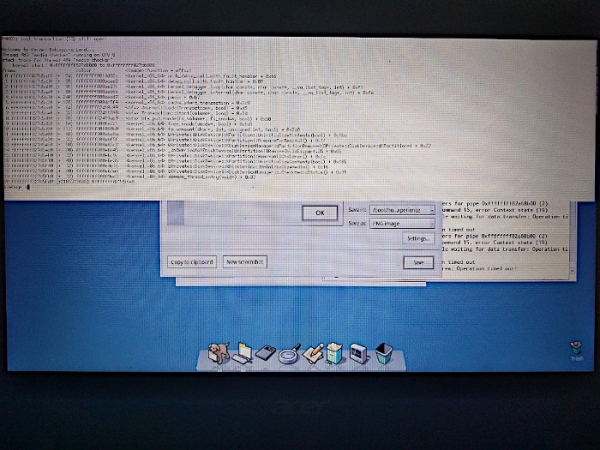
kernel panic
Second attempt: unbootable disk
Hardware
Everything is the same as before, but the SSD is connected through an adapter that connects to a USB2.0 hub, plugged into the USB3 port on the TravelMate. I confirmed with a Windows installation flash drive that this machine boots from USB3.
Results
Unbootable system. The disk partitioning seems to have failed due to BootManager.
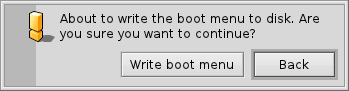
BootManager. 'Write boot menu' what, destroys the disk partitioning?!
Third attempt: wow, it boots! But not through the USB3 port on this machine.
Hardware
Everything still the same as in the second attempt, but this time I’m not using BootManager at all.
The partitioning without BootManager looks like this when checked from Linux.
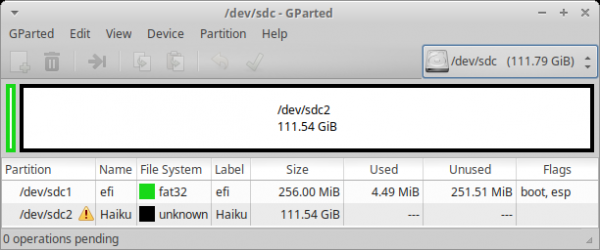
The 'efi' partition with a FAT32 file system is marked as bootable without starting BootManager. Will it boot on a non-EFI machine?
Results
- EFI mode, USB2 port: booting directly into Haiku
- EFI mode, USB2 hub connected to USB3 port: Message "no boot path found, scan for all partitions...", followed by the boot screen with "Select boot volume (Current: haiku)". The "Continue booting" button is greyed out and unclickable. If you choose from the list "Select Boot Volume" -> Haiku (Current: Latest state) -> Latest state -> Return to main menu -> Continue booting — it boots directly into Haiku. It's interesting why it can't "just boot" and requires such a dance to make it work? Especially since the boot partition is clearly found automatically on the boot screen. Is it a software bug?
- EFI mode, USB3 port: boots directly into Haiku. Oh, how happy I am... prematurely, as it turned out. A blue screen appears, but nothing happens for a long time. The cursor hand hangs in the middle of the screen and doesn't move. The SATA-USB3 adapter is blinking. The process resulted in a kernel panic. The Anyboot image on the USB3 stick was not recognized as bootable on the current hardware. Oh, this is definitely a bug! Regarding this, I started .
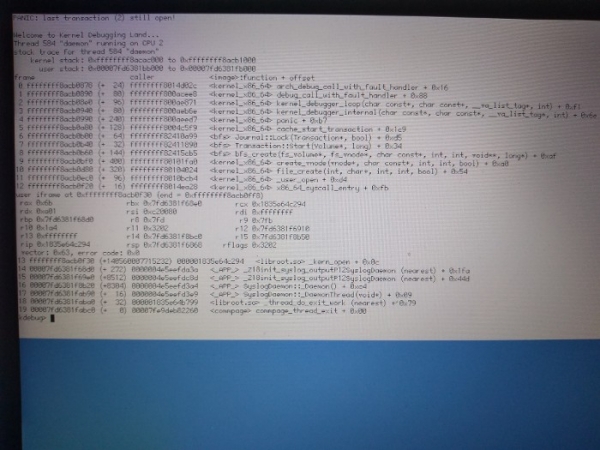
Kernel panic when booting from USB3 port.
Curiously, I can still type commands, but I will have to use the English layout. So, I do :
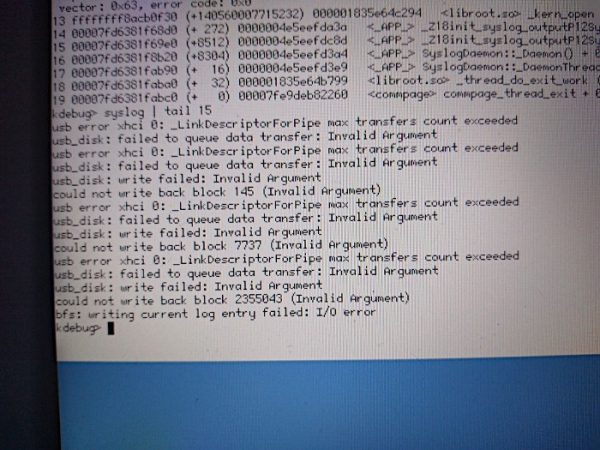
caption for the image: output syslog | tail 15 — while the kernel is panicking
The command call reboot, unfortunately, does not work.
Fourth attempt: the second machine
I transferred the same (exactly working) disk to another machine, where I checked its operation with different ports.
Hardware
Everything is the same as in the third attempt, but on Acer Revo One RL85.
Results
- EFI mode, USB2 port: Message "no boot path found, scan for all partitions...", followed by the boot screen with "Select boot volume (Current: haiku)". The "Continue booting" button is greyed out and unclickable. If you choose from the list "Select Boot Volume" -> Haiku (Current: Latest state) -> Latest state -> Return to main menu -> Continue booting — it boots directly into Haiku. Shutdown hangs on the message "Shutting down...".
- EFI mode, USB2 hub connected to USB3 port: requires clarification
- EFI mode, USB3 port: Message "no boot path found, scan for all partitions...", followed by the boot screen with "Select boot volume (Current: haiku)". The "Continue booting" button is greyed out and unclickable. If you choose from the list "Select Boot Volume" -> Haiku (Current: Latest state) -> Latest state -> Return to main menu -> Continue booting — it boots directly into Haiku.
I note that, unlike the first system, there is normal booting to the desktop without kernel panic. Shutdown hangs on the message "Shutting down...". - EFI mode, SATA port: Boots directly into Haiku. Shutdown hangs on the message 'Shutting down...'.
- CSM BIOS mode, USB2 port: clarification needed.
- CSM BIOS mode, USB2 hub connected to USB3 port: clarification needed.
- CSM BIOS mode, USB3 port: clarification needed.
- CSM BIOS mode, SATA port: Black screen with the message 'Reboot and Select proper Boot Device or Insert Boot Media in selected device and press a key'. Came from CSM BIOS? [Yes, my system shows the same message if it cannot find a bootloader. — translator's note]
Fifth attempt: third machine.
Moved the same disk to the third machine, checked on different ports.
Hardware
Same as in the third attempt, but on a Dell Optiplex 780. If I'm not mistaken, this machine has an early EFI that seemingly always runs in CSM BIOS mode.
Results
- USB2 port: loading Haiku.
- USB3 port (via PCIe card, Renesas Technology Corp. uPD720202 USB 3.0 Host Controller): clarification needed.
- SATA port: clarification needed.
Sixth attempt, fourth machine, MacBook Pro.
Hardware
All the same as in the third attempt, but with MacBook Pro 7.1.
Results
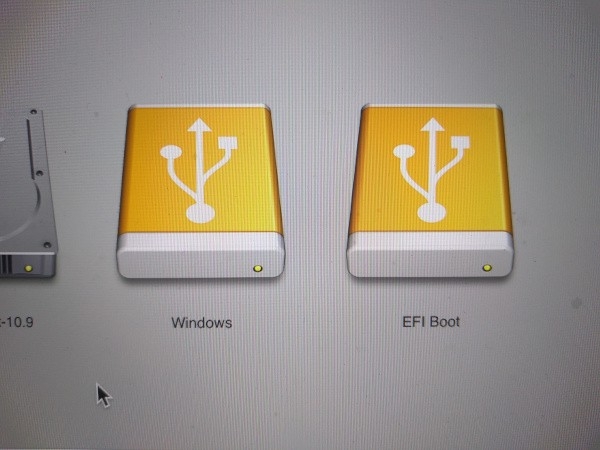
How the Mac sees the USB drive with Haiku.
- CSM mode ('Windows'): black screen with the message 'No bootable drive — insert boot disk and press any key'. Did it come from Apple CSM?
- UEFI mode ('EFI Boot'): stops on the boot device selection screen.
Seventh attempt, Lenovo netbook with 32-bit Atom processor.
Hardware
Kingston DataTraveler 100 USB drive with 16GB capacity, created on Linux using Etcher, with a 32-bit Anyboot image. .
Lenovo Ideapad S10 netbook based on Atom processor without a hard drive.
, captured on linux.
lsusb
00:1d.7 USB controller: Intel Corporation NM10/ICH7 Family USB2 EHCI Controller (rev 02) (prog-if 20 [EHCI])
Subsystem: Lenovo NM10/ICH7 Family USB2 EHCI Controller
Control: I/O- Mem+ BusMaster+ SpecCycle- MemWINV- VGASnoop- ParErr- Stepping- SERR- FastB2B- DisINTx-
Status: Cap+ 66MHz- UDF- FastB2B+ ParErr- DEVSEL=medium >TAbort- <TAbort- SERR- <PERR- INTx-
Latency: 0
Interrupt: pin A routed to IRQ 23
Region 0: Memory at f0844000 (32-bit, non-prefetchable) [size=1K]
Capabilities: [50] Power Management version 2
    Flags: PMEClk- DSI- D1- D2- AuxCurrent=375mA PME(D0+,D1-,D2-,D3hot+,D3cold+)
    Status: D0 NoSoftRst- PME-Enable- DSel=0 DScale=0 PME-
Capabilities: [58] Debug port: BAR=1 offset=00a0
Kernel driver in use: ehci-pci
Results
Loading, then kernel panic occurs, command syslog|tail 15 outputs kDiskDeviceManager::InitialDeviceScan() failed: No such file or directory after several ATA errors. Note: I tried to boot from USB, not from SATA.
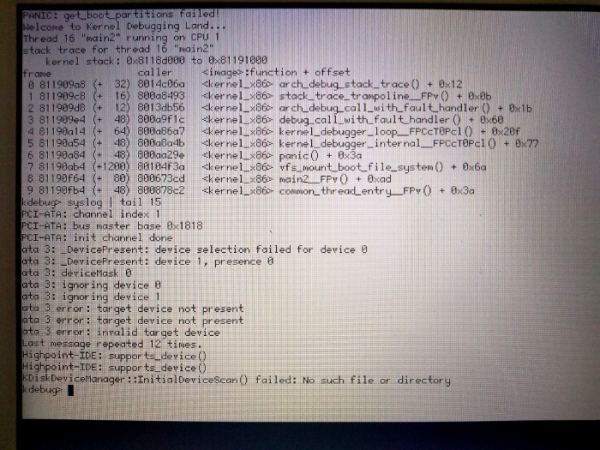
Kernel panic on Lenovo Ideapad S10 netbook when booting from USB drive.
Out of curiosity, I plugged the disk into the SATA port, but did not notice any significant difference from the USB drive. However, I received different messages when using the command syslog|tail 15 (it said it found /dev/disk/ata/0/master/1).
asked me to run the command `syslog | grep usb for this case, here are the results. I'm still glad that such commands can be run on a screen with kernel panic.
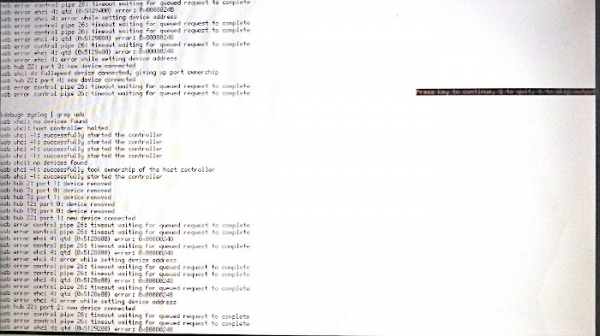
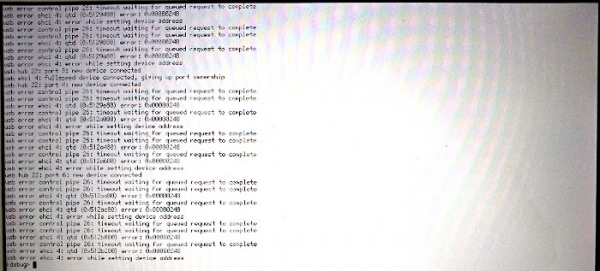
According to Mr. waddlesplash, this EHCI error is the same as in
Eighth attempt: MSI netbook with a 32-bit Atom processor
Hardware
As before
- Medion Akoya E1210 netbook (under the MSI Wind U100 branding) with an installed disk (which I do not use for Haiku).
- this machine
- lsusb of this machine
00:1d.7 USB controller: Intel Corporation NM10/ICH7 Family USB2 EHCI Controller (rev 02) (prog-if 20 [EHCI])
Subsystem: Micro-Star International Co., Ltd. [MSI] NM10/ICH7 Family USB2 EHCI Controller
Control: I/O- Mem+ BusMaster+ SpecCycle- MemWINV- VGASnoop- ParErr- Stepping- SERR- FastB2B- DisINTx-
Status: Cap+ 66MHz- UDF- FastB2B+ ParErr- DEVSEL=medium >TAbort- <TAbort- SERR- <PERR- INTx-
Latency: 0
Interrupt: pin A routed to IRQ 23
Region 0: Memory at dff40400 (32-bit, non-prefetchable) [size=1K]
Capabilities: [50] Power Management version 2
    Flags: PMEClk- DSI- D1- D2- AuxCurrent=375mA PME(D0+,D1-,D2-,D3hot+,D3cold+)
    Status: D0 NoSoftRst- PME-Enable- DSel=0 DScale=0 PME-
Capabilities: [58] Debug port: BAR=1 offset=00a0
Kernel driver in use: ehci-pci
Results
Booting into the Haiku Installer. TouchPad works! (for example, scrolling). The graphics card is recognized as Intel GMA (i945GME).
Ninth attempt: flash drive with a 32-bit image on MacBook Pro
Hardware
- As previously.
- MacBook 7.1
Results
Black screen with the message "No bootable drive — insert boot disk and press any key."
Note: Apple keyboard
In the bottom left corner of any keyboard on the bottom row are the following keys:
non-Apple: Ctrl-Fn-Windows-Alt-Spacebar
Apple: Fn-Ctrl-(Option or Alt)-Command-Spacebar
It would be great if all keyboards in Haiku behaved the same way, so they could be used interchangeably, regardless of what is actually printed on them.
On an Apple keyboard, the Alt key is not immediately to the left of the spacebar (instead, there is the Command key).
In this case, I would find that in Haiku the Command key would be automatically used instead of the Alt key. So, working on an Apple keyboard, I would feel that the keyboard is a non-Apple.
Clearly, there are different options in the settings, but I would prefer automatic recognition and adjustment, since it's USB after all.
Note: writembr for recovery?
I heard that with the command writembr you can make the system (working with EFI) bootable from BIOS.
/> writembr /dev/disk/.../.../.../.../raw
About to overwrite the MBR boot code on /dev/disk/scsi/0/2/0/raw
This may disable any partition managers you have installed.
Are you sure you want to continue?
yes/[no]: yes
Rewriting MBR for /dev/disk/.../.../.../.../raw
MBR was written OK
It looks good, but as a result, the system still cannot boot, as before. Perhaps because booting via BIOS only works with a suitable layout, not GPT? [I should try protective MBR... — translator's note]
Conclusion
Haiku is impressive, but installing it requires a serious approach. Moreover, the boot process is somewhat of a lottery, with chances of success around 1/3, regardless of whether you have USB2 (an Atom netbook) or USB3 (Acer TravelMate). At least one developer has similar hardware. I hope my 'novice' experience helps the developers understand what 'ordinary users' need and enables them to make the result as elegant as the Mac OS X installer. Let's not forget that this isn't even version 1.0 yet, so everything is quite good!
Try it yourself! After all, the Haiku project provides images for download from DVD or USB, created . To install, simply download the image and write it to a flash drive using
Have questions? We invite you to our Russian-speaking .
Error Overview:
From Translation: this is the fourth article in the series about Haiku.
List of Articles:
Source: habr.com
