

Good afternoon everyone, I want to share a simple guide on ‘How to stop pinging a dozen hosts manually. No registration or SMS required!’
 From the vast expanse of the Internet
Important: I am not a programmer or system administrator, but I have to work simultaneously with a large set servers of services, and I wrote this script for my own convenience.
For anyone who may find this useful, feel free to read more.
Why PowershellI have experience writing simple programs in Python, but it requires either an installed interpreter or permission to run .exe files, which is not always possible in my work environment. In contrast, a script on Powershell is often more feasible to execute.
Not everyone likes the console/terminal
I think there's no contradiction here; otherwise, everyone would still be using console-based email clients, and GUIs wouldn't have emerged in *nix systems.
Since I have to use Powershell quite simply in my daily tasks, I initially tried to figure out whether I could attach a GUI to it. It turns out that I can, and it's quite straightforward:
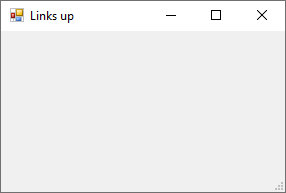
Add-Type -assembly System.Windows.Forms # Connect the library
$main_form = New-Object System.Windows.Forms.Form # Create an object with our "window"

# Set parameters for it
$main_form.Text = 'Links up' # Title in the header
$main_form.Width = 300 # Window width
$main_form.Height = 200 # Window height
$main_form.AutoSize = $true # Allow it to resize automatically if necessary
$main_form.ShowDialog() # Call the "window"
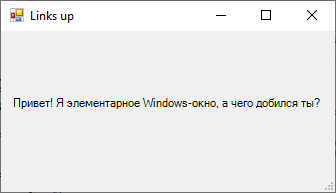
Let’s add an output element to this and create a basic Windows window — is it tautology?
Add-Type -assembly System.Windows.Forms #Connecting the library

$main_form = New-Object System.Windows.Forms.Form #Creating a variable for our "window"

#Setting the parameters through properties
$main_form.Text ='Links up' #Title
$main_form.Width = 300 #Window width
$main_form.Height = 200 #Window height
$main_form.AutoSize = $true #Allowing it to resize automatically if needed

$Label = New-Object System.Windows.Forms.Label #All form elements will be stored in variables, but essentially these are objects like any other variables in PowerShell
$Label.Text = "Hello! I'm a basic Windows window, what have you achieved?" #Text displayed
$Label.Location  = New-Object System.Drawing.Point(10,65) #Position of the object within the form horizontally and vertically (x,y)
$Label.AutoSize = $true

$main_form.Controls.Add($Label) #Adding the created object to the form so it doesn't get lost during the script execution

$main_form.ShowDialog() #Calling a basic window
Let's add some dynamics
So, the tool with which I "pinged Yandex" and mounted *.iso files now has a separate GUI, but that's not enough. Similarly, I can output information about availability, but for monitoring, I will have to restart the script each time.
First, we'll draw two icons and add the ability to display images.
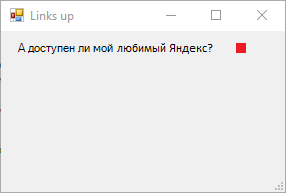
$PictureBox = New-Object system.Windows.Forms.PictureBox #The object for displaying images is aptly named
$PictureBox.width = 10
$PictureBox.height = 10
$PictureBox.location = New-Object System.Drawing.Point(178,12)

#Here we get to the point, binding the image to the ping result using the cmdlet
#<b>test-connection</b>, where:
#-Count - specifies the number of requests
#-computer - IP or domain name for the request
#-quiet - to return only a Boolean value
if ((test-connection -Count 1 -computer ya.ru -quiet) -eq $True) {
	$PictureBox.imageLocation = "C:Testyes.png" #The object refers to the corresponding image
}
Else {
	$PictureBox.imageLocation = "C:Testno.png" #The object refers to the corresponding image
}
$PictureBox.SizeMode = [System.Windows.Forms.PictureBoxSizeMode]::zoom

$main_form.Controls.Add($PictureBox)
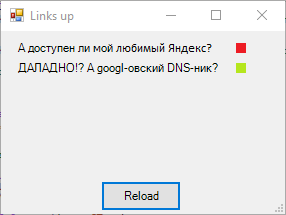
Our DNS is acting up again...
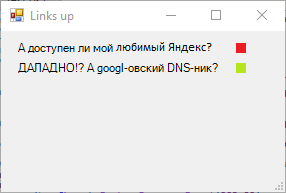
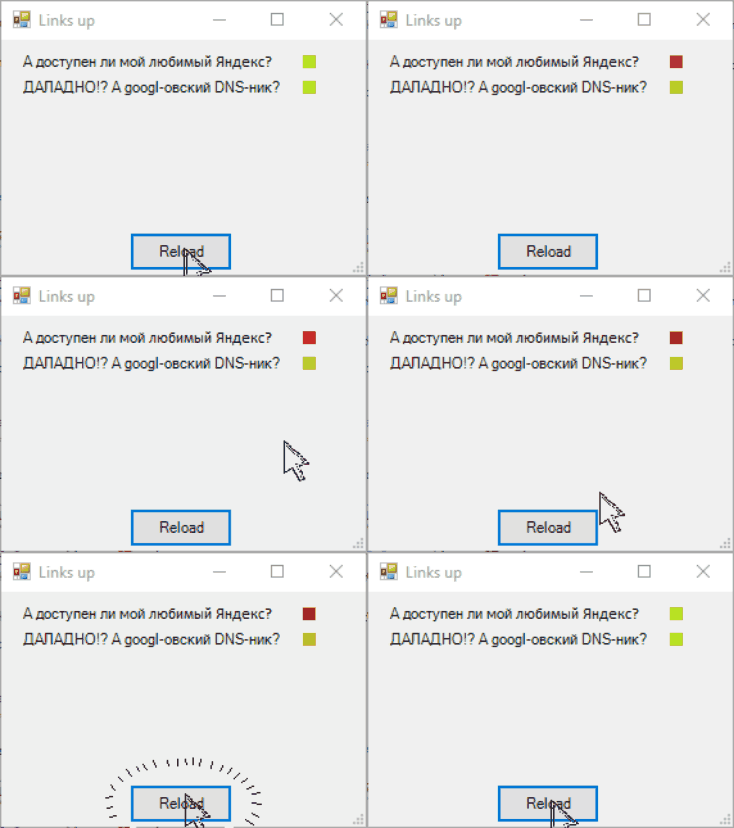
And let's add a button to refresh the readings.
$Button = New-Object System.Windows.Forms.Button
$Button.Location = New-Object System.Drawing.Size(100,150)
$Button.Size = New-Object System.Drawing.Size(80,30)
$Button.Text = "Reload"

# Attaching an event to the button press that addresses each PictureBox according to the previously described logic
$Button.Add_Click({
	if ((Test-Connection -Count 1 -computer ya.ru -quiet) -eq $True)
		{$PictureBox.imageLocation = "C:Testyes.png"}
	Else {$PictureBox.imageLocation = "C:Testno.png"}

	if ((Test-Connection -Count 1 -computer 8.8.8.8 -quiet) -eq $True)
		{$PictureBox1.imageLocation = "C:Testyes.png"}
	Else {$PictureBox1.imageLocation = "C:Testno.png"}
 	})

$main_form.Controls.Add($Button)
Wonderful, now into production!?
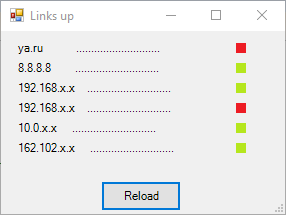
Having manually written down about half a dozen hosts, I suddenly realized one thing — this project will end, the hosts will change, and I will have to edit the script each time. On one hand, it's not a big deal; it's a solution for myself. On the other hand, look at what it results in:
Not for the faint-hearted
Add-Type -assembly System.Windows.Forms #Connect the library

$main_form = New-Object System.Windows.Forms.Form #Create a variable for our "window"

#Set parameters for it
$main_form.Text ='Links up' #Title name
$main_form.Width = 300 #Window width
$main_form.Height = 200 #Window height
$main_form.AutoSize = $true #Allow it to resize automatically if necessary

$Label = New-Object System.Windows.Forms.Label #All form elements will be stored in variables, but in fact, these are objects like any other variables in PowerShell
$Label.Text = "ya.ru		............................" #Displayed text
$Label.Location  = New-Object System.Drawing.Point(15,10) #Position of the object inside the form (x,y)
$Label.AutoSize = $true

$Label1 = New-Object System.Windows.Forms.Label #All form elements will be stored in variables, but in fact, these are objects like any other variables in PowerShell
$Label1.Text = "8.8.8.8		............................" #Displayed text: Google's DNS server
$Label1.Location  = New-Object System.Drawing.Point(15,30) #Position of the object inside the form (x,y)
$Label1.AutoSize = $true

$Label2 = New-Object System.Windows.Forms.Label
$Label2.Text = "192.168.x.x	............................"
$Label2.Location  = New-Object System.Drawing.Point(15,50)
$Label2.AutoSize = $true

$Label3 = New-Object System.Windows.Forms.Label
$Label3.Text = "192.168.x.x	............................"
$Label3.Location  = New-Object System.Drawing.Point(15,70)
$Label3.AutoSize = $true

$Label4 = New-Object System.Windows.Forms.Label
$Label4.Text = "10.0.x.x	 ............................"
$Label4.Location  = New-Object System.Drawing.Point(15,90)
$Label4.AutoSize = $true

$Label5 = New-Object System.Windows.Forms.Label
$Label5.Text = "162.102.x.x	 ............................"
$Label5.Location  = New-Object System.Drawing.Point(15,110)
$Label5.AutoSize = $true

$PictureBox = New-Object system.Windows.Forms.PictureBox #The object for displaying images has a logical name
$PictureBox.width = 10
$PictureBox.height = 10

#Now we move on to the point of binding the displayed image to the result of the node availability check using a cmdlet
#<b>test-connection</b>, where:
#-Count - passes the number of requests
#-computer - IP or domain name for the request
#-quiet - to only return a Boolean value
$PictureBox.location = New-Object System.Drawing.Point(235,12)
if ((test-connection -Count 1 -computer ya.ru -quiet) -eq $True) {
	$PictureBox.imageLocation = "C:Testyes.png" #Object refers to the corresponding image
}
Else {
	$PictureBox.imageLocation = "C:Testno.png" #Object refers to the corresponding image
}
$PictureBox.SizeMode = [System.Windows.Forms.PictureBoxSizeMode]::zoom

$PictureBox1 = New-Object system.Windows.Forms.PictureBox #Object for displaying images is named quite logically
$PictureBox1.width = 10
$PictureBox1.height = 10
$PictureBox1.location = New-Object System.Drawing.Point(235,32)
if ((test-connection -Count 1 -computer 8.8.8.8 -quiet) -eq $True) {
	$PictureBox1.imageLocation = "C:Testyes.png" #Object refers to the corresponding image
}
Else {
	$PictureBox1.imageLocation = "C:Testno.png" #Object refers to the corresponding image
}
$PictureBox1.SizeMode = [System.Windows.Forms.PictureBoxSizeMode]::zoom

$PictureBox2 = New-Object system.Windows.Forms.PictureBox #Object for displaying images is named quite logically
$PictureBox2.width = 10
$PictureBox2.height = 10
$PictureBox2.location = New-Object System.Drawing.Point(235,52)
if ((test-connection -Count 1 -computer 192.168.x.x -quiet) -eq $True) {
	$PictureBox2.imageLocation = "C:Testyes.png" #Object refers to the corresponding image
}
Else {
	$PictureBox2.imageLocation = "C:Testno.png" #Object refers to the corresponding image
}
$PictureBox2.SizeMode = [System.Windows.Forms.PictureBoxSizeMode]::zoom

$PictureBox3 = New-Object system.Windows.Forms.PictureBox #Object for displaying images is named quite logically
$PictureBox3.width = 10
$PictureBox3.height = 10
$PictureBox3.location = New-Object System.Drawing.Point(235,72)
if ((test-connection -Count 1 -computer 192.168.x.x -quiet) -eq $True) {
	$PictureBox3.imageLocation = "C:Testyes.png" #Object refers to the corresponding image
}
Else {
	$PictureBox3.imageLocation = "C:Testno.png" #Object refers to the corresponding image
}
$PictureBox3.SizeMode = [System.Windows.Forms.PictureBoxSizeMode]::zoom

$PictureBox4 = New-Object system.Windows.Forms.PictureBox #Object for displaying images is named quite logically
$PictureBox4.width = 10
$PictureBox4.height = 10
$PictureBox4.location = New-Object System.Drawing.Point(235,92)
if ((test-connection -Count 1 -computer 10.0.x.x -quiet) -eq $True) {
	$PictureBox4.imageLocation = "C:Testyes.png" #Object refers to the corresponding image
}
Else {
	$PictureBox4.imageLocation = "C:Testno.png" #Object refers to the corresponding image
}
$PictureBox1.SizeMode = [System.Windows.Forms.PictureBoxSizeMode]::zoom

$PictureBox5 = New-Object system.Windows.Forms.PictureBox #Object for displaying images is named quite logically
$PictureBox5.width = 10
$PictureBox5.height = 10
$PictureBox5.location = New-Object System.Drawing.Point(235,112)
if ((test-connection -Count 1 -computer 162.102.x.x -quiet) -eq $True) {
	$PictureBox5.imageLocation = "C:Testyes.png" #Object refers to the corresponding image
	}
Else {
	$PictureBox5.imageLocation = "C:Testno.png" #Object refers to the corresponding image
	}
$PictureBox5.SizeMode = [System.Windows.Forms.PictureBoxSizeMode]::zoom

$Button = New-Object System.Windows.Forms.Button
$Button.Location = New-Object System.Drawing.Size(100,150)
$Button.Size = New-Object System.Drawing.Size(80,30)
$Button.Text = "Reload"

# Attach the event on button click to call each PictureBox based on the previously described logic
$Button.Add_Click({
	if ((Test-Connection -Count 1 -computer ya.ru -quiet) -eq $True)
		{$PictureBox.imageLocation	= "C:Testyes.png"}
	Else {$PictureBox.imageLocation	= "C:Testno.png"}

	if ((Test-Connection -Count 1 -computer 8.8.8.8 -quiet) -eq $True)
		{$PictureBox1.imageLocation	= "C:Testyes.png"}
	Else {$PictureBox1.imageLocation	= "C:Testno.png"}

	if ((Test-Connection -Count 1 -computer 192.168.x.x -quiet) -eq $True)
		{$PictureBox2.imageLocation	= "C:Testyes.png"}
	Else {$PictureBox2.imageLocation	= "C:Testno.png"}

	if ((Test-Connection -Count 1 -computer 192.168.x.x -quiet) -eq $True)
		{$PictureBox3.imageLocation	= "C:Testyes.png"}
	Else {$PictureBox3.imageLocation	= "C:Testno.png"}

	if ((Test-Connection -Count 1 -computer 10.0.x.x -quiet) -eq $True)
		{$PictureBox4.imageLocation	= "C:Testyes.png"}
	Else {$PictureBox4.imageLocation	= "C:Testno.png"}

	if ((Test-Connection -Count 1 -computer 162.102.x.x -quiet) -eq $True)
		{$PictureBox5.imageLocation	= "C:Testyes.png"}
	Else {$PictureBox5.imageLocation	= "C:Testno.png"}
	})

$main_form.Controls.Add($Label) #add the created object to the form so it does not get lost during script execution
$main_form.Controls.Add($Label1)
$main_form.Controls.Add($Label2)
$main_form.Controls.Add($Label3)
$main_form.Controls.Add($Label4)
$main_form.Controls.Add($Label5)
$main_form.Controls.Add($PictureBox)
$main_form.Controls.Add($PictureBox1)
$main_form.Controls.Add($PictureBox2)
$main_form.Controls.Add($PictureBox3)
$main_form.Controls.Add($PictureBox4)
$main_form.Controls.Add($PictureBox5)
$main_form.Controls.Add($Button)

$main_form.ShowDialog() #Calls a deceptively simple dialog window
Even if you maintain cleanliness and adhere to structure, periodic editing will cause rather unpleasant feelings.
First, we will extract the availability check into a separate function, and the path to the directory into a separate variable:
$script_path	= "C:TestPS ping"

#We move to a function with the already created PictureBox object and the IP address to be checked.
#It changes the loaded image based on the result.
function get_status($PictureBox,$path_ip) {
	if ((Test-Connection -Count 1 -computer $path_ip -quiet) -eq $True)
		{$PictureBox.imageLocation	= $script_path + "yes.png"}
	Else {$PictureBox.imageLocation	= $script_path + "no.png"}
	}
We will extract the host data into an external file path.txt, recording it in the format "ip/host-functional-name/", and we will accept them in arrays in the document. We will also make the Y-position calculation more automated. This allows us to create Labels and checkboxes by calling the function:
#создаем описательную линию, на вход идут: объект Label, IP-адресс, описание и позиция по оси Y
Function Create_line($label,$path_ip,$caption, $top){
	$label.Location = New-Object System.Drawing.Point(1, $top)
	$label.text = $path_ip+$caption
	$label.font = $font
	$Label.AutoSize = $true
	}
#создаем индикатор для описательной линию, на вход идут: объект PictureBox, IP-адресс и позиция по оси Y
Function Create_link($PictureBox,$path_ip, $top){
	$PictureBox.width	= 10
	$PictureBox.height	= 10
	$PictureBox.location	= New-Object System.Drawing.Point(210,$top)
	get_status -PictureBox $PictureBox -path_ip $path_ip
	$PictureBox.SizeMode	= [System.Windows.Forms.PictureBoxSizeMode]::zoom
	}

$line = Get-content -LiteralPath $script_path"path.txt" #вытаскиваем данные о необходимых хостах
$len = $line.Length	#вычисляем длину, а точнее массив длин каждой строки

$i = 0

#далее объявляем массивы которые понадобятся дальше
$ip = @()	#массив ip
$capt = @()	#массив описания
$Labels =@()	#массив Label
$PictureBoxs =@()	#массив PictureBox

while($i -lt $len){
	$f = $line[$i].IndexOf("/") #вычисляем позицию начала описания
	$l = $line[$i].LastIndexOf("/")	#вычисляем позицию конца описания
	$ip += $line[$i].Substring(0,$f)	#вытаскиваем ip
	$capt += $line[$i].Substring($f+1,$l-$f-1)	#вытаскиваем описание

	#создаем поле Label
	Create_line -label ($label_obj = New-Object System.Windows.Forms.Label) -path_ip $ip[$i] -caption $capt[$i] -top $label_from_top
	#создаем поле PictureBox
	Create_link -PictureBox ($PictureBox_obj = New-Object system.Windows.Forms.PictureBox) -path_ip $ip[$i] -top $label_from_top

	$label_from_top += 15	#делаем "шаг" по оси Y

	$Labels	+= $label_obj	#вносим созданный Label в общий массив
	$PictureBoxs	+= $PictureBox_obj	#вносим созданный PictureBox в общий массив
	$main_form.Controls.Add($Labels[$i])
	$main_form.Controls.Add($PictureBoxs[$i])
	$i	+=1
	}
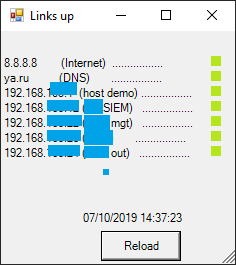
We will add a place to display the time of the last check, as this is convenient, and slightly enhance the action when clicking the button.
$Label0	= New-Object System.Windows.Forms.Label
$Label0.Text	= Get-Date
$Label0.Location	= New-Object System.Drawing.Point(80,180)
$Label0.AutoSize	= $true
$main_form.Controls.Add($Label0)
$Button.Add_Click({
	while($i -lt $len){
		get_status -PictureBox $PictureBoxs[$i] -path_ip $ip[$i]
		$i +=1
		}
	$Label0.Text	= Get-Date
	})
I also added a small fun bug that, when an unavailable host is detected, alerts not only by changing the indicator but also screams from the speakers.
Add-Type -AssemblyName System.Speech
$voice	= New-Object System.Speech.Synthesis.SpeechSynthesizer
$voice.Rate	= 5
$voice.Speak("Warning! Warning! Bays is under attack!")
So after a few embellishments and making it readable and convenient for me, it turned out like this:
Complete script code
Add-Type -AssemblyName System.Speech
Add-Type -assembly System.Windows.Forms

$script_path	= "C:PS ping"
$label_from_top	= 10
$voice	= New-Object System.Speech.Synthesis.SpeechSynthesizer
$voice.Rate	= 5

#Transitioning to a function with the already created PictureBox object and the IP address to check.
#The output changes the loaded image.
function get_status($PictureBox,$path_ip) {
	if ((Test-Connection -Count 1 -computer $path_ip -quiet) -eq $True) {
		$PictureBox.imageLocation	= $script_path + "yes.png"
		}
	Else {
		$PictureBox.imageLocation	= $script_path + "no.png"
		$voice.Speak("Error! Host " + $path_ip + ", is unreachable!")
		}
	}

#Creating a descriptive line, input includes: Label object, IP address, description, and Y-axis position
Function Create_line($label,$path_ip,$caption, $top){
	$label.Location	= New-Object System.Drawing.Point(1, $top)
	$label.text	= $path_ip+$caption
	$label.font	= $font
	$Label.AutoSize	= $true
	}

#Creating an indicator for the descriptive line, input includes: PictureBox object, IP address, and Y-axis position
Function Create_link($PictureBox,$path_ip, $top){
	$PictureBox.width	= 10
	$PictureBox.height	= 10
	$PictureBox.location	= New-Object System.Drawing.Point(210,$top)
	get_status -PictureBox $PictureBox -path_ip $path_ip
	$PictureBox.SizeMode	= [System.Windows.Forms.PictureBoxSizeMode]::zoom
	}

$main_form	= New-Object System.Windows.Forms.Form
$main_form.Text ='Links up' #Window title
$main_form.Width = 300 #Window width
$main_form.Height = 200 #Window height
$main_form.AutoSize = $true #Allows automatic resizing if needed
$main_form.TopMost	= $true #This is very important, it pins the window above others

$line = Get-content -LiteralPath $script_path"path.txt" #Extracts data about necessary hosts
$len = $line.Length	#Calculates the length, precisely the length of each line array

$i = 0

#Next, we declare the arrays needed for further use
$ip	= @()	#IP array
$capt	= @()	#Description array
$Labels	=@()	#Label array
$PictureBoxs	=@()	#PictureBox array

while($i -lt $len){
	$f	= $line[$i].IndexOf("/") #Calculates the start position of the description
	$l	= $line[$i].LastIndexOf("/")	#Calculates the end position of the description
	$ip	+= $line[$i].Substring(0,$f)	#Extracts IP
	$capt	+= $line[$i].Substring($f+1,$l-$f-1)	#Extracts the description

	#Creates a Label field
	Create_line -label ($label_obj = New-Object System.Windows.Forms.Label) -path_ip $ip[$i] -caption $capt[$i] -top $label_from_top
	#Creates a PictureBox field
	Create_link -PictureBox ($PictureBox_obj = New-Object system.Windows.Forms.PictureBox) -path_ip $ip[$i] -top $label_from_top

	$label_from_top	+= 15	#Steps in the Y-axis

	$Labels	+= $label_obj	#Adds the created Label to the overall array
	$PictureBoxs	+= $PictureBox_obj	#Adds the created PictureBox to the overall array
	$main_form.Controls.Add($Labels[$i])
	$main_form.Controls.Add($PictureBoxs[$i])
	$i	+=1
}

#This field holds the last check time
$Label0	= New-Object System.Windows.Forms.Label
$Label0.Text	= Get-Date
$Label0.Location	= New-Object System.Drawing.Point(80,180)
$Label0.AutoSize	= $true


#Attaching the button press event to each PictureBox according to the previously described logic
$Button	= New-Object System.Windows.Forms.Button
$Button.Location	= New-Object System.Drawing.Size(100,200)
$Button.Size	= New-Object System.Drawing.Size(80,30)
$Button.Text	= "Reload"

$Button.Add_Click({
	while($i -lt $len){
		get_status -PictureBox $PictureBoxs[$i] -path_ip $ip[$i]
		$i	+=1
		}
	$i	= 0
	$Label0.Text	= Get-Date
})

$main_form.Controls.Add($Button)
$main_form.Controls.Add($Label0)

$main_form.ShowDialog()
Afterword
I hope this tutorial is useful to someone. If you’ve been doing this since childhood, congratulations, I haven’t. But I’m open to your comments and suggestions.
I personally enjoyed delving into this project and creating a small but useful utility. I plan to implement adding and removing nodes from the GUI, as well as the automatic status updates that should have been the primary focus, avoiding the need to manually click a button and ensuring it doesn't freeze "powershell.exe".
The latest version of the script is on GitHub
Source: habr.com

 Russian
 Italian
 German
 Polish
 Estonian
 Albanian
 Bulgarian
 Croatian
 Czech
Czech Danish
 Dutch
Dutch English
 French
 Hungarian
 Latvian
 Portuguese
 Romanian
 Slovak
 Slovenian
 Spanish
 Swedish