


I am a system administrator at FirstVDS, and this is the first introductory lecture text from my short course aimed at helping new colleagues. Specialists who have recently started in system administration face a number of similar challenges. To offer solutions, I took on the task of writing this series of lectures. Some aspects are specific to hosting technical support, but overall, they may be useful not just for everyone, but for many. Thus, I adapted the lecture text to share it here.
It doesn't matter what your job title is — what matters is that you are involved in administration. So let's start with what a system administrator should do. The main task is to bring order, maintain that order, and prepare for future increases in order. Without a system administrator, chaos reigns on the server. Logs are not generated, or they contain incorrect information, resources are allocated inefficiently, disks fill up with all sorts of junk, and the system begins to slow down due to such chaos. Calm down! System administrators, in your person, begin addressing problems and eliminating disorder!
Pillars of System Administration
However, before we tackle problem-solving, it's important to get acquainted with the four main pillars of administration:
- Documentation
- Templating
- Optimization
- Automation
These are the fundamentals. If you do not build your workflow on these principles, it will be ineffective, unproductive, and hardly resemble true administration. Let's break each one down individually.
Documentation
Documentation implies not just reading the documentation (although that's essential), but also maintaining it.
How to maintain documentation:
- Encountered a new problem that you've never seen before? Note the key symptoms, diagnostic methods, and principles for resolution.
- Came up with a new elegant solution to a standard problem? Write it down so you don't have to reinvent it next month.
- Were you helped to understand a question that you knew nothing about? Jot down the main points and concepts, and draw yourself a diagram.
The main idea is not to rely entirely on your memory when learning and applying something new.
The format you choose to do this is entirely up to you: it could be a note-taking system, a personal blog, a text file, or a physical notebook. The key is that your records meet the following requirements:
- They should not be overly long.Highlight the main ideas, methods, and tools. If understanding the issue requires diving into the low-level mechanics of memory allocation in Linux, don’t rewrite the article from which you learned it — just link to it.
- Records should be understandable to you. If the line
race cond.lockupdoes not allow you to immediately understand what you described with it — clarify. Good documentation shouldn't require thirty minutes of figuring things out. - Search is a very useful feature. If you are keeping notes in a blog, add tags; if in a physical notebook, stick small post-its with descriptions. There is no particular sense in documentation if you spend as much time searching for answers in it as you would spend solving the issue from scratch.
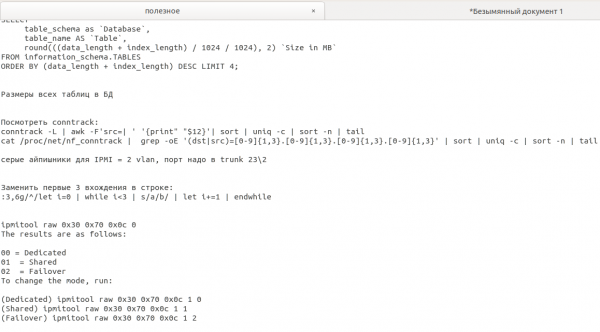
Here's how documentation can look: from primitive notes in a notebook (image above) to a full-fledged multi-user knowledge base with tags, search, and all possible conveniences (below).
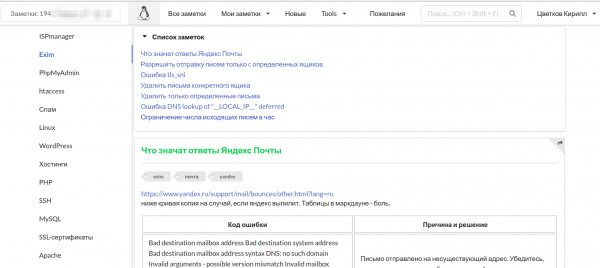
You won’t just avoid searching for the same answers twice: documenting will be a great help in learning new topics (like taking notes!), enhance your spider sense (the ability to diagnose a complex issue with just a cursory glance), and add organization to your actions. If the documentation is accessible to your colleagues, it will help them understand what you have built when you are not around.
Templatization
Templatization is the creation and use of templates. For most standard issues, it is worth creating a specific action template. For diagnosing most problems, a standardized sequence of actions should be used. When you fix/install/optimize something, its functionality should be checked against standardized checklists.
Templates are the best way to organize your workflow. By using standard procedures to solve the most common problems, you gain a lot of great benefits. For example, using checklists allows you to diagnose all the important functions necessary for your work and eliminate less significant functionality. Standardized procedures will minimize unnecessary fluctuations and reduce the likelihood of errors.
The first important point is that procedures and checklists also need to be documented. Simply relying on memory can lead to missing some genuinely critical checks or operations, which can result in disaster. The second important point is that all template practices can and should be modified if the situation requires it. There are no ideal and absolutely universal templates. If there is a problem and the template check did not reveal it, it doesn’t mean that there is no issue. However, before tackling checks on some unlikely hypothetical problems, it’s always worth quickly performing a standard check first.
Optimization
Optimization speaks for itself. You need to optimize your workflow as much as possible in terms of time and labor costs. There are countless options here: learn keyboard shortcuts, abbreviations, regular expressions, and available tools. Look for more practical ways to use these tools. If you call a command 100 times a day, assign it to a keyboard shortcut. If you need to regularly connect to the same servers, save an alias in one word that will connect you:

Explore different options for available tools — there might be a more convenient terminal client, desktop environment, clipboard manager, browser, email client, or operating system. Find out what tools your colleagues and acquaintances are using — perhaps they have good reasons for their choices. Once you choose the tools, learn how to apply them: master the keys, shortcuts, tips, and tricks.
Make optimal use of standard tools — coreutils, vim, regular expressions, bash. There are plenty of great manuals and documentation for the last three. With their help, you can quickly transition from feeling like a monkey banging nuts with a laptop to a monkey using a laptop to order a nutcracker.
Automation
Automation will shift heavy operations from our weary hands to the tireless hands of automation. If a standard procedure involves a handful of similar commands, why not wrap all those commands into a single file and call one command that downloads and executes that file?
Automation is actually 80% about writing and optimizing your own tools (and another 20% about trying to make them work as intended). It can be as simple as an advanced one-liner or a massive all-powerful tool with a web interface and API. The main criterion here is that creating the tool should take no more time and effort than the amount of time and effort that tool will save you. If you spend five hours writing a script that you'll never use again, for a task that would have taken one or two hours to solve without the script — that's a very poor optimization of your workflow. You can only spend five hours creating a tool if the number, type, and time of tasks allow for it, which is rarely the case.
Automation doesn't necessarily mean writing full-fledged scripts. For instance, to create a bunch of similar objects from a list, a clever one-liner is enough to do what you would do manually, switching between windows, with lots of copy-pasting.
Indeed, by building the administration process on these four pillars, you can quickly enhance your efficiency, productivity, and qualifications. However, this list needs to be supplemented with one more point, without which working in IT is practically impossible — self-education.
Self-education of a sysadmin
To be even minimally competent in this field, you need to constantly learn and discover new things. If you have no desire to confront the unknown and figure things out, you will quickly falter. In IT, various new solutions, technologies, and methods keep emerging, and if you don't study them at least superficially, you are on the path to failure. Many areas of information technology rest on a complex and substantial foundation. For instance, network operations. Networks and the internet are everywhere; you encounter them daily, but when you dig into the technologies that underlie them, you discover a vast and intricate discipline, the study of which is far from a stroll in the park.
I didn’t include this point in the list because it is key to IT in general, not just system administration. Naturally, you won’t be able to learn everything all at once — you simply won’t have enough time physically. Therefore, when self-educating, one should keep in mind the necessary levels of abstraction.
You don’t have to learn how the internal memory management of each utility works and how it interacts with Linux memory management, but knowing what RAM represents schematically and why it is needed is not a bad idea. You don’t need to know how the headers for TCP and UDP are structurally different, but it would be good to understand the basic differences in how the protocols operate. You don’t have to study what signal attenuation in optics entails, but it would be helpful to know why real losses are always inherited across nodes. There’s nothing wrong with understanding how certain elements work at a specific level of abstraction, and it's not necessary to dissect absolutely all levels when there is no abstraction at all (you'll just go crazy).
However, discussing things at an abstract level like “well, it’s just a thing that allows showing little websites” isn’t very good in your field. The next lectures will focus on an overview of the main areas that a system administrator faces when working at lower levels of abstraction. I will try to limit the scope of the knowledge reviewed to the minimal abstract level.
The 10 commandments of system administration
So, we have covered the four main pillars and the foundation. Can we start solving problems? Not yet. Before that, it is advisable to get acquainted with the so-called 'best practices' and rules of good conduct. Without them, there is a risk that you will do more harm than good. So, let’s begin:
- Some of my colleagues believe that the very first rule is 'do no harm.' However, I tend to disagree. When you try to avoid causing harm, you can end up doing nothing—too many actions can be potentially destructive. I consider the most important rule to be— 'make a backup'. Even if you cause harm, you can always roll back, and things won't be as bad.
You should always back up whenever time and space allow. Back up what you will be changing and what you risk losing during potentially destructive actions. It is advisable to check the backup for integrity and the presence of all necessary data. You should not delete the backup immediately after verifying everything unless you need to free up disk space. If space is an issue, back it up to your personal server and delete it after a week.
- The second most important rule (which I often violate myself) is— 'do not hide'. If you made a backup, write down where it is so your colleagues don’t have to search for it. If you performed any non-obvious or complex actions, document them: you will leave for home, but the problem may recur or arise for someone else, and your solution can be found via keywords. Even if you are doing something you know well, your colleagues might not.
- The third rule needs no explanation: 'never do something whose consequences you do not know, cannot envision, or do not understand'. Do not copy commands from the internet if you do not know what they do; consult the manual and parse it first. Do not apply ready-made solutions if you cannot understand what they do. Keep the execution of obfuscated code to an absolute minimum. If you don’t have time to figure it out — then you are doing something wrong, and you should familiarize yourself with the next point.
- 'Test'New scripts, tools, one-liners, and commands should be tested in a controlled environment rather than on a client machine if there is at least minimal potential for destructive actions. Even if you have everything backed up (and you did), downtime is not the most pleasant thing. Set up a separate server/virtual machine/chroot for this purpose and test there. Nothing broke? Then you can launch it in production.

- ‘Control’Minimize all operations that you do not control. A single faulty dependency in a package can bring down half the system, and the -y flag set for yum remove gives you a chance to practice your skills in recovering the system from scratch. If an action has no uncontrollable alternatives, proceed to the next point with a ready backup.
- ‘Check’Check the consequences of your actions and whether you need to roll back to a backup. Verify if the problem is truly resolved. Check if the error can be reproduced and under what conditions. Check what you can break with your actions. Trusting in our work is excessive; however, verifying is never unnecessary.
- ‘Communicate’If you can’t resolve an issue, ask colleagues if they have encountered something similar. If you want to apply a controversial solution, seek the opinions of your colleagues. They may suggest a better solution. If you are unsure of your actions, discuss them with colleagues. Even if it is your area of expertise, a fresh perspective on the situation can clarify many things. Don’t hesitate to admit your lack of knowledge. It’s better to ask a silly question, appear foolish, and get an answer than to not ask, receive no answer, and remain in the dark.
- ‘Don’t refuse help without a valid reason’This point is the opposite of the previous one. If someone asks you a silly question, clarify and explain. If they request the impossible, explain that it is unattainable and why, and suggest alternatives. If you have no time (genuinely no time, not just reluctance), tell them you have an urgent matter/large workload, but you will look into it later. If colleagues have no urgent tasks, suggest they approach them and delegate the issue.
- ‘Give feedback’Has a colleague started using a new method or script, and you're encountering negative consequences from that decision? Report it. The problem might be resolved with a few lines of code or five minutes of adjustments to the method. Came across a bug in the software? Report the bug. If it can be reproduced or doesn't need to be reproduced, it will likely be fixed. Share your wishes, suggestions, and constructive criticism, and bring up questions for discussion if they seem relevant.
- “Ask for feedback”We are all imperfect, as are our solutions, and the best way to verify the correctness of a decision is to bring it up for discussion. Optimized something for a client? Ask them to monitor its performance, as there might be a 'bottleneck' in the system where you weren't looking. Created a helpful script? Show it to your colleagues; they might find a way to improve it.
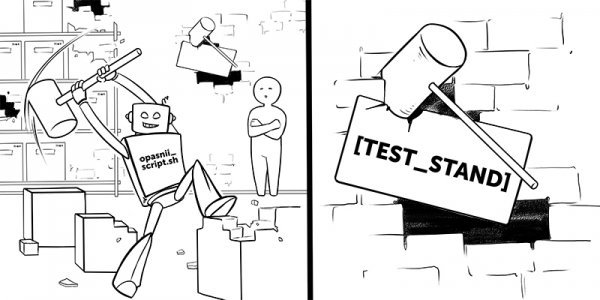
If you consistently apply these practices in your work, most issues will cease to be problems: you'll not only minimize your own mistakes and blunders, but you'll also have opportunities to correct errors (such as having backups and colleagues who will advise you to back up). After that, it’s only about the technical details where, as we know, the devil is in the details.
The main tools you'll be using for more than 50% of your time are grep and vim. What could be simpler? Text search and text editing. However, both grep and vim are powerful multifunctional multitools that allow you to search and edit text efficiently. While some Windows Notepad will let you simply write/delete a line, in vim, you can do almost anything with the text. Don't believe it? Call the vimtutor command from the terminal and start learning. As for grep, its main strength lies in regular expressions. Yes, the tool itself allows you to flexibly set search conditions and output data, but without RegExp, it doesn't have much point. And you need to know regular expressions! At least at a basic level. To start, I would recommend you check this out. , it covers the fundamentals of regular expressions and their application in conjunction with grep. Oh yes, when combined with vim, you gain ULTIMATE POWER to manipulate text in ways that make it necessary to label such actions with 18+ icons.
Of the remaining 50%, 40% pertains to the coreutils toolset. You can view the list for coreutils at , and the manual for the entire list is available on the website . Anything not covered by this set can be found in the utilities of . You don’t need to memorize all the commands by heart, but it’s helpful to have a rough understanding of what the main tools can do. You won’t have to reinvent the wheel with workarounds. I once needed to replace line breaks with spaces in the output from a utility, and my tired brain came up with the command sed ':a;N;$!ba;s/n/ /g', a colleague approached, shooed me away from the console, and then solved the problem by writing tr 'n' ' '.
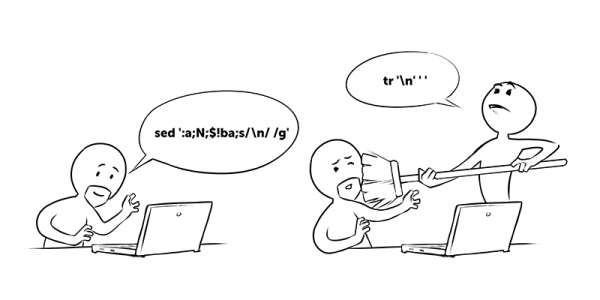
I would recommend remembering roughly what each tool does and the keys for the most commonly used commands; for everything else, there is man. Don’t hesitate to call man if you’re in doubt about anything. And definitely read man on man itself—it contains important information about what you will find.
By knowing these tools, you will be able to effectively tackle a significant portion of the tasks you encounter in practice. In the following lectures, we will discuss when to apply these tools and the structures of the main services and applications to which they are applied.
You were with the system administrator of FirstVDS, Kirill Tsvetkov.
Source: habr.com
