

The purpose of this article is to simplify the configuration of the DHCP service for the VXLAN BGP EVPN and DFA factory using Microsoft Windows Server 2016/2019.
In the official documentation, the DHCP service based on Microsoft Windows Server 2012 for the factory is configured as a SuperScope, which includes a Loopback pool (the highlight here is the exception from the pool of all IP addresses in the pool (excluded IP address = pool)) and pools for assigning IP addresses for real networks (the highlight here is configuring policies that filter the DHCP Relay Circuit ID, and this DHCP relay Circuit ID contains the VNI for the network, i.e., for another pool, this DHCP Relay Circuit ID will be slightly different).
To configure DHCP on Windows Server.

1. Create a super scope. Within the super scope, create scope B, S1, S2, S3, …, Sn for the subnet B and the subnets for each segment.
2. In scope B, specify the 'Exclusion Range' to be the entire address range (so that the offered address range must not be from this scope).
3. For every segment scope Si, specify a policy that matches on Agent Circuit ID with a value of '0108000600XXXXXX', where '0108000600' is a fixed value for all segments, and the 6 numbers "XXXXXX" is the segment ID value in hexadecimal. Also ensure to check the Append wildcard(*) checkbox.
4. Set the policy address range to the entire range of the scope.
This article addresses the following questions:
Content
- ( & )
Introduction
This section briefly lists all the source data: Instructions for configuring network equipment, RFCs used in DHCP packets in eVPN factories, and an overview of the evolution of DHCP server settings on Microsoft Windows Server 2012 in Cisco documentation. It also includes brief information about Superscope and Policy in the DHCP service on Microsoft Windows Server.
How to configure DHCP Relay in the VXLAN BGP EVPN, DFA factory
Configuring DHCP Relay in the VXLAN BGP EVPN factory is not the main topic of this article, as it is quite simple. I provide links to documentation and some details on configurations for network equipment.
Example configuration of DHCP Relay on Nexus 9000V v9.2(3)
service dhcp
ip dhcp relay
ip dhcp relay information option
ip dhcp relay information option vpn
interface loopback10
  vrf member VRF1
  ip address 10.120.0.1/32 tag 1234567
interface Vlan12
  no shutdown
  vrf member VRF1
  no ip redirects
  ip address 10.120.251.1/24 tag 1234567
  no ipv6 redirects
  fabric forwarding mode anycast-gateway
  ip dhcp relay address 10.0.0.5
  ip dhcp relay source-interface loopback10
RFCs implemented in the operation of the DHCP Relay service in VXLAN BGP EVPN fabrics
RFC#6607: Sub-option 151(0x97) — Virtual Subnet Selection
•	Sub-option 151(0x97) - Virtual Subnet Selection (Defined in RFC#6607)
Used to convey VRF related information to the DHCP server in an MPLS-VPN and VXLAN EVPN multi-tenant environment.
The "name" of the VRF in which the client is located is transmitted.
RFC#5107: Sub-option 11(0xb) — Server ID Override
•	Sub-option 11(0xb) - Server ID Override (Defined in RFC#5107.)
The server identifier (server ID) override sub-option allows the DHCP relay agent to specify a new value for the server ID option, which is inserted by the DHCP server in the reply packet. This sub-option allows the DHCP relay agent to act as the actual DHCP server such that the renew requests will come to the relay agent rather than the DHCP server directly. The server ID override sub-option contains the incoming interface IP address, which is the IP address on the relay agent that is accessible from the client. Using this information, the DHCP client sends all renew and release request packets to the relay agent. The relay agent adds all of the appropriate sub-options and then forwards the renew and release request packets to the original DHCP server. For this function, Cisco’s proprietary implementation is sub-option 152(0x98). You can use the ip dhcp relay sub-option type cisco command to manage the function.
This option is used for the client to send a request to renew the lease on the IP address used in this option. (In Cisco VXLAN BGP EVPN, this is the Anycast gateway address by default for the client.)
RFC#3527: Sub-option 5(0x5) — Link Selection
Sub-option 5(0x5) - Link Selection (Defined in RFC#3527.)

The link selection sub-option provides a mechanism to separate the subnet/link on which the DHCP client resides from the gateway address (giaddr), which can be used to communicate with the relay agent by the DHCP server. The relay agent will set the sub-option to the correct subscriber subnet and the DHCP server will use that value to assign an IP address rather than the giaddr value. The relay agent will set the giaddr to its own IP address so that DHCP messages are able to be forwarded over the network. For this function, Cisco’s proprietary implementation is sub-option 150(0x96). You can use the ip dhcp relay sub-option type cisco command to manage the function.
The network address from which the client needs the IP address.
The evolution of Cisco documentation regarding DHCP configuration on Microsoft Windows Server 2012
I included this section because a positive trend is observed from the vendor:
The documentation only includes the configuration of DHCP Relay on network equipment.
Another article was used for configuring DHCP on Windows Server 2012:
This article states that each network/VNI requires its own SuperScope pairing and its own set of Loopback addresses:
If multiple DHCP Scopes are required for multiple subnets, you need to create one LoopbackX per subnet/vlan on all LEAFS and create a superscope with a loopbackX range scope and actual client IP subnet scope per vlan.
Added Windows 2012 Server settings to the network equipment configuration documentation. One SuperScope is required for all address pools in the data center, and this SuperScope serves as the boundary of the data center:
Create Superscope for all scopes you want to use for Option 82-based policies.
Note
The Superscope should combine all scopes and act as the administrative boundary.
Everything is described very succinctly:
Let us assume the switch is using the address from subnet B (it can be the backbone subnet, management subnet, or any customer designated subnet for this purpose) to communicate with the Windows DHCP server. In DFA, we have subnets S1, S2, S3, …, Sn for segments s1, s2, s3, …, sn.

To configure DHCP on Windows server.

1. Create a super scope. Within the super scope, create scope B, S1, S2, S3, …, Sn for the subnet B and the subnets for each segment.
2. In scope B, specify the 'Exclusion Range' to be the entire address range (so that the offered address range must not be from this scope).
3. For every segment scope Si, specify a policy that matches on Agent Circuit ID with the value of '0108000600XXXXXX', where '0108000600' is a fixed value for all segments, and the 6 numbers "XXXXXX" represent the segment ID value in hexadecimal. Also, ensure to check the Append wildcard(*) checkbox.
4. Set the policy address range to the entire range of the scope.
DHCP in Microsoft Windows Server (superscope & policy)
Superscope is an administrative feature of a DHCP server that can be used to group multiple scopes as a single administrative entity. Superscope allows a DHCP server to provide leases from more than one scope to clients on a single physical network. Scopes added to a superscope are called member scopes. What is a SuperScope – it’s functionality that allows grouping multiple pools of IP addresses into one administrative unit. To announce IP addresses from several pools to users within a single physical network (within one VLAN). If a request came to a pool of addresses within a SuperScope, then an address can be issued to the client from another Scope that is part of this SuperScope.
The DHCP Server role in Windows Server 2012 introduces a new feature that allows you to create IPv4 policies that specify custom IP address and option assignments for DHCP clients based on a set of conditions.

The policy-based assignment (PBA) feature allows you to group DHCP clients by specific attributes based on fields contained in the DHCP client request packet. PBA enables targeted administration and greater control of the configuration parameters delivered to network devices with DHCP.
Policies – allow assigning IP addresses to users based on the type of user or parameter. Cisco engineers use policies in Windows Server 2012 to filter by VNI (Virtual Network Identifier).
Main Section
This section presents the research results on why it is not supported, how it works (logic), what is new, and how this new aspect will help us.
Why are Microsoft Windows Server 2000/2003/2008 not supported?
Microsoft Windows Server 2008 and earlier versions do not process Option 82 and return the reverse packet without Option 82.
- A request from the client is sent as a Broadcast (DHCP Discover).
- The equipment (Nexus) sends a packet to the DHCP server (DHCP Discover + Option 82).
- The DHCP server receives and processes the packet, sending back a response, but without Option 82. (DHCP Offer – without Option 82)
- The equipment (Nexus) receives a packet from the DHCP server. (DHCP Offer) However, it does not send this packet to the end user.
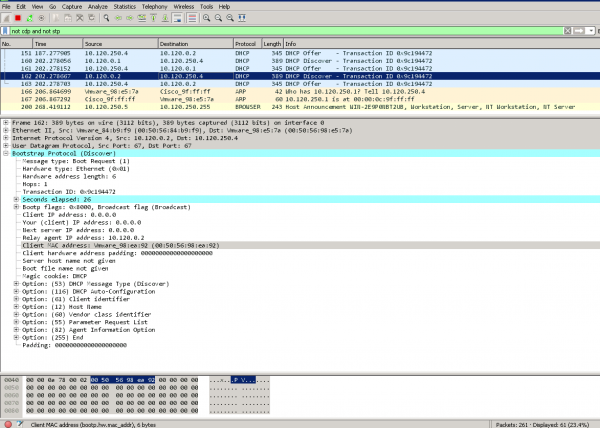
Sniffer data — on Windows Server 2008 and on the DHCP clientWindows Server 2008 receives a request from the network equipment. (Option 82 is present in the list)
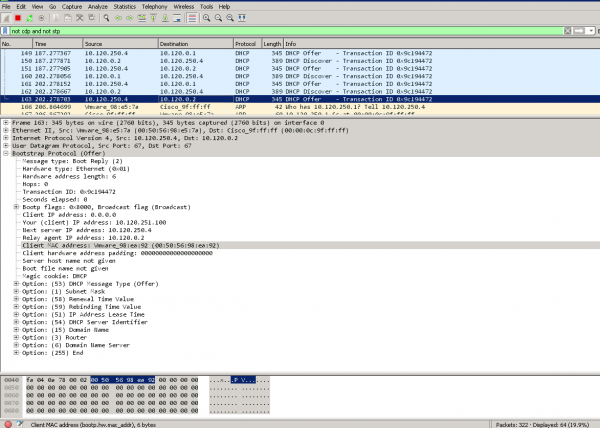
Windows Server 2008 sends a response to the network equipment. (Option 82 is absent from the options list in the packet)
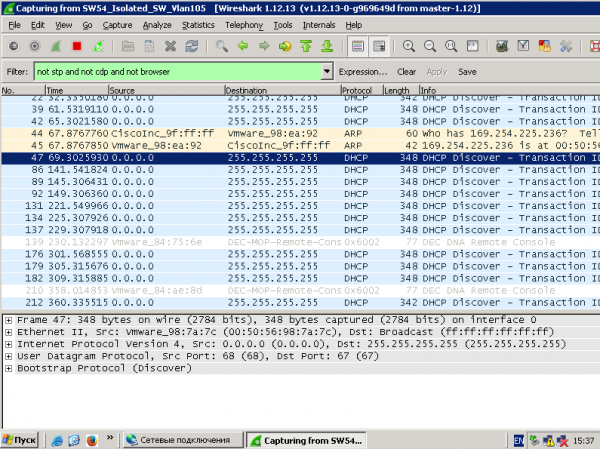
Request from the client – DHCP Discover is present and DHCP Offer is absent
Statistics on network equipment:
NEXUS-9000V-SW-1# show ip dhcp relay statistics
----------------------------------------------------------------------
Message Type             Rx              Tx           Drops
----------------------------------------------------------------------
Discover                  8               8               0
Offer                     8               8               0
Request(*)                0               0               0
Ack                       0               0               0
Release(*)                0               0               0
Decline                   0               0               0
Inform(*)                 0               0               0
Nack                      0               0               0
----------------------------------------------------------------------
Total                    16              16               0
----------------------------------------------------------------------

DHCP L3 FWD:
Total Packets Received                           :         0
Total Packets Forwarded                          :         0
Total Packets Dropped                            :         0
Non DHCP:
Total Packets Received                           :         0
Total Packets Forwarded                          :         0
Total Packets Dropped                            :         0
DROP:
DHCP Relay not enabled                           :         0
Invalid DHCP message type                        :         0
Interface error                                  :         0
Tx failure towards server                        :         0
Tx failure towards client                        :         0
Unknown output interface                         :         0
Unknown vrf or interface for server              :         0
Max hops exceeded                                :         0
Option 82 validation failed                      :         0
Packet Malformed                                 :         0
Relay Trusted port not configured                :         0
DHCP Request dropped on MCT                      :         0
*  -  These counters will show correct value when switch
receives DHCP request packet with destination ip as broadcast
address. If request is unicast it will be HW switched
NEXUS-9000V-SW-1#
Why is the configuration so complicated in Microsoft Windows Server 2012?
RFC#3527 (Option 82 Sub-option 5(0x5) — Link Selection) is not yet supported in Microsoft Windows Server 2012
However, the Policy functionality has already been implemented.
How it works:
- Microsoft Windows Server 2012 has a super-scope (SuperScope) that includes Loopback addresses and pools for real networks.
- The selection of the pool for IP address assignment falls into the SuperScope, since the response came from DHCP Relay with a Source address of Loopback, which is part of the SuperScope.
- Using Policy, the request selects from the Superscope the member scope, whose VNI is contained in Option 82 Suboption 1 Agent Circuit ID. ("0108000600" + 24 bits of VNI + 24 bits of values which are unknown to me, but the sniffer shows 0 in this field.)
How has the configuration been simplified in Microsoft Windows Server 2016/2019?
Microsoft Windows Server 2016 has implemented the functionality of RFC#3527. This means that Windows Server 2016 can recognize the correct network from Option 82 Sub-option 5(0x5) — Link Selection.
This immediately raises three questions:
- Can we do without Superscope?
- Can we do without Policy and converting VNI to hexadecimal?
- Can we do without Scope for Loopback addresses DHCP Source?
Q. Can we do without Superscope?
A. Yes, scopes can be created directly within the IPv4 address range.
Q. Can we do without Policy and converting VNI to hexadecimal?
A. Yes, the selection of the network occurs based on Option 82 Suboption 0x5,
Q. Can we do without Scope for Loopback addresses DHCP Source?
A. No, we cannot. Because in Microsoft Windows Server 2016/2019, there is protection against malicious DHCP requests. This means that all requests from addresses not in the DHCP server pool are considered malicious.
 Note
All relay agent IP addresses (GIADDR) must be part of an active DHCP scope IP address range. Any GIADDR outside of the DHCP scope IP address ranges is considered a rogue relay and Windows DHCP Server will not acknowledge DHCP client requests from those relay agents.

A special scope can be created to 'authorize' relay agents. Create a scope with the GIADDR (or multiple if the GIADDR's are sequential IP addresses), exclude the GIADDR address(es) from distribution, and then activate the scope. This will authorize the relay agents while preventing the GIADDR addresses from being assigned.
That is, for setting up a DHCP pool on Microsoft Windows Server 2016/2019 for the VXLAN BGP EVPN fabric, you only need to:
- Create a pool for Relay Source addresses.
- Create a pool for client networks.
What is not necessary (but can be configured and will work, without hindering operation):
- Create Policies.
- Create a SuperScope.
ExampleExample configuration of a DHCP server (there are 2 real DHCP clients — clients connected to the VXLAN fabric)
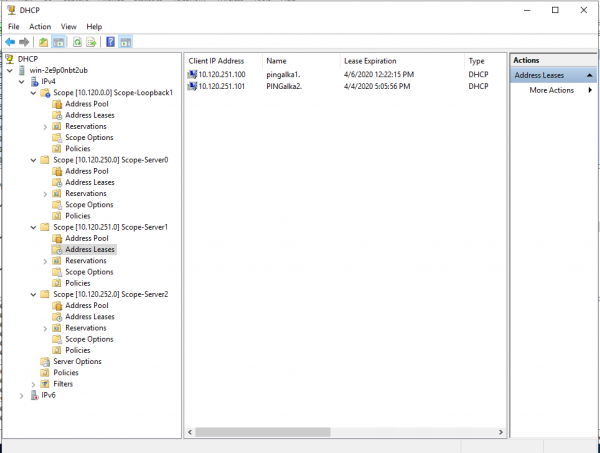
Example configuration of a custom pool:
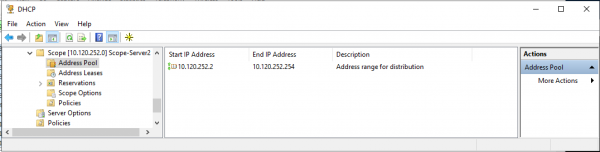
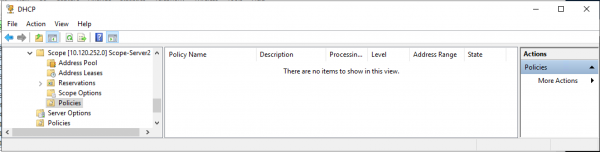
Example configuration of a custom pool (policies selected — to prove that policies were not used for the correct operation of the pool):
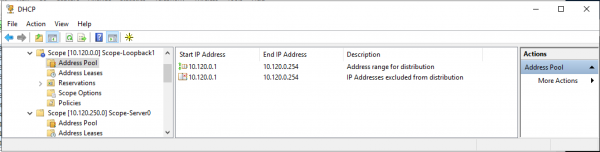
Example configuration of a pool for Source addresses of DHCP Relay (the range of addresses for assignment completely corresponds to the exclusion from the pool of addresses):
Configuring the DHCP service on Microsoft Windows Server 2019
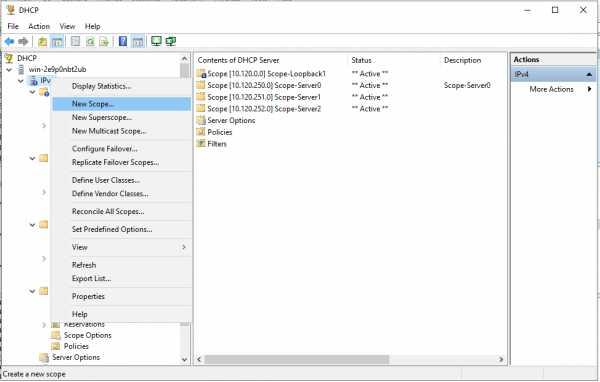
Configuring a Pool for Loopback Addresses (source) for DHCP Relay.
Creating a new pool (Scope) in the IPv4 space.
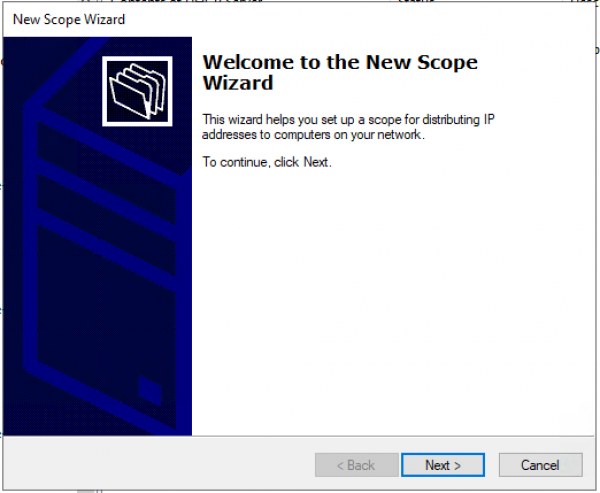
Pool creation wizard. "Next >"
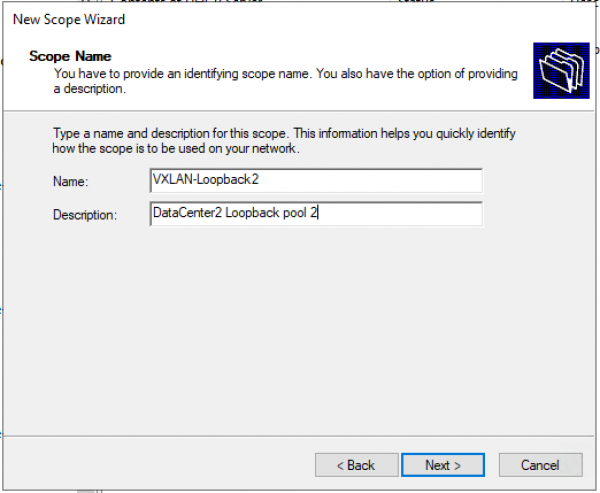
Setting the pool name and description.
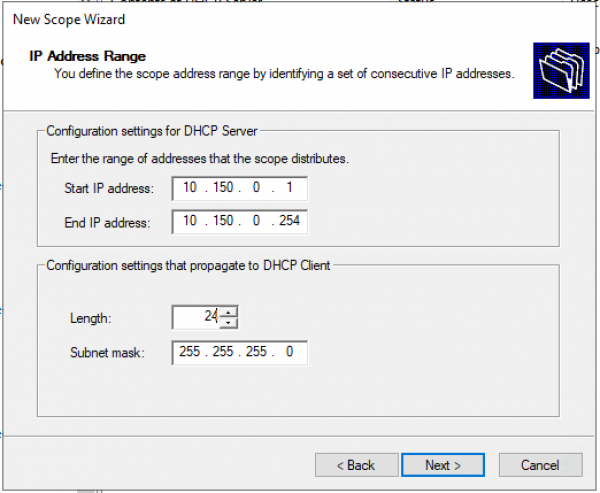
Defining the range of IP addresses for Loopback and the mask for the pool.
Adding exceptions. The range of exceptions must exactly match the pool range.
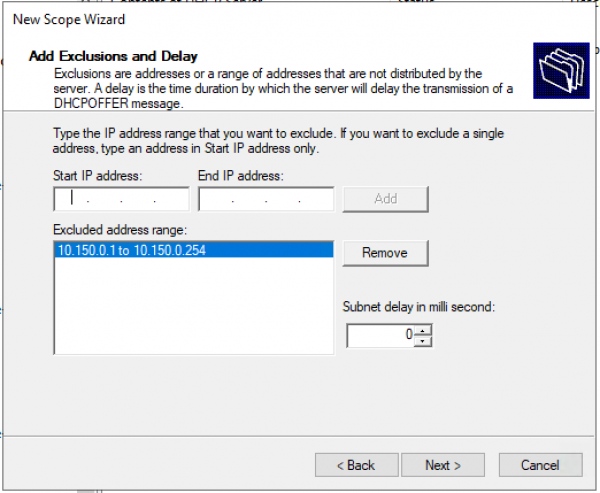
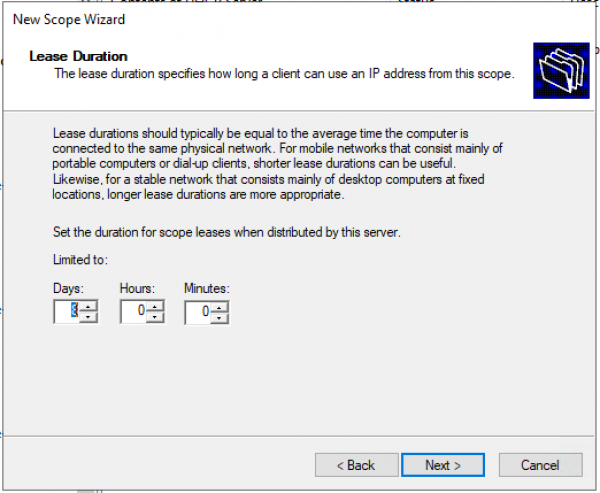
Lease time. "Next >"
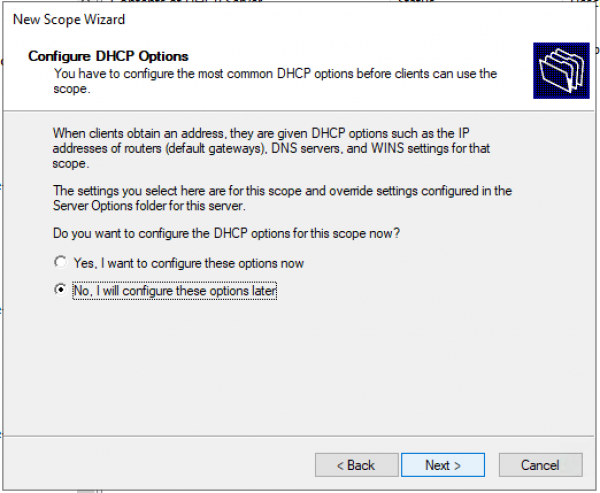
Request: Will you configure DHCP options now (DNS, WINS, Gateway, Domain) or do it later? It's quicker to answer no and then activate the pool manually. Or go to the end without filling in any information and activate the pool at the end of the wizard.
Confirming that options are not configured, and the pool is not activated. "Finish"
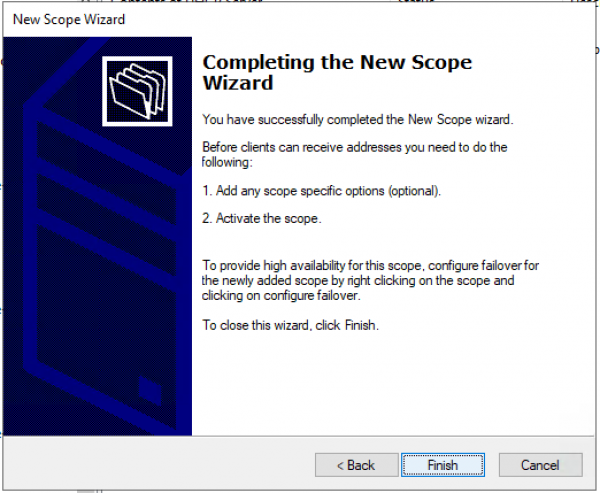
Activating the pool manually. — Select Scope and in the context menu — choose "Activate."
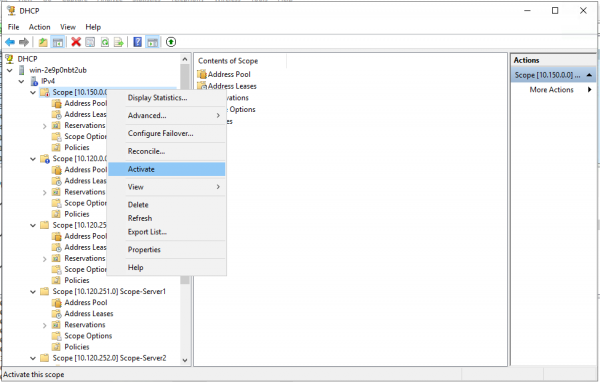
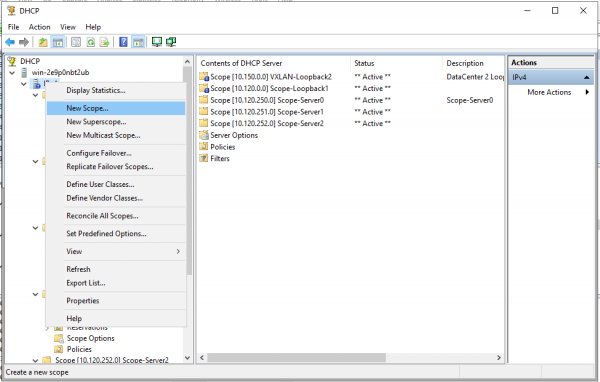
Creating a pool for users/servers.
Creating a new pool.
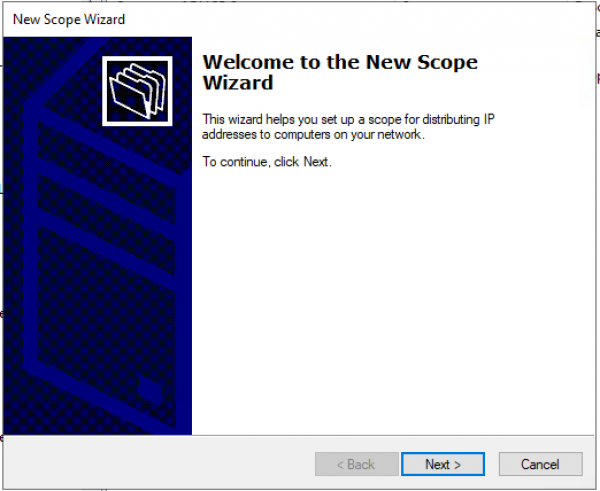
Pool creation wizard. "Next >"
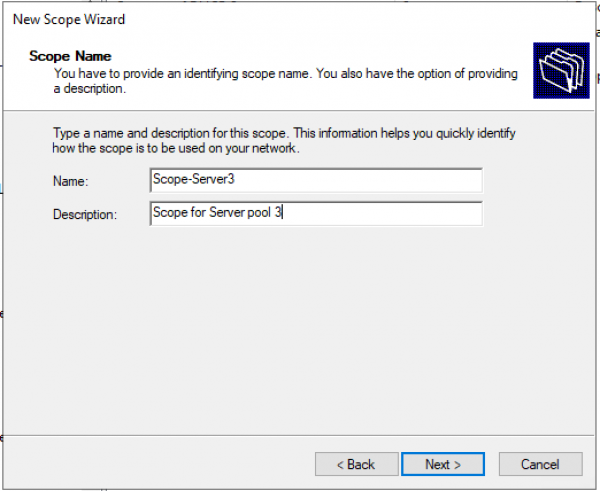
Setting the pool name and description.
Defining the range of IP addresses for Loopback and the mask for the pool.
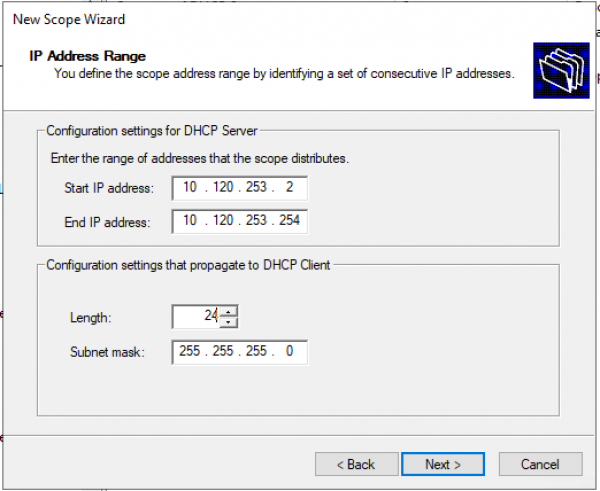
Adding exceptions. (By default, no exceptions are needed) "Next >"
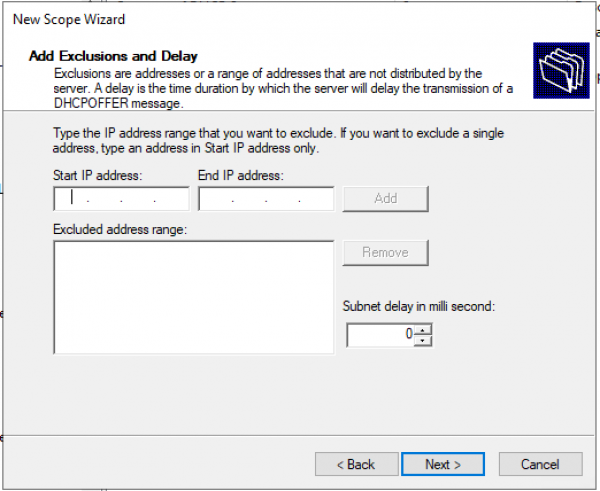
Lease time. "Next >"
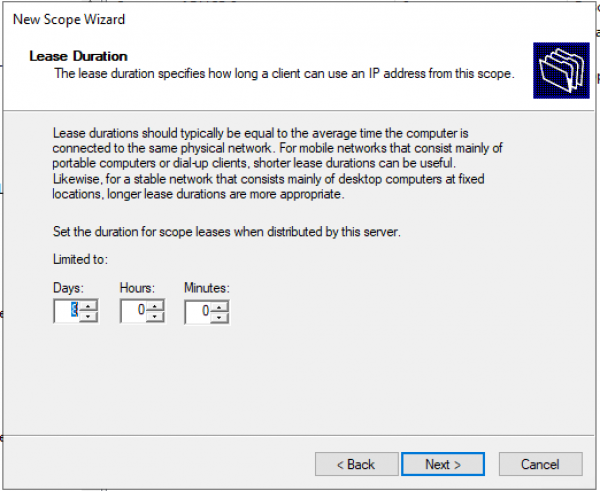
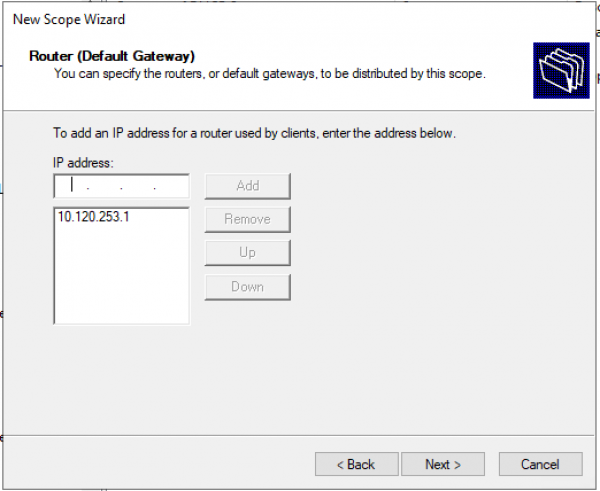
Request: Will you configure DHCP options now (DNS, WINS, Gateway, Domain) or do it later? Yes, let's configure now.
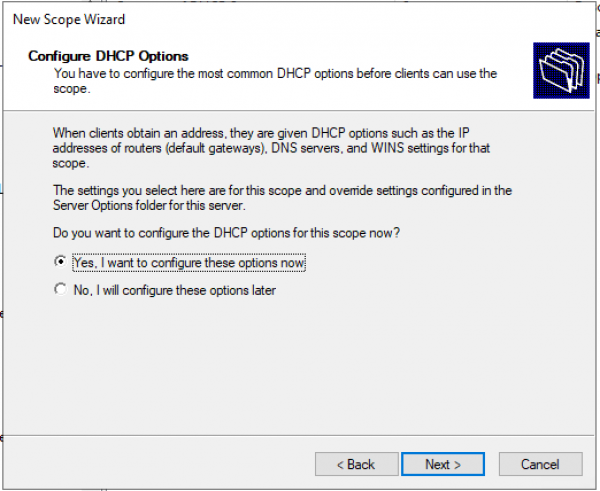
Setting the default gateway address.
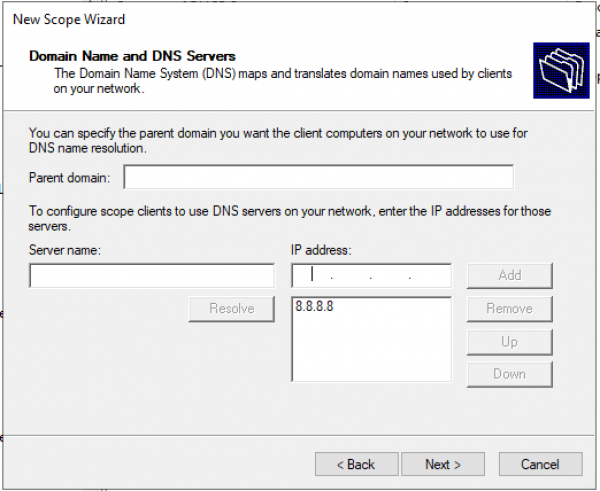
Configuring the domain and DNS server addresses.
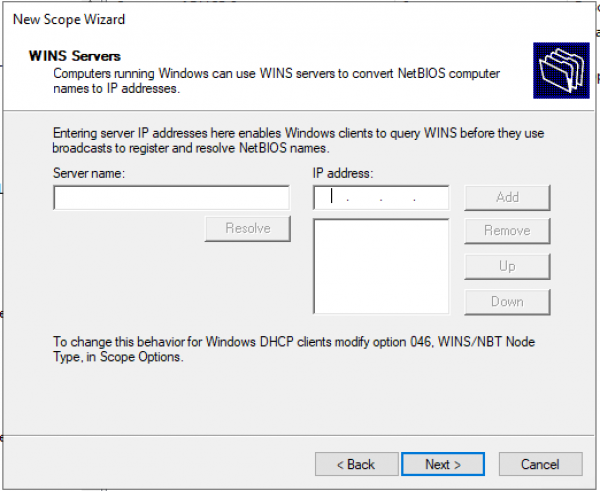
Setting the IP addresses of the WINS servers.
Activating Scope.
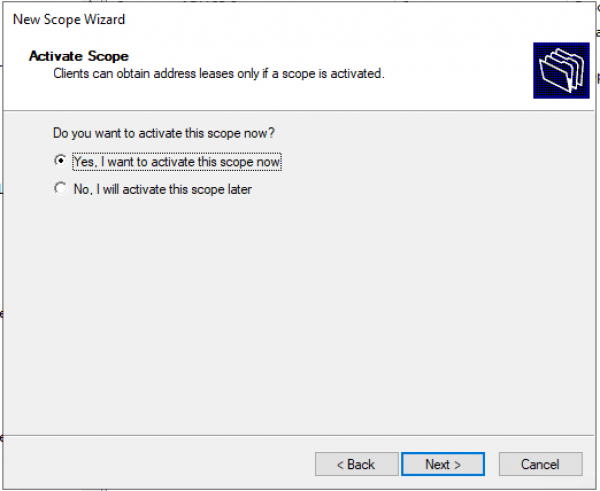
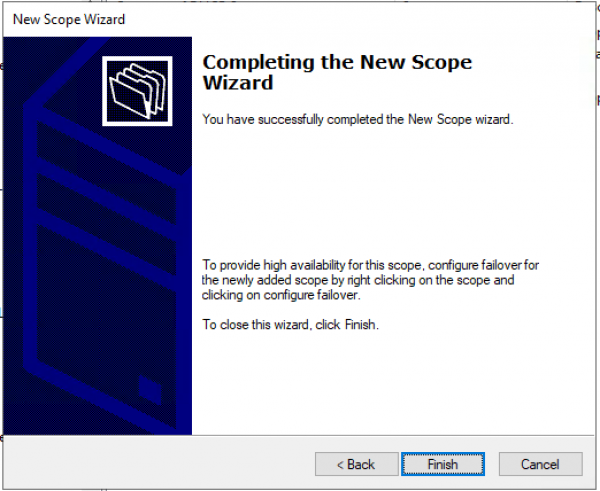
The pool is configured. "Finish"
Conclusion
Using Windows Server 2016/2019 reduces the complexity of configuring the DHCP server for a VXLAN fabric (or any other fabric). (No special bundles are required to transfer to IT specialists: Network/Agent Circuit ID for writing filters.)
Will the configuration for Windows Server 2012 work on the new servers 2016/2019 – yes, it will work.
This document includes references to 2 versions: 7.X and 9.3. This is because version 7.0(3)I7(7) is the Cisco Suggested release, while version 9.3 is the most innovative (including support for Multicast over VXLAN Multisite).
List of sources
Source: habr.com
