


We have been using Huawei equipment for a long time in Recently, we and when adding new devices, the idea arose to share a checklist or a collection of basic settings with examples.
There are many similar instructions available for users of Cisco equipment. However, there are few articles for Huawei, and sometimes you have to look for information in documentation or compile it from several articles. We hope this will be helpful, let's go!
In this article, we will cover the following points:
Initial connection
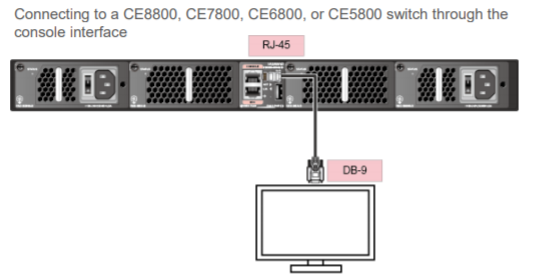 Connecting to the switch via the console interface
By default, Huawei switches come with no pre-configured settings. Without a configuration file in the switch's memory, the ZTP (Zero Touch Provisioning) protocol will start upon powering up. We won't go into detail about this mechanism, just note that it is convenient when dealing with a large number of devices or for remote configuration. An overview of ZTP .
For initial setup without using ZTP, a console connection is necessary.
Connection parameters (pretty standard)
Transmission rate: 9600
Data bit (B): 8
Parity bit: None
Stop bit (S): 1
Flow control mode: None
After connecting, you will be prompted to set a password for the console connection.
Set a password for the console connection
An initial password is required for the first login via the console.
Continue to set it? [Y/N]: y
Set a password and keep it safe!
Otherwise you will not be able to login via the console.
Please configure the login password (8-16)
Enter Password:
Confirm Password:
Just set the password, confirm it, and you're done! You can change the password and other authentication parameters on the console port later using the following commands:
Example of changing the password
<HUAWEI> system-view
[~HUAWEI] user-interface console 0
[~HUAWEI-ui-console0] authentication-mode password
[~HUAWEI-ui-console0] set authentication password cipher <пароль>
[*HUAWEI-ui-console0] commit
iStack configuration
After gaining access to the switches, you can configure the stack if necessary. To combine multiple switches into a single logical device in Huawei CE, the iStack technology is used. The stack topology is a ring, meaning that at least 2 ports should be used on each switch. The number of ports depends on the desired speed of interaction among the switches in the stack.
It is advisable to use uplinks for stacking, as their speed is usually higher than that of the ports for connecting end devices. This way, you can achieve greater bandwidth with fewer ports. Additionally, there are restrictions on the use of gigabit ports for stacking for most models. It is recommended to use at least 10G ports.
There are two configuration options that differ slightly in the sequence of steps:
Pre-configuring the switches followed by physically connecting them.
First, install and connect the switches to each other, then configure them to operate as a stack.
The sequence of actions for these options is as follows:
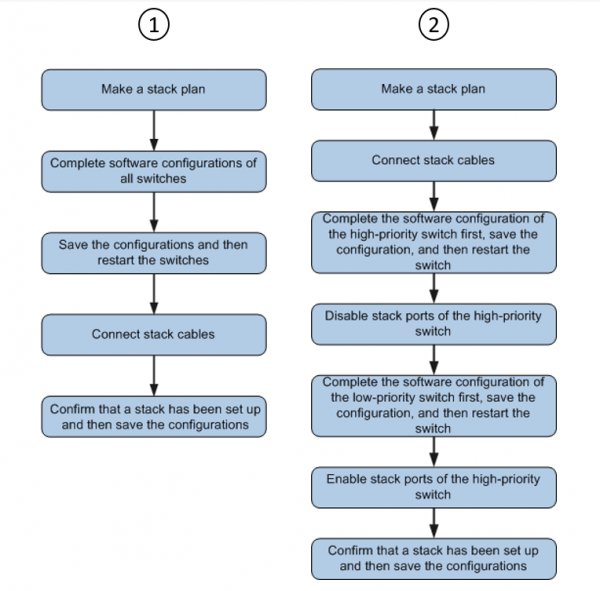 Action sequence for the two options for switching stacking
Let's consider the second (more lengthy) option for stack configuration. To do this, you need to perform the following actions:
Plan the work considering the potential downtime. Outline the sequence of actions.
Carry out the installation and cabling connection of the switches.
Configure the basic stack parameters for the master switch:
[~HUAWEI] stack
3.1. Configure the necessary parameters
#
stack member 1 renumber X — where X is the new switch ID in the stack. By default, ID = 1
and for the master switch, you can leave the default ID.
#
stack member 1 priority 150 — specify the priority. The switch with the highest
priority will be designated as the master switch of the stack. Default priority value:
100.
#
stack member { member-id | all } domain — assign a Domain ID for the stack.
By default, the domain ID is not set.
#
Example:
<HUAWEI> system-view
[~HUAWEI] sysname SwitchA
[HUAWEI] commit
[~SwitchA] stack
[~SwitchA-stack] stack member 1 priority 150
[SwitchA-stack] stack member 1 domain 10
[SwitchA-stack] quit
[SwitchA] commit
3.2 Configure the stacking port interface (example)
[~SwitchA] interface stack-port 1/1
[SwitchA-Stack-Port1/1] port member-group interface 10ge 1/0/1 to 1/0/4
Warning: After the configuration is complete,
1.The interface(s) (10GE1/0/1-1/0/4) will be converted to stack mode and be configured with the
port crc-statistics trigger error-down command if the configuration does not exist.
2. The interface(s) may go Error-Down (crc-statistics) because there is no shutdown configuration on the interfaces. Continue? [Y/N]: y
[SwitchA-Stack-Port1/1] commit
[~SwitchA-Stack-Port1/1] return
Next, save the configuration and reboot the switch:
<SwitchA> save
Warning: The current configuration will be written to the device. Continue? [Y/N]: y
<SwitchA> reboot
Warning: The system will reboot. Continue? [Y/N]: y
4. Disable ports for stacking on the master switch (example)
[~SwitchA] interface stack-port 1/1
[*SwitchA-Stack-Port1/1] shutdown
[*SwitchA-Stack-Port1/1] commit
5. Configure the second switch in the stack similarly to the first:
<HUAWEI> system-view
[*HUAWEI] sysname SwitchB
[*HUAWEI] commit
[~SwitchB] stack
[~SwitchB-stack] stack member 1 priority 120
[*SwitchB-stack] stack member 1 domain 10
[*SwitchB-stack] stack member 1 renumber 2 inherit-config
Warning: The stack configuration of member ID 1 will be inherited to member ID 2
after the device resets. Continue? [Y/N]: y
[*SwitchB-stack] quit
[*SwitchB] commit
Configuring ports for stacking. Note that although the command “stack member 1 renumber 2 inherit-config”, member-id in the configuration is used with the value “1” for SwitchB.
This happens because the switch's member-id will only change after rebooting, and until then the switch still has a member-id of 1. The parameter “inherit-config” is exactly needed so that after rebooting the switch, all stack configurations are preserved for member 2, which will be the switch, as its member ID changed from 1 to 2.
[~SwitchB] interface stack-port 1/1
[*SwitchB-Stack-Port1/1] port member-group interface 10ge 1/0/1 to 1/0/4
Warning: After the configuration is complete,
1. The interface(s) (10GE1/0/1-1/0/4) will be converted to stack mode and be configured with the port crc-statistics trigger error-down command if the configuration does not exist.
2. The interface(s) may go Error-Down (crc-statistics) because there is no shutdown configuration on the interfaces.
Continue? [Y/N]:
[~SwitchB-Stack-Port1/1]
Rebooting SwitchB
<SwitchB> y
[*SwitchB-Stack-Port1/1] commit
6. Enable stacking ports on the master switch. It is crucial to enable the ports before the reboot of switch B is complete, as enabling them afterward will cause switch B to reboot again. return
undo shutdown
7. Check the stack operation with the command “ save
Warning: The current configuration will be written to the device. Continue? [Y/N]: y
7. Check the stack operation with the command “ reboot
Warning: The system will reboot. Continue? [Y/N]: y
display stack
[~SwitchA] interface stack-port 1/1
[~SwitchA-Stack-Port1/1] Example of the command output after correct configuration
[*SwitchA-Stack-Port1/1] commit
[~SwitchA-Stack-Port1/1] return
MemberID Role MAC Priority DeviceType Description+1 Master 0004-9f31-d520 150 CE6850-48T4Q-EI”
2 Standby 0004-9f62-1f40 120 CE6850-48T4Q-EI
<SwitchA> +1 Master 0004-9f31-d520 150 CE6850-48T4Q-EI
———————————————————————————
+ indicates the device where the activated management interface resides.
———————————————————————————
8. Save the stack configuration with the command “
”. Configuration is complete.
———————————————————————————
Detailed information about iStack
example of iStack configurationsavecan also be found on the Huawei website.
and can also be found on the Huawei website.
Configuration access
Previously, we worked through console connection. Now, we need to connect to our switch (stack) over the network. For this, it needs one or more interfaces with an IP address. Usually, an address is assigned to the interface in the management VLAN or to a dedicated management port. But, of course, this depends on the connection topology and the functional purpose of the switch.
Example of configuring the address for VLAN interface 1:
[~HUAWEI] interface vlan 1
[~HUAWEI-Vlanif1] ip address 10.10.10.1 255.255.255.0
[~HUAWEI-Vlanif1] commit
Initially, you can explicitly create a VLAN and assign it a name, for example:
[~Switch] vlan 1
[*Switch-vlan1] name TEST_VLAN (VLAN name is optional)
Here's a little trick regarding naming—write the names of logical structures in uppercase letters (ACL, Route-map, sometimes VLAN names) to make them easier to find in the configuration file. You can take this 'into arms' 😉
So, we have a VLAN; now let's 'land' it on a port. For the scenario described in the example, this is not necessary since all ports on the switch default to VLAN 1. If we want to configure a port in another VLAN, we use the appropriate commands:
Configuring a port in access mode:
[~Switch] interface 25GE 1/0/20
[~Switch-25GE1/0/20] port link-type access
[~Switch-25GE1/0/20] port access vlan 10
[~Switch-25GE1/0/20] commit
Configuring a port in trunk mode:
[~Switch] interface 25GE 1/0/20
[~Switch-25GE1/0/20] port link-type trunk
[~Switch-25GE1/0/20] port trunk pvid vlan 10 — specifying the native VLAN (frames in this VLAN will not have a tag in the header)
[~Switch-25GE1/0/20] port trunk allow-pass vlan 1 to 20 — allowing only VLANs with tags from 1 to 20 (for example)
[~Switch-25GE1/0/20] commit
We've figured out the interface settings. Let's move on to configuring SSH.
We will provide only the necessary set of commands:
Assign a name to the switch
<HUAWEI> system-view
[~HUAWEI] sysname SSH Server
[*HUAWEI] commit
Generate keys
[~SSH Server] rsa local-key-pair create //Generate the local RSA host and server key pairs.
The key name will be: SSH Server_Host
The range of public key size is (512 ~ 2048).
NOTE: Key pair generation will take a short while.
Input the bits in the modulus [default = 2048]: 2048
[*SSH Server] commit
Configure the VTY interface
[~SSH Server] user-interface vty 0 4
[~SSH Server-ui-vty0-4] authentication-mode aaa
[SSH Server-ui-vty0-4] user privilege level 3
[SSH Server-ui-vty0-4] protocol inbound ssh
[*SSH Server-ui-vty0-4] quit
Create a local user 'client001' and configure password authentication for him
[[SSH Server] aaa
[[SSH Server-aaa] local-user client001 password irreversible-cipher
[[SSH Server-aaa] local-user client001 level 3
[[SSH Server-aaa] local-user client001 service-type ssh
[[SSH Server-aaa] quit
[[SSH Server] ssh user client001 authentication-type password
Activate the SSH service on the switch
[~SSH Server] stelnet server enable
[*SSH Server] commit
Final touch: configure service-type for user client001
[~SSH Server] ssh user client001 service-type stelnet
[*SSH Server] commit
Setup is complete. If you've done everything correctly, you can connect to the switch over the local network and continue working.
More details on configuring SSH can be found in the Huawei documentation — and .
Configuring basic system parameters
In this section, we'll look at a few different command blocks for configuring the most popular features.
1. Setting the system time and synchronizing it using NTP.
To set the time locally on the switch, you can use the following commands:
clock timezone <time-zone-name> { add | minus } <offset>
clock datetime [ utc ] HH:MM:SS YYYY-MM-DD
Example of local time setting
clock timezone MSK add 03:00:00
clock datetime 10:10:00 2020-10-08
To synchronize time via NTP with the server, enter the following command:
ntp unicast-server [ version number | authentication-keyid key-id | source-interface interface-type
Example command for NTP time synchronization
ntp unicast-server 88.212.196.95
commit
2. To work with the switch, you may need to configure at least one route — a default route. To create routes, use the following command:
ip route-static ip-address { mask | mask-length } { nexthop-address | interface-type interface-number [ nexthop-address ] }
Example command for creating routes:
system-view
ip route-static 0.0.0.0 0.0.0.0 192.168.0.1
commit
3. Configuring the Spanning Tree protocol operating mode.
For the correct use of a new switch in an existing network, it's important to pay attention to the selection of the STP operating mode. Additionally, it would be good to configure it right away. We won't stay here for long, as the topic is quite broad. We'll only describe the STP operating modes:
stp mode { stp | rstp | mstp | vbst } — in this command we choose the desired mode. The default mode: MSTP. It is also the recommended mode for operation on Huawei switches. There is backward compatibility with RSTP.
Example
system-view
stp mode mstp
commit
4. Example of configuring a switch port to connect an end device.
Let's consider an example of configuring an access port for handling traffic in VLAN10
[SW] interface 10ge 1/0/3
[SW-10GE1/0/3] port link-type access
[SW-10GE1/0/3] port default vlan 10
[SW-10GE1/0/3] stp edged-port enable
[*SW-10GE1/0/3] quit
Note the command “stp edged-port enable” — it allows for speeding up the port's transition to the forwarding state. However, do not use this command on ports connected to other switches.
Additionally, the command “stp bpdu-filter enable”.
5. Example of configuring Port-Channel in LACP mode for connecting to other switches or servers.
Example
[SW] interface eth-trunk 1
[SW-Eth-Trunk1] port link-type trunk
[SW-Eth-Trunk1] port trunk allow-pass vlan 10
[SW-Eth-Trunk1] mode lacp-static (or can use lacp-dynamic)
[SW-Eth-Trunk1] quit
[SW] interface 10ge 1/0/1
[SW-10GE1/0/1] eth-Trunk 1
[SW-10GE1/0/1] quit
[SW] interface 10ge 1/0/2
[SW-10GE1/0/2] eth-Trunk 1
[*SW-10GE1/0/2] quit
Don't forget about “commit” and then we will work with the interface eth-trunk 1.
You can check the status of the aggregated link with the command “display eth-trunk”.
We have outlined the main points of configuring Huawei switches. Of course, this topic can be explored in greater depth, and several points are not covered, but we aimed to highlight the essential, most demanded commands for initial setup.
We hope this “manual” helps you configure the switches a bit faster.
It would also be great if you could write in the comments the commands that you think are missing from the article but could also simplify switch configuration. And, as usual, we will be happy to answer your questions.
Source: habr.com
