

The author of the article we are publishing today says that her goal is to talk about developing a web scraper in Python using Selenium that searches for flight prices. The scraper uses flexible dates (+- 3 days from the specified dates) to find tickets. It saves the search results in an Excel file and sends an email to the person who ran it with an overview of what was found. The goal of this project is to assist travelers in finding the best deals.
If you feel lost when dealing with the material, take a look at article.
What will we be searching for?
You are free to use the system described here as you wish. For example, I used it to find weekend tours and tickets to my hometown. If you are serious about finding great ticket deals — you can run the script on a server (a simple one, for 130 rubles a month, will suffice) and have it execute once or twice a day. The search results will be sent to your email. Additionally, I recommend setting everything up so that the script saves an Excel file with the search results in a Dropbox folder, allowing you to view such files from anywhere at any time. I haven't found any erroneous fares yet, but I believe it's possible
While searching, as already mentioned, flexible dates are used, and the script finds offers within three days of the specified dates. Although the script only searches for one direction at a time, it can be easily modified to collect data on multiple flight directions. You can even search for erroneous fares, which can lead to some very interesting finds.
Why do we need another web scraper?
Why do we need another web scraper?
When I first got into web scraping, to be honest, it didn't seem particularly interesting to me. I wanted to work on more projects in predictive modeling, financial analysis, and perhaps in the field of sentiment analysis. But it turned out to be quite fascinating to figure out how to create a program that collects data from websites. As I delved into this topic, I realized that web scraping is the 'engine' of the internet.
You might think that this is a bold statement. But consider that Google started with a web scraper created by Larry Page using Java and Python. Google bots have explored and continue to explore the internet, trying to provide the best answers to their users' questions. Web scraping has an endless number of applications, and even if you're interested in something else in the field of Data Science, you'll need some scraping skills to acquire data for analysis.
Some of the techniques used here I found in a wonderful about web scraping that I recently acquired. It contains many simple examples and ideas for practical application of what you've learned. Additionally, there's a very interesting chapter on bypassing reCaptcha checks. For me, this was news, as I didn't even know that there are specialized tools and even entire services for solving such tasks.
Do you love to travel?!
The simple and quite harmless question posed in the title of this section often elicits a positive response accompanied by a couple of travel stories from the person being asked. Most of us would agree that traveling is a wonderful way to immerse oneself in new cultural environments and broaden one's horizons. However, if you ask someone whether they enjoy searching for plane tickets, I'm sure their answer will not be nearly as positive. In fact, this is where Python comes to our aid.
The first task we need to tackle on the path to creating a ticket information search system is selecting a suitable platform from which we will gather data. This task was not easy for me, but I eventually chose the Kayak service. I tried platforms like Momondo, Skyscanner, Expedia, and a few others, but the anti-bot mechanisms on those sites were impenetrable. After several attempts, where I had to convince the systems that I was a human—dealing with traffic lights, pedestrian crossings, and bicycles—I decided that Kayak was the best fit for me, even though here too, if you load too many pages in a short time, checks will start. I managed to configure the bot to send requests to the site at intervals of 4 to 6 hours, and everything worked fine. Occasionally, challenges arise while working with Kayak, but if you are bombarded with checks, you need either to handle them manually before launching the bot or wait a few hours for the checks to stop. If necessary, you can adapt the code for another platform, and if you do so, feel free to share it in the comments.
If you're just starting to explore web scraping and don’t know why some websites fight so hard against it, do yourself a favor and search Google for materials on 'web scraping etiquette' before diving into your first project in this area. Your experiments might end faster than you think if you engage in web scraping irresponsibly.
Getting Started
Here’s an overview of what will happen in the code of our web scraper:
- Importing the necessary libraries.
- Opening a Google Chrome tab.
- Calling the function that starts the bot, passing the cities and dates that will be used to search for tickets.
- This function retrieves the initial search results, sorted by the best criteria, and clicks the button to load more results.
- Another function collects data from the entire page and returns a data frame.
- The two previous steps are executed using sorting types for ticket prices (cheap) and flight speeds (fastest).
- The script user receives an email containing a brief summary of ticket prices (the cheapest tickets and the average price), while the data frame with details sorted by the three aforementioned metrics is saved as an Excel file.
- All the above actions are performed in a loop at a specified interval.
It should be noted that every Selenium project starts with a web driver. I use , working with Google Chrome, but there are other options as well. PhantomJS and Firefox are also popular. After downloading the driver, it needs to be placed in the appropriate folder, and this concludes the preparation for its use. In the first lines of our script, a new Chrome tab is opened.
Keep in mind that I'm not trying to open new horizons in the search for profitable airline ticket offers in my account. There are much more advanced techniques for finding such offers. I just want to offer the readers of this material a simple yet practical solution to this task.
Here’s the code we mentioned earlier.
from time import sleep, strftime
from random import randint
import pandas as pd
from selenium import webdriver
from selenium.webdriver.common.keys import Keys
import smtplib
from email.mime.multipart import MIMEMultipart

# Use your path to chromedriver here!
chromedriver_path = 'C:/{YOUR PATH HERE}/chromedriver_win32/chromedriver.exe'

driver = webdriver.Chrome(executable_path=chromedriver_path) # This command opens a Chrome window
sleep(2)
At the beginning of the code, you can see import commands for the packages that are used throughout our project. Thus, randint is used so that the bot 'sleeps' for a random number of seconds before starting a new search operation. Usually, no bot operates without this. If you run the above code, a Chrome window will open, which the bot will use to work with websites.
Let's conduct a small experiment and open the website kayak.com in a separate window. We'll choose the city from which we intend to fly and the city we want to reach, as well as the flight dates. When selecting dates, let's ensure that the range is within +-3 days. I’ve written the code based on what the website returns in response to such queries. If, for example, you need to search for tickets only on specific dates, there’s a high probability that you will need to modify the bot’s code. While I explain the code, I provide relevant clarifications, but if you feel confused at any point—let me know.
Now let's click the search button and take a look at the URL in the address bar. It should resemble the link I use in the example below, where the variable is declared. kayak, which stores the URL, and uses the method get of the web driver. After clicking the search button, the results should appear on the page.

When I used the command get more than two or three times within a few minutes, I was prompted to complete a reCaptcha verification. This verification can be completed manually, allowing further experiments until the system decides to initiate a new check. When testing the script, I had the impression that the first search session always proceeds without issues; therefore, if you want to experiment with the code, you will only need to occasionally pass the verification manually and let the code run, using long intervals between search sessions. Honestly, a person is unlikely to need pricing information on tickets obtained with 10-minute intervals between search operations.
Working with the page using XPath
So, we opened a window and loaded the website. To obtain pricing information and other details, we need to use either XPath technology or CSS selectors. I decided to focus on XPath and didn't feel the need for CSS selectors, but it is indeed possible to work this way as well. Navigating the page using XPath can be a challenging task, and even if you use the methods I've described, it might still be complex. In the article, where I used to copy relevant identifiers from the page code, I realized that this is not actually an optimal way to access the necessary elements. By the way, in the book, you can find an excellent description of the fundamentals of working with pages using XPath and CSS selectors. Here's how the relevant WebDriver method looks.

So, let's continue working on the bot. We'll use the program's capabilities to select the cheapest tickets. In the next image, the code for the XPath selector is highlighted in red. To view the code, you need to right-click on the element of interest on the page and select 'Inspect' from the context menu that appears. This command can be invoked for different elements on the page, and the corresponding code will be output and highlighted in the code preview window.
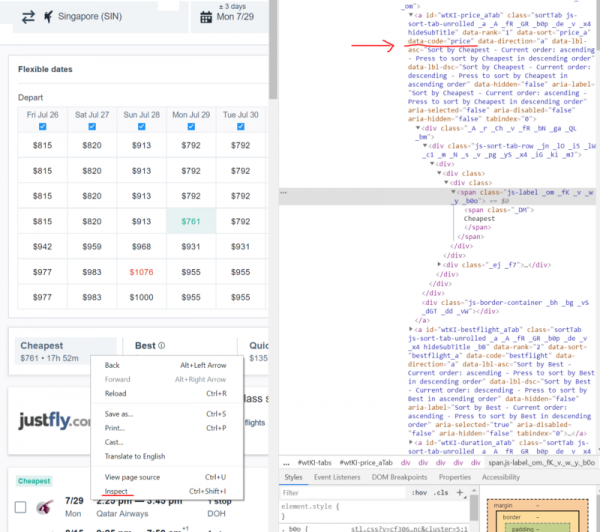
View Page Code
To find confirmation of my reasoning about the drawbacks of copying selectors from the code, pay attention to the following features.
Here's what happens when copying the code:
//*[@id="wtKI-price_aTab"]/div[1]/div/div/div[1]/div/span/spanTo copy something like this, you need to right-click on the desired part of the code and choose 'Copy > Copy XPath' from the menu that appears.
Here's what I used to identify the Cheapest button:
cheap_results = ‘//a[@data-code = "price"]’ 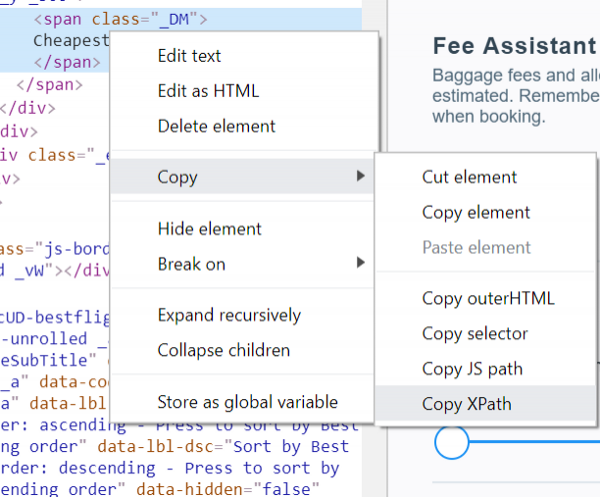
The command 'Copy > Copy XPath'
It is clear that the second option looks much simpler. When using it, an element is searched for that has the attribute data-code, equal to price. When using the first option, the element is searched for id whose value is wtKI-price_aTab, while the XPath path to the element looks like /div[1]/div/div/div[1]/div/span/span. Such an XPath request to the page will do its job, but only once. I can tell you right now that id it will change on the next page load. The sequence of characters wtKI changes dynamically with each page load, and as a result, the code in which it is used will become useless after the next page reload. Therefore, take some time to understand XPath. This knowledge will serve you well.
However, it should be noted that copying XPath selectors may be useful when working with quite simple websites, and if you are okay with that, there is nothing wrong with it.
Now let's consider how to retrieve all search results in multiple rows within a list. It's quite simple. Each result is contained within an object with the class resultWrapper. Loading all results can be done in a loop similar to the one shown below.
It's worth mentioning that if you understand the above, you should have no problem understanding most of the code we will cover. In this code, we access what we need (essentially, the element that wraps the result) using a mechanism to specify the path (XPath). This is done to extract the text of the element and place it in an object from which we can read data (first using flight_containers, then — flights_list).
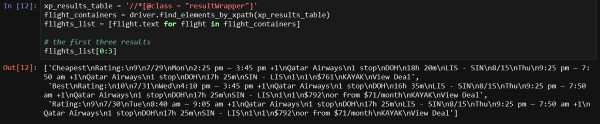
The first three rows are displayed and we can clearly see everything we need. However, there are more interesting ways to retrieve information. We need to collect data from each element separately.
Let's get to work!
The easiest way is to write a function for loading more results, so let's start with that. I would like to maximize the number of flights that the program retrieves details for, while avoiding raising suspicions that lead to checks, so I click the Load more results button once every time the page is displayed. In this code, pay attention to the block try, which I added because sometimes the button does not load properly. If you encounter this as well, comment out the calls to this function in the code of the start_kayakfunction, which we will discuss below.
# Загрузка большего количества результатов для того, чтобы максимизировать объём собираемых данных
def load_more():
    try:
        more_results = '//a[@class = "moreButton"]'
        driver.find_element_by_xpath(more_results).click()
        # Вывод этих заметок в ходе работы программы помогает мне быстро выяснить то, чем она занята
        print('sleeping.....')
        sleep(randint(45,60))
    except:
        pass
Now, after a long breakdown of this function (sometimes I can get carried away), we are ready to declare the function that will handle the scraping of the page.
I have already gathered most of what is needed in the next function called page_scrape. Sometimes the returned data about the stages of the journey turns out to be merged, to separate them I use a simple method. For example, when I first use the variables section_a_list and section_b_list. Our function returns a data frame flights_df, which allows us to separate the results obtained by using different methods of sorting data, and later merge them.
def page_scrape():
    """This function takes care of the scraping part"""

    xp_sections = '//*[@class="section duration"]'
    sections = driver.find_elements_by_xpath(xp_sections)
    sections_list = [value.text for value in sections]
    section_a_list = sections_list[::2] # так мы разделяем информацию о двух полётах
    section_b_list = sections_list[1::2]

    # Если вы наткнулись на reCaptcha, вам может понадобиться что-то предпринять.
    # О том, что что-то пошло не так, вы узнаете исходя из того, что вышеприведённые списки пусты
    # это выражение if позволяет завершить работу программы или сделать ещё что-нибудь
    # тут можно приостановить работу, что позволит вам пройти проверку и продолжить скрапинг
    # я использую тут SystemExit так как хочу протестировать всё с самого начала
    if section_a_list == []:
        raise SystemExit

    # Я буду использовать букву A для уходящих рейсов и B для прибывающих
    a_duration = []
    a_section_names = []
    for n in section_a_list:
        # Получаем время
        a_section_names.append(''.join(n.split()[2:5]))
        a_duration.append(''.join(n.split()[0:2]))
    b_duration = []
    b_section_names = []
    for n in section_b_list:
        # Получаем время
        b_section_names.append(''.join(n.split()[2:5]))
        b_duration.append(''.join(n.split()[0:2]))

    xp_dates = '//div[@class="section date"]'
    dates = driver.find_elements_by_xpath(xp_dates)
    dates_list = [value.text for value in dates]
    a_date_list = dates_list[::2]
    b_date_list = dates_list[1::2]
    # Получаем день недели
    a_day = [value.split()[0] for value in a_date_list]
    a_weekday = [value.split()[1] for value in a_date_list]
    b_day = [value.split()[0] for value in b_date_list]
    b_weekday = [value.split()[1] for value in b_date_list]

    # Получаем цены
    xp_prices = '//a[@class="booking-link"]/span[@class="price option-text"]'
    prices = driver.find_elements_by_xpath(xp_prices)
    prices_list = [price.text.replace('$','') for price in prices if price.text != '']
    prices_list = list(map(int, prices_list))

    # stops - это большой список, в котором первый фрагмент пути находится по чётному индексу, а второй - по нечётному
    xp_stops = '//div[@class="section stops"]/div[1]'
    stops = driver.find_elements_by_xpath(xp_stops)
    stops_list = [stop.text[0].replace('n','0') for stop in stops]
    a_stop_list = stops_list[::2]
    b_stop_list = stops_list[1::2]

    xp_stops_cities = '//div[@class="section stops"]/div[2]'
    stops_cities = driver.find_elements_by_xpath(xp_stops_cities)
    stops_cities_list = [stop.text for stop in stops_cities]
    a_stop_name_list = stops_cities_list[::2]
    b_stop_name_list = stops_cities_list[1::2]

    # сведения о компании-перевозчике, время отправления и прибытия для обоих рейсов
    xp_schedule = '//div[@class="section times"]'
    schedules = driver.find_elements_by_xpath(xp_schedule)
    hours_list = []
    carrier_list = []
    for schedule in schedules:
        hours_list.append(schedule.text.split('n')[0])
        carrier_list.append(schedule.text.split('n')[1])
    # разделяем сведения о времени и о перевозчиках между рейсами a и b
    a_hours = hours_list[::2]
    a_carrier = carrier_list[1::2]
    b_hours = hours_list[::2]
    b_carrier = carrier_list[1::2]


    cols = (['Out Day', 'Out Time', 'Out Weekday', 'Out Airline', 'Out Cities', 'Out Duration', 'Out Stops', 'Out Stop Cities',
            'Return Day', 'Return Time', 'Return Weekday', 'Return Airline', 'Return Cities', 'Return Duration', 'Return Stops', 'Return Stop Cities',
            'Price'])

    flights_df = pd.DataFrame({'Out Day': a_day,
                               'Out Weekday': a_weekday,
                               'Out Duration': a_duration,
                               'Out Cities': a_section_names,
                               'Return Day': b_day,
                               'Return Weekday': b_weekday,
                               'Return Duration': b_duration,
                               'Return Cities': b_section_names,
                               'Out Stops': a_stop_list,
                               'Out Stop Cities': a_stop_name_list,
                               'Return Stops': b_stop_list,
                               'Return Stop Cities': b_stop_name_list,
                               'Out Time': a_hours,
                               'Out Airline': a_carrier,
                               'Return Time': b_hours,
                               'Return Airline': b_carrier,
                               'Price': prices_list})[cols]

    flights_df['timestamp'] = strftime("%Y%m%d-%H%M") # время сбора данных
    return flights_df
I tried to name the variables in a way that makes the code understandable. Remember that variables starting with a relate to the first stage of the path, while b — relates to the second. Let's move on to the next function.
Auxiliary mechanisms
Now we have a function that allows loading additional search results and a function for processing these results. This article could be concluded here, as these two functions provide everything necessary for scraping pages that can be opened independently. However, we have not yet discussed some auxiliary mechanisms mentioned earlier. For instance, this includes the code for sending emails and a few other things. All of this can be found in the function start_kayak, which we will now examine.
To operate this function, information about cities and dates is needed. It uses this information to form a link in the variable kayak, which is used to navigate to the page where the search results will be sorted according to their best match for the query. After the first scraping session, we will work with the prices located in the table at the top of the page. Specifically, we will find the minimum ticket price and the average price. All of this, along with the prediction provided by the site, will be sent via email. The corresponding table should be in the upper left corner of the page. Working with this table, by the way, may cause an error when searching using exact dates, as in that case the table does not render on the page.
def start_kayak(city_from, city_to, date_start, date_end):
   """City codes - it's the IATA codes!
   Date format -  YYYY-MM-DD"""

   kayak = ('https://www.kayak.com/flights/' + city_from + '-' + city_to +
             '/' + date_start + '-flexible/' + date_end + '-flexible?sort=bestflight_a')
   driver.get(kayak)
   sleep(randint(8,10))

   # a popup may appear, to check this and close it, you can use the try block
   try:
       xp_popup_close = '//*[@id="dialog-close" and contains(@class,"Button-No-Standard-Style close ")]'
       driver.find_elements_by_xpath(xp_popup_close)[5].click()
   except Exception as e:
       pass
   sleep(randint(60,95))
   print('loading more.....')

#    load_more()
   print('starting first scrape.....')
   df_flights_best = page_scrape()
   df_flights_best['sort'] = 'best'
   sleep(randint(60,80))

   # Let's take the lowest price from the table located at the top of the page
   matrix = driver.find_elements_by_xpath('//*[contains(@id,"FlexMatrixCell")]')
   matrix_prices = [price.text.replace('$','') for price in matrix]
   matrix_prices = list(map(int, matrix_prices))
   matrix_min = min(matrix_prices)
   matrix_avg = sum(matrix_prices)/len(matrix_prices)

   print('switching to cheapest results.....')
   cheap_results = '//*[@data-code = "price"]'
   driver.find_element_by_xpath(cheap_results).click()
   sleep(randint(60,90))
   print('loading more.....')

#    load_more()
   print('starting second scrape.....')
   df_flights_cheap = page_scrape()
   df_flights_cheap['sort'] = 'cheap'
   sleep(randint(60,80))

   print('switching to quickest results.....')
   quick_results = '//*[@data-code = "duration"]'
   driver.find_element_by_xpath(quick_results).click()
   sleep(randint(60,90))
   print('loading more.....')

#    load_more()
   print('starting third scrape.....')
   df_flights_fast = page_scrape()
   df_flights_fast['sort'] = 'fast'
   sleep(randint(60,80))

   # Save the new frame to an Excel file, the name reflects the cities and dates
   final_df = df_flights_cheap.append(df_flights_best).append(df_flights_fast)
   final_df.to_excel('search_backups//{}_flights_{}-{}_from_{}_to_{}.xlsx'.format(strftime("%Y%m%d-%H%M"),
                             city_from, city_to,
                             date_start, date_end), index=False)
   print('saved df.....')

   # You can monitor how the forecast provided by the website corresponds to reality
   xp_loading = '//*[@id="advice"]'
   loading = driver.find_element_by_xpath(xp_loading).text
   xp_prediction = '//*[@class="info-text"]'
   prediction = driver.find_element_by_xpath(xp_prediction).text
   print(loading+'n'+prediction)

   # sometimes the loading variable ends up with this line, which later causes problems with sending email
   # if this happens - we change it to "Not Sure"
   weird = '¯_(ツ)_/¯'
   if loading == weird:
       loading = 'Not sure'

   username = 'YOUREMAIL@hotmail.com'
   password = 'YOUR PASSWORD'

   server = smtplib.SMTP('smtp.outlook.com', 587)
   server.ehlo()
   server.starttls()
   server.login(username, password)
   msg = ('Subject: Flight Scrapernn
Cheapest Flight: {}nAverage Price: {}nnRecommendation: {}nnEnd of message'.format(matrix_min, matrix_avg, (loading+'n'+prediction)))
   message = MIMEMultipart()
   message['From'] = 'YOUREMAIL@hotmail.com'
   message['to'] = 'YOUROTHEREMAIL@domain.com'
   server.sendmail('YOUREMAIL@hotmail.com', 'YOUROTHEREMAIL@domain.com', msg)
   print('sent email.....')
I tested this script using an Outlook account (hotmail.com). I did not check its functionality with a Gmail account; that email system is quite popular, but there are many possible options. If you are using a Hotmail account, simply enter your details into the code for everything to work.
If you want to understand what exactly is being executed in specific parts of this function's code, you can copy them and experiment with them. Experimenting with code is the only way to truly understand it.
Ready system
Now that we have done everything we discussed, we can create a simple loop that calls our functions. The script asks the user for information about cities and dates. During testing with constant restarts of the script, you probably won't want to enter this information manually each time, so the corresponding lines can be commented out temporarily while uncommenting those that have the required data hardcoded.
city_from = input('From which city? ')
city_to = input('Where to? ')
date_start = input('Search around which departure date? Please use YYYY-MM-DD format only ')
date_end = input('Return when? Please use YYYY-MM-DD format only ')

# city_from = 'LIS'
# city_to = 'SIN'
# date_start = '2019-08-21'
# date_end = '2019-09-07'

for n in range(0,5):
    start_kayak(city_from, city_to, date_start, date_end)
    print('iteration {} was complete @ {}'.format(n, strftime("%Y%m%d-%H%M")))

    # Waiting for 4 hours
    sleep(60*60*4)
    print('sleep finished.....')
Here's what a test run of the script looks like.
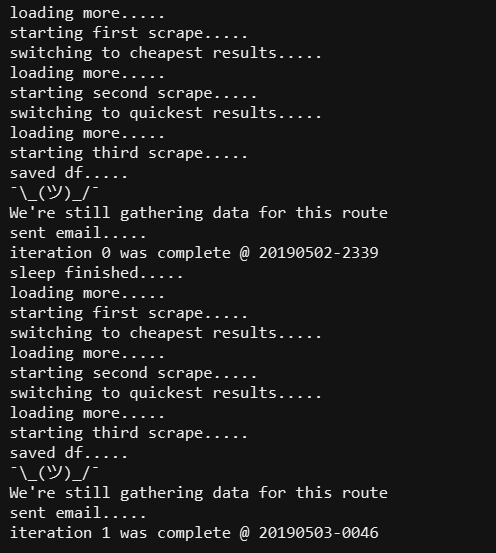
Test run of the script
Summary
If you've made it this far, congratulations! Now you have a working web scraper, though I can already see many ways to improve it. For example, it could be integrated with Twilio to send text messages instead of emails. You could use a VPN or something else to obtain results from multiple servers simultaneously. There is also the intermittent issue of the website verifying whether a user is human, but this problem can be resolved as well. In any case, you now have a foundation that you can expand upon if you wish. For example, you could set it up so that an Excel file is sent to the user as an email attachment.
Only registered users can participate in the survey. , please.
Are you using web scraping technologies?
Yes
No
8 users voted. 1 user abstained.
Source: habr.com
