

Hello!
This article will describe the implementation of PowerShell interactions with the Google API for managing G Suite users.
In our organization, we use several internal and cloud services. Mostly, authorization boils down to Google or Active Directory, for which we cannot maintain a replica. Consequently, when a new employee joins, accounts need to be created/enabled in both systems. To automate this process, we decided to write a script that gathers information and sends it to both services.
Authorization
In drafting the requirements, we decided to use real administrator users for authorization, as this simplifies the analysis of actions during accidental or intentional bulk changes.
For authentication and authorization, Google APIs use the OAuth 2.0 protocol. Usage scenarios and more detailed descriptions can be found here: .
I selected the scenario used for authorization in desktop applications. There is also an option to use a service account that does not require extra steps from the user.
The image below is a schematic description of the selected scenario from Google’s page.
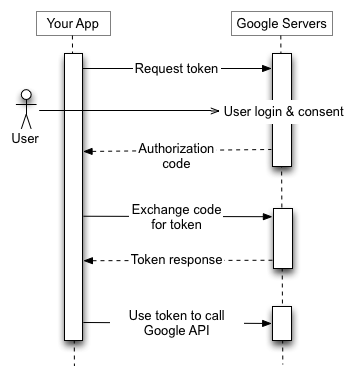
- First, we send the user to the authentication page for the Google account, specifying the GET parameters:
- application identifier
- scopes that the application needs access to
- the address to which the user will be redirected after the procedure is completed
- the method by which we will refresh the token
- verification code
- format of the verification code transmission
- After the authorization is completed, the user will be redirected to the page specified in the first request, with an error or authorization code passed as GET parameters.
- The application (script) will need to obtain these parameters and, in case of receiving a code, make the following request to get tokens.
- With a correct request, the Google API returns:
- Access token, which allows us to make requests
- The validity period of this token
- Refresh token, necessary for updating the Access token.
First, we need to go to the Google API console: Select the desired application and create an OAuth client ID in the Credentials section. There, or later in the properties of the created ID, specify the addresses to which redirection is allowed. In our case, this will be several localhost entries with different ports (see below).
To make it easier to read the script's algorithm, you can extract the first steps into a separate function that returns the Access and refresh tokens for the application:
$client_secret = 'Our Client Secret'
$client_id = 'Our Client ID'
function Get-GoogleAuthToken {
  if (-not [System.Net.HttpListener]::IsSupported) {
    "HttpListener is not supported."
    exit 1
  }
  $codeverifier = -join ((65..90) + (97..122) + (48..57) + 45 + 46 + 95 + 126 |Get-Random -Count 60| % {[char]$_})
  $hasher = new-object System.Security.Cryptography.SHA256Managed
  $hashByteArray = $hasher.ComputeHash([System.Text.Encoding]::UTF8.GetBytes($codeverifier))
  $base64 = ((([System.Convert]::ToBase64String($hashByteArray)).replace('=','')).replace('+','-')).replace('\/','_')
  $ports = @(10600,15084,39700,42847,65387,32079)
  $port = $ports[(get-random -Minimum 0 -maximum 5)]
  Write-Host "Start browser..."
  Start-Process "https://accounts.google.com/o/oauth2/v2/auth?code_challenge_method=S256&code_challenge=$base64&access_type=offline&client_id=$client_id&redirect_uri=http://localhost:$port&response_type=code&scope=https://www.googleapis.com/auth/admin.directory.user https://www.googleapis.com/auth/admin.directory.group"
  $listener = New-Object System.Net.HttpListener
  $listener.Prefixes.Add("http://localhost:"+$port+'\/')
  try {$listener.Start()} catch {
    "Unable to start listener."
    exit 1
  }
  while (($code -eq $null)) {
    $context = $listener.GetContext()
    Write-Host "Connection accepted" -f 'mag'
    $url = $context.Request.RawUrl
    $code = $url.split('?')[1].split('=')[1].split('&')[0]
    if ($url.split('?')[1].split('=')[0] -eq 'error') {
      Write-Host "Error!"$code -f 'red'
      $buffer = [System.Text.Encoding]::UTF8.GetBytes("Error!"+$code)
      $context.Response.ContentLength64 = $buffer.Length
      $context.Response.OutputStream.Write($buffer, 0, $buffer.Length)
      $context.Response.OutputStream.Close()
      $listener.Stop()
      exit 1
    }
    $buffer = [System.Text.Encoding]::UTF8.GetBytes("Now you can close this browser tab.")
    $context.Response.ContentLength64 = $buffer.Length
    $context.Response.OutputStream.Write($buffer, 0, $buffer.Length)
    $context.Response.OutputStream.Close()
    $listener.Stop()
  }
  Return Invoke-RestMethod -Method Post -Uri "https://www.googleapis.com/oauth2/v4/token" -Body @{
    code = $code
    client_id = $client_id
    client_secret = $client_secret
    redirect_uri = 'http://localhost:'+$port
    grant_type = 'authorization_code'
    code_verifier   = $codeverifier
  }
  $code = $null
We set the Client ID and Client Secret obtained from the OAuth client ID properties, and the code verifier is a string of length from 43 to 128 characters, which must be randomly generated from unreserved characters: [A-Z] / [a-z] / [0-9] / "-" / "." / "_" / "~".
This code will be passed again next. It mitigates the vulnerability where an attacker could intercept the response returned by the redirect after the user has authorized.
You can send the code verifier in the current request in plaintext (which makes it pointless — this is only suitable for systems that do not support SHA256), or by creating a hash using the SHA256 algorithm, which needs to be encoded in BASE64Url (which differs from Base64 by two characters in the table) and removing the newline character: =.
Next, we need to start listening to HTTP on the local machine to receive a response after authentication, which will return as a redirect.
Administrative tasks are performed on a special server, and we cannot exclude the possibility that multiple administrators will run the script simultaneously, so it will randomly choose a port for the current user, but I have specified predefined ports, as they also need to be added as trusted in the API console.
access_type=offline means that the application can refresh the expired token independently without user interaction with the browser,
response_type=code specifies the format in which the code will be returned (a reference to the old authorization method when the user copied and pasted the code from the browser into the script),
scope specifies areas and access types. They should be separated by spaces or (according to URL Encoding). A list of access areas with types can be seen here: .
After receiving the authorization code, the application will return a closure message in the browser, stop listening to the port, and send a POST request to obtain the token. We specify the previously set id and secret from the API console, the address to which the user will be redirected, and grant_type according to the specification of the protocol.
In response, we will receive an Access token, its expiration time in seconds, and a Refresh token, which we can use to refresh the Access token.
The application must store tokens in a secure place with a long storage duration, so as long as we do not revoke the obtained access, the application will not receive a refresh token. At the end, I added a request to revoke the token in case the application was not successfully completed and the refresh token was not returned; it will start the process over again (we considered it unsafe to store tokens locally on the terminal, and we do not want to complicate cryptography or frequently open a browser).
do {
  $token_result = Get-GoogleAuthToken
  $token = $token_result.access_token
  if ($token_result.refresh_token -eq $null) {
    Write-Host ("Session is not destroyed. Revoking token...")
    Invoke-WebRequest -Uri ("https://accounts.google.com/o/oauth2/revoke?token="+$token)
  }
} while ($token_result.refresh_token -eq $null)
$refresh_token = $token_result.refresh_token
$minute = ([int]("{0:mm}" -f ([timespan]::fromseconds($token_result.expires_in))))+((Get-date).Minute)-2
if ($minute -lt 0) {$minute += 60}
elseif ($minute -gt 59) {$minute -=60}
$token_expire = @{
  hour = ([int]("{0:hh}" -f ([timespan]::fromseconds($token_result.expires_in))))+((Get-date).Hour)
  minute = $minute
}
As you may have noticed, invoking the token revocation uses Invoke-WebRequest. Unlike Invoke-RestMethod, it does not return the received data in a usable format and displays the request status.
The script will then prompt for the user's first and last name, generating a login + email.
Requests
Next, there will be requests — first, it is necessary to check if a user with that login already exists to determine whether to create a new one or utilize the existing one.
I decided to implement all the requests in the format of a single function with selection, using switch:
function GoogleQuery {
  param (
    $type,
    $query
  )
  switch ($type) {
    "SearchAccount" {
      Return Invoke-RestMethod -Method Get -Uri "https://www.googleapis.com/admin/directory/v1/users" -Headers @{Authorization = "Bearer " + (Get-GoogleToken)} -Body @{
        domain = 'rocketguys.com'
        query  = "email:$query"
      }
    }
    "UpdateAccount" {
      $body = @{
        name  = @{
          givenName = $query['givenName']
          familyName = $query['familyName']
        }
        suspended = 'false'
        password = $query['password']
        changePasswordAtNextLogin = 'true'
        phones = @(@{
          primary = 'true'
          value = $query['phone']
          type = "mobile"
        })
        orgUnitPath = $query['orgunit']
      }
      Return Invoke-RestMethod -Method Put -Uri ("https://www.googleapis.com/admin/directory/v1/users/" + $query['email']) -Headers @{Authorization = "Bearer " + (Get-GoogleToken)} -Body (ConvertTo-Json $body) -ContentType 'application/json; charset=utf-8'
    }

    "CreateAccount" {
      $body = @{
        primaryEmail = $query['email']
        name  = @{
          givenName = $query['givenName']
          familyName = $query['familyName']
        }
        suspended = 'false'
        password = $query['password']
        changePasswordAtNextLogin = 'true'
        phones = @(@{
          primary = 'true'
          value = $query['phone']
          type = "mobile"
        })
        orgUnitPath = $query['orgunit']
      }
      Return Invoke-RestMethod -Method Post -Uri "https://www.googleapis.com/admin/directory/v1/users" -Headers @{Authorization = "Bearer " + (Get-GoogleToken)} -Body (ConvertTo-Json $body) -ContentType 'application/json; charset=utf-8'
    }
    "AddMember" {
      $body = @{
        userKey = $query['email']
      }
      $ifrequest = Invoke-RestMethod -Method Get -Uri "https://www.googleapis.com/admin/directory/v1/groups" -Headers @{Authorization = "Bearer " + (Get-GoogleToken)} -Body $body
      $array = @()
      foreach ($group in $ifrequest.groups) {$array += $group.email}
      if ($array -notcontains $query['groupkey']) {
        $body = @{
          email = $query['email']
          role = "MEMBER"
        }
        Return Invoke-RestMethod -Method Post -Uri ("https://www.googleapis.com/admin/directory/v1/groups/" + $query['groupkey'] + "/members") -Headers @{Authorization = "Bearer " + (Get-GoogleToken)} -Body (ConvertTo-Json $body) -ContentType 'application/json; charset=utf-8'
      } else {
        Return ($query['email'] + " now is a member of " + $query['groupkey'])
      }
    }
  }
}
In every request, you must send an Authorization header containing the token type and the Access token itself. Currently, the token type is always Bearer. Since we need to check that the token is not expired and renew it after one hour from the issuance, I provided a request to another function that returns the Access token. This same piece of code is at the beginning of the script when obtaining the first Access token:
function Get-GoogleToken {
  if (((Get-date).Hour -gt $token_expire.hour) -or (((Get-date).Hour -ge $token_expire.hour) -and ((Get-date).Minute -gt $token_expire.minute))) {
  Write-Host "Token Expired. Refreshing..."
    $request = (Invoke-RestMethod -Method Post -Uri "https://www.googleapis.com/oauth2/v4/token" -ContentType 'application/x-www-form-urlencoded' -Body @{
      client_id = $client_id
      client_secret = $client_secret
      refresh_token = $refresh_token
      grant_type = 'refresh_token'
    })
    $token = $request.access_token
    $minute = ([int]("{0:mm}" -f ([timespan]::fromseconds($request.expires_in))))+((Get-date).Minute)-2
    if ($minute -lt 0) {$minute += 60}
    elseif ($minute -gt 59) {$minute -=60}
    $script:token_expire = @{
      hour = ([int]("{0:hh}" -f ([timespan]::fromseconds($request.expires_in))))+((Get-date).Hour)
      minute = $minute
    }
  }
  return $token
}
Checking login existence:
function Check_Google {
  $query = (GoogleQuery 'SearchAccount' $username)
  if ($query.users -ne $null) {
    $user = $query.users[0]
    Write-Host $user.name.fullName' - '$user.PrimaryEmail' - suspended: '$user.Suspended
    $GAresult = $user
  }
  if ($GAresult) {
      $return = $GAresult
  } else {$return = 'gg'}
  return $return
}
The email request: $query will ask the API to search for a user with that email, including aliases. You can also use a wildcard: =, :, :{PREFIX}*.
The GET method is used to retrieve data, POST is used to insert data (create an account or add a member to a group), PUT is used to update existing data, and DELETE is used to remove a record (for example, a member from a group).
The script will also ask for a phone number (a non-validated string) and about joining the regional mailing group. It determines which organizational unit should be assigned to the user based on the selected OU in Active Directory and generates a password:
do {
  $phone = Read-Host "Phone in the format +7xxxxxxxxxx"
} while (-not $phone)
do {
    $moscow = Read-Host "In the Moscow office? (y/n) "
} while (-not (($moscow -eq 'y') -or ($moscow -eq 'n')))
$orgunit = '/'
if ($OU -like "*OU=Delivery,OU=Users,OU=ROOT,DC=rocket,DC=local") {
    Write-host "Will be created in /Team delivery"
    $orgunit = "/Team delivery"
}
$Password = -join (48..57 + 65..90 + 97..122 | Get-Random -Count 12 | % {[char]$_})+"*Ba"
And then starts manipulating with the account:
$query = @{
  email = $email
  givenName = $firstname
  familyName = $lastname
  password = $password
  phone = $phone
  orgunit = $orgunit
}
if ($GMailExist) {
  Write-Host "Starting account modification" -f mag
  (GoogleQuery 'UpdateAccount' $query) | fl
  write-host "Don’t forget to check the groups for enabled $Username in Google."
} else {
  Write-Host "Starting account creation" -f mag
  (GoogleQuery 'CreateAccount' $query) | fl
}
if ($moscow -eq "y"){
  write-host "Adding to the group moscowoffice"
  $query = @{
    groupkey = 'moscowoffice@rocketguys.com'
    email = $email
  }
  (GoogleQuery 'AddMember' $query) | fl
}
The functions for updating and creating an account have similar syntax; not all additional fields are mandatory. In the section for phone numbers, you need to specify an array that can contain at least one entry with the number and its type.
To avoid an error when adding a user to a group, we can first check if they are already a member of that group by obtaining the group's member list or the user's group membership.
The request for the groups of a specific user will not be recursive and will only show direct membership. Including a user in a parent group, of which a child group that the user is a member already exists, will be successful.
Conclusion
We just need to send the user the password for their new account. We do this via SMS, and the general information along with the instructions and login is sent to the personal email provided by the HR department, along with the phone number. As an alternative, we can save some money by sending the password in a secret Telegram chat, which can also be considered a second factor (MacBooks will be an exception).
Thank you for reading to the end. I would be happy to see suggestions for improving the writing style of articles and wish you to encounter fewer errors when writing scripts =)
A list of links that may be thematically useful or simply answer arising questions:
Source: habr.com

 Russian
 Italian
 German
 Polish
 Estonian
 Albanian
 Bulgarian
 Croatian
 Czech
Czech Danish
 Dutch
Dutch English
 French
 Hungarian
 Latvian
 Portuguese
 Romanian
 Slovak
 Slovenian
 Spanish
 Swedish