

Recently, I got my hands on this marvel: . I immediately decided to abandon the built-in OS and install debian on the hard drive.
The information online is a bit scattered, the links have long since died, so I decided to update the installation process of debian on stora. If you're interested, welcome under the cut.
The main source was this .
First, we need the images to install the system: . Download both files. Place these files in the root directory of a flash drive formatted in fat32.
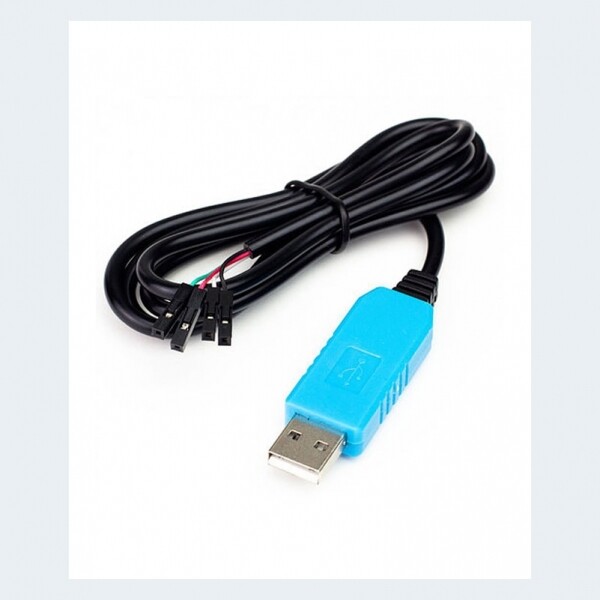
You will also need a USB to UART converter PL2303TA.
I had this one
You will also need software to connect to the device, such as hyperterminal or putty (I had trouble with putty: there were always garbled characters in the terminal, so I used hyperterminal.
To connect the device via cable, you first need to disassemble it. The process is straightforward, so I won't describe it. And don't forget to insert a hard drive into the first slot of the stora, where the installation will actually take place.
After disassembling the device, connect the adapter. Be careful, do not connect the red wire; you only need to connect three wires (from the battery: black, green, white).
So, the wire is connected, drivers are attached. In the com port driver, set the parameters: speed 115200, data bits 8, stop bits 1, no parity check. After that, turn on the device and connect to it in the terminal. When you see the message Press any key..., press any key to enter the u-boot loader.
A brief digression.
Here’s the list of commands we'll operate with and that will be useful:
usb reset, ide reset — initializes usb, ide devices
fatls, ext2ls — views the directory on fat or ext2 file system.
setenv — sets the environment variables
saveenv — saves variables to internal memory
reset — reboots the device
printenv — outputs all variables
printenv NAME — outputs the variable NAME
help — outputs all commands
After entering the loader, we will set the network parameters, initialize the usb device, check that the necessary files are on the flash drive, save those parameters to the device's memory, and reboot:
Commands
usb reset
fatls usb 0
setenv mainlineLinux yes
setenv arcNumber 2743
setenv ipaddr your_IP
setenv gatewayip your_GW_IP
setenv dnsip your_DNS_IP
saveenv
reset
After rebooting, enter the commands to begin the installation of debian:
usb reset
fatload usb 0 0x200000 uImage
fatload usb 0 0x800000 uInitrd
setenv bootargs console=ttyS0,115200n8 base-installer/initramfs-tools/driver-policy=most
bootm 0x200000 0x800000
After this, the standard installation of Debian in text mode will begin. We install the system, reboot after installation, enter U-Boot, and enter the commands to boot the device from the hard drive:
setenv bootcmd_ide 'ide reset; ext2load ide 0 0x200000 /uImage; ext2load ide 0 0x800000 /uInitrd'
setenv bootcmd 'setenv bootargs $(console) root=/dev/sda2; run bootcmd_ide; bootm 0x200000 0x800000'
saveenv
reset
After rebooting, Debian boots from the hard drive, which was our original goal.
P.S. Restoring the original bootloader:
setenv mainlineLinux=no
setenv arcNumber
setenv bootcmd_ide
setenv bootcmd 'nand read.e 0x800000 0x100000 0x300000; setenv bootargs $(console) $(bootargs_root); bootm 0x800000'
saveenv
reset
Source: habr.com
