

— a program for running Windows applications on Unix-based computers.
Running Wine on Windows has been a dream for fans who heed the call of "We do what we must because we can," at least since 2004, when someone attempted to compile Wine in Cygwin and .
The justification: "But what about old applications that don't work properly on the latest Windows versions?" But we understand that the real reason is "I have suffered for my art, now it's your turn."
At the end of 2008, I was overwhelmed by an obsessive thought — and I (seemingly, it was me) created a page on the Wine wiki. In brief: it was completely impossible since everything worked through Cygwin, MinGW, or Windows Services for Unix. is not much more successful.
Windows 10 introduced the Windows Subsystem for Linux, and Ubuntu conveniently downloads from the Microsoft Store. As a result, our silly idea practically implements itself, except that you need to manually set the DISPLAY environment variable.
So far, it's mind-bogglingly useless. Wine only works with 64-bit Windows applications, which means not even all applications that come with Windows 10 itself.
(The original project started after someone couldn't run Encarta 97 on Windows 10. So, like any true geek solution, it really doesn't solve the original user's problem.)
But I want to emphasize again: now it works trivially. I am not some crazy genius who implemented a fantastic project — it just seems I was the first to publicly announce this fact.
How to do this silly thing
1. You have 64-bit Windows 10, right? That's the only version with WSL.
2. Install WSL. Control Panel -> Programs -> Programs and Features -> Turn Windows features on or off. Check the box for "Windows Subsystem for Linux." Restart Windows.
3. Go to the Microsoft Store, install Ubuntu (mainly to run it and create WSL). I installed Ubuntu 18.04 LTS. Open Ubuntu, and you will see the bash terminal.
4. Install the following from the bash command line:
sudo dpkg --add-architecture i386
sudo apt update; sudo apt upgrade
sudo apt install wine-stable
You can install a more recent version of Wine if you want to (don't forget about the two new libraries needed for wine-devel >=4.5 that haven't yet made it into Ubuntu!). Let me know if this works.
5. Add to your .bashrc such a line:
export DISPLAY=:0.0You probably want to run this in the current bash window as well.
6. , a nicely packaged version of xorg compiled for Windows — just grab the latest executable and run it. Launch the X Server through the Start button and XLaunch. It will guide you through the defaults — leave most of them as is. I checked the box ‘Disable Access Control’ just in case. Save the configuration.
6a. If you want to check that the X server is configured correctly, install sudo apt install x11-apps and run xeyes for a brief trip back to the 80s and 90s.
7. Self wine is not working because . On our 64-bit Windows 10, it throws an error /usr/bin/wine: 40: exec: /usr/lib/wine/wine: Exec format error. Apparently, this was .
But for now, let's run Notepad in Wine!
wine64 /usr/lib/x86_64-linux-gnu/wine/fakedlls/notepad.exe
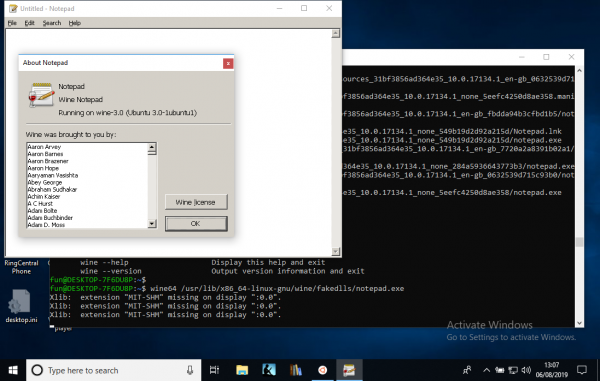
TO DO: 32-bit support. We’ll have to wait for the . It will be interesting to see if ancient Win16 programs will work — theoretically, they should run in Wine, even if they no longer work on Windows itself.
32-bit applications via qemu
Thank you , who suggested how to approach running 32-bit applications.
sudo apt install qemu-user-static
sudo update-binfmts --install i386 /usr/bin/qemu-i386-static --magic 'x7fELFx01x01x01x03x00x00x00x00x00x00x00x00x03x00x03x00x01x00x00x00' --mask 'xffxffxffxffxffxffxffxfcxffxffxffxffxffxffxffxffxf8xffxffxffxffxffxffxff'
sudo service binfmt-support start
And now we can do:
fun@DESKTOP-7F6DU8P:~$ wine --version
wine-3.0 (Ubuntu 3.0-1ubuntu1)
However, Encarta 97 still doesn't work:
fun@DESKTOP-7F6DU8P:/mnt/e$ wine SETUP.EXE
wine: Unhandled page fault on read access to 0xffffffff at address 0x11df:0x00002c11 (thread 0011), starting debugger...
0011:err:seh:start_debugger Couldn't start debugger ("winedbg --auto 15 108") (2)
Read the Wine Developers Guide on how to set up winedbg or another debugger
For those in the know: file says SETUP.EXE: MS-DOS executable, NE for MS Windows 3.x, so we need to go down to rare 16-bit programs.
Encarta 97 installs and runs flawlessly in Wine 4.13 on Linux… but in 4.13 on Windows 10, it still doesn’t work:
fun@DESKTOP-7F6DU8P:~$ wine /mnt/e/SETUP.EXE
Xlib: extension "MIT-SHM" missing on display ":0.0".
Xlib: extension "MIT-SHM" missing on display ":0.0".
0009:err:process:__wine_kernel_init boot event wait timed out
001d:err:process:__wine_kernel_init boot event wait timed out
wine: Unhandled page fault on read access to 0xffffffff at address 0x11cf:0x00002c11 (thread 001e), starting debugger...001e:err:seh:start_debugger Couldn't start debugger ("winedbg --auto 28 152") (2)
Read the Wine Developers Guide on how to set up winedbg or another debugger
001d:err:ntdll:RtlpWaitForCriticalSection section 0x7e6273e0 "syslevel.c: Win16Mutex" wait timed out in thread 001d, blocked by 001e, retrying (60 sec)
Xlib: extension "MIT-SHM" missing on display ":0.0".
Could not load wine-gecko. HTML rendering will be disabled.
001e:err:seh:raise_exception Unhandled exception code c0000005 flags 0 addr 0x7b4a6abc
wine client error:1e: write: Bad file descriptor
Of course, it outputs various error messages in several runs…
Source: habr.com
