

New Year is approaching, and I no longer want to think about serious work.
Everyone is trying to decorate something for the holiday: the home, office, workspace… Let’s decorate something too! For instance, the command line. In a way, the command line is also a workspace.
In some distributions, it is already "decorated":

In others, it is gray and inconspicuous:

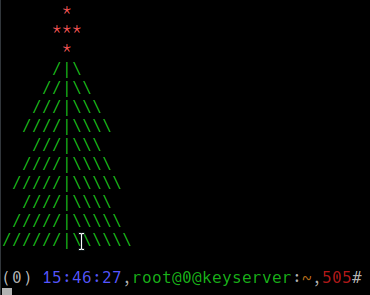
But we can do something like this:

Of course, everyone has their own taste and preferences. If such a coloring seems gaudy and inappropriate to you, know that this point of view is completely valid. But if you also want to add some New Year’s mood, read on for a little holiday article from Cloud4Y.
Firstly, let me explain how the terminal output is "colored". This is done using escape sequences. To be precise, it involves control character sequences from the ANSI/VT100 terminal. This automatically means that your terminal emulator must support this standard; otherwise, the New Year’s magic won’t happen. And yes, it’s assumed that your $SHELL is bash.
These commands are called escape sequences because each of them begins with the ASCII character "escape". There are many control sequences, and they allow, for example, to output terminal settings, manage cursor display and movement, change fonts, delete, and hide text. From all the various options, we will choose one – changing the text and background color.
We execute the code sequence *ESC*[{attr1};...;{attrn}m
As a symbol Escape its octal form is used, which is 33. Regarding attributes, here is a brief list of possible values:
0 Reset all attributes
1 Bright (increased brightness)
2 Dim (dimming)
4 Underscore (underline)
5 Blink (blinking)
7 Reverse (inversion)
8 Hidden (hide text)
Foreground Colours (pen color, this color outputs the text):
30 Black (black)
31 Red (red)
32 Green (green)
33 Yellow (yellow)
34 Blue (blue)
35 Magenta (magenta)
36 Cyan (cyan)
37 White (white)
Background Colours (paper color, or background color):
40 Black (black)
41 Red (red)
42 Green (green)
43 Yellow (yellow)
44 Blue (blue)
45 Magenta (magenta)
46 Cyan (cyan)
47 White (white)
Note that if you now command in the terminal: echo 33[0;31m some text 33[0m’
… you will predictably get a monochrome jumble in the output:

Why? Because you needed to utilize the extended capabilities of the echo command. Simply add one option: echo -e '33[0;31mSome text 33[0m'
Now the output will look correct:

We have dealt with coloring the terminal output. Now let's look at how to color the command prompt.
This is done by changing the PS1 variable. This variable is responsible for the command prompt. Its appearance can also be modified, including using escape sequences. But there is a small difference: the sequence must start with the symbol “[”, and end with the symbol “]”, otherwise it will be output to the terminal.
All possible command sequences are detailed in the bash manual, so I suggest readers to choose what they prefer to see in the command prompt. As an example, here is my PS1 variable value:
 [ 33[34;1m]t[ 33[0m],[ 33[32m]u@l@h[ 33[0m]:[ 33[33m]W[ 33[0m],[ 33
 [31m]![ 33[0m]$n
Let me decode this strange spell:
[ 33[34;1m] — enables bright blue (second attribute) font color
t – outputs the current time in HH:MM:SS format
[ 33[0m] – resets the font color settings
, — just a comma (unexpected, right?)
[ 33[32m] — enables green font color
u@l@h – outputs the username, terminal device number, and short hostname, separated by the “@” symbol
[ 33[0m] — reset the font color settings again
: — just a colon (suddenly!)
[ 33[33m] — enables yellow font color
W – outputs the name of the current directory
[ 33[0m] — resets the font color settings again
, — one more comma (who would have thought!)
[ 33[31m] — enables red font color
! — outputs the command number in the terminal
[ 33[0m] — don't forget to reset the font color settings
$ — outputs “#” for root and “$” for everyone else
n – newline. Why? To ensure the command starts at the left margin of the window, not from the end of the command prompt.
Where to redefine the variable? It makes the most sense to do this in ~/ .bashrc.
The appearance of the prompt is limited only by your imagination. In principle, nothing stops you from using the aforementioned tools to make the command prompt look like a Christmas tree. However, such a prompt would be very bulky, and working wouldn't become easier. You can simply display the tree above the command prompt when logging into the system (we still need to edit ~/ .bashrc). Go for it! And thank you for your attention.
What else is useful to read in the blog
→
→
→
→
→
Subscribe to our -channel so as not to miss the next article! We write no more than twice a week and only when necessary. We also remind you that the corporate cloud provider Cloud4Y has launched a promotion: 'Cloud FZ-152 at the price of the regular one.' Applications can be submitted .
Source: habr.com
