

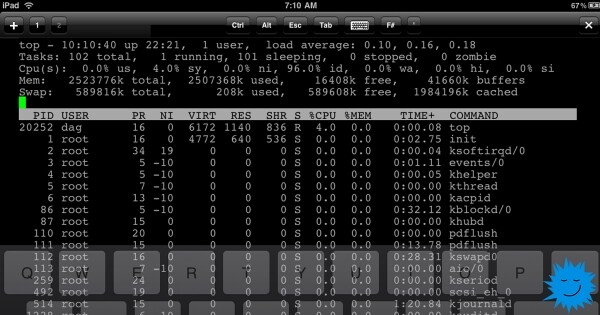
Did you know that you can run the Linux command line on an iOS device? You might ask, "Why would I want to use text applications on my iPhone?" That's a fair question. But if you're reading Opensource.com, you probably know the answer: Linux users want to be able to work with it on any device and want to use their own settings.
But most of all, they crave solutions to complex tasks.
I have a seven-year-old iPad 2 Mini, which is still quite good for reading e-books and other tasks. However, I want to use it for accessing the command line of applications with my set of programs and scripts that I can’t work without. I need an environment I’m accustomed to, along with my standard development environment. Here’s how I managed to achieve this.
Connecting a Keyboard
Working with the command line for programming via the on-screen keyboard of a phone or tablet is quite inconvenient. I recommend connecting an external keyboard, either via Bluetooth or by using a camera connection adapter for a wired keyboard (I chose the latter). When connecting a split Kinesis Advantage keyboard to an iPhone 6, it turns into a strange device reminiscent of from a classic Shadowrun.
Setting Up the Shell on iOS
To run a full Linux system on iOS, there are two options:
- Secure Shell (SSH), connecting to a Linux computer
- Running a virtual system using Alpine Linux with iSH, which is open source but must be installed using Apple's proprietary TestFlight app
Alternatively, there are two open-source terminal emulator applications that provide the ability to work with open-source tools in a limited environment. This is the most restricted option — you're not actually running Linux, but Linux tools. Using these applications comes with strict limitations, however, you do gain partial command line functionality.
Before moving on to complex solutions, I will discuss the simplest way.
Option 1: Shell in a 'sandbox'
One of the easiest ways is to install an iOS application . This is A command shell in a "sandbox" supporting over 80 commands for the price of zero dollars. It comes bundled with Python 2.7, Python 3.7, Lua, C, Clang, and much more.
It has approximately the same functionality as , described by its developers as "a test user interface for screen input platforms." The a-Shell source code is available , it is actively developed, provides access to the file system, and comes with Lua, Python, Tex, Vim, JavaScript, C, and C++, as well as Clang and Clang++. It even allows you to install Python packages using pip.
Option 2: SSH
Another step up from downloading an app is setting up an SSH client. For a long time, we have been able to use any of the many SSH client apps available for iOS to connect to a server running Linux or BSD. The advantage of using SSH is that any distribution with any software can run on the server. You work remotely, and the results are simply sent to the terminal emulator on the iOS device.
— is a popular paid SSH app on . If you ignore the small screen of the device, using this software is similar to connecting to a server through any other command line. The Blink terminal looks great, has many ready-made themes, and features for creating your own, including the ability to customize and add new fonts.
Option 3: Running Linux
Using SSH to connect to a Linux server is a great way to access the command line, but it requires an external server and a network connection. This is not the biggest obstacle, but it can't be completely ignored, so you might need to work with Linux without a server.
If this is your case, you'll need to take another step forward. — is a proprietary service for installing developed applications before they are released in the Apple App Store. The TestFlight app can be installed from the App Store, and then you can use test applications. Apps in TestFlight allow a limited number of beta testers (usually up to 10,000) to work with them for a limited time. To download a test application, you need to navigate from your device to a link that is usually found on the developer's website of the test application.
Launching Alpine Linux with iSH
— is an open-source TestFlight application that runs a virtual machine with a ready distribution (with a little effort, other distributions can also be run).
Important feature: the application is experimental. Since iSH is currently a test application, do not expect constant and reliable operation. TestFlight applications are time-limited. My current build will only work for 60 days. This means that after 60 days, I will be excluded and will have to rejoin the next testing phase of iSH. Moreover, I will lose all my files unless I export them using Files on iOS or copy them to a Git host or . In other words: Do not hope that all this will continue to work! Do not place anything important to you in the system! Make backups in a separate place!
Installing iSH
Start by installing from the App Store. Then install iSH, from the application’s website. There is also another installation method using AltStore, but I haven't tried it. Or, if you have a paid developer account, you can download the iSH repository from GitHub and install it yourself.
Using the TestFlight link will install the iSH application on your device. As with any other application, an icon will appear on the screen.
Package management
iSH runs an x86 emulator with Alpine Linux. Alpine is a tiny distribution less than 5 MB in size. I worked with Alpine for the first time, so I thought that such minimalism would be annoying, but I actually liked it very much.
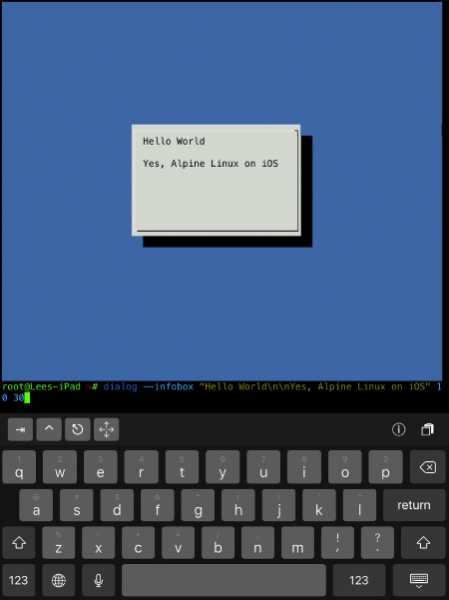
Alpine uses a package manager , which is simpler than even apt or pacman.
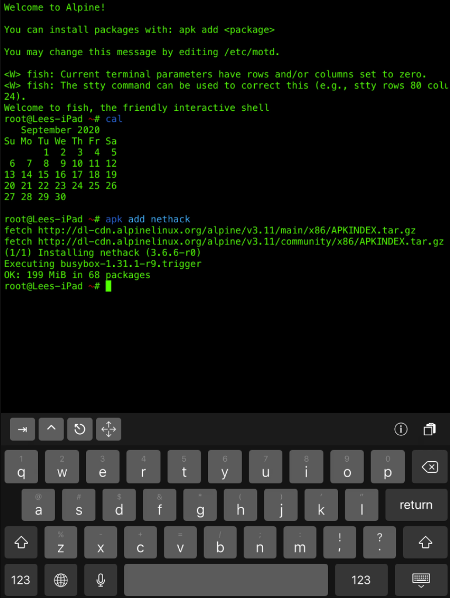
How to install a package:
apk add packageHow to remove a package:
apk del packageHow to find out other commands and information:
apk --helpPackage manager update:
apk update
apk upgrade
Installing a text editor
The default text editor in Alpine is Vi, but I prefer Vim, so I installed it:
apk add vimIf desired, you can install Nano or Emacs.
Changing the shell
I don't know about you, but I needed a . Other people prefer or . However, Alpine uses ash! Ash is a fork of the Dash shell, which itself is a fork of the original ash, or . Its priority is speed. I decided to trade speed for the built-in autocomplete, colors, Vim keybindings, and syntax highlighting that I love and know from fish shell.
Installing fish:
apk add fishIf you need Bash with its autocomplete and man pages, install them:
apk add bash bash-doc bash-completionThe minimalist ideology of Alpine usually means that some programs which are a single package in other distributions will be split into several smaller packages. It also means you can customize and reduce the size of the system just the way you want.
You can learn more about installing Bash from .
Changing the default shell
After installing fish, you can temporarily switch to it by typing fish and entering the shell. But I want to make fish the default shell, and the command chsh, which I used in other distributions, didn't work.
First, let's find out where fish is installed:
which fishHere's what I got:
/usr/bin/fish Next, let's change the login shell to fish. You can use any editor you prefer. If you're a beginner, install Nano (with the command apk add nano), so you can edit configuration files and save them with CTRL+X, confirm, and exit.
But I used Vim:
vim /etc/passwdMy first line looked like this:
root:x:0:0:root:/root:/bin/ashTo make fish the default shell, change this line to the following:
root:x:0:0:root:/root:/usr/bin/fishThen save the file and exit.
I am sure there is a good way to change the shell path so that it can be used immediately. But I don't know it, so I recommend going back to the application browser, force-logging out of the shell, and for reliability, turn off and restart the iPad or iPhone. Open iSH again and now, besides the message 'Welcome to Alpine!' and the startup information with apk, you will see the standard welcome login message from fish: Welcome to fish, the friendly interactive shell. Hooray!
Setting up Python and pip
I decided to add (version 3.x), not only to write code but also because I use several programs in Python. Let's install it:
apk add python3Although Python 2.x is obsolete, you can install it as well:
apk add pythonLet's install a Python package manager called pip and :
python3 -m ensurepip --default-pipIt will take some time to install and set up the package manager, so just wait.
Then you will be able to download a file transfer tool over the network :
apk add curlReading manuals
Fish uses built-in autocomplete based on man pages. Like other command line users, I use the manual man, but it is not installed in Alpine. So I installed it with the terminal pager :
apk add man man-pages less less-docIn addition to man, I use the fantastic , which provides simplified and community-driven man pages.
I installed it using pip:
pip install tldr The command tldr connects to the web to get pages when it encounters a request for a new page. If you need to know how to use a command, you can type something like tldr curl and get a description in plain English and good examples of how to use the command.
Of course, all this setup work can be automated with or an installation script, but really that doesn't align very well with Alpine’s philosophy — setting up a minimal installation tailored to your specific needs. Besides, this did take so much time, right?
Additional information
In the iSH Wiki, there is a page '' with reports on which packages currently work. By the way, it seems that .
On another wiki page, it explains how to from the iOS Files app. This is one way you can move and copy files.
You can also install Git (yes! apk add git ) and push your work to a remote repository or transfer it to the server via SSH. And, of course, you can download and run any number of great open-source projects from GitHub.
Learn more about iSH from these links:
Advertising
VDSina offers or Windows. We use only , the best-in-class proprietary server management panel, and some of the best data centers in Russia and the EU. Hurry to order!
Source: habr.com
