

In some cases, configuring a virtual router may encounter issues. For example, port forwarding (NAT) might not work and/or there could be problems with the configuration of the firewall rules themselves. Or, you might simply need to retrieve router logs, verify channel operation, and perform network diagnostics. The cloud provider Cloud4Y explains how this is done.
Working with the virtual router
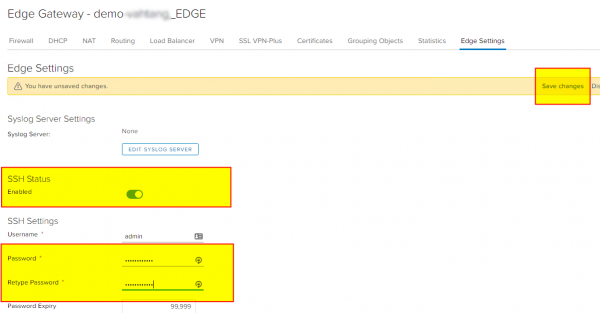
First, we need to set up access to the virtual router – EDGE. To do this, we log into its services and go to the corresponding tab – EDGE Settings. There, we enable SSH Status, set a password, and make sure to save the changes.
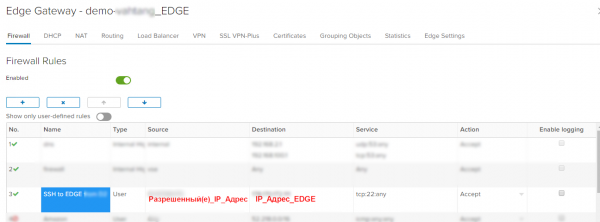
If we use strict firewall rules, where everything is denied by default, we need to add rules that allow connections to the router via the SSH port:
Next, we connect using any SSH client, such as PuTTY, and access the console.
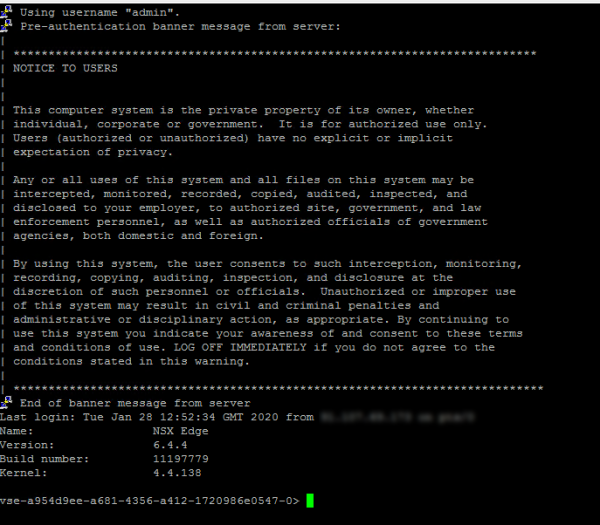
In the console, we have access to commands, a list of which can be viewed using:
list
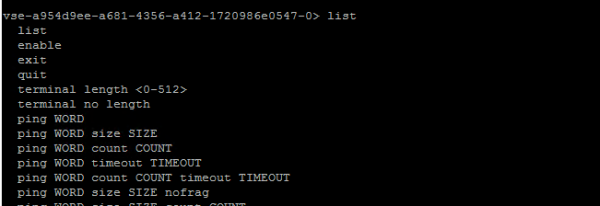
Which commands might be useful to us? Here’s a list of the most helpful ones:
- show interface — displays available interfaces and the assigned IP addresses on them
- show log — shows the router logs
- show log follow — helps to view the log in real-time with constant updates. Each rule, be it NAT or Firewall, has an Enable logging option, which, when activated, allows events to be recorded in the log, facilitating diagnostics.
- show flowtable — displays the entire table of established connections and their parameters
Example1: tcp 6 21599 ESTABLISHED src=9X.107.69.XXX dst=178.170.172.XXX sport=59365 dport=22 pkts=293 bytes=22496 src=178.170.172.XXX dst=91.107.69.173 sport=22 dport=59365 pkts=206 bytes=83569 [ASSURED] mark=0 rid=133427 use=1 - show flowtable topN 10 — allows displaying the desired number of rows, in this case 10
- show flowtable topN 10 sort-by pkts — helps sort connections by the number of packets from smallest to largest
- show flowtable topN 10 sort-by bytes — helps sort connections by the number of bytes transmitted from smallest to largest
- show flowtable rule-id ID topN 10 — helps display connections by the desired rule ID
- show flowtable flowspec SPEC — for more flexible selection of connections, where SPEC defines the required filtering rules, e.g., proto=tcp:srcip=9X.107.69.XXX:sport=59365, for filtering by TCP protocol and source IP address 9X.107.69.XX on sender port 59365
Example> show flowtable flowspec proto=tcp:srcip=90.107.69.171:sport=59365
1: tcp 6 21599 ESTABLISHED src=9X.107.69.XX dst=178.170.172.xxx sport=59365 dport=22 pkts=1659 bytes=135488 src=178.170.172.xxx dst=xx.107.69.xxx sport=22 dport=59365 pkts=1193 bytes=210361 [ASSURED] mark=0 rid=133427 use=1
Total flows: 1 - show packet drops — allows viewing packet statistics

- show firewall flows shows the firewall packet counters along with the packet streams.

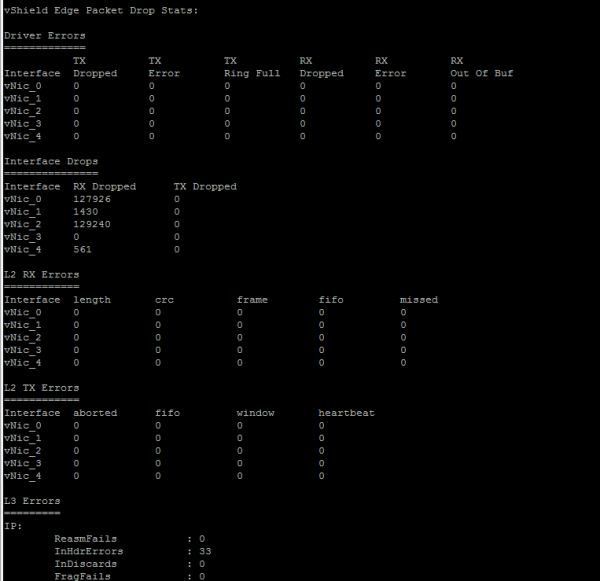
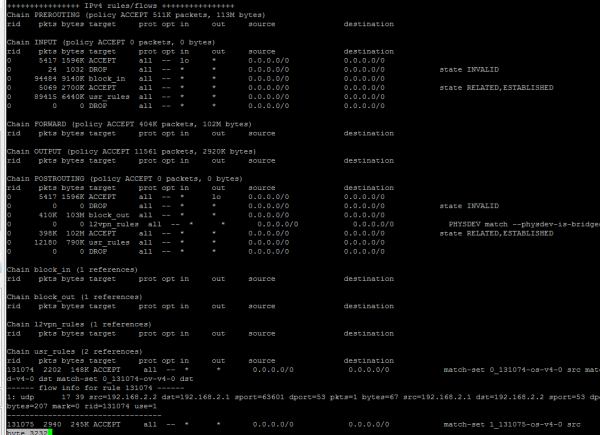
We can also use basic network diagnostic tools directly from the EDGE router:
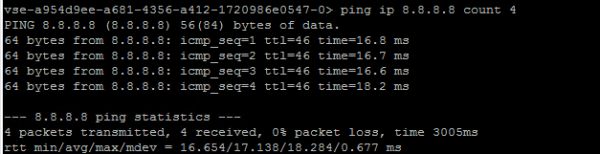
- ping ip WORD

- ping ip WORD size SIZE count COUNT nofrag – ping with specified data size and number of checks, and prohibit fragmentation of the set packet size.
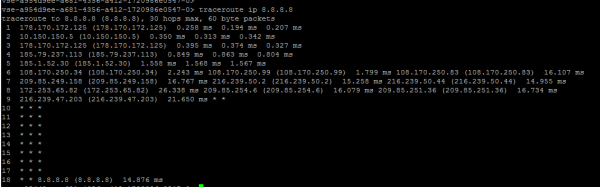
- traceroute ip WORD

A sequence of diagnostics for the Firewall operation on Edge
- Launch show firewall and we see the established user filtering rules in the usr_rules table.
- We check the POSTROUTING chain and monitor the number of dropped packets in the DROP field. If there is a problem with asymmetric routing, we will note an increase in values.
We will conduct additional checks:- Ping operation will be in one direction with no response in the other.
- Ping will work, but TCP sessions will not be established.
- We look at the output information about IP addresses — show ipset
- We enable logging on the firewall rule in Edge services.
- We review events from the log — show log follow
- We check the connections by the required rule_id — show flowtable rule_id
- Using show flowstats we compare the current established connections Current Flow Entries with the maximum allowed (Total Flow Capacity) in the current configuration. Available configurations and limits can be viewed in VMware NSX Edge. I can tell you about this in the next article if you're interested.
What else is useful to read in the blog
→
→
→
→
→
Subscribe to our -channel, so you won’t miss our next article! We write no more than twice a week and only on relevant topics. Remember, startups can get 1,000,000 rubles from Cloud4Y. Conditions and the application for those interested can be found on our website:
Source: habr.com
