

If you want to have what you never had, start doing what you never did.
Richard Bach, writer
In the past couple of years, eBooks have started to regain popularity among book lovers, and it happened as quickly as the disappearance of eReaders from most people's lives did. Perhaps this trend would have continued to this day; however, manufacturers have managed to captivate readers with new technologies that were previously unavailable to conventional eReaders. One of the industry innovators can confidently be identified as the ONYX BOOX brand, represented in Russia by Maktsentr, which has sought to confirm its reputation with an unusual niche device that is no less interesting— .
This new product was first announced late last year, and in January, ONYX BOOX brought the MAX 2 to the CES 2018 exhibition, where it showcased the capabilities of the reader (can we call it that?) in full glory. Now that the device is officially on sale, we can get a closer look at it, as many questions about such a device immediately arise.
What immediately catches the eye are the differences of the new generation MAX from its predecessor (yes, if there are numbers in the naming, it’s logical to assume that our hero had a predecessor). Some might have missed the ONYX BOOX MAX, as it was more of a niche device for professionals. In this new iteration of its product, the manufacturer listened to user feedback and decided to do everything at once: it added a high-resolution display with a dual (!) sensor, updated the operating system to Android 6.0 (which is very cool for the eReader world), implemented SNOW Field technology, and… an HDMI input. Yes, this is the first device in the world for reading eBooks that can be used as a main or secondary monitor.
We will talk later about how to turn a reader into a monitor, but for now, let's focus on the display. One of the drawbacks of the ONYX BOOX MAX was the inductive sensor — it did not respond to touches from fingers or nails, requiring the use of a stylus. In the new generation, the approach to the screen has been radically improved: in addition to the WACOM inductive sensor that supports 2048 levels of pressure, a capacitive multi-touch sensor has been added. This means that it's no longer necessary to reach for the stylus each time; you can open applications or perform actions on the screen with your finger.
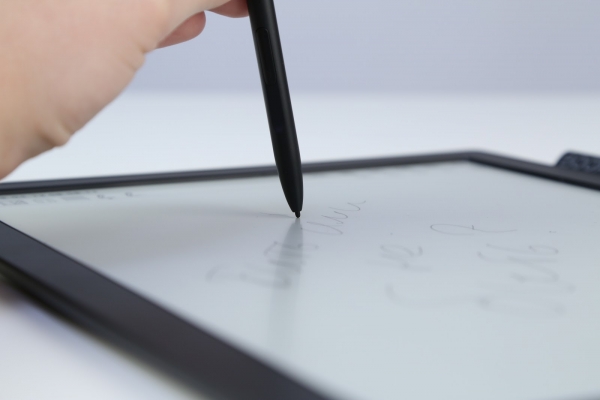
Dual-touch control is provided by two touch layers. Above the surface of the ONYX BOOX MAX 2 screen is a capacitive layer that allows you to turn pages and zoom documents with intuitive two-finger gestures. Beneath the E Ink panel lies the WACOM touch layer, which enables you to make notes or sketches with a stylus.
The display itself has a diagonal of 13.3 inches with a resolution of 1650 x 2200 pixels and a density of 207 dots per inch, and it is made using advanced E Ink Mobius Carta technology.
A distinctive feature of this screen is its remarkable similarity to a paper counterpart (hence the technology is referred to as 'electronic paper'), and it also has a plastic substrate and is lighter. The plastic substrate has at least two advantages over traditional glass — the screen becomes not only lighter but also less fragile, and reading is nearly indistinguishable from an ordinary paper page. Additionally, it has energy-saving benefits, as the display consumes power only when changing images.
Interestingly, ONYX BOOX is gradually moving away from naming its devices after famous historical figures (Cleopatra, Monte Cristo, Darwin, Chronos) and is giving its readers more concise names hinting at key functions. With MAX 2, everything is clear — the name clearly illustrates the gigantic screen size; while ONYX BOOX NOTE (shown alongside MAX 2 at CEA 2018) seemingly emphasizes the ability to use the reader as a notebook for notes. However, one hopes that they won't completely abandon original ONYX BOOX names, as it’s always nice when the device's name carries meaning rather than just being an arbitrary combination of letters and numbers.
But let's take a closer look at what the ONYX BOOX MAX 2 is all about.
Specifications of ONYX BOOX MAX 2
| Display | touchscreen, 13.3″, E Ink Mobius Carta, 1650 × 2200 pixels, 16 gray levels, 207 ppi density |
| Sensor Type | Capacitive (with multi-touch support); induction (WACOM with support for 2048 levels of pressure sensitivity) |
| Operating system | (depending on the game’s requirements). |
| Battery | Lithium-polymer, 4100 mAh capacity |
| Processor | 4-core 1.6 GHz |
| Memory | 2 GB |
| Built-in memory | 32 GB |
| Wired connection | USB 2.0/HDMI |
| Audio | 3.5 mm, built-in speaker, microphone |
| Supported formats | TXT, HTML, RTF, FB2, FB2.zip, FB3, DOC, DOCX, PRC, MOBI, CHM, PDB, DOC, EPUB, JPG, PNG, GIF, BMP, PDF, DjVu, MP3, WAV |
| Wireless connectivity | Wi-Fi IEEE 802.11b/g/n, Bluetooth 4.0 |
| Dimensions | 325 × 237 × 7.5 mm |
| Weight | 550 g |
What's in the Box
The box with the device looks impressive, largely due to its size, yet it remains quite thin — the manufacturer has compactly arranged the included items. The front of the box features an image of the reader with a stylus and a photo showing the device used as a monitor (the emphasis is immediately evident), with the main technical specifications displayed on the back.
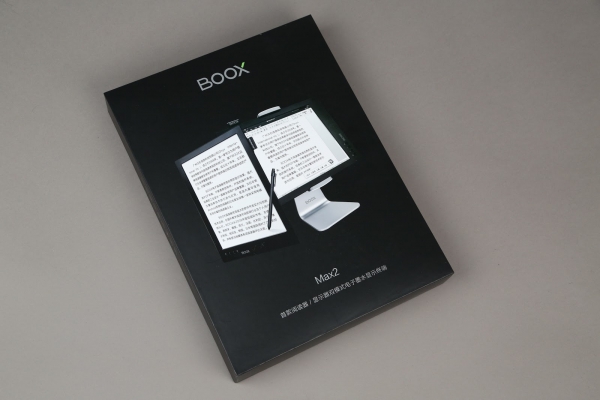
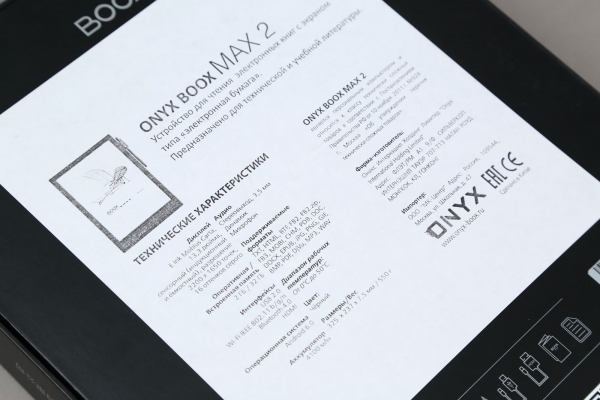
Under the box is a celebration of minimalism — the device itself in a felt case, and underneath it — the stylus, a micro-USB charging cable, an HDMI cable, and documentation. Each component of the kit has its own indentation to ensure nothing sticks out. This approach to organizing space is much more efficient than stacking all components one on top of the other, although not all manufacturers have the opportunity to implement it. Here, the device itself is large, so it makes sense to 'grow' horizontally rather than vertically.
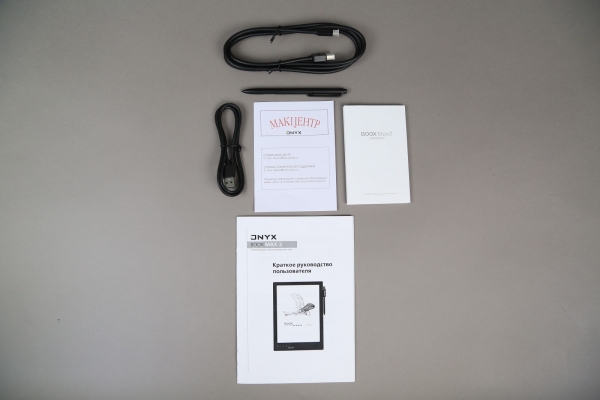
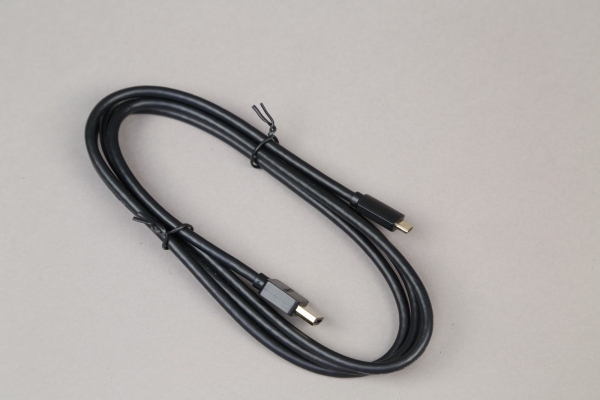
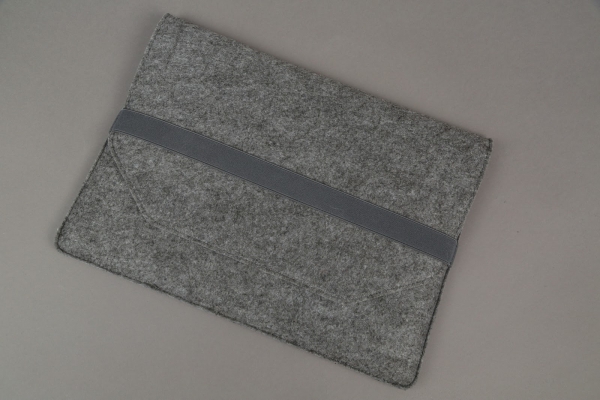
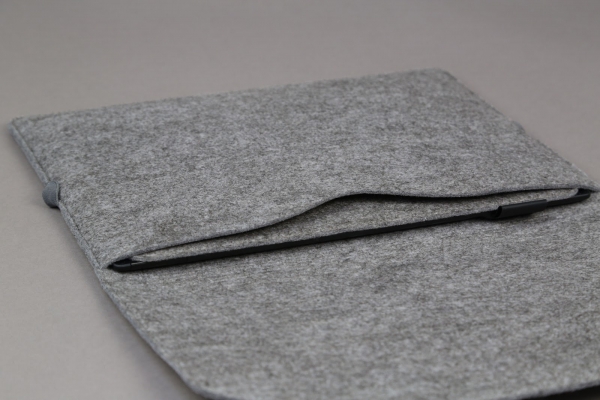
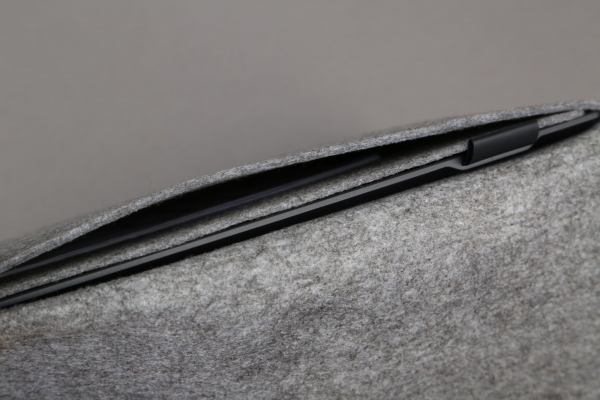
The case is made very well and is made of a material that closely resembles felt. In fact, it's more of a folder than a case; it's no surprise that it comes with several compartments: one for the device itself and another for documents (even a MacBook fits).
Appearance
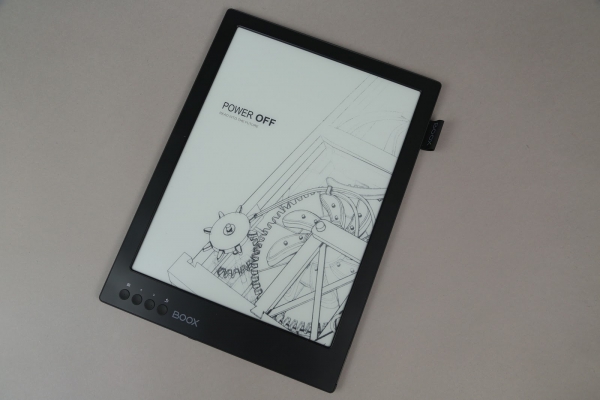
The design, as with all ONYX BOOX readers, is well-executed, leaving little room for criticism. The bezels around the display are not overly thick and are designed specifically so that the device can be held comfortably without accidentally touching the screen. The body is made of metal and is very lightweight: when you first see this 'tablet', you might think it weighs as much as a MacBook Air. But in reality, it weighs only 550 g.
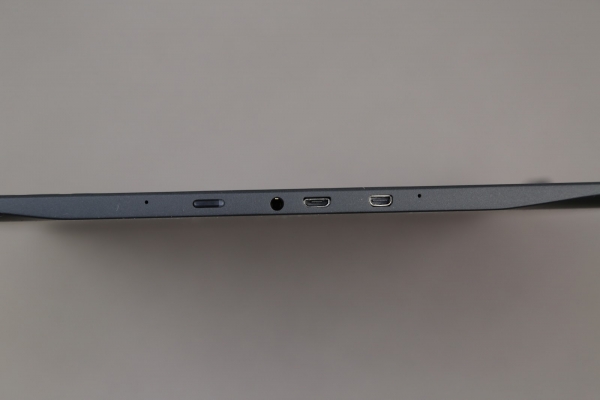
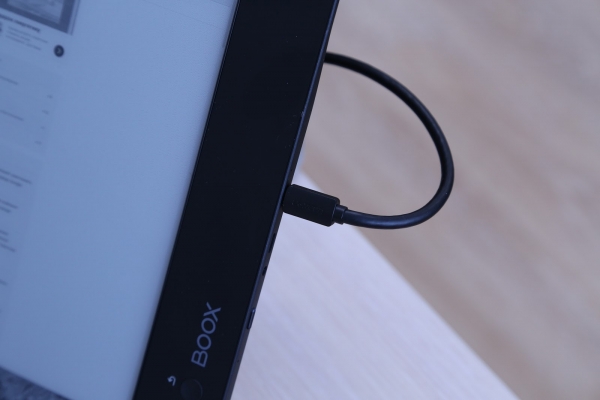
All controls and ports are located on the bottom edge — you can find a micro-USB port for charging, a 3.5 mm audio jack, an HDMI port, and the power button. The power button has a built-in light indicator that lights up in different colors depending on the task at hand. When the device is connected via USB, the indicator is red; in normal operating mode, it is blue. Yes, they removed the microSD card slot, believing that 32 GB of internal memory would be sufficient (definitely more than 8 GB).
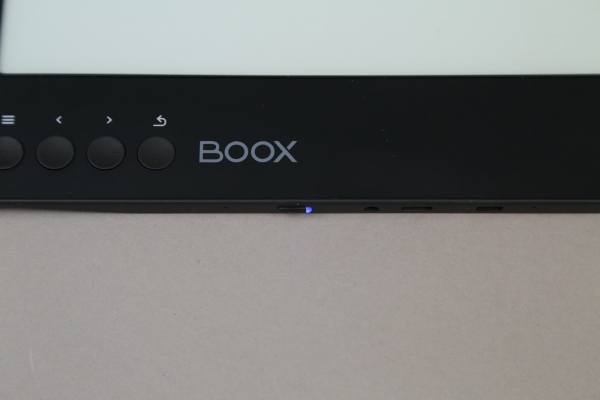
In the lower left corner is the manufacturer's logo, next to which are four buttons: 'Menu', two buttons for pagination while reading, and 'Back'. There are no complaints about the button placement (similar to the 'Cleopatra'); placing them here was clearly a better decision than putting them on the sides, as is common with most other ONYX BOOX readers. You are unlikely to hold a device of this size with one hand.
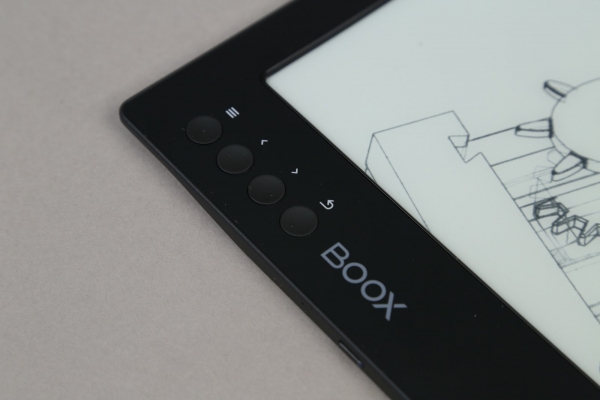
It's worth mentioning right away that this device is not suitable for reading while lying in bed before sleep — it is best used while standing or sitting. The optimal solution is to hold the MAX 2 with both hands, easily reaching the control buttons with the thumb of your left hand.
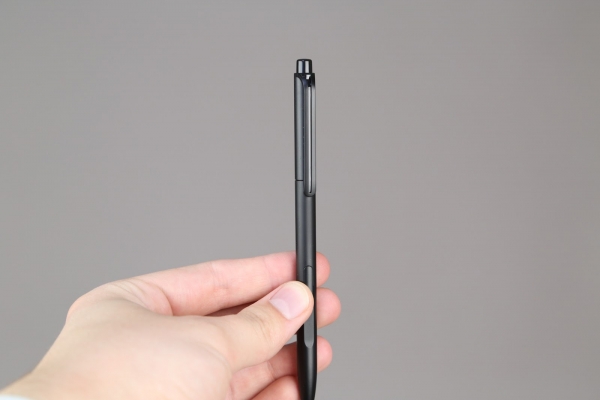
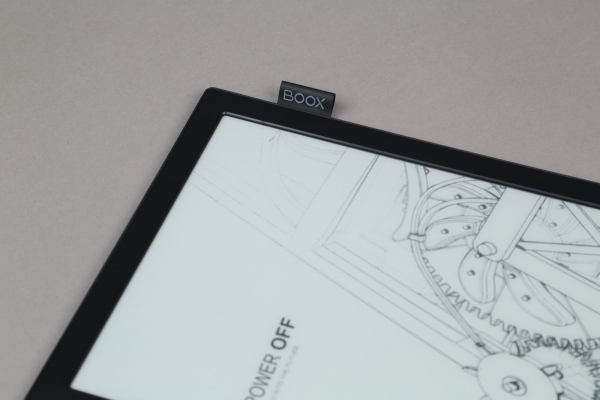
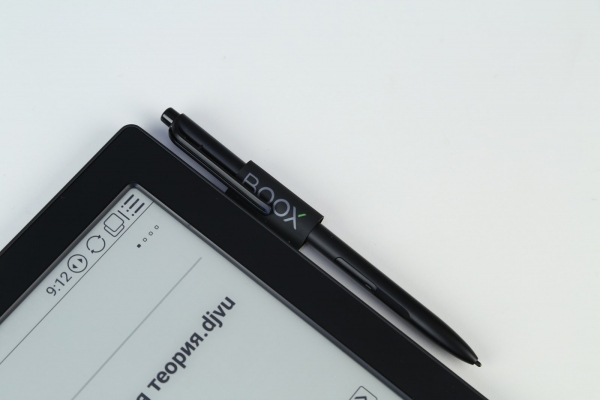
At the top right is a tag with a logo where you can place the stylus. The stylus itself resembles a regular pen, which further enhances the feeling that you're holding not a gadget for reading e-books, but a sheet of paper.
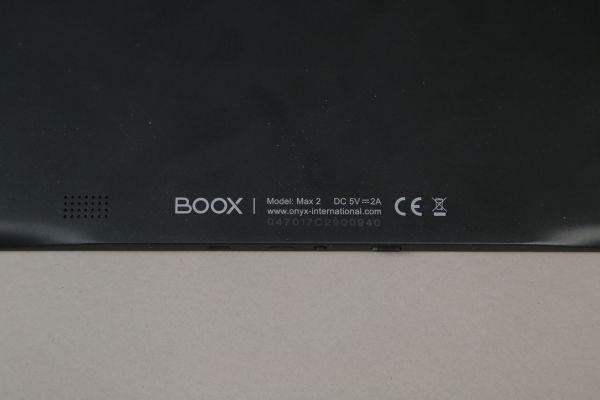
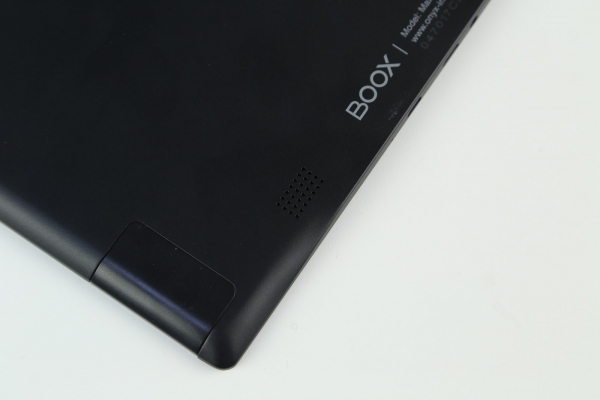
On the back, there is a speaker (yes, the player is already built-in), which allows you to listen to music and… even watch movies, yes. Watching a movie may feel a bit unusual because of the refresh rate (after all, it's not a full-fledged tablet), but everything works, tracks and video files are recognized without any problems.
And one more thing about the display!
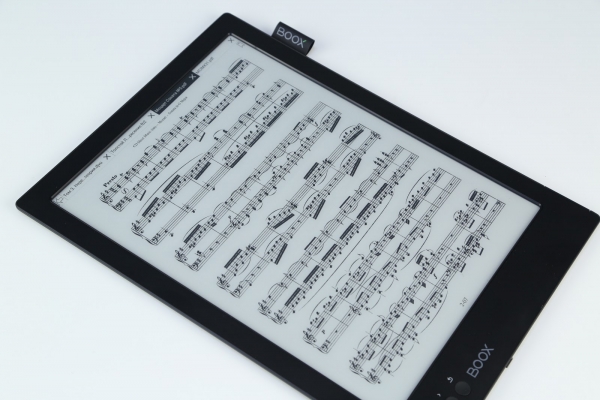
We’ve already discussed the screen size, its resolution, and the dual sensor at the very beginning, but these are far from the only features of the ONYX BOOX MAX 2 screen. First of all, the image on the screen truly resembles that of a book page, whether it’s fiction, comics, technical documentation, or sheet music. Yes, such a device is very convenient for musicians: the sheet music is very easy to read, turning a page can be done with a single tap, and it accommodates so much text! When dealing with a small e-book, you have to turn the page every 10 seconds; in this case, reading is stretched out several times.
When reading books, the page feels 'paper-like' and even slightly textured, which adds to the enjoyment. This is largely achieved due to the absence of flickering backlight and the principle of image formation via 'electronic ink.' Unlike the familiar LCD screens found in smartphones and tablets, the E Ink screen of 'electronic paper' primarily differs in how it forms images. With LCDs, there is light emission (using backlight), whereas images on electronic paper are formed in reflected light. This approach eliminates flicker and reduces power consumption.
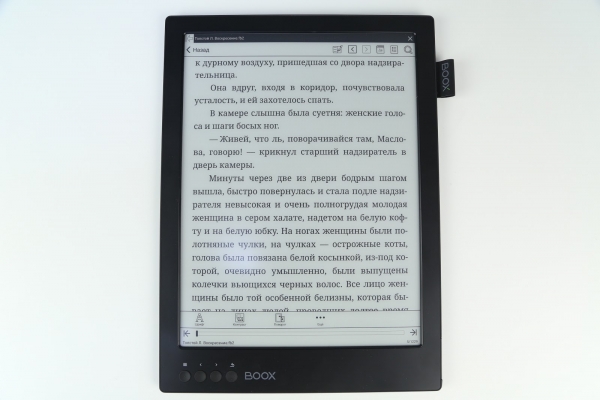
When it comes to being less harmful to the eyes, the E Ink display undoubtedly has the upper hand. Evolutionarily, the human eye is 'tuned' to perceive reflected light. When reading from a light-emitting screen (LCD), the eyes tire quickly and start to water, which eventually leads to reduced visual acuity (just look at modern schoolchildren, many of whom wear glasses and contact lenses). This occurs because prolonged reading from an LCD screen leads to a reduction in pupil size, decreased blinking frequency, and the onset of 'dry eye' syndrome.
Another advantage of e-ink devices is the comfortable reading experience in sunlight. Unlike LCD displays, the 'electronic paper' screen has minimal glare and does not wash out text, allowing it to be as clear as regular paper. The MAX 2 adds to this with a high resolution of 2200 x 1650 pixels and decent pixel density, which minimizes eye strain — no need to squint at the image.
E Ink Mobius Carta, 16 shades of gray, high resolution — all of this is great, but there is one more important feature that has been carried over to the MAX 2 from other ONYX BOOX readers.
Snow Field
This is a special screen mode that can be enabled or disabled in the reading app settings. Thanks to it, the number of artifacts on the E-Ink screen is significantly reduced during partial redrawing (when it seems like you've turned the page, but you still see part of the previous content). This is achieved by disabling full redrawing when the mode is activated. Interestingly, even when working with PDFs and other heavy files, artifacts are almost imperceptible.
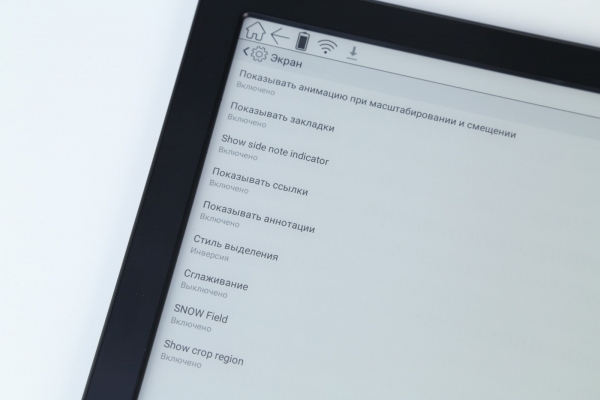
We have tested several ONYX BOOX e-readers and can't help but note that the MAX 2 distinguishes itself with good responsiveness, despite the overall low refresh rate of E Ink screens.
Performance and Interface
The 'heart' of the ONYX BOOX MAX 2 is a quad-core ARM processor operating at a frequency of 1.6 GHz. It boasts not only high performance but also reduced power consumption. Need we say that books on the MAX 2 open not just quickly but instantaneously, while textbooks with a lot of graphs, diagrams, and heavy PDFs open a bit slower? The increase in RAM to 2 GB also contributes to this. For storing books and documents, 32 GB of built-in memory is provided (part of which is occupied by the system itself).
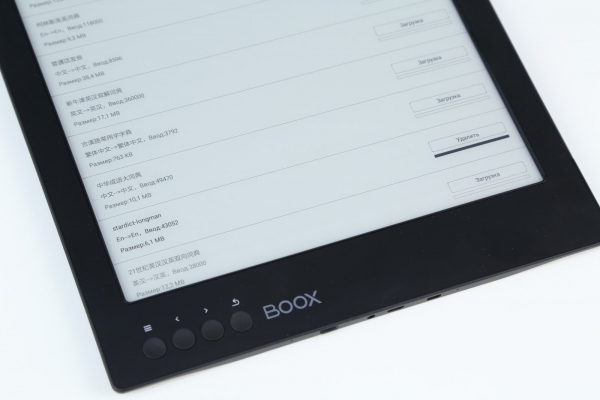
The wireless interfaces of this device include Wi-Fi IEEE 802.11 b/g/n and Bluetooth 4.0. Wi-Fi allows you not only to work in the built-in browser and download apps from the Play Market (come on, this is still Android), but also to, for example, download dictionaries from the server to quickly translate words right in the flow of reading in the same Neo Reader.
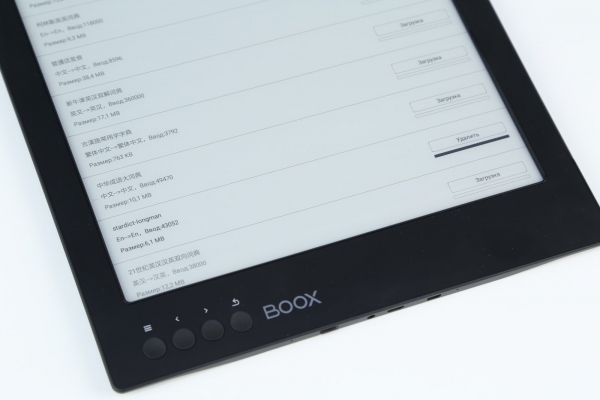
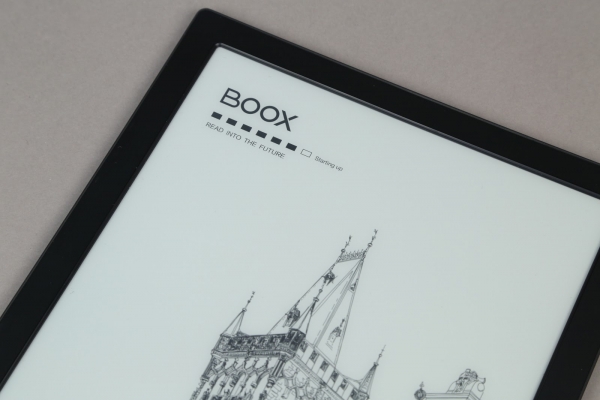
It's encouraging to see that ONYX BOOX has decided to move forward, opting for Android 6.0 on the MAX 2 instead of the familiar Android 4.0.4 found in most e-readers, covering it with an adapted launcher featuring large, easy-to-understand elements for user convenience. Thus, the developer mode, USB debugging, and other perks come included. The first thing a user sees after powering on is the loading screen (just a few seconds) and the familiar message 'Starting Android'. After a moment, the screen transitions to the home screen with books.
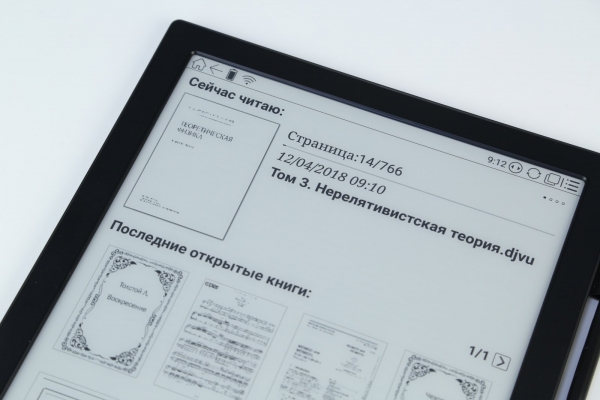
In the center, the currently open and recently opened books are displayed. At the very top is the status bar showing battery level, active interfaces, time, and a 'Home' button, while at the bottom is the navigation bar. It consists of icons for 'Library', 'File Manager', 'Apps', 'Settings', 'Notes', and 'Browser'. Let's briefly go through the main sections of the main menu.
Library
This section is not much different from the library found in other ONYX BOOX e-readers. It consists of all the books available on the device—you can quickly find the desired book using search and by browsing the list or icons. You won't find folders here—you'll head to the adjacent section 'File Manager' for that.
File Manager
In some cases, it is even more convenient than the library, as it supports sorting files by alphabet, name, type, size, and creation time. For example, a geek typically prefers working with folders rather than just pretty icons.
Applications
Here you will find both pre-installed applications and those that will be downloaded from the Play Market. For instance, in the Email application, you can set up your email, use the 'Calendar' for planning activities, and the 'Calculator' for quick calculations. The 'Music' app deserves special mention—it may be simple, but it allows for easy listening of audiobooks or your favorite media library (supports .MP3 and .WAV formats). And to unwind, you can load a not-too-heavy game—playing chess is straightforward, but in Mortal Kombat, you might see the 'K.O.' message before you land a hit (there's no escaping redraw).
Settings
The settings consist of five sections — 'System', 'Language', 'Applications', 'Network', and 'About Device'. In the system settings, you can change the date, adjust power settings (sleep mode, the interval before auto-shutdown, auto-disable Wi-Fi), and there is a section available with advanced settings — automatic reopening of the last document when the device is powered on, changing the number of taps to refresh the screen for third-party applications, folder scanning settings for 'Books', and so on.
Note
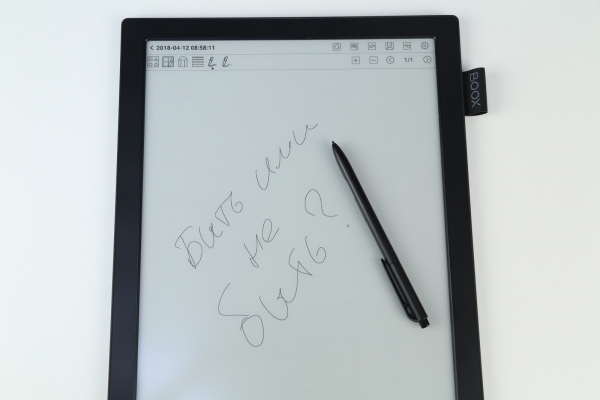
Developers have rightfully placed this app on the home screen, as you can quickly jot down important information using a stylus in the notes. However, this is not your regular app like on the iPhone: for example, you can customize the workspace of the program by displaying a staff or grid, depending on what is relevant to your needs. Or simply make a quick sketch on a blank white space. Or insert a shape. In fact, it's difficult to find so many note-taking options even in third-party apps; here everything is additionally adapted for the stylus. A true find for editors, students, teachers, designers, and musicians: everyone will find a suitable working mode.
Browser
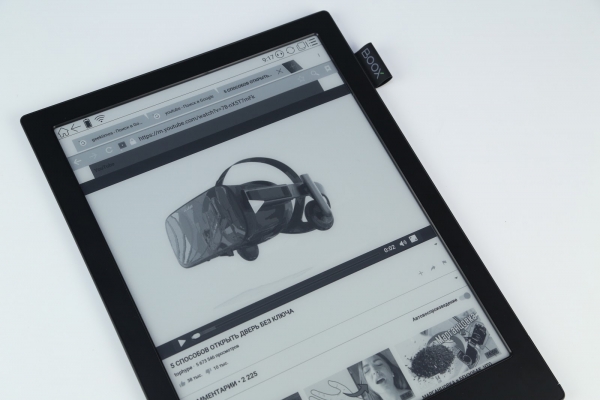
The browser, however, has been revamped — it now resembles Chrome more than the old browsers from previous Android versions. The browser bar can be used for searches, the interface is familiar, and pages load reallly quickly. Whether it’s checking Twitter or reading your favorite blog on GeekTimes — it’s all possible now.
As they say, seeing is believing, so we've prepared a short video showcasing the main features of the ONYX BOOX MAX 2.
Reading
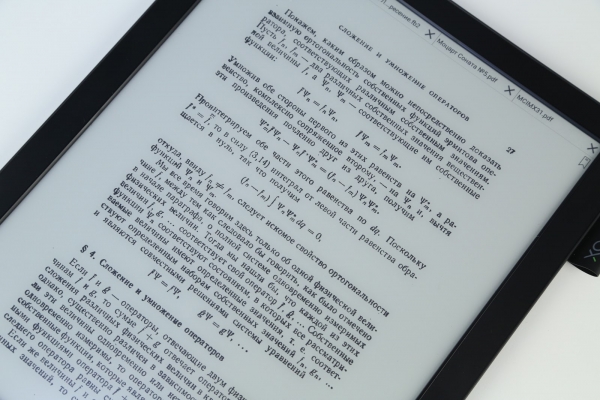
If you choose the right position (which can sometimes be tricky with such a screen size), reading can be a true pleasure. You won’t have to flip the page every few seconds, and if there are pictures or diagrams in the textbook or document, they "unfold" on this large display, allowing you to see not only the length of the ventilation duct in the house plan but also every symbol in a complex formula. The text is displayed clearly, with no artifacts, stray pixels, or anything else. Of course, SNOW FIELD contributes to this, but the "electronic paper" screen is designed so that even after prolonged reading, your eyes won’t get tired.
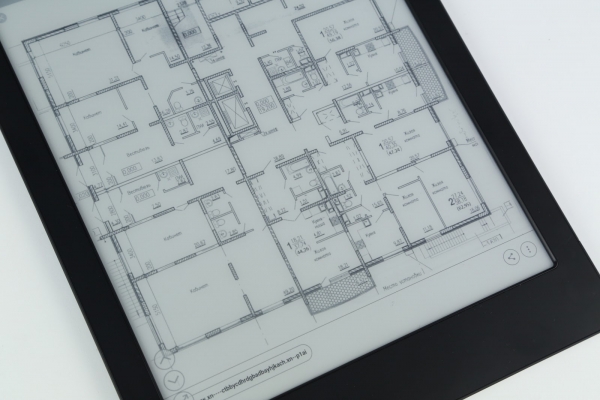
All major book formats are supported, so there's no need to convert them a hundred times. If you want, you can open a multi-page PDF with blueprints, your favorite work by Tolstoy in FB2 format, or "download" a book you like from an online library (OPDS catalog), and the presence of Wi-Fi makes this possible.
As mentioned earlier, the MAX 2 comes pre-installed with two e-book reading apps. The first one (OReader) provides comfortable reading — information bars are located at the top and bottom, while the rest of the space (about 90%) is dedicated to the text area. To access additional settings like font size and "boldness," orientation changes, and appearance, simply tap the upper right corner. Pages can be turned both by swiping and using physical buttons.
Like in other ONYX BOOX readers, it also includes text search, quick navigation to the table of contents, bookmark placement (that triangular symbol), and other features for comfortable reading.
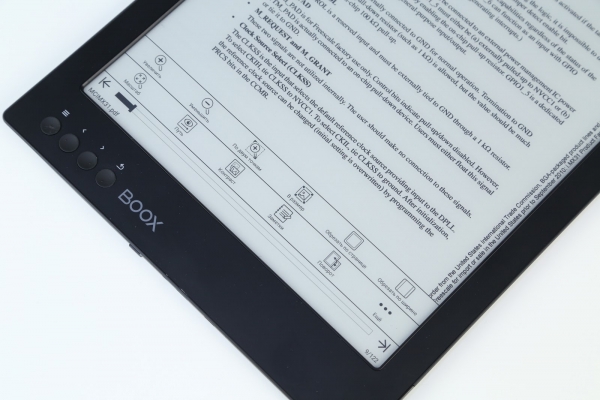
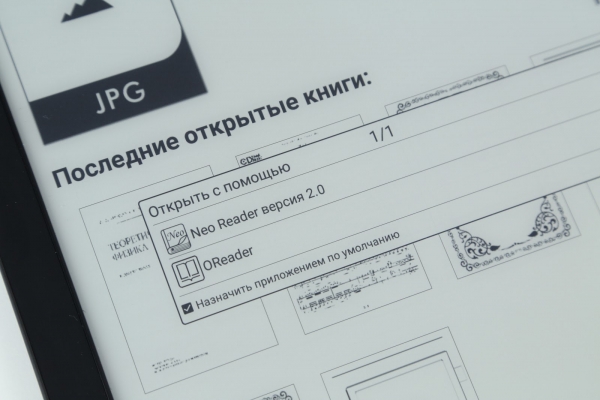
OReader is perfect for literary works in the .fb2 format and others, but for professional literature (PDF, DjVu, etc.), it's better to use another built-in application — Neo Reader (you can choose the application to open the file by long-pressing the document icon). The interface is similar, but there are additional features useful for working with complex files — adjusting contrast, cropping text, and, very conveniently, quickly adding notes. This allows for necessary adjustments directly in the PDF while reading using a stylus.
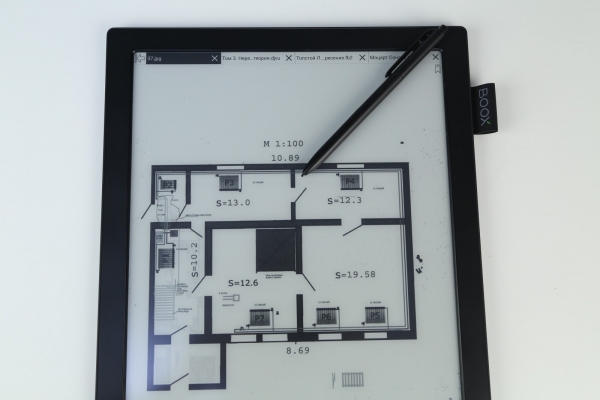
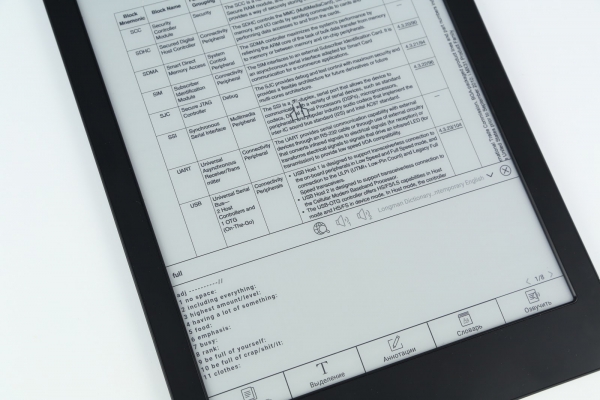
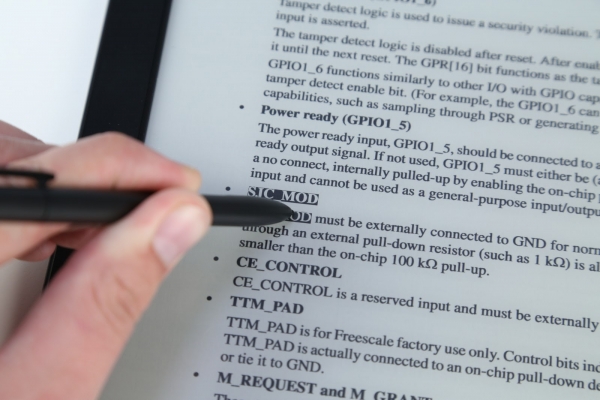
Since professional literature is often unavailable in Russian, there may be a need to translate (or interpret the meaning of a word) from English, Chinese, and other languages, and in Neo Reader, this is done as natively as possible. Simply select the desired word with the stylus and choose 'Dictionary' from the pop-up menu, where the translation or interpretation of the word's meaning will appear — depending on what you need.
Having Android opens up additional possibilities — you can always install third-party applications for certain documents from Google Play — from Cool Reader to Kindle itself. At the same time, the manufacturer has wisely prioritized and created a separate application for literary reading and another for work, so the need to install a third-party solution is unlikely to arise (unless for the sake of curiosity).
Wait, where is the monitor?
This is one of the main features of MAX 2, so it deserves a separate discussion since it's the world's first e-reader-monitor with a comfortable eye-friendly E Ink screen. Everything is set up as intuitively as possible: connect the included HDMI cable to your computer, launch the 'Monitor' application in the corresponding section — voilà! A moment ago it was an e-reader, and now it’s a monitor. Interestingly, you can work on it quite comfortably, just like on an LCD equivalent. Yes, it will take some time to get used to it, but afterward, you'll appreciate all the advantages of this unusual solution.
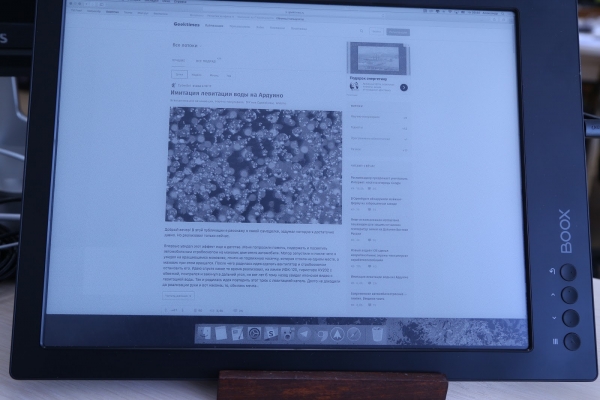
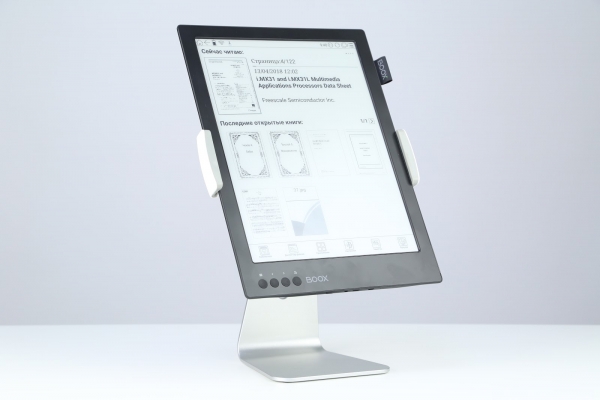
For setting up the monitor, you can either craft a stand yourself or use the official one from the manufacturer — it looks stylish (although it is sold separately).
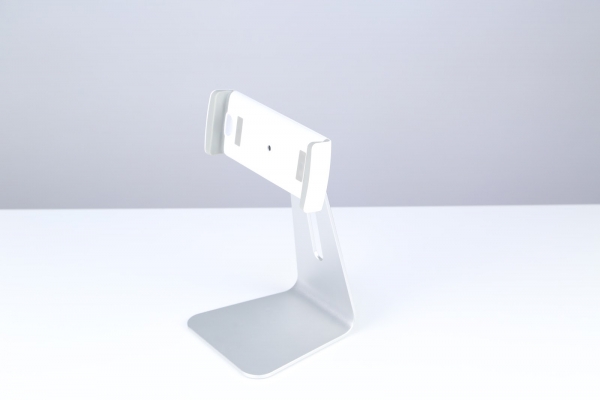
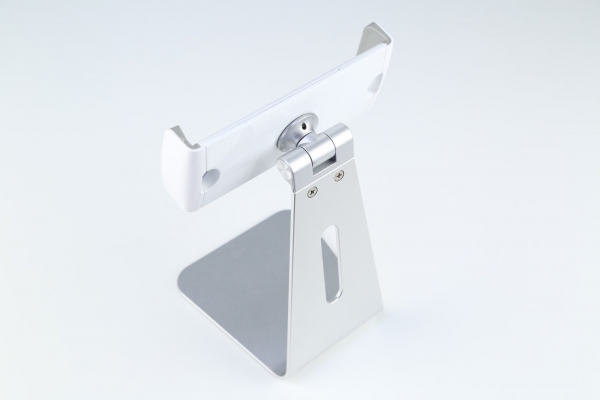
Of course, you can't play games on such a monitor, and processing photos is unlikely, but for text work, the MAX 2 makes for a very good display. It's a real find for journalists, writers, and publicists. We've connected it to both a Mac mini and a MacBook, as well as to Windows — in all cases, it worked as advertised, requiring no additional setup. The best solution is to use it as a second monitor: for example, writing code on the E Ink screen (yes, it's very unusual, but convenient), while debugging on the regular monitor. Or reading Geektimes on the MAX 2. Or displaying Telegram/email on it — so you can see the app window without any distractions.
Standalone Operation
The battery in the ONYX BOOX MAX 2 is quite capacious — 4,100 mAh, although when you look at its size, it seems like the battery will drain in just a few hours. However, due to the energy-efficient E Ink screen and the power-efficient hardware platform (plus various features like automatic Wi-Fi shutdown and sleep mode during periods of inactivity), the battery life of this device is impressive. In 'normal' usage (3-4 hours of work per day), the MAX 2 will last about two weeks, and in 'light' use — up to a month. For extreme usage like continuous Wi-Fi connection and constant operation as a monitor, the reader is also ready, though in that case, it will ask for a recharge by evening (and it's best to connect a 5V/2A charger, as power consumption in monitor mode will increase).
Is it a tablet or an e-reader?
It's very hard to draw a verdict since the device is multifunctional. On one hand, it's an excellent 'reader' and tablet, as it runs Android; on the other — it's also a monitor. It seems that ONYX BOOX is boldly ready to create a new hybrid category of devices, as there are currently no analogs to the MAX 2 in the market.
The E Ink Mobius Carta screen provides comfortable reading, aided by SNOW Field technology, high resolution, and pixel density, while the support for 2048 stylus presses makes the device a full-fledged tool for note-taking. Plus, the presence of a capacitive touch layer simplifies work with multi-touch gestures.
Regarding the price, it surprisingly remains unchanged despite fluctuations in currency exchange rates and the use of the latest technologies from the manufacturer. Just as the ONYX BOOX MAX was priced at 59,990 rubles, so too is the same price point rolled out. And this is despite the manufacturer having significantly improved performance, added another touch layer, technology to reduce artifacts, a monitor function, and many other features. Yes, this is undoubtedly a niche device (which partly explains the price) and primarily a professional tool, but once you start using it, you won’t want to look at alternatives. Though what alternatives? They simply don't exist.
Source: habr.com
