

Table of Contents
What is most important for e-books (readers) that can be used in production and technical applications? Perhaps the processor power, memory size, screen resolution? All of these are certainly important; but the most critical aspect is the physical screen size: the larger, the better!
This is because almost 100% of various documentation is issued in PDF format. And this format is "rigid"; you cannot simply increase the font size without also increasing all other elements.
However, if a PDF contains a text layer (which is often just image scans), some applications may allow text to be reformatted (Reflow). But this isn't always good: the document may not look the way the author intended.
Thus, for a page of such a document with small font to be readable, the screen itself must be larger!
Otherwise, the document can only be read in "pieces" by enlarging specific areas.
After this introduction, allow me to introduce the star of the review — the ONYX BOOX Max 3 e-book with a gigantic 13.3 inch screen:
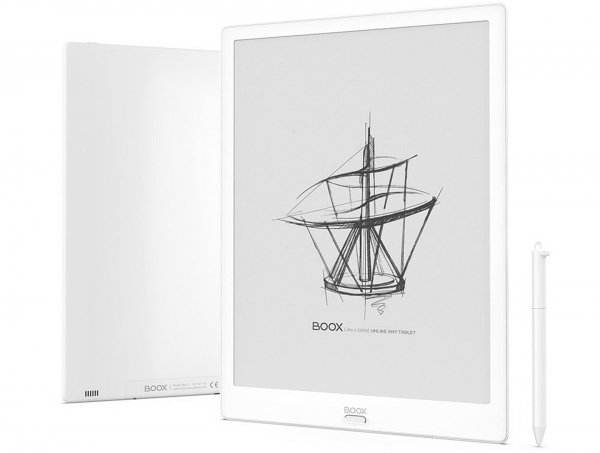
(image from the manufacturer's official website)
By the way: besides PDF, there is another popular "rigid" format: DJVU. This format is primarily used for books and documents scanned without text recognition (this may be necessary to preserve document features).
In addition to the large screen, the reader also has other positive features: a fast 8-core processor, large internal memory, USB OTG functionality (USB host), the ability to work as a monitor, and many other interesting aspects.
Alongside the review, we'll look at a couple of accessories: a protective cover and a stand suitable for this and other large-format readers.
Technical Specifications of ONYX BOOX Max 3
To give the review of the reader a technical "context," let's start with its brief specifications:
— screen size: 13.3 inches;
— screen resolution: 2200*1650 (4:3);
— screen type: E Ink Mobius Carta, with SNOW Field function, without backlight;
— touch sensitivity: yes, capacitive + inductive (stylus);
— Processor*: 8-core, 2 GHz;
— RAM: 4 GB;
— Internal storage: 64 GB (51.7 GB available);
— Audio: stereo speakers, 2 microphones;
— Wired interface: USB Type-C with OTG support, HDMI;
— Wireless interface: Wi-Fi IEEE 802.11ac, Bluetooth 4.1;
— Supported file formats (out of the box)**: TXT, HTML, RTF, FB2, FB2.zip, DOC, DOCX, PRC, MOBI, CHM, PDB, DOC, EPUB, JPG, PNG, GIF, BMP, PDF, DjVu, MP3, WAV, CBR, CBZ
— Operating system: Android 9.0.
* As will be shown later in testing, this e-reader specifically uses an 8-core Qualcomm Snapdragon 625 SoC with core frequencies up to 2 GHz.
** Thanks to the Android operating system, it is possible to open any file types for which compatible applications exist in this OS.
All specifications can be viewed on the (under the 'Specifications' tab).
A distinctive feature of modern e-reader screens based on 'electronic ink' (E ink) is their performance in reflected light. Therefore, the higher the external lighting, the better the image is visible (which is the opposite for smartphones and tablets). Reading on e-readers is possible even in direct sunlight, making for very comfortable reading.
Now, we need to clarify the question of the price of the tested e-reader, as it will inevitably arise. The recommended price as of the date of this review is (hold on tight!) 71,990 Russian rubles.
As Zhvanetsky would say: 'Explain what for?!'
Very simply: for the screen. The screen is the most expensive component of e-readers, and its price significantly increases with size and resolution.
The official price of this screen from the manufacturer (E ink) is $449 (). This is just for the screen! There are also inductive digitizers with a stylus, customs and tax payments, trade markup… Ultimately, the computing part of the reader seems almost free.
However, compared to the most advanced modern smartphones, it is still not too expensive.
Let's return to the technology.
A few words about the processor.
Previously, e-readers typically used processors with low internal frequencies and the number of cores ranging from 1 to 4.
An obvious question arises: why is such a powerful (by e-reader standards) processor here?
Here, it will certainly be necessary as it has to support a very high-resolution screen and open very large PDF documents (up to several tens, sometimes even hundreds of megabytes).
It is important to explain why this e-reader does not have a built-in screen light.
It's not that the manufacturer was 'lazy' to install it; rather, it's because the only current manufacturer of screens for e-readers (the company ) does not produce screens of this size with a backlight.
Let's start our review of the ONYX BOOX Max 3 reader with an external inspection of the packaging, contents, accessories, and the reader itself.
Packaging, contents, and design of the ONYX BOOX Max 3 e-reader
The e-reader is packed in a large and sturdy cardboard box in dark colors. The two parts of the box are secured with a tube cover that depicts the e-reader itself.
This is how the packaging looks with and without the cover:
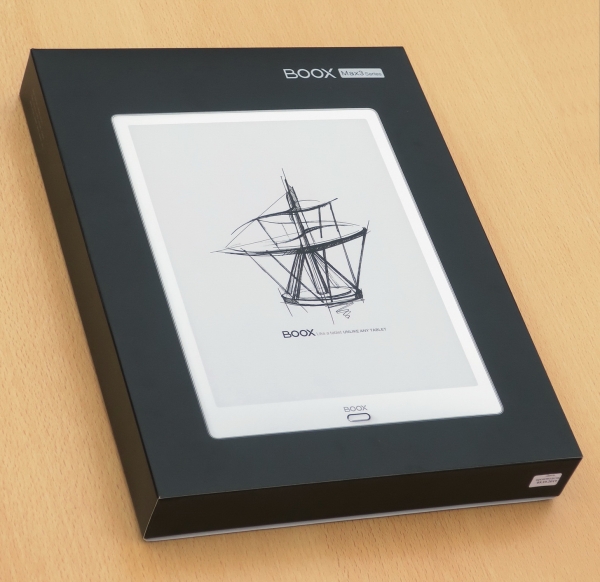 | 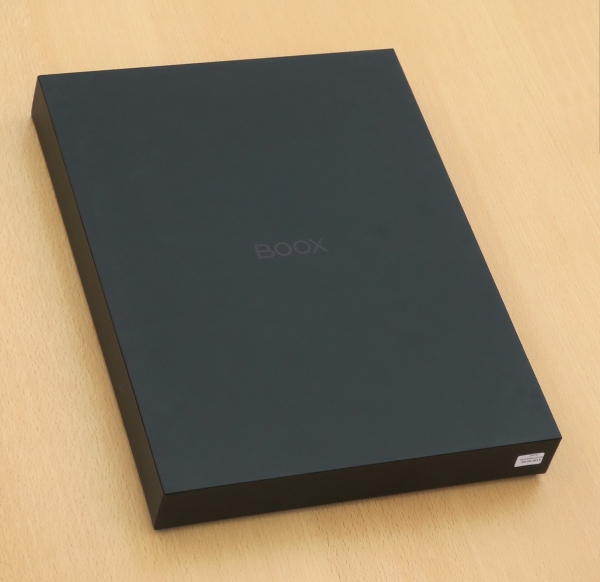 |
The contents of the reader are quite extensive:
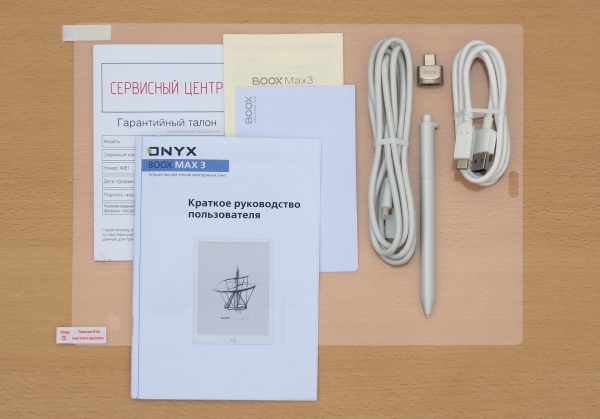
Here, in addition to the 'papers', there are some very useful items: a USB Type-C cable, an HDMI cable, a micro-SD card adapter, and a protective film.
Let’s take a closer look at a couple of the most interesting components of the package.
The stylus works in conjunction with the lower layer of the screen based on inductive principles using technology from Wacom.
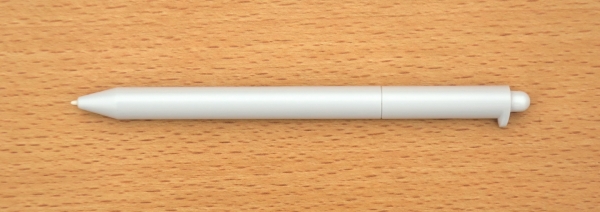
The stylus has pressure sensitivity with 4096 levels and is equipped with a button on the top end. It does not require a power source.
The second component of the kit is the micro-SD card adapter:
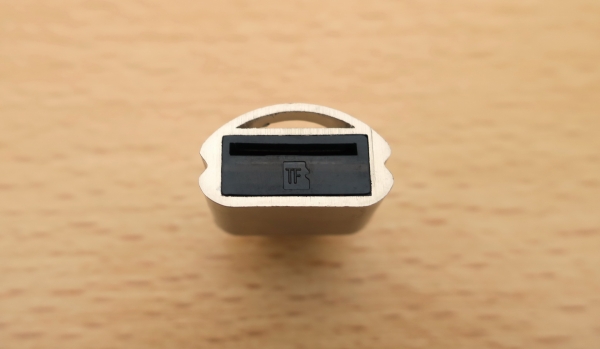
Due to the very high memory capacity of the e-reader (64 GB), it is unlikely that it will need to be expanded; however, it seems that the manufacturer decided it would be undesirable to leave such an expensive device without this option.
At the same time, it should be noted that connecting a memory card (in the USB Type-C port via an adapter) is only possible if the device supports USB OTG functionality (i.e., the ability to switch to USB host mode).
And USB OTG does indeed work here (which is extremely rare in e-readers). Using an appropriate adapter, you can also connect regular flash drives, card readers, USB hubs, a mouse, or a keyboard.
The finishing touch to the setup of this e-book: there is no charger included. However, there are already so many chargers in every household that another one is really unnecessary.
Now let's move on to the appearance of the e-book itself:
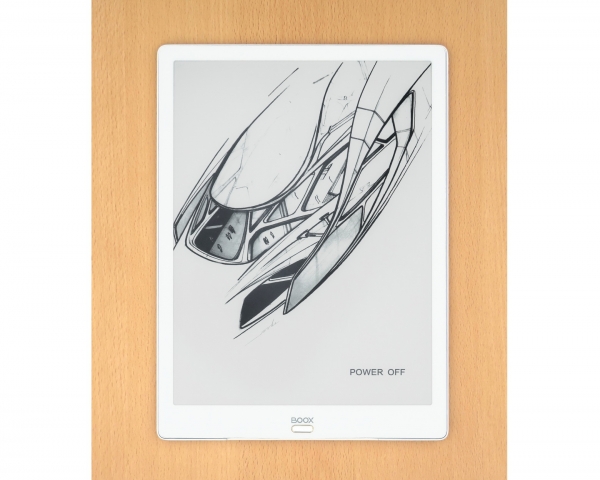
On the front side of the book, there is a single button. It serves a dual function: as a fingerprint scanner and a 'back' button (when pressed mechanically until it clicks).
The frame around the screen is snow-white, and perhaps the book's designers thought this was very stylish. But in such a beautiful frame for an e-book, there are certain 'pitfalls' hidden.
The thing is, the screens of e-books are not white but light gray.
From a physics standpoint, white and gray are essentially the same, and we distinguish them by comparing to surrounding objects.
Consequently, when the frame around the screen is dark, the screen looks lighter.
But when the frame is white, it emphasizes that the screen is darker than the frame.
In this case, I was initially surprised by the color of the screen—why is it gray?! But I compared it to the color of my old e-book with a screen of the same class (E ink Carta)—everything is fine, they are the same; the screen is light gray.
Perhaps the manufacturer should have released the book with a black frame, or in two versions—with black and white frames (at the consumer's choice). But at the moment, there is no choice—only with a white frame.
Alright, let's move on.
The most important feature of the screen is that it is not glass but plastic! In fact, both the screen substrate and its outer surface are plastic (made of reinforced plastic).
These measures enhance the impact resistance of the screen, which is very important considering its price.
Of course, even plastic can break; but it is still harder to break plastic than glass.
The screen can be further protected by applying the included protective film, but this is optional.
Let's turn the book over and look at the back side:
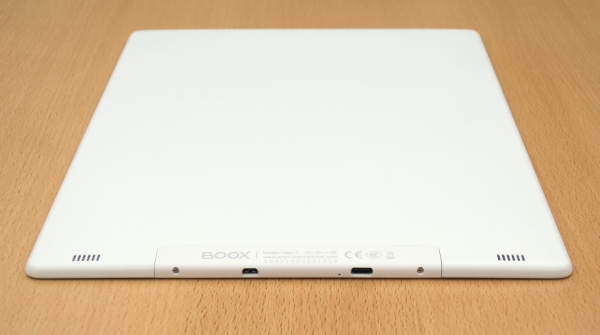
The stereo speaker grilles are clearly visible on the sides: this e-book has an audio channel. So it is also quite suitable for audiobooks.
Additionally, there is a USB Type-C port at the bottom, which has replaced the good old micro-USB in e-books.
Next to the USB port is the microphone hole.
Another interesting feature is the micro-HDMI port, which allows you to use the screen of this e-reader as a computer monitor.
I checked this: the e-reader indeed works as a monitor! However, since, unlike the e-reader's own software, Windows is not optimized for such screens, the image may not fully meet user expectations (details are in the testing section below).
On the opposite end of the e-reader, we find the power/sleep button and another microphone hole:
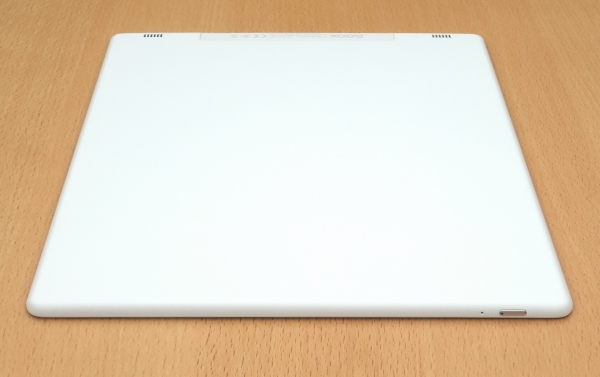
This sleep button is equipped with an indicator that lights up red while charging the device, and blue when it is turned on and booting up.
Next, let's see how this e-reader looks with accessories; these include a protective cover and a stand holder.
The protective cover is a combination of synthetic fabric and plastic elements:
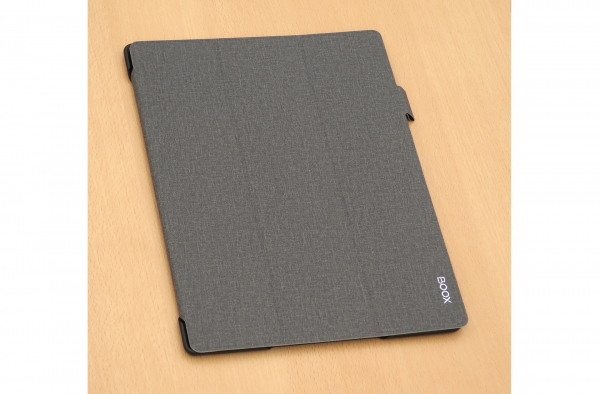
The front of the cover has a magnet built in, which interacts with the Hall sensor in the e-reader, causing it to automatically "sleep" when the cover is closed and "wake up" when it is opened. The book "wakes up" almost instantly, meaning that it is ready for use as soon as the cover begins to open.
Here is what the cover looks like when opened:
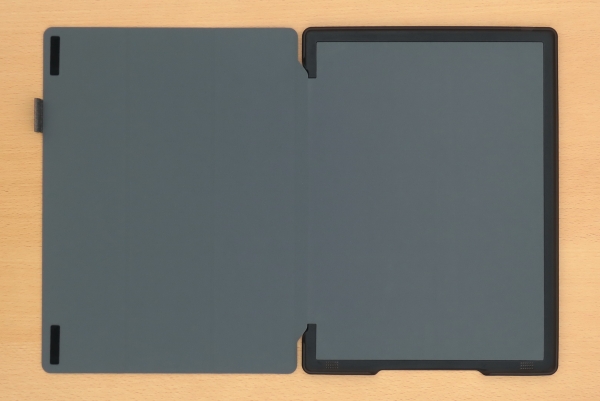
On the left side is a loop for the included stylus and a couple of rubber rectangles that prevent the cover from hitting the screen when it is closed.
The right side is mainly occupied by the plastic base that holds the e-reader (and it holds it very well!).
The plastic base has cutouts for the ports and speaker grille.
There is no cutout for the power button; instead, there is a protrusion for it.
This is designed to prevent accidental pressing of the power button. With this design, you need to press the button with significant force to turn on the book (perhaps even too much; but it seems that's how the manufacturer intended it).
Here is the entire assembly (book + cover + stylus):
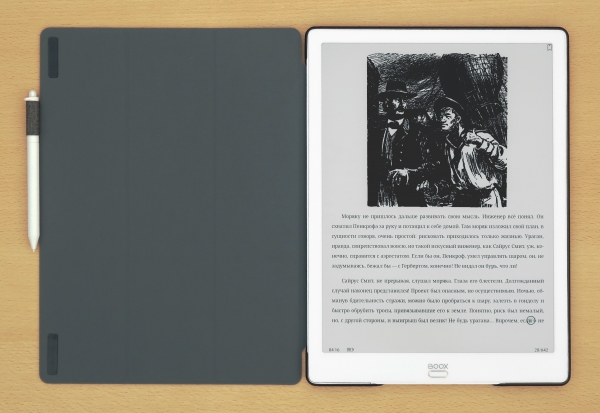
Unfortunately, the cover cannot be used as a stand.
The cover is not included in the package (unfortunately); it needs to be purchased separately (which is recommended to preserve the appearance of the e-book).
In contrast to the cover, the next accessory (the stand) is unlikely to be needed by all users. This device may be more useful for those who will frequently use the e-book in a 'stationary' position.
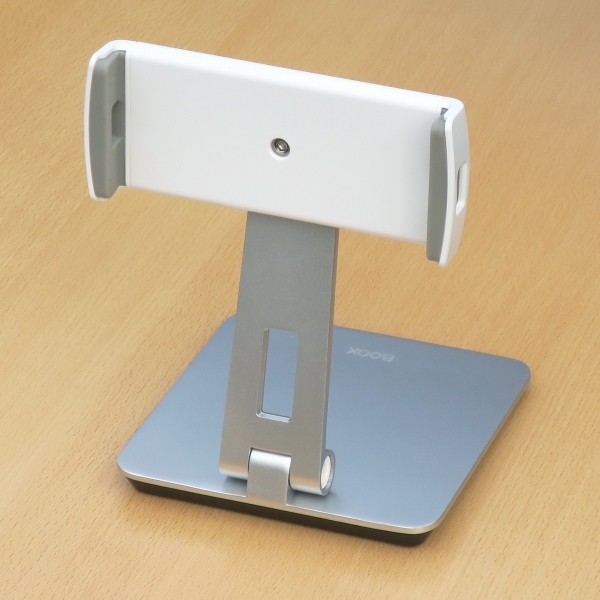 | 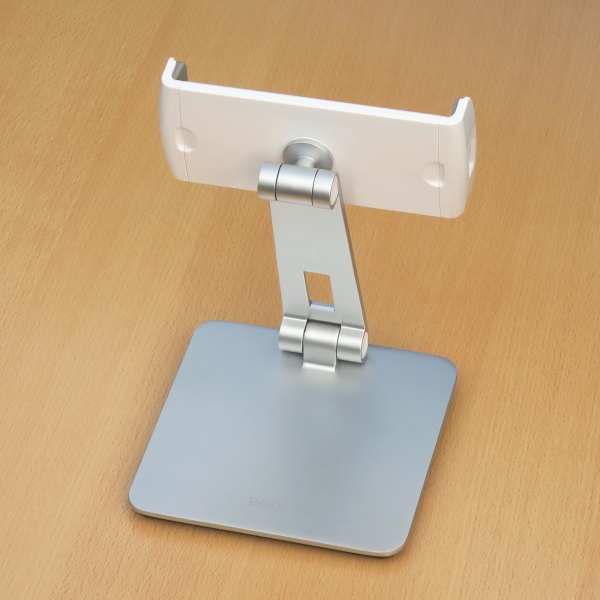 |
The stand consists of the stand itself and interchangeable spring-loaded 'cheeks'.
The package includes two types of cheeks: for devices with screens up to 7 inches and those over 7 inches (approximately; this will also depend on the size of the bezels around the screens).
This will also allow the stand to be used for tablets and even for phones (but in the latter case — only when they are oriented along the axis of the 'cheeks'; and answering calls will be quite inconvenient).
'Cheeks' can be installed in both vertical and horizontal orientations, and their angle can also be adjusted.
This is how our review's hero looks on a stand with a vertical orientation:
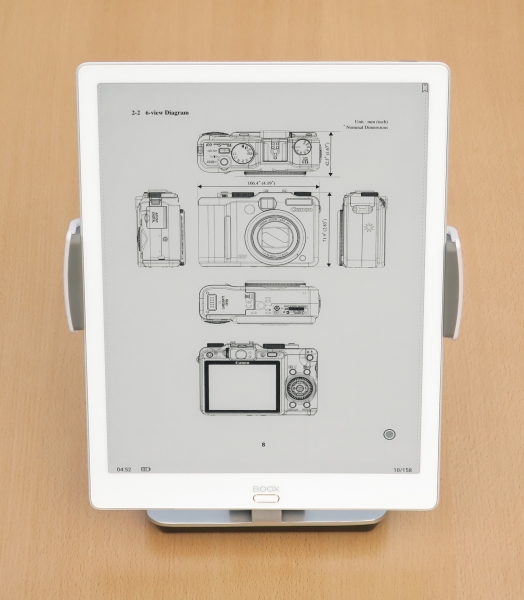 | 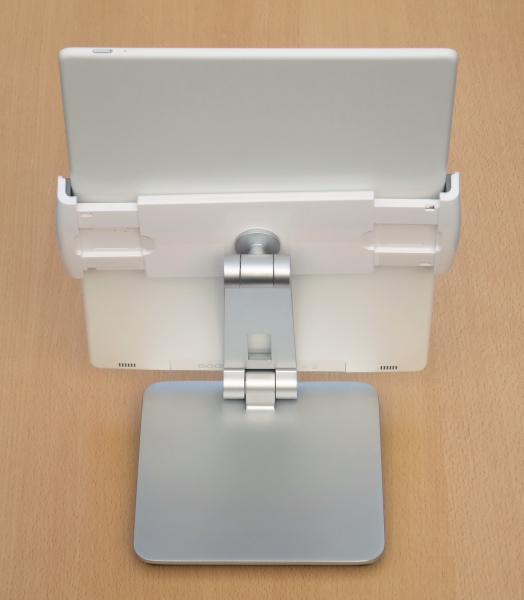 |
And this is what this structure looks like in a horizontal (landscape) orientation of the e-book:
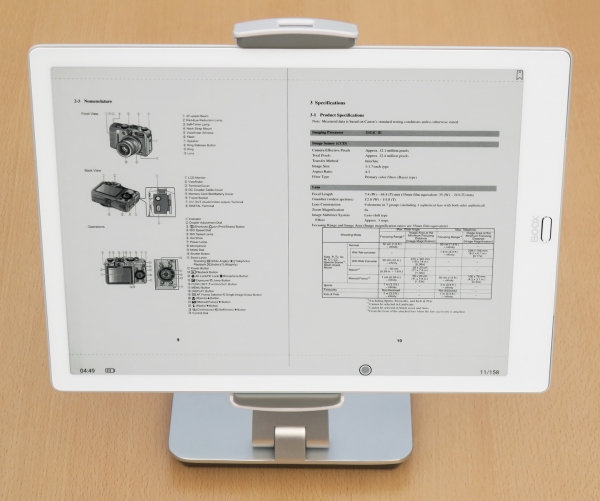
By the way, in the last photo, the e-book is shown in dual-page mode. This mode is easily implemented in any e-book, but it only makes practical sense in books with such a large screen..
Before discussing the reader's performance in its main function (reading books and documents), let's briefly 'run through' its hardware and software.
ONYX BOOX Max 3 Hardware and Software
The e-book (reader) operates on Android 9.0, which is almost the most recent version at the moment (the distribution of the latest version, Android 10, has just begun).
To explore the e-reader's internal components, the Device Info HW app was installed on it, which provided all the information candidly:
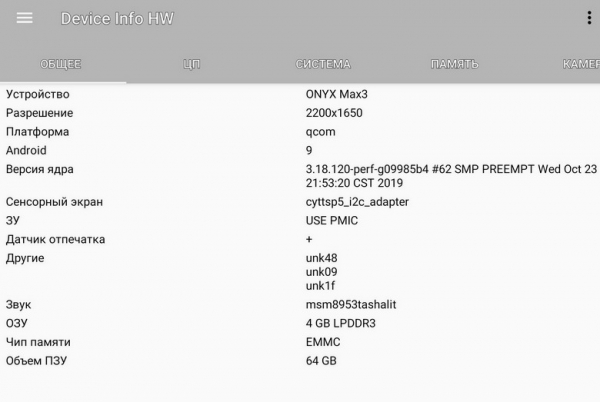
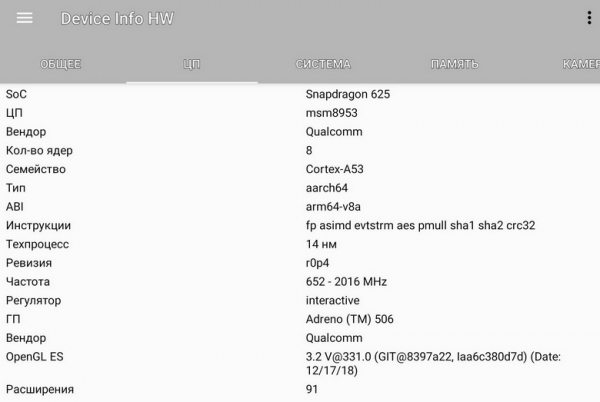
In this case, the technical specifications of the reader, as stated by the manufacturer, were confirmed.
The reader has its own software interface, which is quite different from the interfaces of Android smartphones and tablets, but it is more suitable for its primary function — reading books and documents.
Interestingly, the interface has significant changes compared to previous ONYX BOOX readers. However, they are not revolutionary enough to leave the user confused.
Let's take a look at the reader's settings page:
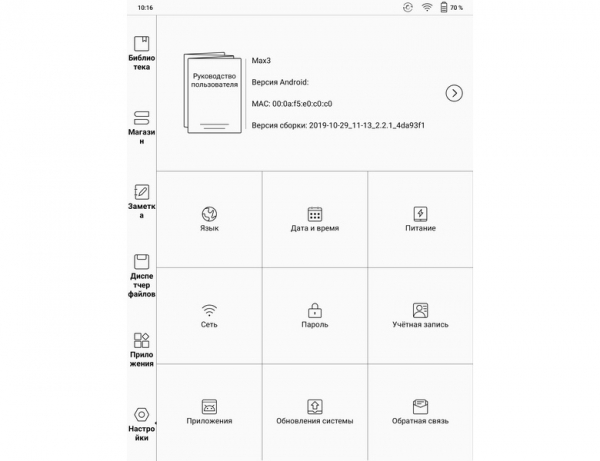
The settings are quite standard, just organized in their own way.
What's interesting in the settings is that there are no settings related to the actual reading process. They are not here, but rather in the reading application (which we will discuss later).
Now let's explore the list of applications pre-installed by the manufacturer on the reader:
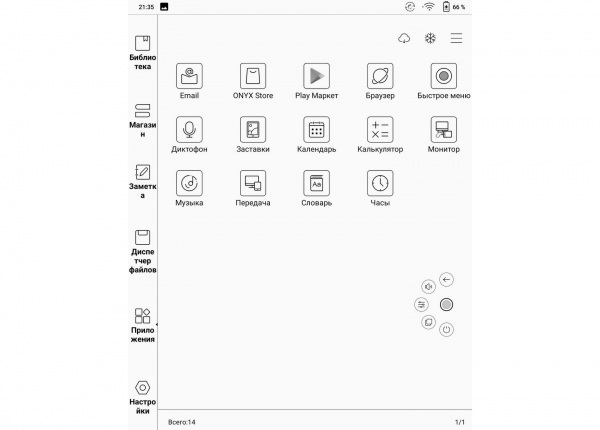
Some of the applications here are more than standard, while others require some comments.
Let's start with the application that should be standard, but here it turned out to be not quite standard — Google Play Market.
Initially, it is not activated here. It seems the manufacturer decided that not all users would need it.
And the manufacturer is largely right: the Play Market contains many applications, but not all of them will work on e-readers.
Although, of course, the manufacturer could spare the user from unnecessary actions.
Activation is not difficult.
First — connect to Wi-Fi.
Then: Settings -> Applications -> check 'Activate Google Play' -> click on the GSF ID line (the device will guide you).
After this, the reader will redirect the user to the device registration page in Google.
The registration should end with the victorious words 'Registration completed' (just like that, with a spelling mistake, which will appear in various places). The spelling issue has been reported to the manufacturer; we await a fix in the next firmware update.
After these words, don't rush to start Play Market immediately. It won't work right away, but approximately half an hour or a little longer.
Another useful application is 'Quick Menu'. It allows you to set up to five functions that can indeed be quickly accessed in any situation, even when the device is functioning as a monitor.
The quick call menu is visible in the last screenshot (see above) as a gray circle surrounded by five icons arranged in a semicircle. These five icons only appear when the central gray button is pressed and do not interfere with normal book usage.
During the testing of the reader, I assigned the 'Screenshot' function to one of these five buttons, which allowed me to take the screenshots for this article.
The next application I would like to highlight is 'Transfer'. This application allows you to send files to the reader over the network from any device connected to the internet or a local (home) network.
The operating modes for transferring files on a local network and on the 'big' internet are different.
First, let's consider the mode for transferring files on a local network.
After launching the 'Transfer' app on the reader, we will see this screen:
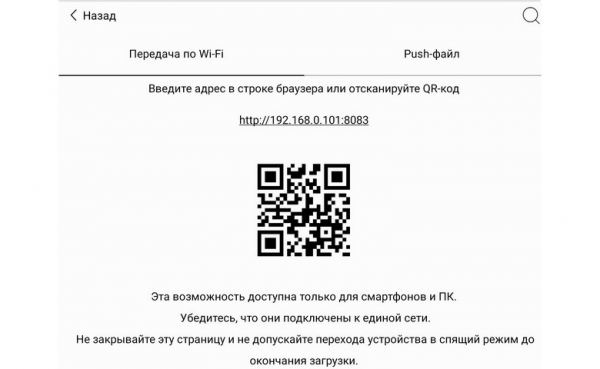
To transfer files to this e-book, it's enough to enter a browser at the address displayed on the book's screen. To log in from a mobile device, simply scan the QR code as usual.
Once you access this address in your browser, a simple form for transferring files will be displayed:
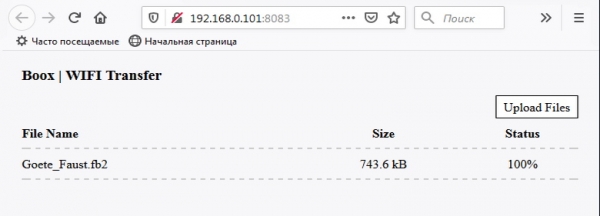
Now — the second option, transferring files over the internet (i.e., when devices are not on the same subnet and cannot 'see' each other).
To do this, after launching the 'Transfer' app, select the connection option called 'Push-file'.
Next, a simple authentication procedure will follow, which can be done in three ways: via WeChat social media account (which is unlikely to interest Russian users), as well as by phone number or email address.
You will need to act quickly: the system allows only 1 minute to enter the received code!
After that, you need to authenticate from the second device on the website send2boox.com (through which the file transfer is carried out).
At first, this site may surprise the user since by default it launches in Chinese. There's no need to panic; just click the button in the upper right corner to select the desired language:
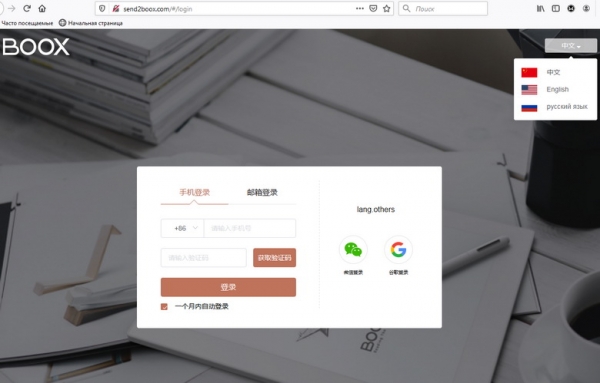
After that, you will need to authenticate (which is not difficult).
An interesting 'detail': in this file transfer mode, the file is not immediately sent to the e-reader, but is stored on the website send2boox.com 'until requested.' This means that the site functions as a specialized cloud service.
After this, to upload the file to the reader, you must tap the upload button in the 'Send' application in 'Push-file' mode. The upload progress will be indicated by a black 'thermometer.'
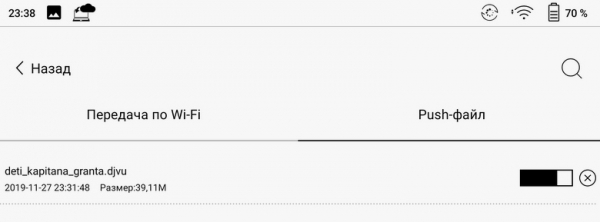
Overall, file transfers directly (via Wi-Fi and local network) are significantly faster than through the 'Push-file' service.
Finally, the last application I would like to discuss separately: ONYX Store.
This is a store for free applications that are somewhat suitable for installation on e-readers.
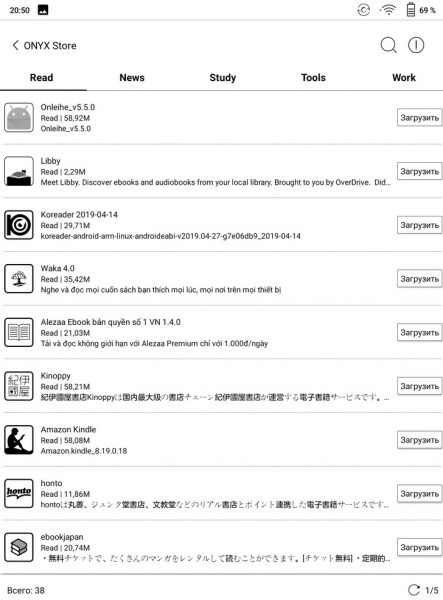
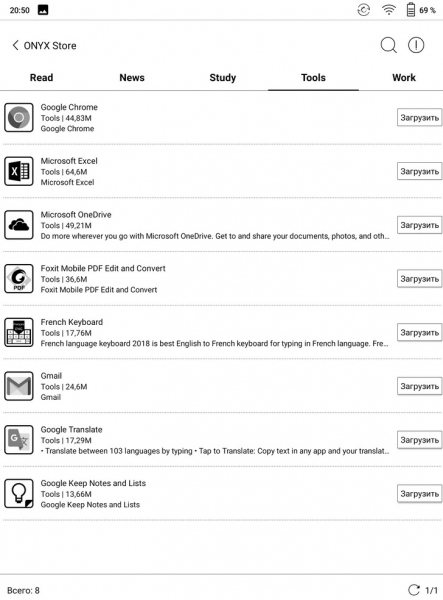
The applications are divided into five categories: Read, News, Study, Tools, and Work.
It should be noted that the News and Study categories are almost empty, containing only one application each.
The remaining categories may be of interest; for example, the Read and Tools categories:
 |  |
In this regard, it's worth mentioning that a large number of applications suitable for installation on e-readers running Android were reviewed on Habr in (and its previous parts).
What's also interesting is that the most important application, i.e., the application for reading books, is not listed! It is hidden and called Neo Reader 3.0.
And here we move on to the next chapter:
Reading books and documents on the ONYX BOOX Max 3 e-reader
A unique feature of this e-reader's menu is that there is no clearly defined 'home' page, which in most other e-readers is usually represented by a 'Home' button.
The main menu items of the reader are arranged in a column along its left edge.
One could conditionally consider the Library the 'home' page of the reader, as this is where the e-book opens after it is switched on:
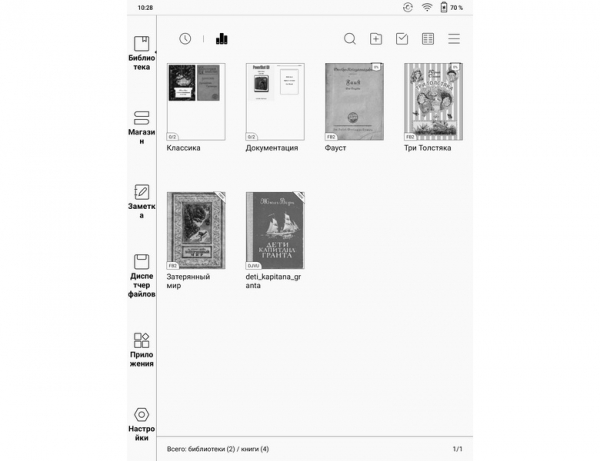
The Library supports all standard functions that are typical for e-readers: creating collections (which, however, are also called libraries here), various types of sorting and filtering.
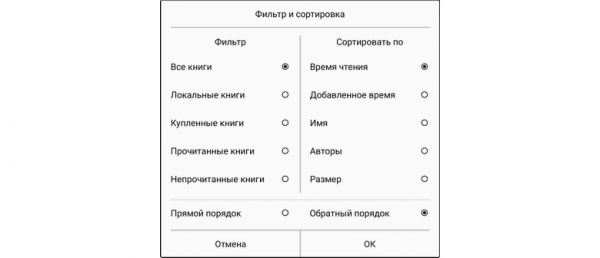
In the Library, there are inconsistencies in the translation of the menu. For instance, in the display settings, the terms 'Display Name' and 'Display Title' are used instead of 'File Name' and 'Book Title.'
However, these are 'cosmetic' flaws, although there is a real one: the inability to give a file name longer than 20 characters when renaming a book. Such renaming can only be done by connecting via USB to a computer.
At the same time, downloading books with long names works without issues.
A complaint has already been sent on this matter to the appropriate authorities. I hope that this issue will be resolved in the new firmware.
The next menu item is 'Store'. By selecting this menu item, we enter the JDRead bookstore.
This store contains books, as far as I can tell, only in English:
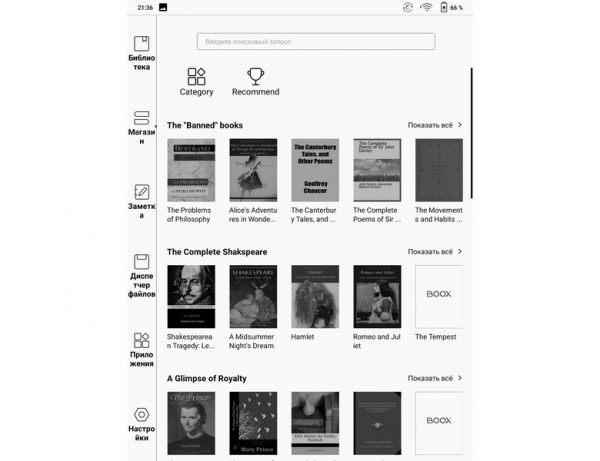
In any case, entering the word 'Pushkin' in the search bar in Russian yielded no results.
So the store will likely be useful mainly to users learning English.
Although no one forbids installing apps from other stores.
Now, let's get to the actual reading process.
The application responsible for reading books and viewing images on the reader is Neo Reader 3.0.
Reading applications on e-readers have long standardized their functions, and it was difficult to find any special 'advantages', but they do exist.
Perhaps the main 'advantage' that distinguishes reading on this reader from others is due to its large screen, which allows for the real usefulness of the two-page mode.
Interestingly, in this mode, each of the two pages that the screen is split into can be managed completely independently for reading. You can flip pages independently, change fonts on them, and so on.
An example of splitting with changing font size on one of the pages:
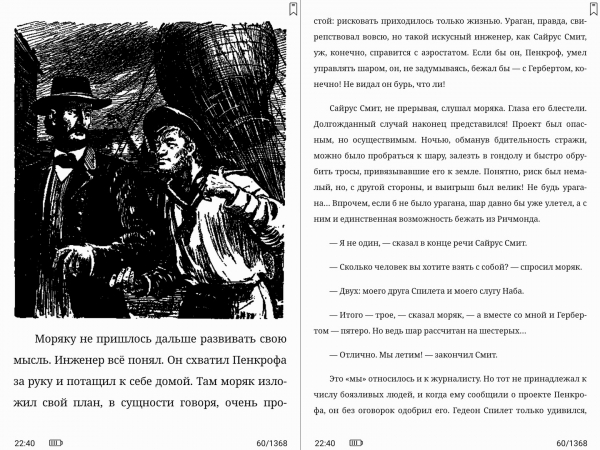
Such a mode can have very useful applications. For example, one half of the reader can display a diagram (graph, drawing, etc.), while the other half can show the explanations for that image.
During reading, you can, as usual, adjust the fonts (type and size), margins, spacing, orientation, and so on. Examples of some settings:
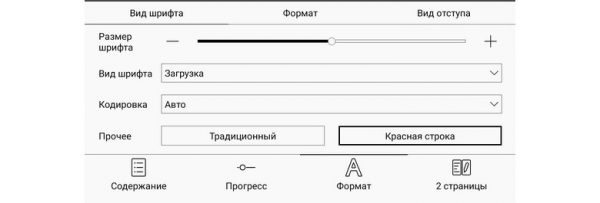
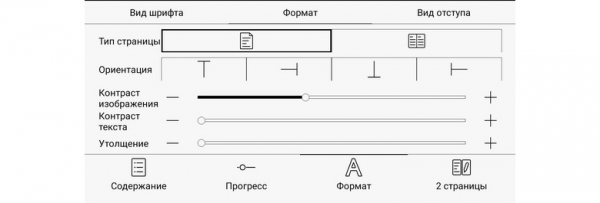
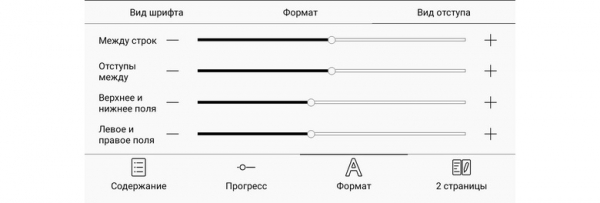
Thanks to the touch screen, there is no need to go into the settings to change the font size: you can enlarge (or reduce) the font simply by spreading (or pinching) the image with two fingers.
As mentioned above, changing the font will not work with PDF and DJVU formats. Here, pinching to zoom will enlarge the entire image; however, parts that do not fit on the screen will remain 'off-screen'.
Like in all modern e-readers, this one supports dictionary functionality. The dictionary function is flexible and offers various options for installation and usage.
To install the most common dictionaries (Russian-English and English-Russian), you need to enable Wi-Fi, go into the 'Dictionary' app, and start downloading this dictionary (it will be the last in the list of dictionaries for download).
This dictionary is in StarDict format and translates individual words excellently; an example of a translation is:
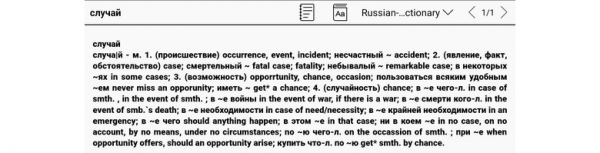
However, it cannot translate entire phrases. For translating phrases and texts in the reader, Google Translator is used (Wi-Fi connection required); an example of a translation is:
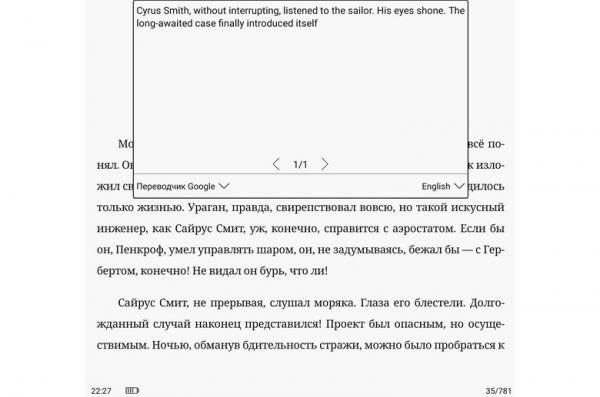
This image shows the Google translation of three sentences from the last paragraph.
You can expand the range of dictionaries on the reader in two ways.
First: download StarDict format dictionaries from the internet as a set of files and place them in the memory of the reader, ensuring correct file placement.
The second option: install dictionaries from external applications onto the reader. Many of them integrate into the system and can be accessed directly from the text being read.
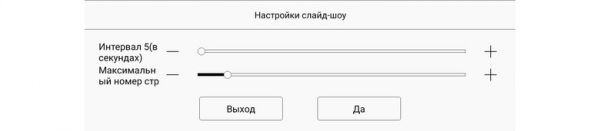
Another interesting feature in the Neo Reader 3.0 app is auto page turning. Such functionality is available in only a very small number of book reading applications.
In auto page turning mode (referred to as 'Slideshow' in the app), there are two simple settings:
The reader also supports the standard modern TTS feature (Text-to-Speech, a speech synthesizer). The reader uses an external synthesizer, requiring a Wi-Fi connection.
With the stylus, it is possible to create not only text annotations for books and documents but also graphic ones, for example:
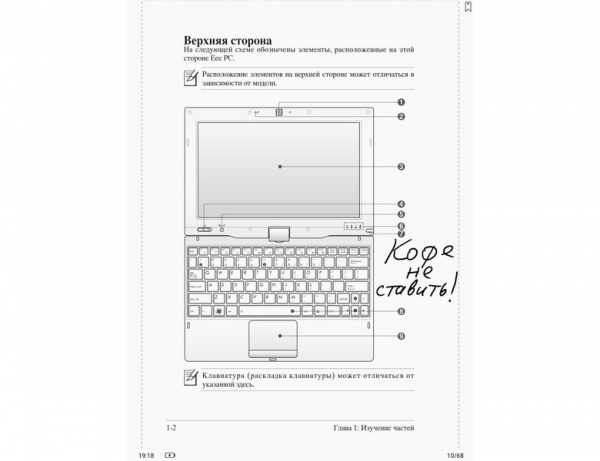
When the stylus enters the sensitivity zone of the inductive digitizer, the operation of the capacitive sensor is paused. This allows you to rest your hand with the stylus directly on the screen without the fear of accidental taps.
When using the stylus, the delay in drawing a line relative to the position of the stylus is minimal and almost imperceptible (1-2 mm) during slow movements. With quick movements, the delay can reach 5-10 mm.
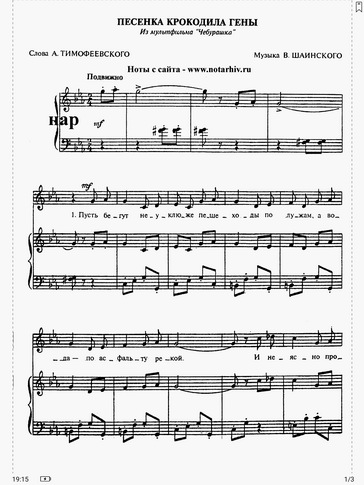
The large screen size allows the reader to be used for purposes where standard 'small' readers are ineffective, even with the software functioning correctly. An example of such use is displaying musical notes, where the entire page must be clearly visible to the musician: they won’t have time to zoom in on individual sections.
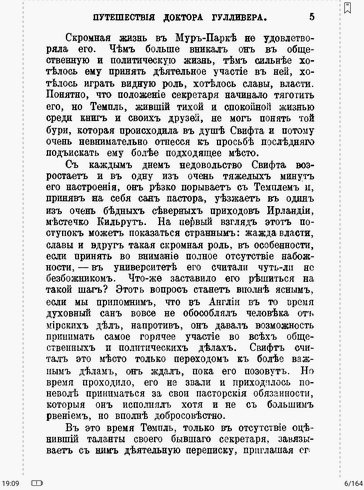
Below are examples of note display and a page from a pre-revolutionary edition of 'Gulliver' in DJVU format:
 |  |
A conditional 'minus' of the Neo Reader 3.0 reading application can be the limitations on displaying footnotes: they should take up no more than four lines on a page. For example, in L.N. Tolstoy's novel 'War and Peace', which is filled with footnotes including translations from French, some footnotes were not visible.
Additional Features
In addition to the 'mandatory' features, this e-book can perform a number of additional ones.
Let’s start with the fingerprint scanner — something still 'exotic' for e-books.
Fingerprint Scanner is combined here with the hardware 'Back' button at the bottom of the reader's front panel. With a light touch, this button acts as a scanner, and when pressed until it clicks, it serves as the 'Back' button.
Tests have shown good reliability in recognizing 'own vs. stranger'. The probability of unlocking the reader with 'own' fingerprint on the first try is over 90%. It is not possible to unlock it with a 'stranger's' fingerprint.
The process of registering a fingerprint is slightly more complex than on smartphones.
Here, you must first log into your account on BOOX (by phone number or email address), then set a screen lock password (which is also the PIN code), and only then proceed to register the fingerprint (the reader will guide you through this).
The fingerprint registration process itself completely matches that in smartphones:
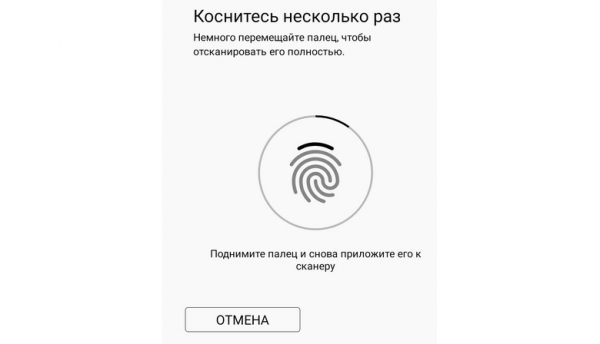
Now let's talk about the capabilities of browsing web pages (internet surfing).
Thanks to the fast processor, the internet works quite comfortably here, although in black and white mode. Example page (habr.com):
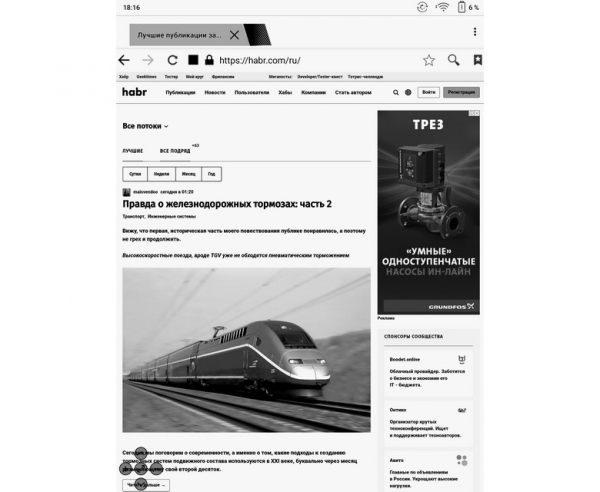
The only annoying element on web pages can be animated ads, as "fast" animation on e-book screens does not look glamorous at all.
Access to the internet here should primarily be viewed as one of the means of "obtaining" books. However, it can also be used for reading email and some news sites.
To optimize web page viewing and while working in some other external applications, it may be appropriate to change the display update settings on the e-reader:
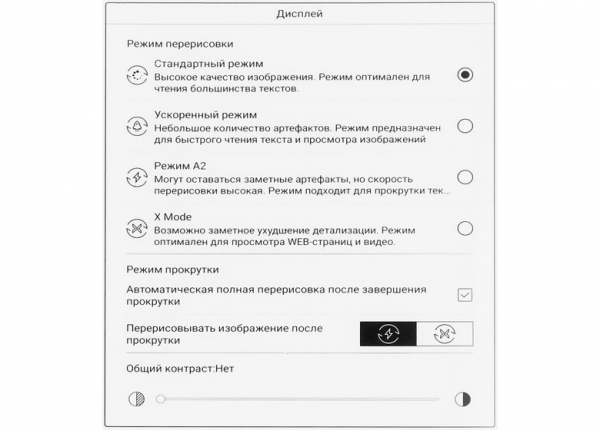
For reading texts, it is best to leave the setting at "Standard Mode." In this mode, the Snow Field technology works at its best, virtually eliminating artifacts on test sections of the books (unfortunately, this technology does not affect images; that's just how it is).
The next feature is drawing and note-taking with a stylus.
This feature works in the "Notes" app, an example of use:
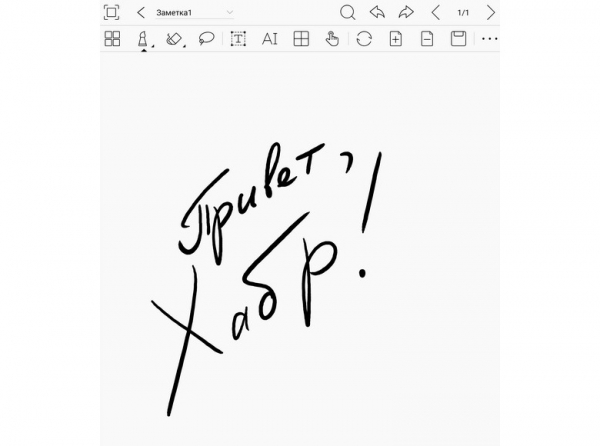
Thanks to the pressure sensitivity of the stylus, the line thickness while drawing can vary, creating a certain artistic effect.
Next is audio playback.
The e-reader has stereo speakers for audio playback. Their quality is roughly equivalent to that of speakers in mid-range tablets. The sound volume is sufficient (one could even say high), noise is unnoticed; however, the reproduction of low frequencies is limited.
However, the built-in audio app does not boast a complex interface:
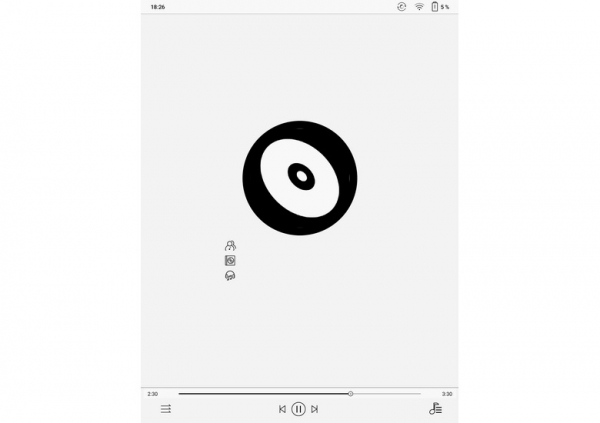
Files for playback must be opened from the file manager.
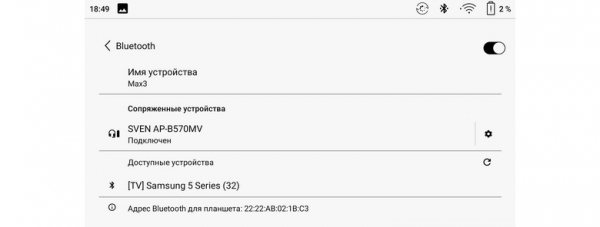
There is no port for wired headphones on the e-reader; however, thanks to the presence of a Bluetooth channel, wireless headphones can be connected. Pairing with them occurs without problems:
The next feature is using the e-reader as a computer monitor.
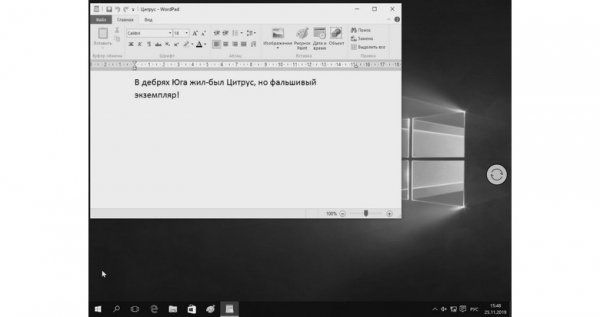
To use the e-reader as a computer monitor, simply connect it to the computer with the included HDMI cable and launch the "Monitor" app on the e-reader.
The computer automatically detects the resolution of the book monitor (2200 x 1650) and determines its refresh rate at 27 Hz (which is just over twice below the standard of 60 Hz). This slowdown makes mouse control difficult: the lag between its movement on the screen compared to real movement becomes noticeable.
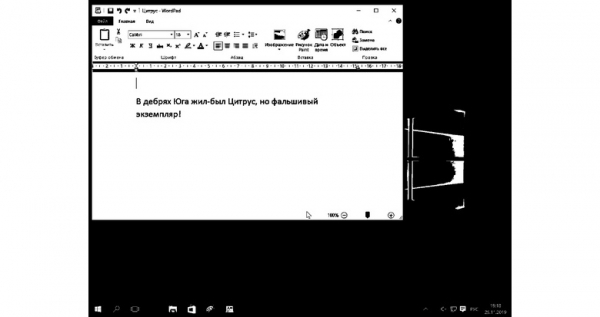
Naturally, one shouldn't expect miracles from such use of the reader. The problem is not so much that the image is black and white, but that the computer generates an image that is not optimized for display on such screens.
The user can influence the image quality by selecting the page refresh rate on the reader for specific usage scenarios and adjusting the contrast (also on the reader), but achieving perfection is unlikely.
As an example, here are two screenshots in different modes (the second one features enhanced contrast); meanwhile, a word processor is open on the computer with the classic standard phrase for testing typewriter keyboards:
Nevertheless, in some cases such use is possible; for example, as a second monitor for occasionally monitoring slow processes.
Autonomy
There has never been a problem with autonomy in e-readers, as their screens consume no energy at all in static mode (as is commonly expressed now). Power consumption occurs only during redraw (i.e., page turning), which does not happen too often.
However, the autonomy of this reader was still surprising.
To check it, the auto-scrolling mode was started with an interval of 20 seconds, which approximately corresponds to reading text with a medium font size. Wireless interfaces were turned off.
When there was 7% charge left in the battery, the process was stopped, here are its results:
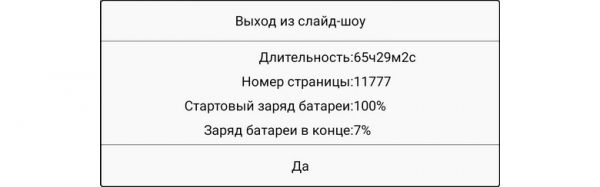
But even more surprising figures can be obtained by recalculating the number of pages to a 'normal' 6-inch reader based on the screen area.
Assuming that the font on the 6-inch reader would be the same size, the equivalent number of pages would amount to 57,867!
The charging duration of the battery after a complete discharge was about 3 hours, which is normal for devices without 'fast charging' support.
The discharge and subsequent charge graph of the battery looks like this:
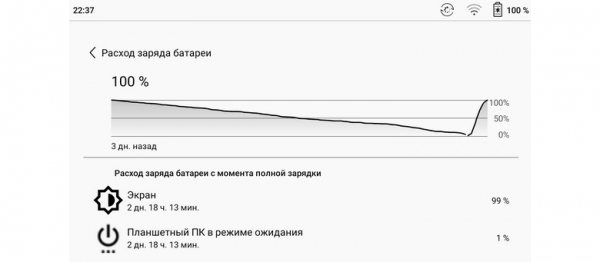
The maximum current during charging was 1.89 Amperes. Therefore, it is recommended to use an adapter with an output current of at least 2 A for charging.
Summary and Conclusions
The price of the tested reader is such that potential users will need to think carefully about what purpose it will serve.
The main feature of the ONYX BOOX Max 3 reader is its gigantic screen. This feature also defines its primary purpose—reading books and documents in PDF and DJVU formats. For these purposes, it's hard to find a more suitable reader.
Both the hardware and software of the reader contribute to this.
The large screen combined with the Neo Reader 3.0 application makes the two-page mode genuinely useful, while the stylus allows for handwritten notes and annotations.
Another advantage of the reader is its fast and energy-efficient hardware, complemented by ample RAM and storage.
The operating system of the reader is almost the latest version of Android, which adds flexibility in using the device.
Users can install any necessary applications for their work themselves, for example, they can use previously loved reading programs, office software, etc.
Of course, there are downsides; all of them relate to "rough edges" in the firmware.
The drawbacks include spelling and stylistic errors in the menu, as well as issues with renaming books with long titles. The manufacturer has been informed about these problems and is expected to address them in the upcoming firmware update.
The menu item "Store" can also be considered a downside, as it will be of little use to Russian users. It would be better if this item linked to some Russian bookstore; ideally, users should be able to set access to any store in this menu themselves.
Nevertheless, all the identified shortcomings do not hinder the use of the reader for its primary functions. Moreover, it is highly likely that the detected issues will be fixed in new firmware updates.
On this positive note, let’s conclude the review!
Source: habr.com
