

It's been a while since we had any truly large readers! After mostly talking about e-books with screen diagonals : for reading literature before bed, there’s really nothing better, but when it comes to working with large-format documents, you’ll want significant power (and a larger display). 13 inches might be a bit too much (it's easier to just put a laptop on your lap), and jotting down notes on the go with such a device isn't very convenient. Here, 10 inches is quite the golden mean, and it would be strange not to see a device with such parameters in the ONYX BOOX lineup. It exists, and it has a promising name: Note Pro.
This isn't just another e-book; it's a true flagship of the ONYX BOOX reader lineup: after all, you don’t see 4 GB of RAM and 64 GB of internal memory in such a device every day, especially when just a few years ago, even iPhones had a maximum of 512 MB of RAM. Coupled with a quad-core processor, this turns the Note Pro into not just a workhorse, but a real monster that handles heavy PDF files as if they were small nuts. But what truly stands out about this reader is its screen: yes, it's not the MAX 2 with its incredible 13.3 inches, but if you don't use the e-book as a monitor, 10 inches is more than sufficient. The stylus will feel right at home, and large-format documents will be easy to manage. It's not just about the screen diagonal; it's about its characteristics: the Note Pro features a high-resolution and high-contrast E Ink Mobius Carta display with a plastic back, it has two (!) touch layers and protective glass. The resolution is 1872 x 1404 pixels with a density of 227 dots per inch.
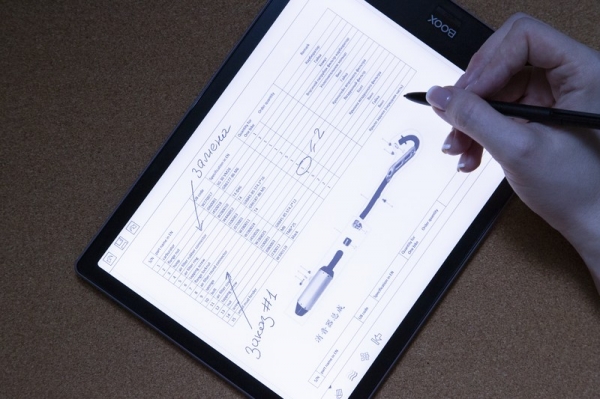
Why two touch layers at once? The manufacturer did not limit the reader's interaction with the device, so you can use the e-book not only with a stylus, like with an induction sensor, but also just with your finger. This device showcases a synergy between the WACOM induction sensor, supporting 2048 pressure levels, and a capacitive multi-touch layer (just like the one you use on your smartphone every day). The capacitive layer allows you to flip through books with your finger, as if you're reading a paper book, and to zoom images with intuitive movements — for example, to enlarge with a pinch of two fingers. This is particularly relevant if you often work with drawings that frequently include small inscriptions.
The manufacturer positions the E Ink Mobius Carta screen as a tool that provides the closest similarity to paper books. This is largely achieved by using a plastic substrate instead of glass, which is also less fragile. If you break an e-book with a glass display, repairing the device could cost as much as a new reader. Here, there is a much higher chance that the device's screen won't suffer when dropped.
The Note Pro model continues the line of readers from the ONYX BOOX brand, which is represented in Russia by MacCenter. This is another step by the manufacturer to meet the needs of its users, enabling every reader to find an e-book that fits their requirements. It is no coincidence that the company is constantly developing new technologies instead of outsourcing them.
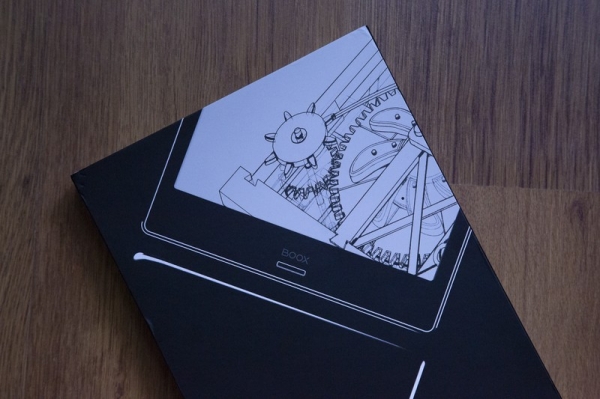
In general, ONYX BOOX usually pays special attention to naming — take the model where the manufacturer cleverly played on the theme of ancient Greek mythology by featuring clocks (Chronos is the god of time) on the cover, startup screen, and box. As for the box, it could warrant a separate review: even its lid opened almost like a sarcophagus. This time, the manufacturer chose not to name the reader "Uncle Styopa" (an interesting option, but we're not discussing a children's reader) and selected a more universal name, "Note," suggesting that with such a screen and dual touch layer, it is very convenient to work with large documents and take notes in them.
Specifications of the ONYX BOOX Note Pro
| Display | 10.3" touchscreen, E Ink Mobius Carta, 1872 × 1404 pixels, 16 shades of gray, 227 ppi density |
| Sensor Type | Capacitive (with multi-touch support); induction (WACOM with support for 2048 levels of pressure sensitivity) |
| Backlight | MOON Light+ |
| Operating system | (depending on the game’s requirements). |
| Battery | Lithium-polymer, 4100 mAh capacity |
| Processor | 4-core 1.6 GHz |
| Memory | 4 GB |
| Built-in memory | 64 GB |
| Wired connection | USB Type-C |
| Supported formats | TXT, HTML, RTF, FB2, FB2.zip, FB3, DOC, DOCX, PRC, MOBI, CHM, PDB, DOC, EPUB, JPG, PNG, GIF, BMP, PDF, DjVu |
| Wireless connectivity | Wi-Fi IEEE 802.11b/g/n, Bluetooth 4.1 |
| Dimensions | 249.5 × 177.8 × 6.8 mm |
| Weight | 325 g |
A design fit for a king
Included along with the device is a charging cable and documentation — but the most important thing here is the stylus, which is also packed in the box.
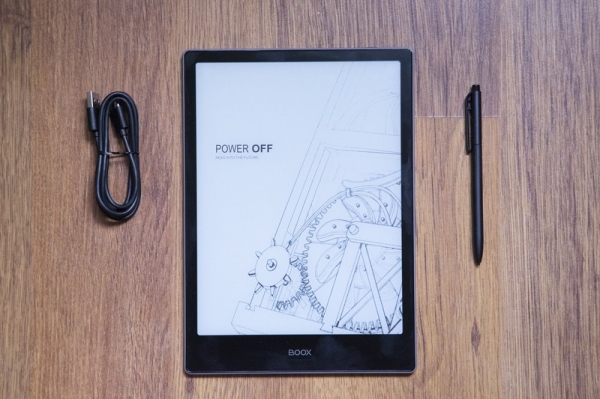
The design of the device is arguably more interesting. The new model maintains the design continuity of ONYX BOOX: a black reader with minimal side bezels — the manufacturer decided not to place control elements on them to avoid accidental presses during use. Therefore, it is convenient to hold the e-reader, and you can easily manage it with one hand while taking notes with the stylus.
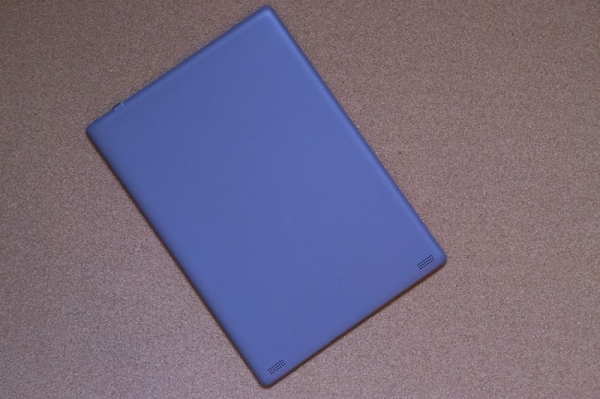
The body is made of plastic and the reader weighs just over 300 g. Some smartphones now weigh this much, and tablets with a similar screen diagonal rarely weigh less than 500 g.
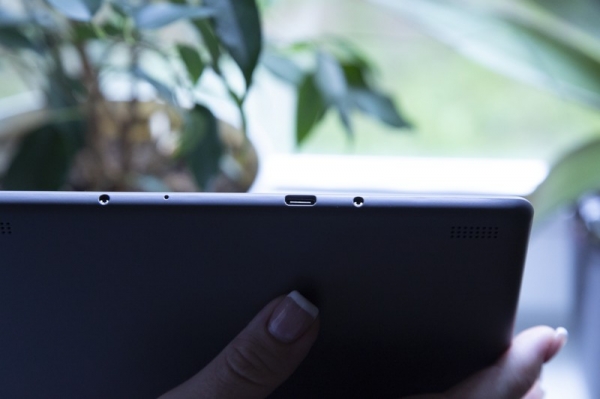
The power button on top traditionally combines with an LED indicator. The reader has only one port, which the manufacturer placed on the bottom edge, and… drumroll… it’s USB Type-C! Finally, this technological trend has reached the e-book industry, which is quite surprising since many smartphone manufacturers will continue to use micro-USB. The reader also doesn’t include a microSD card slot: why would one need it when 64 GB of built-in storage can hold all the necessary documents, including multi-page PDFs with schematics? Especially since with proper optimization, they don’t take up much space.
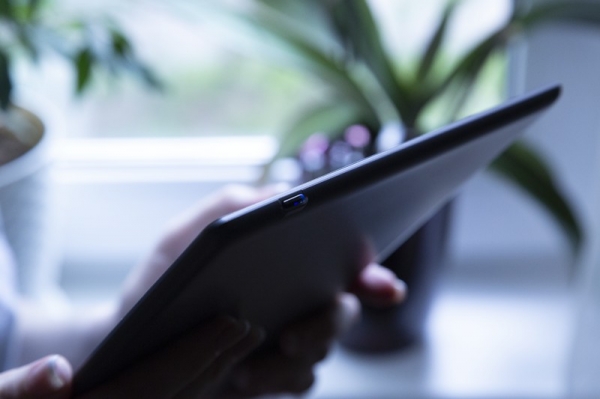
In fact, this reader has only two physical buttons. We've already mentioned one, and the other is located just below the brand logo on the front panel. It will function as you command. By default, a short press triggers the 'Back' command (similar to the now-defunct Home button on the iPhone). Other actions are also available for a short press: returning to the home page or turning to the next page. The same actions can be assigned for a long press (while in Neo Reader, it defaults to enabling the backlight). It turned out to be very convenient to set up switching to the next page with a single press, while a long press would take you to the home screen.
All other actions are performed using touches, gestures, and the stylus. Is this convenient? In a time when even smartphones only leave buttons on the side (mainly for volume control and power), this step seems quite logical. Moreover, the capacitive sensor in the Note Pro offers quick responsiveness.
E Ink Mobius Carta
Let's get straight to the screen, as I believe this is the most important element of this model. We have repeatedly mentioned that the E Ink Carta screen allows for a reading experience that closely resembles that of a traditional book; well, the E Ink Mobius Carta does this even better! If you look closely, you might notice that the page appears slightly textured. This looks particularly authentic when using the book as a tool for reading sheet music (or an old textbook), but any technical documentation will also delight with its vivid imagery. By the way, the surface of the screen is covered with a PMMA panel, which not only protects the delicate and sophisticated E Ink layer from scratches but also enhances the display's chances of surviving physical impacts.
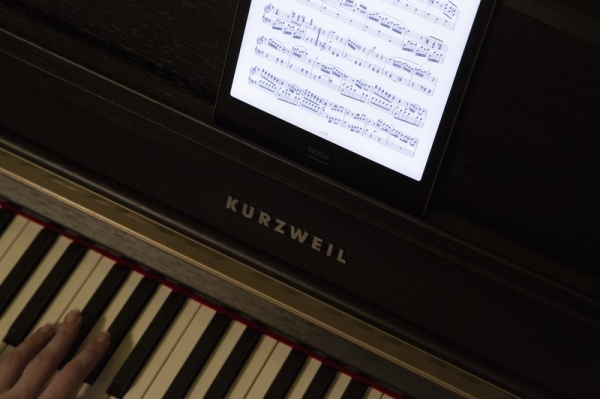
The advantage of combining a 10.3-inch diagonal with high resolution is that it accommodates a lot of content — you don't need to flip the page every few seconds, which is especially useful not just for reading prose or poetry. You can even set up the reader on a music stand and play your favorite pieces on the piano (or accordion, depending on what you learned). The downside of a large diagonal is that you need to hold the device firmly in your hands if you decide to read before bed. When a small iPhone slips from your hands and hits your nose, it hurts, but with this large 10-inch reader, it's a different story.
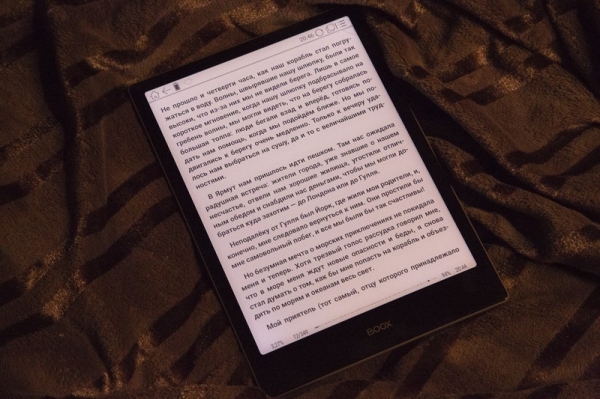
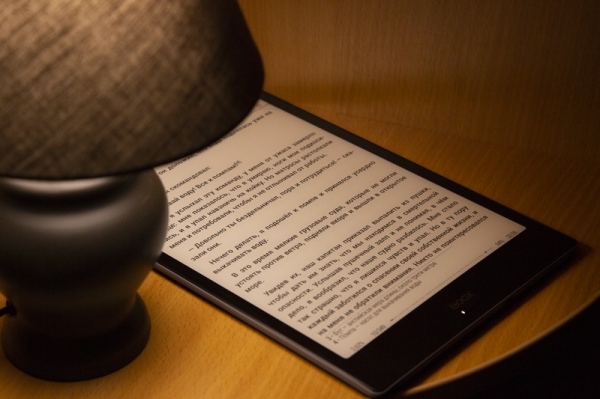
The E Ink Mobius Carta is a type of 'electronic paper' screen. This means that the image on the screen is formed not by the backlight of the matrix like in LCD screens, but by reflected light. Battery life is quite good: the screen consumes power only when the image changes. There's also an advanced MOON Light+ backlight that allows you to smoothly adjust the hue. Many have probably noticed that during the day it's more pleasant to read from a white screen, while in the evening (especially if there's no lamp around) — it's better to switch predominantly to a yellow hue. Even Apple is currently promoting the Night Shift feature in its mobile devices, which noticeably yellowens the screen before bedtime.
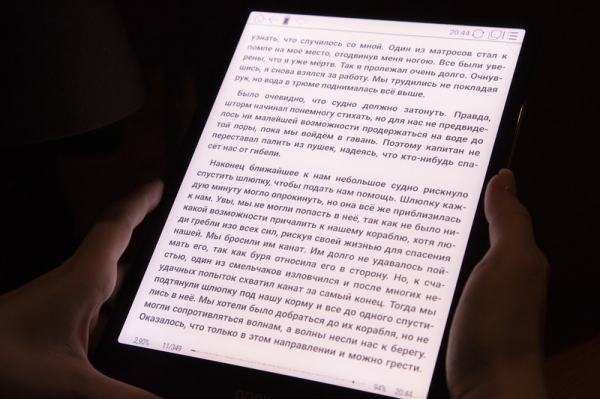
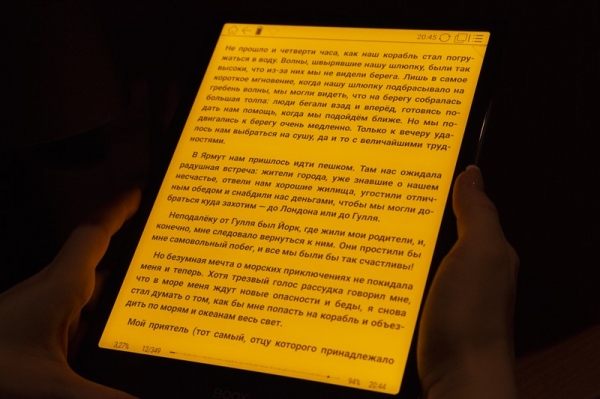
Adjusting the brightness of 'warm' and 'cool' LEDs allows you to tailor the backlighting to the surrounding light. For instance, in the dark, half of the backlight value (the yellow one, of course) is sufficient, and during the day, you likely won't need to crank the white light to the maximum — 32 settings for each hue make your adjustments maximally personalized.
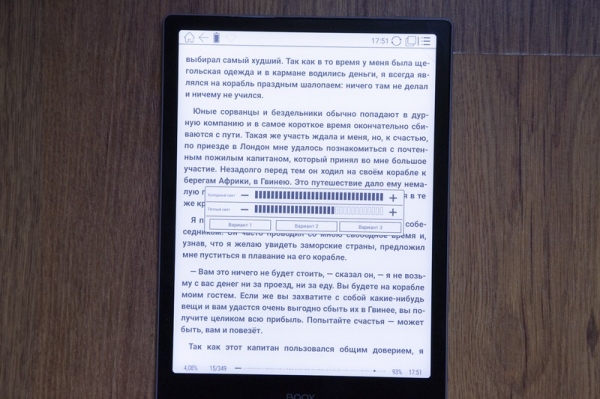
Why is this necessary? First and foremost, to help the body produce melatonin (the hormone responsible for sleep), as exposure to blue light significantly reduces its levels. This leads to sleep issues, morning fatigue, and the need for medication (including melatonin itself, by the way). Moreover, all of this creates a comfortable environment for the human eye, which quickly tires from LCD screens but can comfortably handle reflected light for long periods. There's no need to remind you that if you spend an hour "glued" to your smartphone, your eyes will start to water (the blink rate noticeably decreases), which can lead to the development of dry eye syndrome.

This is not how to do it if you plan to get enough sleep.
Another feature already familiar to ONYX BOOX reader users is the Snow Field screen operation mode. It reduces screen artifacts during partial refreshes. In older e-readers, it was common to encounter situations where part of the previous page remained on the new one, but Snow Field allows you to get rid of that. This works even with multi-page documents containing charts and diagrams.
In sunlight, the Note Pro performs just as well — another point for Mobius Carta. The screen doesn’t glare, and the text isn’t overexposed, so you can read whether you’re at the dacha or on the factory floor — though in Moscow's chilly July, you’ll have to do this in a jacket. What can you do? This little book can’t control the weather. At least not for now.
Wacom
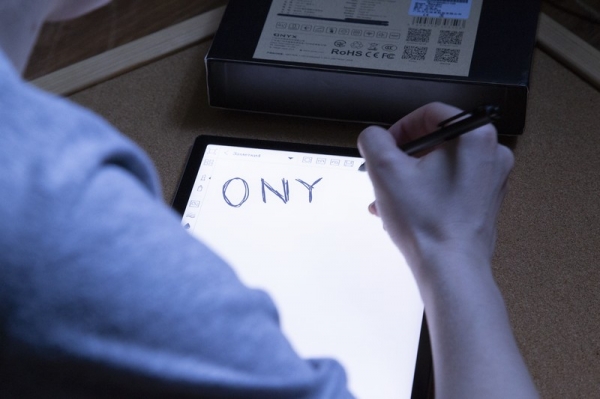
As mentioned earlier, the dual touch control is provided by two touch layers. The capacitive layer, which allows you to intuitively flip through books and zoom in on documents with two-finger gestures, is placed above the screen surface. Underneath the E Ink panel, there is a WACOM touch layer supporting 2048 pressure levels for making notes or sketches with a stylus. This layer creates a weak electromagnetic field on the surface of the display. When the stylus is placed within this field, the device determines the touch coordinates based on changes to that field.
The stylus itself comes included and resembles a regular pen even more, reinforcing the feeling that you’re holding not an e-book reader gadget, but a sheet of paper.
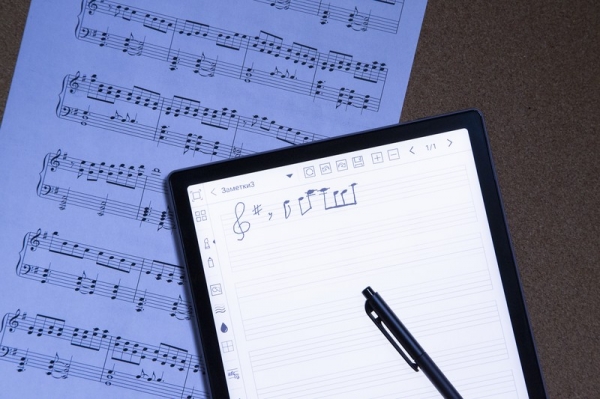
This device includes a 'Notes' application, allowing you to quickly jot down important information using a stylus or create sketches. Such an app will be a lifesaver for editors, students, teachers, designers, and musicians: everyone will find a suitable mode of operation.
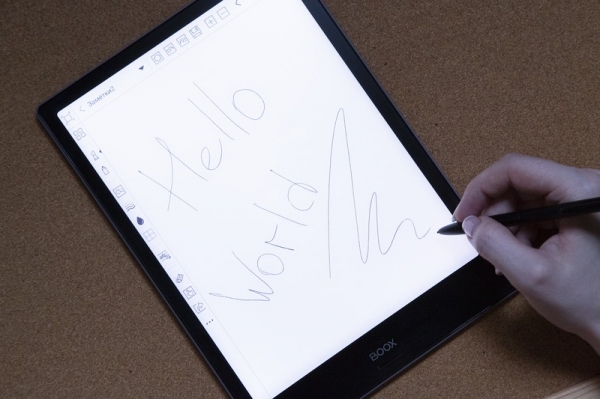
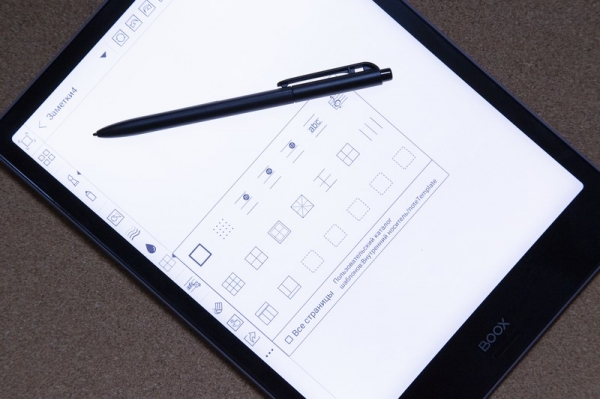
And it's not just a blank or lined sheet. For instance, you can customize the workspace by displaying a staff or grid, depending on what suits your needs. Or simply make a quick sketch, insert a shape, or another element. In fact, it's hard to find so many note-taking features even in third-party applications; here, everything is additionally adapted for the stylus.
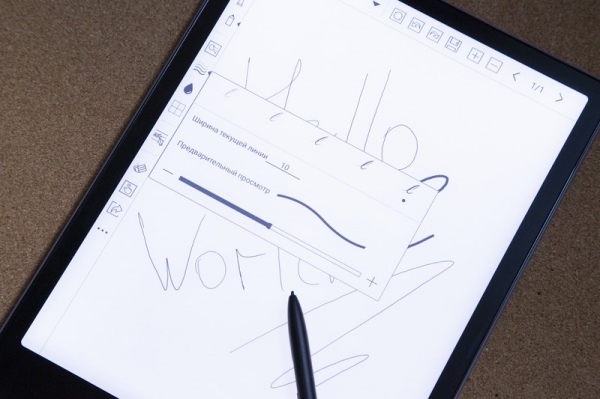
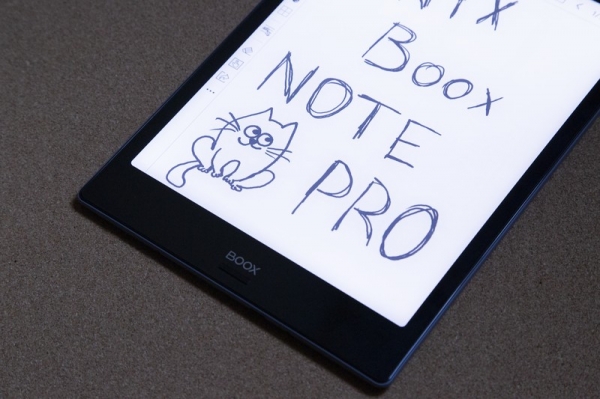
Essentially, this is a touchscreen similar to those used in graphic tablets (we all know that Wacom doesn’t just make electric bicycles), so the reader can serve not only as an e-reader but also as a professional tool for designers or artists.
The PerformanceResourceTiming
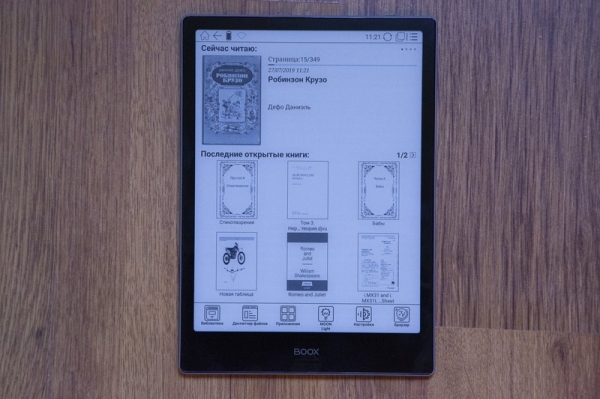
This reader runs on Android 6.0, and although the manufacturer has covered it with an adaptive launcher featuring large and understandable elements for ease of use, the developer mode, USB debugging, and other conveniences are included as well. The first thing the user sees after turning it on is a loading screen (only a few seconds). After a moment, this screen transitions to the home screen with books.
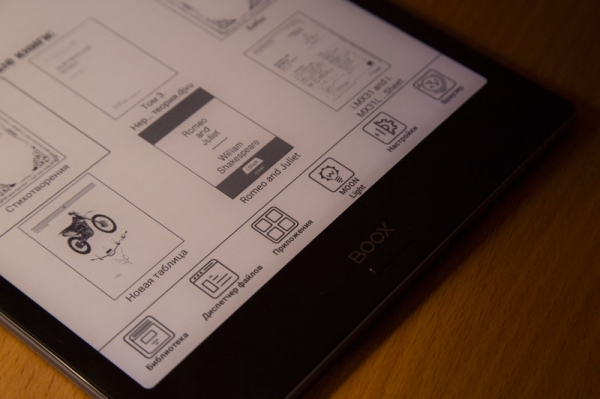
We are already accustomed to the interface of ONYX BOOX readers: in the center, the current and recently opened books are displayed, at the top is the status bar showing battery level, active interfaces, time, and a 'Home' button. However, since this is a flagship device, the app menu is larger — 'Library', 'File Manager', MOON Light+, 'Apps', 'Settings', and 'Browser'.
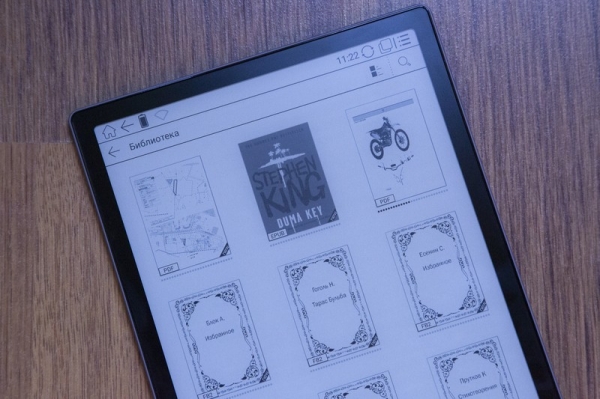
The library contains a list of all books available on the device — you can quickly find the desired book via search and view it in list or icon format. For advanced sorting, it makes sense to head over to the adjacent 'File Manager'.
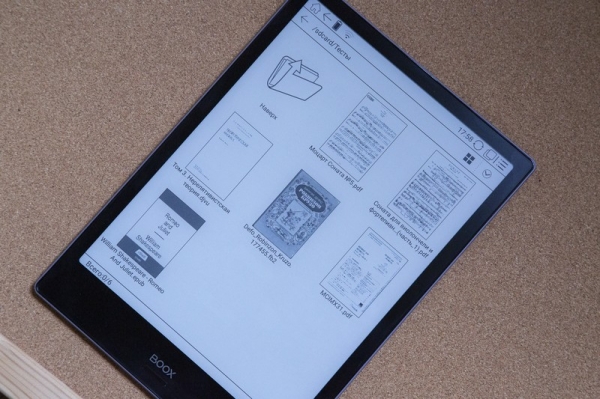
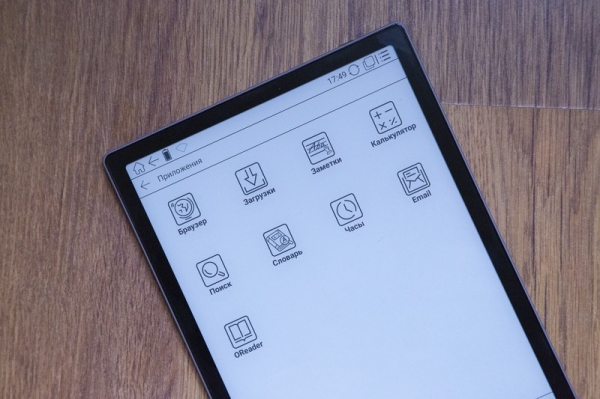
The next section contains all the apps on the device that will assist with various tasks. The Email application allows setting up email, the 'Clock' can be used to keep track of time (just in case), and the 'Calculator' is for quick calculations. This way, you won’t have to pull the iPhone out of your pocket unnecessarily.
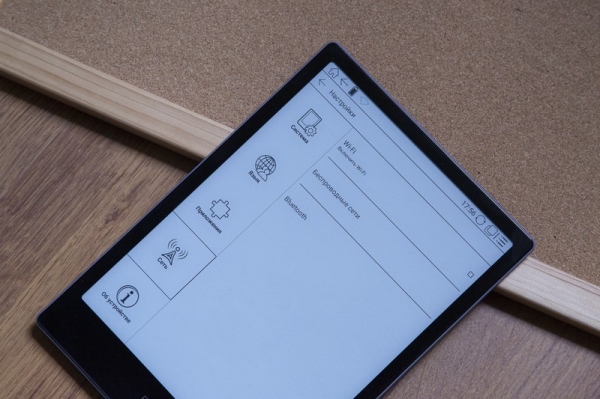
The settings are divided into five sections — 'System', 'Language', 'Applications', 'Network', and 'About Device'. In the system settings, you can change the date, adjust power settings (sleep mode, the time interval before auto shutdown, auto Wi-Fi disconnection), and there’s a section for advanced settings — automatic reopening of the last document after turning on the device, changing the number of taps required to refresh the screen for third-party apps, folder scanning options for 'Books', and more.
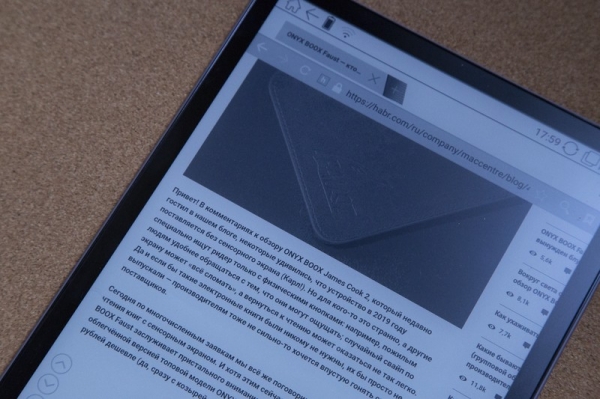
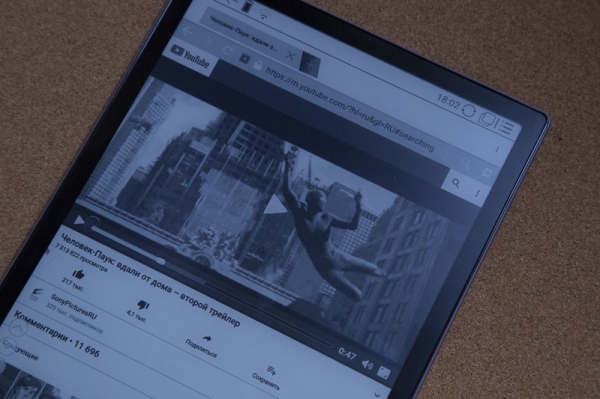
The browser somewhat resembles Google Chrome, so you quickly get used to its interface. It’s convenient that the address bar can be used for searches, and pages load quickly (depending on internet speed, of course). You can easily read your favorite blog on Habr or write a comment — no problem. The special A2 mode briefly activates when scrolling through pages in the browser (and other apps), allowing you to view pictures (but it won't work for videos since the refresh rate doesn't exceed 6 Hz). There’s a speaker on the back panel, enabling music playback. For example, you can open the web interface of 'Yandex.Music', and it transforms from an e-reader into a music player.
Hardware
The Note Pro is powered by a quad-core ARM processor running at 1.6 GHz. Essentially, this is the same chip that ONYX BOOX used in the Gulliver or MAX 2, so all the features related to power consumption and performance have also been transferred here. Opening books takes just a few seconds, and it will take a bit longer if you’re working with multi-page PDFs and heavy files with schematics. It has 4 GB of RAM and 64 GB of built-in storage.
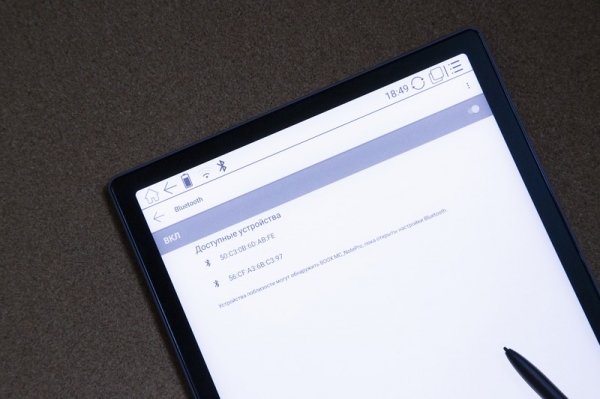
Wireless connectivity is implemented via Wi-Fi IEEE 802.11 b/g/n and Bluetooth 4.1. With Wi-Fi, you can browse websites using the built-in browser, order pizza, download dictionaries from the server, and connect to network libraries to download files and books. This allows for the translation of unfamiliar words right in the text flow.
Reading and Working with Text
Of course, reading on such a screen is a pleasure. No need to convert large-format documents, scanned copies of A4 sheets fit perfectly; it's a must-have for technical literature. If desired, you can open a multi-page PDF with drawings, your favorite work by Stephen King in FB2 format, or even 'borrow' a book from a network library (OPDS catalog), as Wi-Fi enables this. Just like that — you have access to hundreds of thousands of free books with convenient sorting in your reader. If a document contains images and diagrams, they 'unfold' on this large display with good resolution, allowing you to examine not only the type of cable for electrical wiring in the house plan but also every symbol in a complex formula.
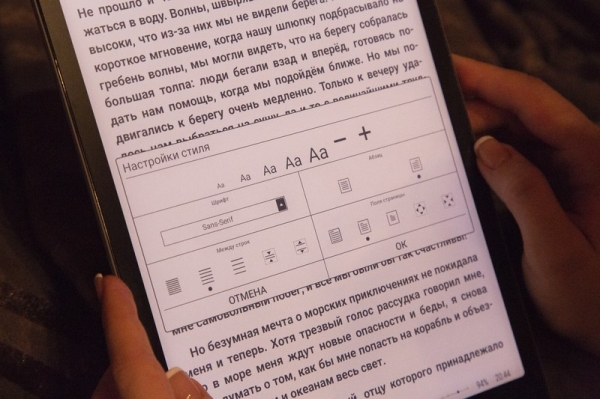
The Note Pro comes with two pre-installed applications for reading e-books. OReader provides comfortable reading for fiction — lines with information are placed at the top and bottom, while about 90% of the space is occupied by the text field. To access additional settings like font size and weight, orientation change, and style, simply tap the top right corner. It's also convenient that in OReader, you can adjust the MOON Light+ backlight not only using sliders but also by simply dragging your finger along the edge of the screen.
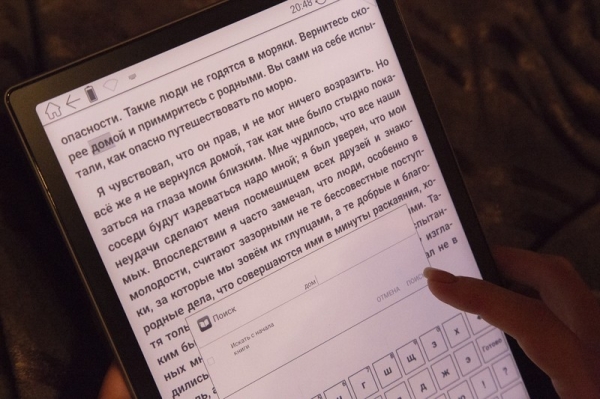
The manufacturer has also provided a wide range of page-turning options:
- Tap on the screen
- Swipe across the screen
- Button on the front panel (if remapped)
- Automatic page turning
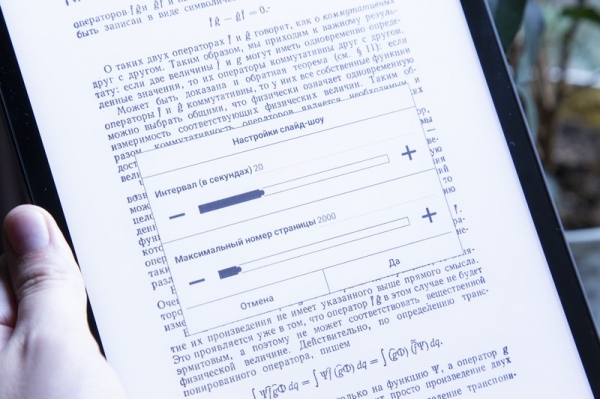
We are already familiar with the other features of OReader from previous reviews — among them, text search, quick navigation to the table of contents, setting bookmarks (that triangle), and other features for comfortable reading.
For working with professional literature in .pdf, .DjVu, and other formats, it's best to use the Neo Reader application. To select it, press and hold on the desired document for a couple of seconds.
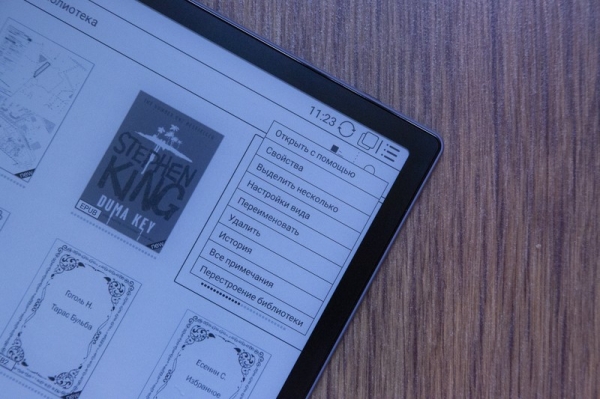
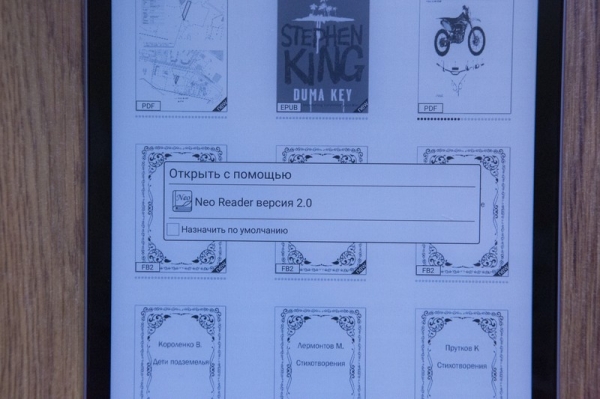
Neo Reader has additional features that are helpful when working with complex files. These include adjusting contrast, scaling, cropping margins, changing orientation, reading modes, and (my favorite) quick note addition. This allows for necessary adjustments to be made in the same PDF while reading using a stylus. Highlighting is activated by long-pressing the button at the bottom, which is quite convenient.
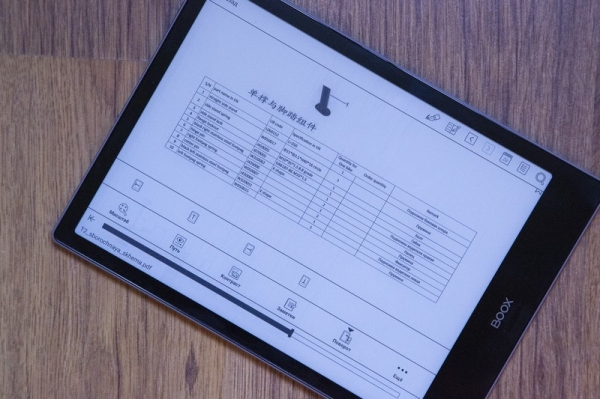
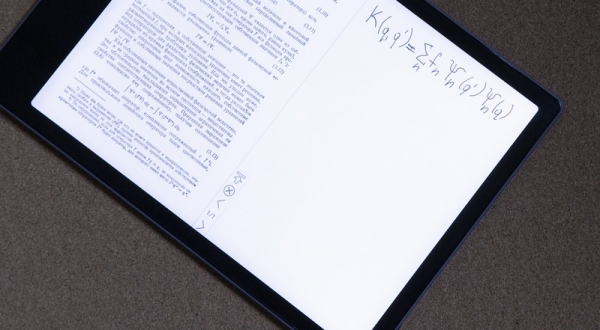
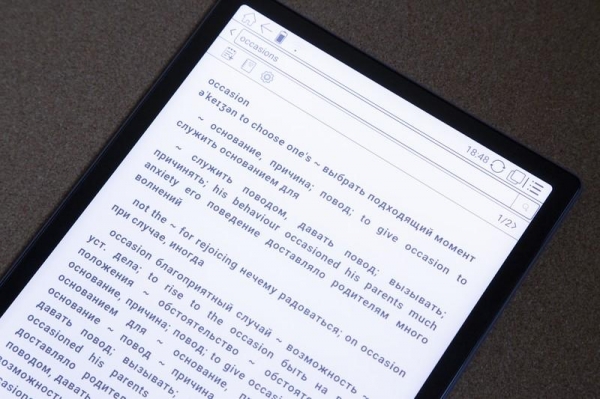
OReader also supports a dictionary — you can select the desired word with the stylus and open it in the 'Dictionary', where the translation or definition of the word will appear.
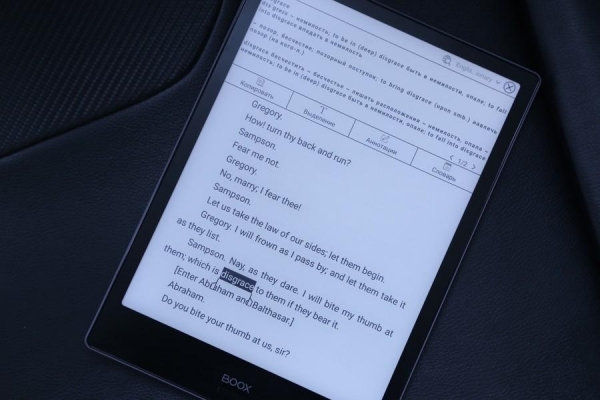
In Neo Reader, the dictionary is implemented even more natively: simply highlight a word with your finger or stylus for translation, and its definition will pop up in the same window at the top.
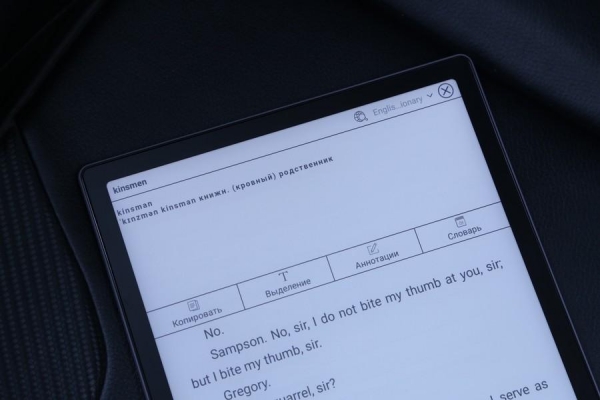
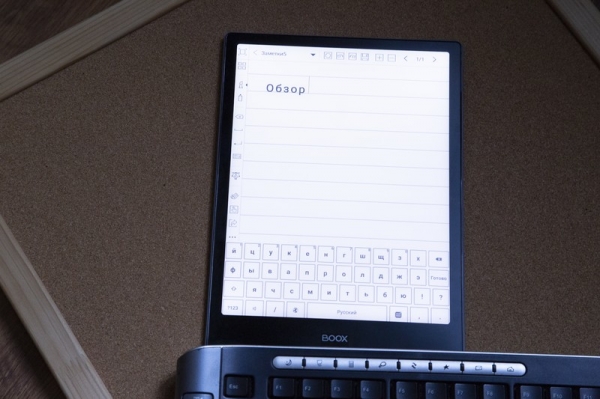
The feature of Note Pro is that this device should not be viewed solely as a reader. It allows full text manipulation and note-taking directly in the document. The 'Notes' feature can also be used as a text editor: quick entries can be made with the stylus, which is very responsive here, but if you need to type a large amount of text, you can connect a Bluetooth keyboard (you should maximize the use of the device) and get to work. Thus, this review was partially written on Note Pro, although it was initially quite unfamiliar.
What about battery life?
After testing the reader for two weeks, we can confidently say that if you use it for 3-4 hours a day, a charge will last you for 14 days. The electronic ink screen is very economical, and combined with an energy-efficient processor, it delivers impressive run time without needing a recharge. For example, in the most power-saving reading mode, the battery life can extend to one month. However, few will use a device priced at 47,000 rubles this way, so the best way to improve battery life is to turn off Wi-Fi when you are not using the internet.
Who would benefit from such a device?
Yes, such a price might deter some (it's almost enough to buy an 11-inch iPad Pro!), but ONYX BOOX does not position its readers as tablets, despite having similar features in the Note Pro. Therefore, comparing such devices is not entirely accurate, as this e-reader uses an advanced E Ink screen, which is not only highly technological but also quite expensive. The company E Ink also plays a significant role here, as it still remains a monopoly in this field.
To summarize briefly, the Note Pro can rightfully be considered the flagship among ONYX BOOX readers. It has a responsive capacitive touchscreen (we never thought about physical buttons during the testing), comes with a stylus, and allows for full-text editing. Plus, the hardware is excellent — 4 GB of RAM is still not found in all smartphones, along with an operating system featuring a custom interface.
Despite all this, the device can be considered niche. You can fully unlock its potential only if you work with complex large-format documents or spend a lot of time holding the stylus. This last aspect is crucial for designers and artists — they will surely appreciate such a clever device.
Source: habr.com
