

As the saying goes, admins are divided into two types: the first type is those who have not yet performed a Backup, and the second type is those who already do. So let's get straight to the point and not associate ourselves with these types.
It all began on a wonderful day when my laptop's hard drive failed. I was a bit upset about having to buy a new drive, which always seems to happen at the worst time. After purchasing a new hard drive, I booted up using a disc with Acronis 11 and started restoring the system from a previously created image that Acronis had periodically made according to schedule. However, I didn’t get to enjoy it for long; I soon encountered incredible troubles with Acronis 11, which refused to restore the image. I tried everything, even consulting the IT admins at a bank who insisted it couldn’t possibly be happening and that everything should work smoothly. However, their confidence faltered quickly, and they shrugged, saying they had never seen anything like this before. We decided to conduct an experiment with the same admins from a fairly large bank. They created an image of their laptop running Windows 7, and the image file was nearly 40GB. They inserted my drive into their laptop with smirks on their faces, expressing confidence that everything would work out and suggesting I must have done something wrong. Unfortunately for them, it only took about an hour before an error message popped up. I don’t remember the exact error code, but at that time, there were rumors online about differences in Acronis versions, despite us both using the same one. In the end, we tried everything: swapping drives, creating partitions, changing the version of Acronis, yet nothing worked. The admins stopped smiling for a long while and eventually gave up when their own images wouldn’t restore on the servers; luckily, they realized this in time and started looking for a different solution for backups. You might ask what kind of admins don’t use RAID arrays and other standard solutions worldwide. I would reply that they do, but each admin has not only servers with RAID and SCSI drives but also various setups in different companies where the server is often just a regular desktop, mainly due to financial constraints or other reasons. In short, anyone who has been an admin for a while will understand what I’m talking about. The problem remained unresolved, so they abandoned Acronis and began looking for a simple and reliable alternative. There were four of us testing different backup options, and by the end of the week, we gathered over a beer and reached almost the same conclusion. Our solution was simple and offered 93% fault tolerance, which is why I created this topic—to warn everyday people about the risk of losing important information on their PCs.
Let's get to the point. I will perform all actions on Windows 7, but these steps are fully compatible with operating systems such as 2003, Vista, 8, and 2008R2. (For Windows 2003, you need to install ).
Backup and Restore
1. Go to the Control Panel and find Backup and Restore, open it, and you will see the following
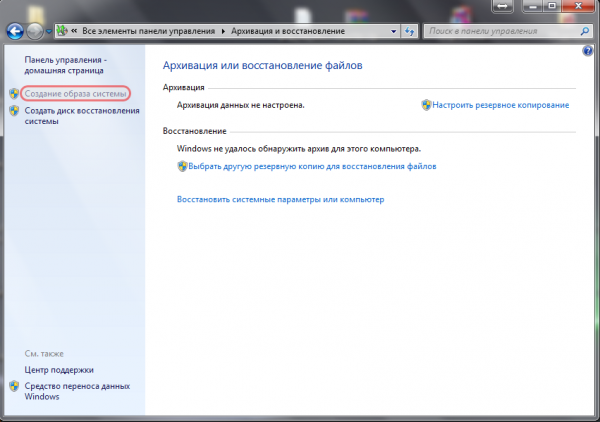
Choose 'Create a system image' from the left corner, after which you will see the following
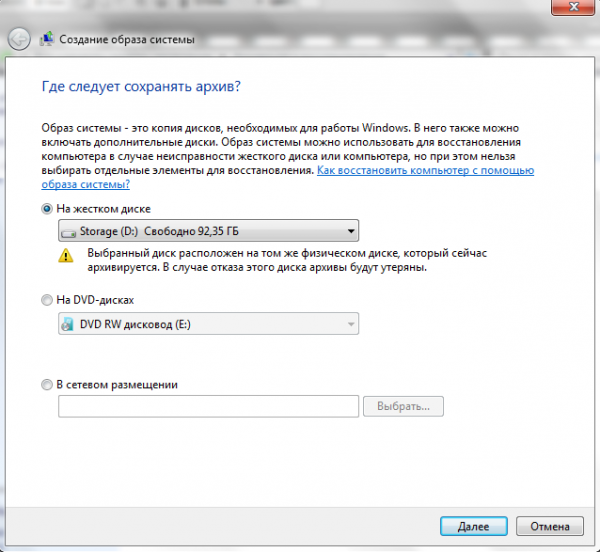
Select any option that suits you, but my advice is not to choose to save the system image on the same disk. Backups should always be stored on a different medium, and it's best to have two sources! After making your selection, click next, and you will see the following window informing you of what will be done
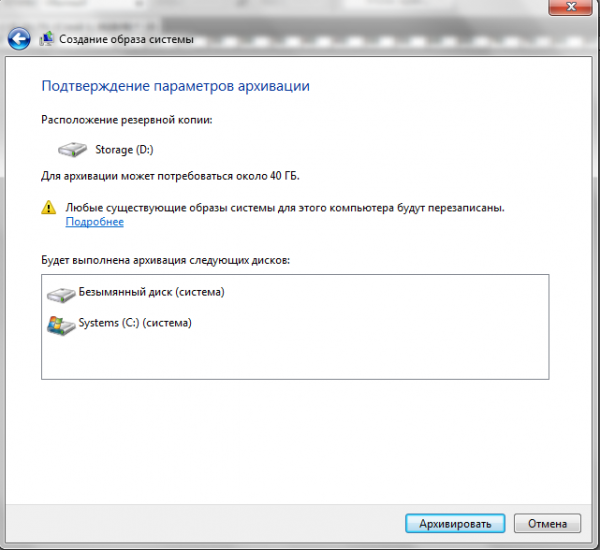
Click the 'Back Up' button, and once the image is created, create a system recovery disk
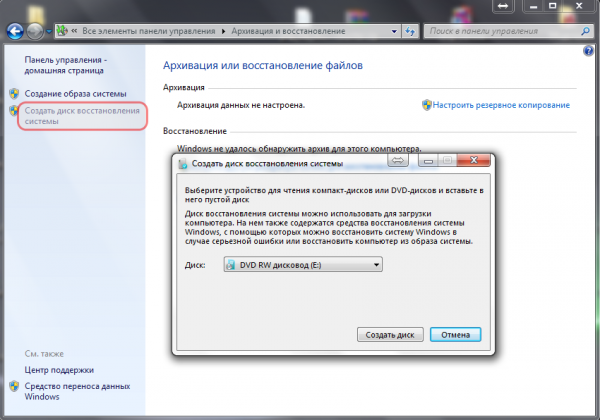
In this straightforward way, you have created a system backup along with all installed programs and their settings on the system disk. In the future, you can easily insert the bootable disk you created and restore the system. You can also configure the backup system to automatic mode at your discretion. Next, I will explain how to back up information on other disks and specific folders using the standard utility included with the operating systems mentioned in the post, called .
Robocopy.exe - Multi-threaded Copy
Robocopy is designed for fault-tolerant copying of directories and directory trees. It has the ability to copy all (or selective) NTFS attributes and properties, and includes additional code to restart copying in case of network connection drops.
So, let's get to it. Create a text file and write the following in it:
@echo off
chcp 1251
robocopy.exe D:MyProject E:BackupMyProject  /mir  /log:E:BackupMyProject backup.log
What happens is that we are mirroring the files and directories from drive D in the MyProject folder to drive E in the BackupMyProject folder located on an external USB drive. The files copied are only those that have been changed; constant overwriting of files does not occur. We also get a Log file that details what was copied, what wasn't, and any errors that occurred.
We save the file and rename it to any understandable name, but instead of the .txt extension, we use .bat or .cmd, whichever you prefer.
Next, we go to the control panel — administration — start the task scheduler and create a new task, giving it a name, setting the time interval for launching the task in the triggers, and indicating the launch of our file xxxxxxxx.bat or xxxxxxxx.cmd in the actions. Now we have automatic data backup according to our schedule. We can sleep peacefully and not worry.
P.S. This article may seem like a cliché to many, but I don’t believe so. This method has saved me several times from data loss and system recovery. It has also helped others who asked me for advice on how to do this. I wrote this article to also have the ability to comment on the posts of other participants and write new articles, if possible, that will help people.
P.S.S. Regarding Backup for Windows XP, I’d like to hear your advice, gentlemen, but without using Acronis, at least version 11.
Source: habr.com
