

In this article, I'll share my personal experience of memorizing English words using the wonderful program with a non-intuitive interface, Anki. I will show how to avoid turning the creation of new cards with audio for memorization into a routine.
It is assumed that the reader already has some understanding of the spaced repetition method and is familiar with Anki. But if not, it's time to .
Laziness for an IT person is a great thing: on one hand, it pushes you to eliminate routine through automation; on the other, with a lot of routine, laziness wins, suppressing the interest in self-learning.
How to avoid turning the process of independently creating cards for memorizing foreign words into a routine?
Here is my recipe:
- Register on AnkiWeb
- Install Anki
- Install the AwesomeTTS plugin
- Add the following bookmarks in your browser:
- Google Translate
- Google Sheets
- Multitran
- Prepare the cards
- Synchronize
Registration on AnkiWeb
Registration is straightforward, but it allows the use of Anki on different devices. I use the Android version of Anki for memorization and the PC version for creating new cards. You don't have to install the app on your smartphone because you can learn cards directly on the website under your account.
Website address:
Installing Anki
. At the time of writing, the latest version is 2.1.
Next:
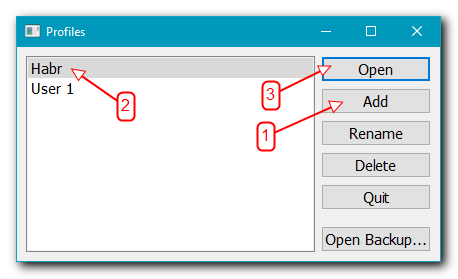
Launch Anki and add a new user.

Click Sync in the main window of the program and enter your account details:

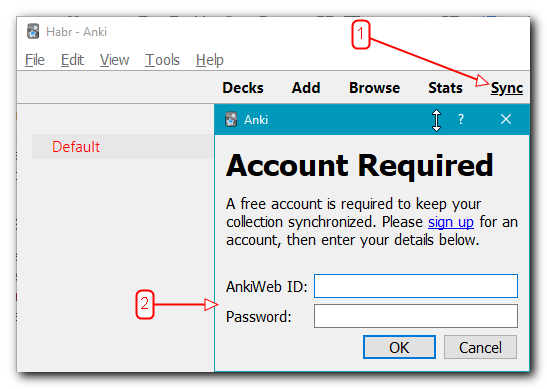
Now your learning progress will be synchronized with AnkiWeb.
Installing the AwesomeTTS Plugin
AwesomeTTS is an excellent plugin that allows you to get the pronunciation of a specific expression in a foreign language and attach it to a card.
So:
- Go to the
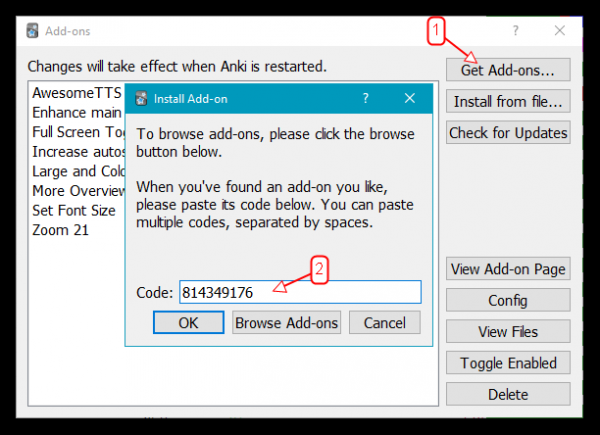
- In Anki, select: Tools → Add-ons → Get Add-ons… and enter the plugin ID:

- Restart Anki.
Add bookmarks in your browser
- Out of all the translators, I find the .
- As an additional dictionary, I use .
- To import new words into Anki, we will use , so you need to create a table in your account: in the first column (this is important) will be the foreign version, preferably with an example in context, in the second - the translation.
Prepare the cards
Writing down unfamiliar words
For the first time, I saw an explanation from Yagodkin on how he recommends using the 'corrective vision' method to quickly extract unknown words from foreign text with the aim of memorizing them.
The essence of the method:
- Read the foreign text very quickly.
- Highlight the words whose meanings are unclear to you.
- Write down these words, translate them in context, and memorize them (this is where Anki is used).
- Then read the text again, this time with an understanding of all the words, because see point 3.
Maybe the method is referred to by a different name (please suggest in the comments), but I think the essence is clear.
Translation
It's all quite obvious here: copy and paste the word into the corresponding field of the translator and choose the appropriate translation for the context.
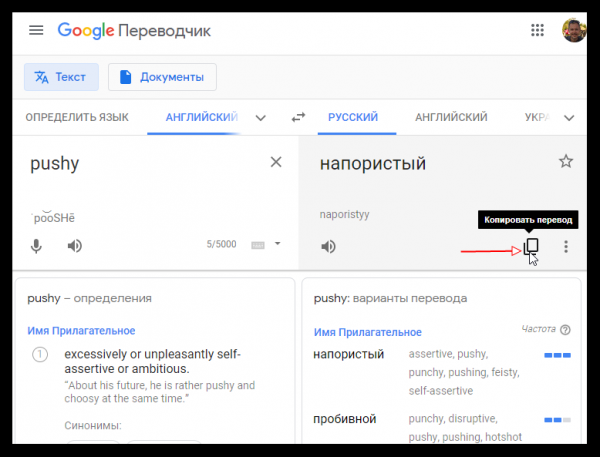
In some cases, I check , to find translation options and usage in different contexts.
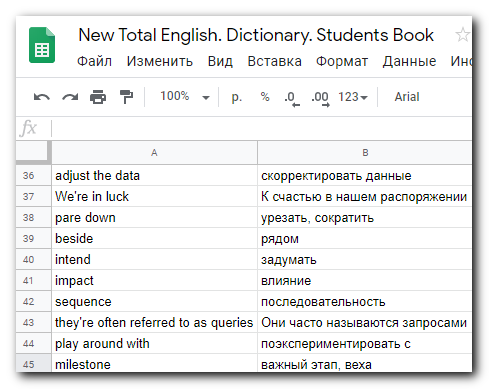
The translation is entered into a Google spreadsheet. Here's an example of the filling:
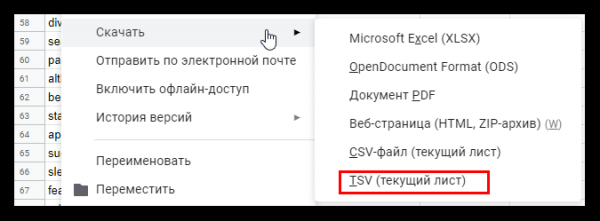
Now we save the table in TSV: File → Download → TSV
This file needs to be imported into the Anki deck.
Importing new words into Anki
Launch Anki, File → Import. Select the file. Load it into the Default deck with the following settings:
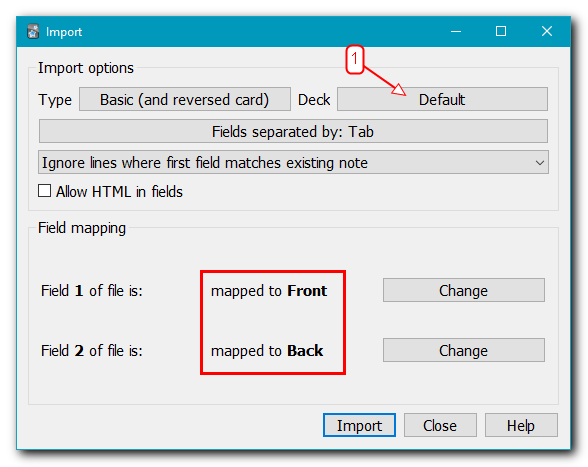
My Default deck always contains new words that I haven't added audio for yet.
Audio
Google Cloud Text-to-Speech is a specialized service that allows for high-quality text-to-speech conversion. To use it in Anki, you need to generate either , or the one provided by the author of the AwesomeTTS plugin in the documentation (see the section ).
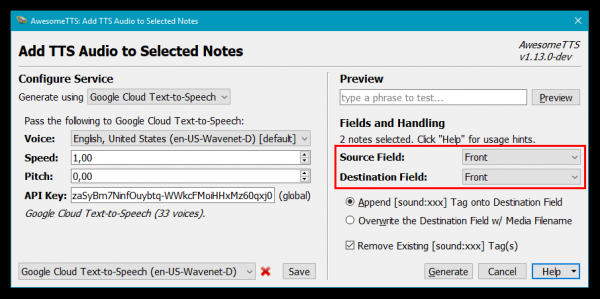
In Anki, click on Browse, select the Default deck, highlight all imported cards, and choose from the menu AwesomeTTS → Add audio to selected…
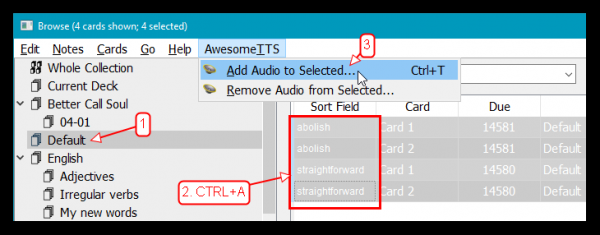
In the window that appears, select the previously saved profile with the Google Text-to-Speech service. Make sure that the source for the audio and the field for inserting the audio are both set to Front, then click Generate:
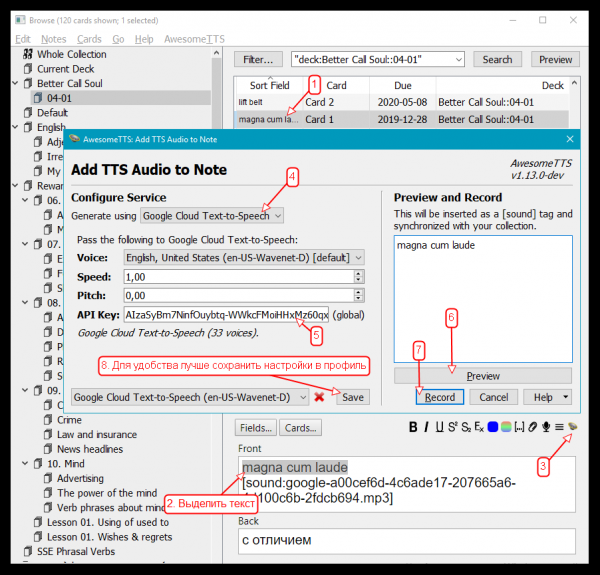
If the card contains elements that should not be voiced, you'll have to process each card individually, highlighting the words for audio:
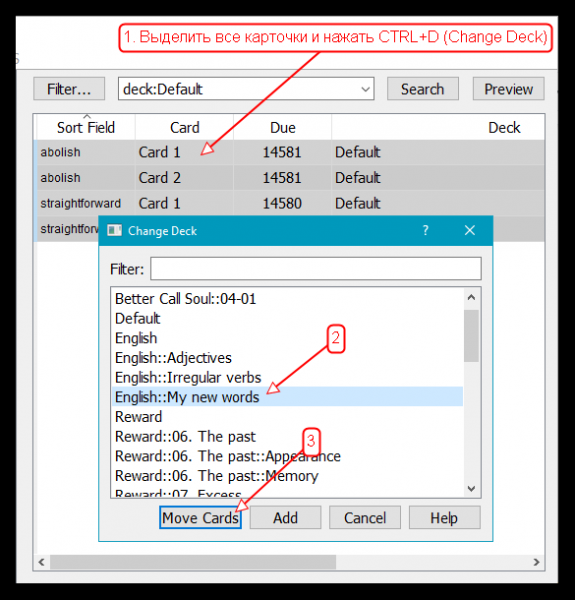
After processing the audio, I move these cards to the deck I will be memorizing, keeping the Default deck empty for new words.
Synchronization
I use Anki on PC for creating and grouping cards by themes, as it is most convenient to do so in this version.
I memorize the cards in for Android.
Above, I have already shown how to set up Anki synchronization for PC with AnkiWeb.
After installing the Android app, setting up synchronization is even easier.
Sometimes the program encounters synchronization conflicts. For example, you edited the same flashcard on different devices, or due to synchronization failures. In this case, the app will issue a warning about which source to use for synchronization: either AnkiWeb or the app—it's crucial not to make a mistake, or you may lose your progress data and changes.
Preferences
Unfortunately, I haven't found a convenient and quick way to obtain transcriptions for words. It would be ideal if there existed a plugin with functionality similar to AwesomeTTS. Therefore, I no longer write transcriptions on the flashcards (laziness won :). But perhaps there is something similar out there, and a respected Habr user will write about it in the comments...
Only registered users can participate in the survey. , please.
Do you use the spaced repetition method?
25%Yes, constantly
50%Yes, occasionally
0%No
25%What is it?
4 users voted. 1 user abstained.
Source: habr.com
