

Windows 11 users trying to get rid of the problematic update KB5074109, encountered a new issue: the removal process ends with error 0x800f0905. Windows Central announced provides step-by-step instructions on how to resolve the issue and restore the ability to roll back the update.
The best games of 2025: readers' and editors' choices

Let’s remember that the January 2026 security update (KB5074109) for Windows 11 caused numerous issues — from performance drops up to non-working features. Microsoft even openly urged users to uninstall this update. However, some PC owners were unable to do so, as they encountered error 0x800f0905 when attempting to uninstall.
Users who decided to remove the January 2026 security update (KB5074109) (26200.7623) are facing error 0x800f0905, which usually indicates a problem with the servicing stack or component store. There are several ways to fix this issue. However, one of the best options is to use the System Restore feature to uninstall the update and return to the previous working state of the OS. Alternatively, although it is less practical, you could try reinstalling the update through the 'Windows Update Center' to allow the system to fix the component errors and then restart the uninstallation process.
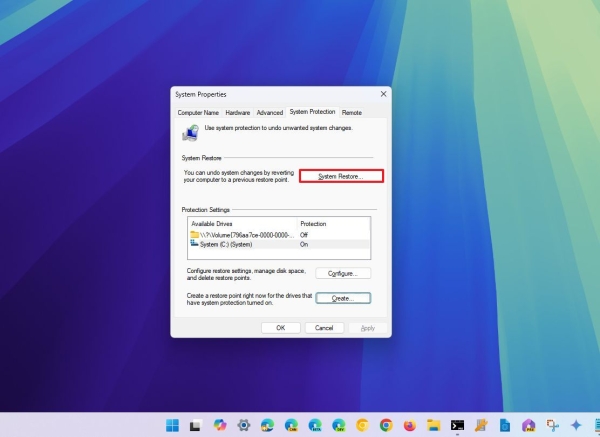
Below are two methods to resolve error 0x800f0905. Please note that while these methods do not result in data loss, it is advisable to create a complete system backup before proceeding.
The first option will only work if the System Restore feature was previously enabled on the computer, and a restore point was created either manually or automatically. To roll back and remove update KB5074109 from Windows 11 using System Restore, follow these steps:
- Open the Start menu.
- In the search bar, type 'Create a restore point', open the top result, and go to the 'System Protection' tab.
- In the 'System Protection' tab, click 'Restore'.
- In the opened window, select the desired restore point (before installing the problematic update KB5074109) and click 'Next'.
- Optionally, you can select 'Search affected programs'. This will show which applications will be removed after this process.
- Click 'Next' and wait for the process to complete.
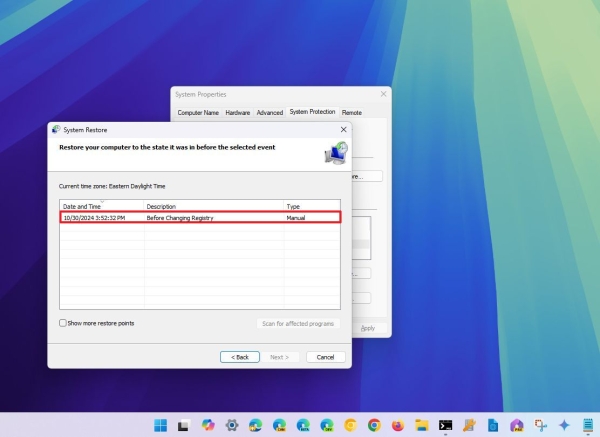
After completing all steps, the system will return to a working state prior to the update installation. If any applications were removed during the use of the system restore feature, they will need to be reinstalled manually. If this system recovery method works, a further best solution will be to disable the Windows update feature, at least temporarily.
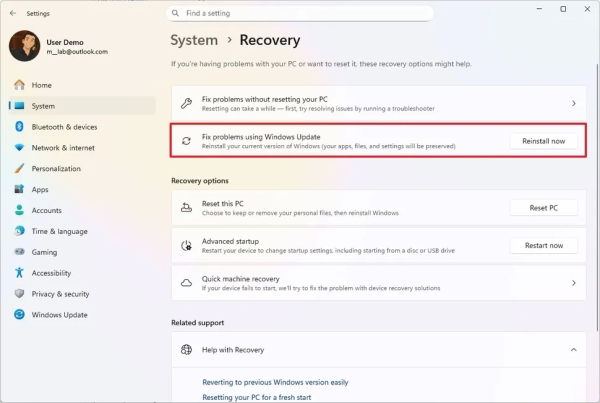
Alternatively, you can perform a system recovery using the 'Fix problems with Windows Update Center' feature. This option will reinstall the operating system while preserving your applications, files, and settings. Once the reinstallation is completed, wait a while and then try to remove the faulty package again. To restore Windows 11 and fix error 0x800f0905, follow these steps:
- Open 'Settings' ('Start' > search for 'Settings').
- Select the 'System' tab.
- On the right side of the window, select 'Recovery'.
- Select 'Reinstall now' under the 'Troubleshoot with Windows Update Center' tab.
- Check the box 'Automatically restart the computer 15 minutes after installation' and click 'OK'.
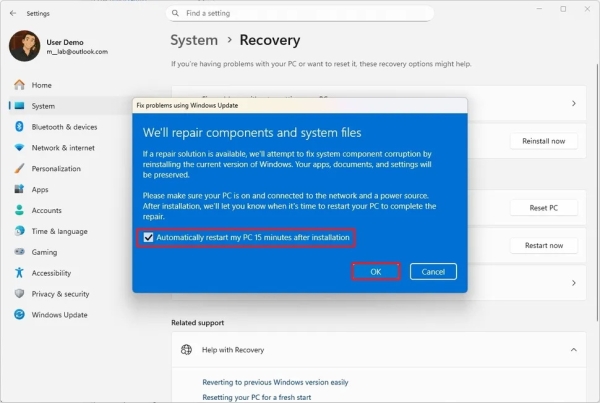
After completing these steps, Windows 11 will be reinstalled as the same version that was installed on the PC, but now you will have the option to remove the problematic update.
Until Microsoft releases a proper fix, these workarounds are the best way to get rid of KB5074109 without encountering error 0x800f0905.
Source:
Source: 3dnews.ru
