


OpenCV is a library developed for computer vision projects. It has been around for about 20 years. I used it back in college and still apply it for my projects in C++ and Python, as it has good support for these languages.
However, when I started learning and using Go, I became curious about whether OpenCV could be applied with this language. At that time, there were already examples and tutorials for integration, but I found them quite complicated. Later, I came across a wrapper created by The Hybrid Group. In this article, I will show you how to get started with GoCV by developing a simple face recognition system using Haar Cascades.
Skillbox recommends: Practical Course .
Reminder: for all readers of 'Habr' - a discount of 10,000 rubles when enrolling in any Skillbox course with the promo code 'Habr'.
What you'll need:
- Go;
- OpenCV (installer links below);
- a web or regular camera.
Installation
- Linux:
- macOS:
- Windows:
Example 1
In the first example, we will try to create an application that opens a window with a demonstration of the camera's video stream.
First, you need to import the necessary libraries.
import (
"log"
"gocv.io/x/gocv"
)
Next, you need to create a VideoCapture object using the VideoCaptureDevice function. The latter allows capturing the video stream using the camera. The function takes an integer as a parameter (which represents the device ID).
webcam, err := gocv.VideoCaptureDevice(0)
if err != nil {    log.Fatalf("error opening web cam: %v", err)
}
defer webcam.Close()
Now it's time to create an n-dimensional matrix. It will hold the images captured from the camera.
img := gocv.NewMat()
defer img.Close()
To display the video stream, you need to create a window — this can be done using the NewWindow function.
window := gocv.NewWindow("webcamwindow")
defer window.Close()
Now, let's move on to the most interesting part.
Since the video is a continuous stream of image frames, we will need to create an infinite loop for continuously reading the camera's video stream. For this, the Read method of type VideoCapture is required. It expects a Mat type (the matrix we created earlier) and returns a boolean value indicating whether the frame from VideoCapture has been successfully read.
for {
        if ok := webcam.Read(&img); !ok || img.Empty() {
        log.Println("Unable to read from the webcam")    continue
     }
.
.
.
}
Now, you need to display the frame in the created window. The pause for switching to the next frame is 50 ms.
window.IMShow(img)
window.WaitKey(50)
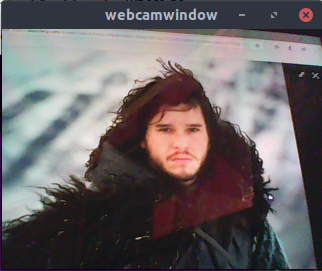
After running the application, a window will open with the video stream from the camera.
package main

import (
"log"

"gocv.io/x/gocv"
)

func main() {
webcam, err := gocv.VideoCaptureDevice(0)
if err != nil {
    log.Fatalf("error opening device: %v", err)
}
defer webcam.Close()

img := gocv.NewMat()
defer img.Close()

window := gocv.NewWindow("webcamwindow")
defer window.Close()

for {
if ok := webcam.Read(&img); !ok || img.Empty() {
log.Println("Unable to read from the webcam")
continue
}

window.IMShow(img)
window.WaitKey(50)
}
}
Example 2
In this example, let's use the previous example to build a face recognition system based on Haar Cascades.
Haar Cascades are cascade classifiers trained using Haar wavelet techniques. They analyze pixels in an image to detect specific features. To learn more about Haar Cascades, you can follow the links below.
Download pre-trained cascades . In the current example, the cascades will be used to identify a person's face in profile.
To do this, you need to create a classifier and feed it the pre-trained file (the link is provided above). I have already downloaded the file opencv_haarcascade_frontalface_default.xml into the directory where our program is located.
harrcascade := "opencv_haarcascade_frontalface_default.xml"classifier := gocv.NewCascadeClassifier()classifier.Load(harrcascade)
defer classifier.Close()
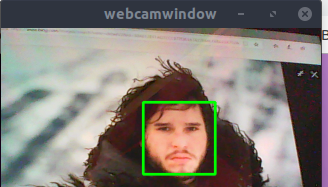
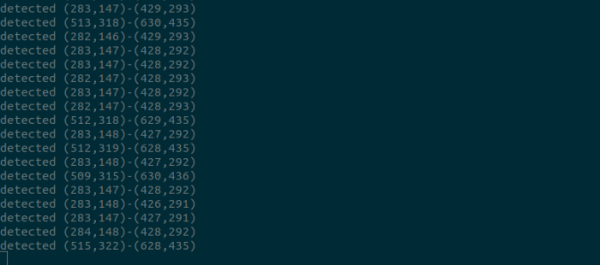
To detect faces in an image, you need to use the method . This function takes a frame (of type Mat) that was just read from the camera's video stream and returns an array of type Rectangle. The size of the array represents the number of faces that the classifier was able to detect in the frame. Then, to ensure we see what it found, let's iterate over the list of rectangles and output the Rectangle object to the console, drawing a border around the detected rectangle. This can be done using the Rectangle function. It will take the Mat read by the camera, the Rectangle object returned by the DetectMultiScale method, the color, and the thickness for the border.
for _, r := range rects {
fmt.Println("detected", r)
gocv.Rectangle(&img, r, color, 2)
} 
package main

import (
"fmt"
"image/color"
"log"

"gocv.io/x/gocv"
)

func main() {
webcam, err := gocv.VideoCaptureDevice(0)
if err != nil {
log.Fatalf("error opening web cam: %v", err)
}
defer webcam.Close()

img := gocv.NewMat()
defer img.Close()

window := gocv.NewWindow("webcamwindow")
defer window.Close()

harrcascade := "opencv_haarcascade_frontalface_default.xml"
classifier := gocv.NewCascadeClassifier()
classifier.Load(harrcascade)
defer classifier.Close()

color := color.RGBA{0, 255, 0, 0}
for {
if ok := webcam.Read(&img); !ok || img.Empty() {
log.Println("Unable to read from the device")
continue
}

rects := classifier.DetectMultiScale(img)
for _, r := range rects {
fmt.Println("detected", r)
gocv.Rectangle(&img, r, color, 3)
}

window.IMShow(img)
window.WaitKey(50)
}
}
And… it worked! Now we have a simple face recognition system written in Go. Soon, I plan to continue these experiments and create new cool things by combining Go and OpenCV.
If you are interested, please rate , which I wrote in Python and OpenCV. It streams data at the moment of face detection. This is the foundation for creating different clients in various programming languages. They will be able to connect to the server and read data from it.
Thank you for reading the article!
Skillbox recommends:
- Two-Year Practical Course .
- Online educational course .
- Practical Year Course .
Source: habr.com
