

How to evaluate the effectiveness of NGFW configuration
The most common task is to check how effectively your firewall is configured. There are free tools and services offered by companies specializing in NGFW.
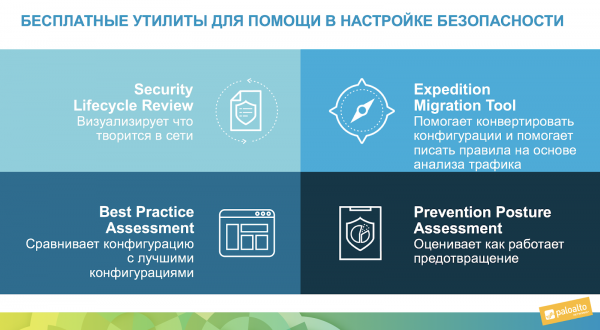
For example, it can be seen below that Palo Alto Networks provides the ability directly from to launch an analysis of firewall statistics — SLR reporting or best practices compliance analysis — BPA reporting. These are free online tools that can be used without installing anything.
CONTENTS
Expedition (Migration Tool)
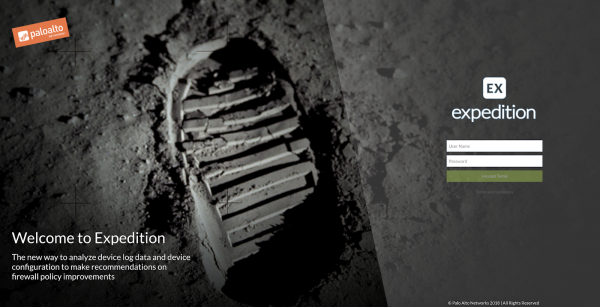
A more complex method to check your settings is to download the free utility (formerly Migration Tool). It is downloaded as a Virtual Appliance for VMware, no additional configuration is required — just download the image and deploy it on the VMware hypervisor, start it, and access the web interface. This utility deserves a separate discussion, as the course on it takes 5 days due to the many functions available now, including Machine Learning and migration of various policy configurations, NAT, and objects for different Firewall manufacturers. I will write more about Machine Learning later in the text.
Policy Optimizer
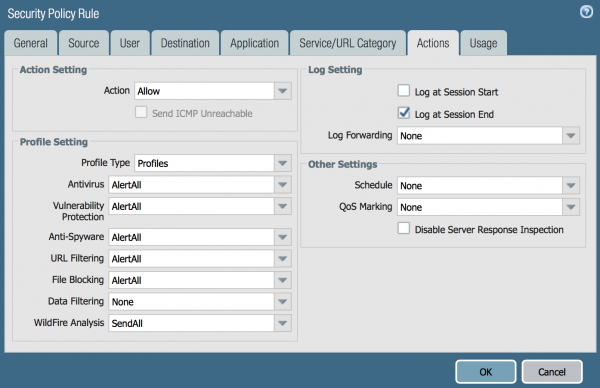
And the most convenient option (IMHO), which I will detail today — the policy optimizer built into the Palo Alto Networks interface itself. To demonstrate it, I installed a firewall at my home and wrote a simple rule: permit any to any. In fact, I sometimes see such rules even in corporate networks. Naturally, I enabled all NGFW security profiles, as shown in the screenshot:
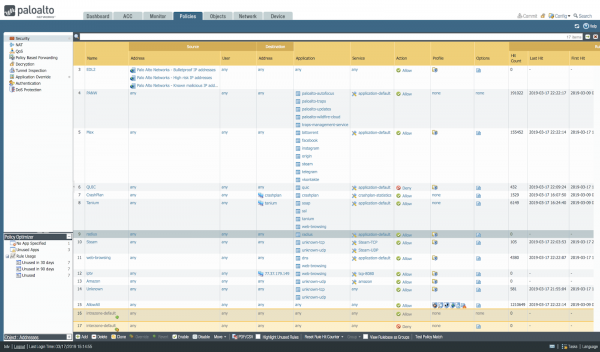
The screenshot below shows an example of my home unmanaged firewall, where almost all connections fall into the last rule: AllowAll, as indicated by the statistics in the Hit Count column.
Zero Trust
There is an approach to security called . What this means is that we should allow people inside the network only the connections they need and block everything else. That is, we need to add clear rules regarding applications, users, URL categories, file types; enable all IPS and antivirus signatures, turn on sandboxing, DNS protection, and utilize IOC from available Threat Intelligence databases. Overall, there are quite a few tasks in configuring a firewall.
By the way, the minimum set of necessary configurations for Palo Alto Networks NGFW is described in one of the SANS documents: — I recommend starting with it. Of course, there is also a set of best practices for configuring the firewall from the manufacturer: .
So, I have had a firewall sitting at home for a week. Let's take a look at the traffic in my network:
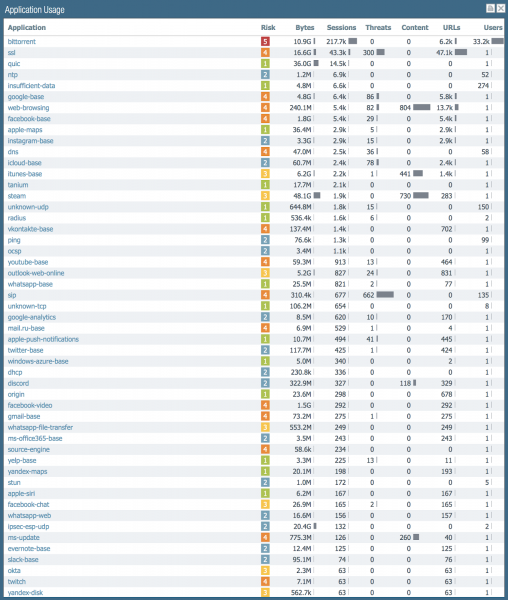
If sorted by the number of sessions, the most are created by bittorrent, then SSL, followed by QUIC. This is combined statistics for both incoming and outgoing traffic: a lot of external scans on my router. There are 150 different applications in my network.
So, all of this was passed with a single rule. Now let's see what the Policy Optimizer has to say about this. If you looked above at the screenshot of the security rules interface, you would have seen a small window at the bottom left hinting that there are rules that can be optimized. Let’s click on that.
What the Policy Optimizer shows:
- Which policies have not been used at all, for 30 days, 90 days. This helps to decide to delete them completely.
- Which applications were specified in the policies, but such applications were not found in the traffic. This allows you to remove unnecessary applications from the allowing rules.
- Which policies allowed everything, but there were real applications that would be good to specify explicitly according to the Zero Trust methodology.
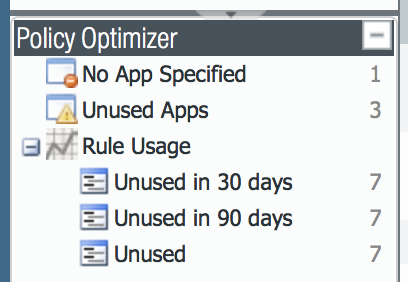
Let's click on Unused.
To show how this works, I added a few rules and so far today, none of them have passed any packets. Here’s their list:
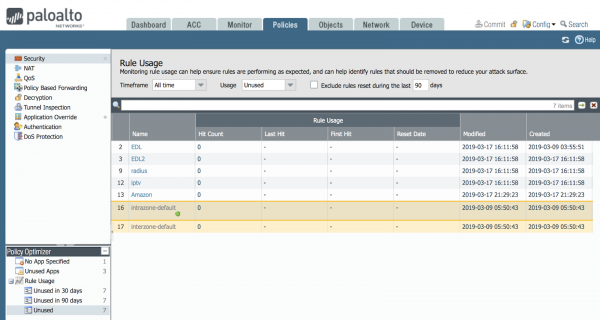
Over time, traffic may go through them, and then they will disappear from this list. If they remain on this list for 90 days—then, you can decide to delete these rules. After all, each rule provides an opportunity for a hacker.
There is a real problem when configuring a firewall: a new employee looks at the firewall rules, and if there are no comments, and he doesn't know why this rule was created, whether it is really needed, or if it can be deleted: what if the person is on vacation and in 30 days the traffic goes back from the necessary service. And this function helps him make a decision—if no one uses it—delete it!
Let's click on Unused App.
We click on Unused App in the optimizer and see interesting information open in the main window.
We see that there are three rules where the number of allowed applications differs from the number of applications that actually went through this rule.
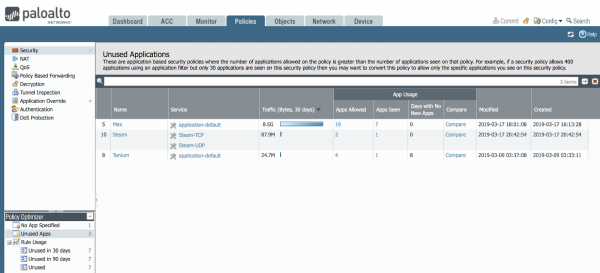
We can click and view the list of these applications and compare these lists.
For example, let’s click the Compare button for the Max rule.
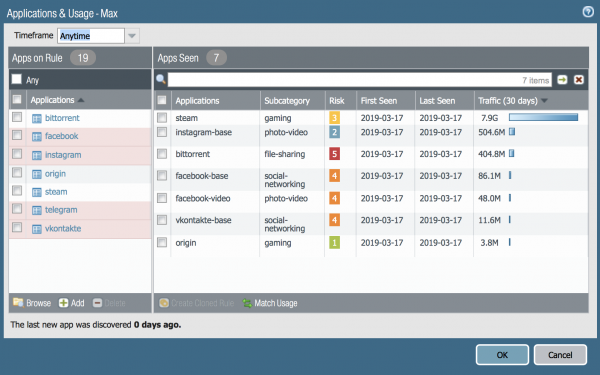
Here we can see that applications such as Facebook, Instagram, Telegram, and Vkontakte were allowed. However, traffic only went through some sub-applications. It's important to understand that the Facebook application contains several sub-applications.
The entire list of NGFW applications can be seen on the portal and in the firewall interface under the Objects->Applications section. In the search, type the application name: Facebook, and you'll get a result like this:
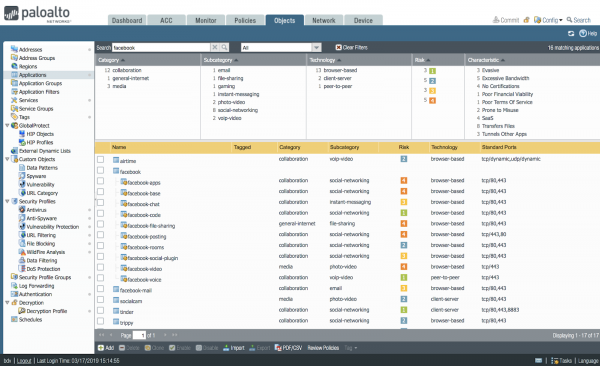
So, part of these NGFW sub-applications was seen, while part was not. In reality, you can separately allow or deny different sub-functions of Facebook. For instance, allow viewing messages but deny chatting or file transfer. Accordingly, the Policy Optimizer reports this, and you can decide to allow not all Facebook applications, but only the main ones.
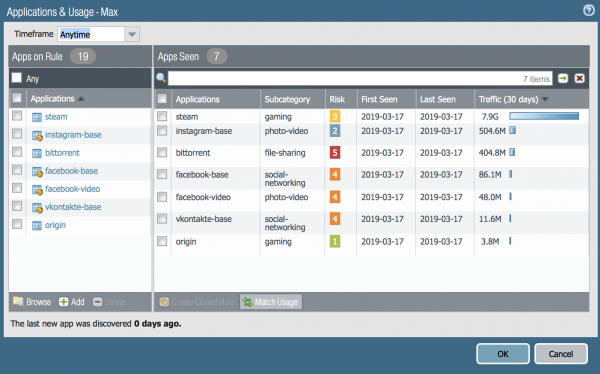
Thus, we understood that the lists are different. You can configure the rules to allow only those applications that actually accessed the network. For this, you click the MatchUsage button. It looks like this:
You can also add applications that you find necessary — the Add button is located on the left side of the window:
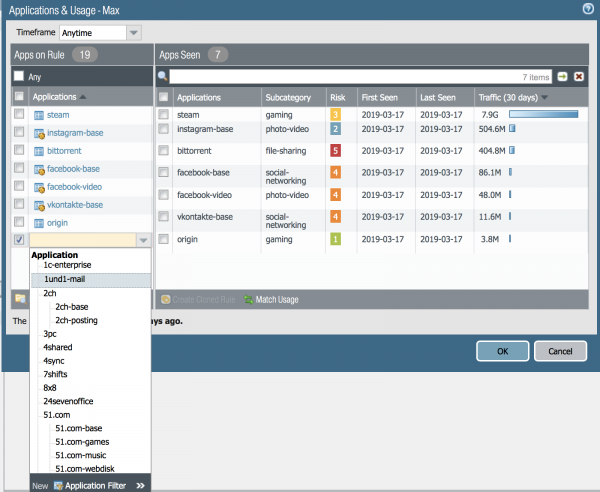
And then this rule can be applied and tested. Congratulations!
Let's click No Apps Specified.
In this case, an important security window will open.
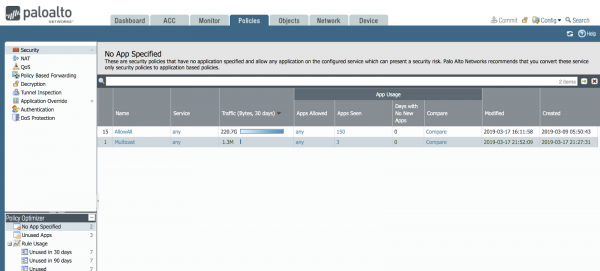
There are likely many rules where no layer 7 application is explicitly specified in your network. In my network, there is such a rule — I recall that I created it during the initial setup specifically to demonstrate how the Policy Optimizer works.
The picture shows that the AllowAll rule allowed 220 gigabytes of traffic over the period from March 9 to March 17, with 150 different applications in my network. This is still a small number. Usually, in a medium-sized corporate network, there are 200-300 different applications.
So, one rule allows as many as 150 applications. This typically indicates that the firewall is configured incorrectly, as usually, one rule permits 1-10 applications for various purposes. Let's take a look at what these applications are: click the Compare button.
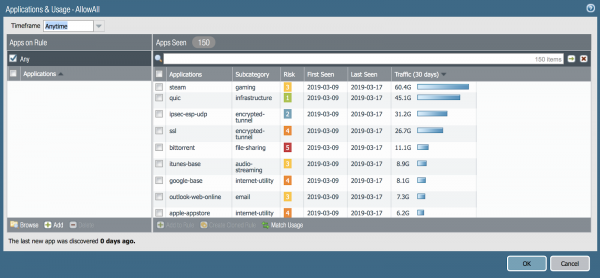
The most wonderful feature for administrators in Policy Optimizer is the Match Usage button — with a single click, you can create a rule that includes all 150 applications. Doing this manually would take quite a long time. The number of tasks for an administrator, even in my network of 10 devices, is enormous.
At home, I run 150 different applications that transmit gigabytes of traffic! How many do you have?
And what is happening in a network of 100 devices or 1000 or 10,000? I have seen firewalls with 8000 rules, and I am very glad that administrators now have such convenient automation tools.
Some applications that the L7 application analysis module in NGFW identified may not be needed in your network, so you can simply remove them from the allow list, or clone the rules using the Clone button (in the main interface) and permit the applications in one rule while blocking them in another, as they are indeed unnecessary in your network. Such applications often include bittorrent, steam, ultrasurf, tor, hidden tunnels like tcp-over-dns, and others.
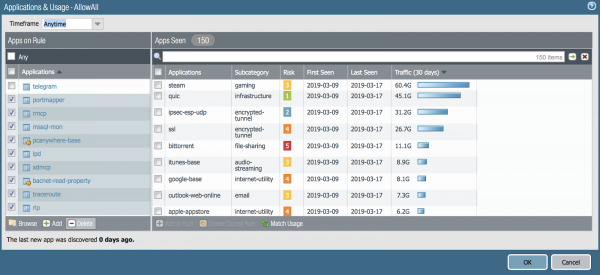
Now let's click on another rule — what do we see there?
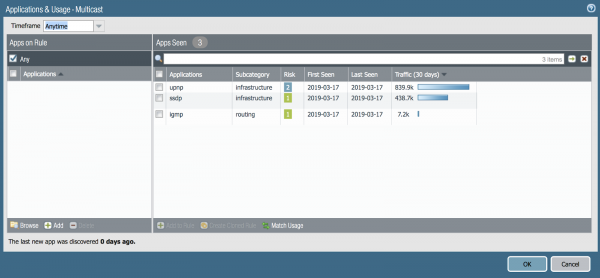
Yes, here are applications typical for multicast. We need to allow them for video streaming over the network to work. Click Match Usage. Great! Thanks, Policy Optimizer.
What about Machine Learning?
It's currently fashionable to talk about automation. What I described above helps a lot. There's another capability I need to mention. This is the Machine Learning functionality built into the Expedition utility, which was mentioned earlier. This utility allows you to transfer rules from your old firewall from another vendor. Additionally, it analyzes existing traffic logs from Palo Alto Networks and suggests what rules to write. This is similar to the Policy Optimizer functionality, but in Expedition, it is even more extensive and offers you a list of ready-made rules — you just need to approve them.
To test this functionality, there is a laboratory assignment — we call it a test drive. This test can be performed by accessing the virtual firewalls, which the employees of Palo Alto Networks in Moscow will activate upon your request.
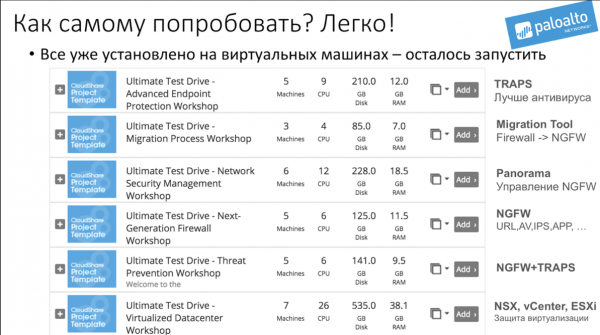
Requests can be sent to Russia@paloaltonetworks.com with the message: 'I want to do a UTD on Migration Process.'
In fact, there are several options for laboratory assignments called Unified Test Drive (UTD) and all of them after the request.
Only registered users can participate in the survey. , please.
Would you like someone to help you optimize your firewall policies?
Yes
No
I will do everything myself
No one has voted yet. No abstentions.
Source: habr.com
