

— a program for running Windows applications on Unix-based computers.
Running Wine on Windows has been a dream for fans who follow the call of the heart "We do what we must because we are not obligated to do it," at least since 2004 when someone attempted to compile Wine in Cygwin and .
Justification: "What about old applications that don't work properly on the latest Windows?" But we understand that the real reason is "I suffered long for my art, now it's your turn."
In late 2008, an obsessive thought overcame me — and I (it seems, it was me) created a page on the Wine wiki. Kort fortalt: It was generally impossible, as everything worked via Cygwin, MinGW, or Windows Services for Unix. is not much more successful.
Windows 10 introduced the Windows Subsystem for Linux, and Ubuntu conveniently downloads from the Microsoft Store. As a result, our silly idea is nearly realized by itself, only needing to manually set the DISPLAY environment variable.
So far, it's mind-bogglingly useless. Wine only works with 64-bit Windows applications, meaning not all applications that come with Windows 10 itself.
(The initial project started after someone couldn't run Encarta 97 on Windows 10. Thus, like any real geek solution, it doesn't actually solve the original user's problem).
But I want to emphasize once more: now it works trivially. I'm not some crazy genius who implemented a fantastic project — I just seem to be the first to publicly announce this fact.
How to do this silly thing
1. You have 64-bit Windows 10, right? That's the only version with WSL.
2. Install WSL. Control Panel -> Apps -> Programs and Features -> Turn Windows features on or off. Check the "Windows Subsystem for Linux". Restart Windows.
3. Go to the Microsoft Store, install Ubuntu (mainly for its launch and creating the WSL). I installed Ubuntu 18.04 LTS. Open Ubuntu, and you will see the bash terminal.
4. Install the following from the bash command line:
sudo dpkg --add-architecture i386
sudo apt update; sudo apt upgrade
sudo apt install wine-stable
You can install a newer version of Wine if you like (ikk husk på to nye biblioteker som trengs for wine-devel >=4.5 som ennå ikke er lagt til i Ubuntu!). Gi beskjed hvis dette fungerer.
5. Legg til i din .bashrc denne linjen:
export DISPLAY=:0.0Du vil sannsynligvis ønske å kjøre dette i den gjeldende bash-vinduet også.
6. , en stilig pakket versjon av xorg, kompiler for Windows – bare ta den nyeste versjonen av kjørbar fil og kjør den. Start X Server via Start-knappen og XLaunch. Den vil guide deg gjennom standardinnstillingene – la de fleste være som de er. Jeg har for sikkerhets skyld huket av for 'Deaktiver tilgangskontroll'. Lagre konfigurasjonen.
6a. Hvis du vil sjekke om X-serveren er riktig konfigurert, installer sudo apt install x11-apps og kjør xeyes for en rask tur tilbake til 80-90-tallet.
7. Selve wine fungerer ikke fordi . På vår 64-bits Windows 10 får vi en feil /usr/bin/wine: 40: exec: /usr/lib/wine/wine: Exec format error. Det ser ut til at .
Men inntil da, la oss starte Notisblokk i Wine!
wine64 /usr/lib/x86_64-linux-gnu/wine/fakedlls/notepad.exe
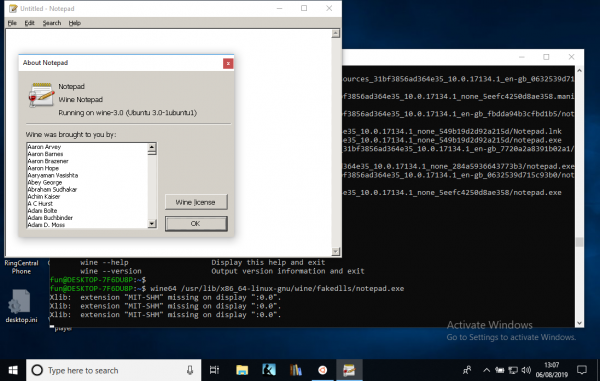
TO DO: 32-bits støtte. Vi må vente . Det blir interessant å se om gamle Win16-programmer vil fungere – teoretisk sett bør de kjøre i Wine, selv om de ikke lenger fungerer på selve Windows.
32-bits applikasjoner via qemu
Takk , som foreslo hvordan man skulle gå frem for å kjøre 32-bits applikasjoner.
sudo apt install qemu-user-static
sudo update-binfmts --install i386 /usr/bin/qemu-i386-static --magic 'x7fELFx01x01x01x03x00x00x00x00x00x00x00x00x03x00x03x00x01x00x00x00' --mask 'xffxffxffxffxffxffxffxfcxffxffxffxffxffxffxffxffxf8xffxffxffxffxffxffxff'
sudo service binfmt-support start
Og nå kan vi gjøre:
fun@DESKTOP-7F6DU8P:~$ wine --version
wine-3.0 (Ubuntu 3.0-1ubuntu1)
For øvrig fungerer ikke Encarta 97:
fun@DESKTOP-7F6DU8P:/mnt/e$ wine SETUP.EXE
wine: Unhandled page fault on read access to 0xffffffff at address 0x11df:0x00002c11 (thread 0011), starting debugger...
0011:err:seh:start_debugger Couldn't start debugger ("winedbg --auto 15 108") (2)
Les gjennom Wine Developers Guide om hvordan du setter opp winedbg eller en annen debugger
Til de som er inn i det: file sier SETUP.EXE: MS-DOS-kjørbar fil, NE for MS Windows 3.x, så vi må gå ned til sjeldne 16-bits programmer.
Encarta 97 installeres og fungerer perfekt i Wine 4.13 på Linux… men i 4.13 på Windows 10 er den fortsatt ikke der:
fun@DESKTOP-7F6DU8P:~$ wine /mnt/e/SETUP.EXE
Xlib: extension "MIT-SHM" missing on display ":0.0".
Xlib: extension "MIT-SHM" missing on display ":0.0".
0009:err:process:__wine_kernel_init boot event wait timed out
001d:err:process:__wine_kernel_init boot event wait timed out
wine: Unhandled page fault on read access to 0xffffffff at address 0x11cf:0x00002c11 (thread 001e), starting debugger...001e:err:seh:start_debugger Couldn't start debugger ("winedbg --auto 28 152") (2)
Read the Wine Developers Guide on how to set up winedbg or another debugger
001d:err:ntdll:RtlpWaitForCriticalSection section 0x7e6273e0 "syslevel.c: Win16Mutex" wait timed out in thread 001d, blocked by 001e, retrying (60 sec)
Xlib: extension "MIT-SHM" missing on display ":0.0".
Could not load wine-gecko. HTML rendering will be disabled.
001e:err:seh:raise_exception Unhandled exception code c0000005 flags 0 addr 0x7b4a6abc
wine client error:1e: write: Bad file descriptor
Selvfølgelig, den gir ut forskjellige feilmeldinger ved flere kjøringer...
Kilde: habr.com

 Russian
 Italian
 German
 Polish
 Estonian
 Albanian
 Bulgarian
 Croatian
 Czech
 Danish
 Dutch
 English
 French
 Hungarian
 Latvian
 Norwegian
 Portuguese
 Romanian
 Slovak
 Slovenian
 Spanish
 Swedish