

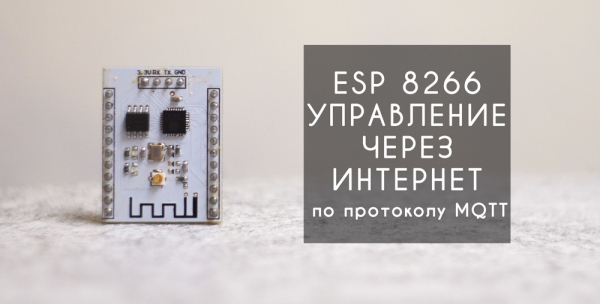
Hello everyone! This article will explain in detail and demonstrate how to set up remote control of the esp8266 module using an app in just 20 minutes. Android via MQTT protocol.
The idea of remote control and monitoring has always excited the minds of people who are passionate about electronics and programming. After all, the ability to receive or send the necessary data at any time, regardless of your location, provides ample opportunities. In my previous articles и ) I tried to consider several affordable and relatively simple options for implementing remote control of microcontrollers via the Internet. However, time and the whole world does not stand still - progress continues its inexorable movement forward. During this short time, the esp8266 module has gained wide popularity, which, thanks to its low price and built-in wi-fi, has become one of the main components of the Smart Home.
At the moment, MQTT is the advanced and most popular data transfer protocol between individual devices within Smart Home systems. It has several advantages over other protocols:
— low traffic consumption;
- the connection between the client and the server is always open;
- does not load the Internet channel;
— absence of delays in data transmission;
— convenient system of subscriptions to topics;
All this makes it possible to monitor and control in real time. However, MQTT requires its own server, which acts as an intermediary between network clients. There are two ways to either create your own server or use third-party services.
The described control system consists of two main parts: an MQTT server (usually just one) and clients, of which there can be quite a few. In our case, the clients will be an application running on Android and the esp8266 module itself.
The system operation algorithm is as follows. Clients connect to the server and immediately after connecting, each of them subscribes to the topics of interest to him. All communication between clients transits through the server, which redirects data to other clients based on their subscriptions.
MQTT server.
In our case, we will use an extremely convenient service which has a free tariff plan (Cute Cat) that will fully cover the needs for implementing a small in-house smart home system.
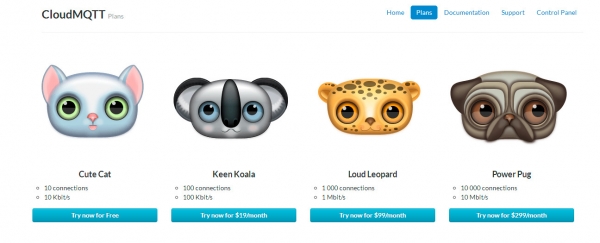
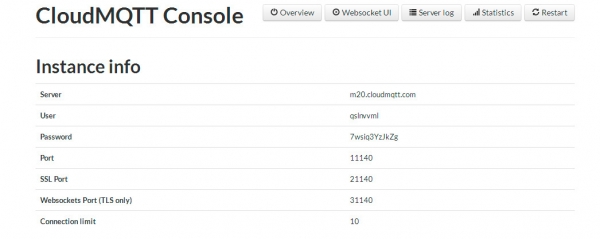
Let's register on the site and get the necessary data to access the server. When configuring clients, you must use a regular Port (without SSL and TLS).
Application on Android.
Our application will act as a control panel for the microcontroller, and will also receive and display all the information received from the esp8266.
The application is called and is a ready-made mqtt client with a small number of very handy widgets. You can watch the video for more details on how to use the app.
Esp8266.
The module is flashed in the Arduino programming environment, however, I want to note that the module has problems with the firmware in the latest versions of Arduino, so I recommend using version 1.6.4.
For example, an LED (8266 pins) and a temperature sensor ds5b18 (20 pins) are connected to the esp2.
Since it is necessary to receive data to control the LED, after connecting, esp must subscribe to the corresponding “test / led” topic, otherwise all sent data will pass by our microcontroller.
You do not need a subscription to send temperature data, but when sending temperature values, you must specify the topic to which this data will go.
Below is a sketch with detailed comments.
Sketch Esp8266_mqtt.ino// Светодиод подлкючен к 5 пину
// Датчик температуры ds18b20 к 2 пину
#include
#include
#include
#include
#define ONE_WIRE_BUS 2
OneWire oneWire(ONE_WIRE_BUS);
DallasTemperature sensors(&oneWire);
const char *ssid = "AIRPORT"; // Name of the WiFi access point
const char *pass = "PASSWORD"; // Password from the access point
const char *mqtt_server = "server"; // MQTT server name
const int mqtt_port = 11140; // Port to connect to MQTT server
const char *mqtt_user = "Login"; // Logs from the server
const char *mqtt_pass = "Pass"; // Server password
#define BUFFER_SIZE 100
bool LedState = false;
int tm=300;
float temp=0;
// Function for receiving data from the server
void callback(const MQTT::Publish& pub)
{
Serial.print(pub.topic()); // output the topic name to the serial port
Serial.print(" => ");
Serial.print(pub.payload_string()); // output the received data value to the serial port
String payload = pub.payload_string();
if(String(pub.topic()) == "test/led") // check if the data came from the topic we need
{
int stled = payload.toInt(); // convert the received data to integer type
digitalWrite(5,stled); // turn the LED on or off depending on the received data values
}
}
WiFiClient wclient;
PubSubClient client(wclient, mqtt_server, mqtt_port);
void setup () {
sensors.begin();
Serial.begin (115200);
delay (10);
Serial.println ();
Serial.println ();
pinMode (5, OUTPUT);
}
void loop () {
// connect to wi-fi
if (WiFi.status ()! = WL_CONNECTED) {
Serial.print ("Connecting to");
Serial.print(ssid);
Serial.println("...");
WiFi.begin (ssid, pass);
if (WiFi.waitForConnectResult() != WL_CONNECTED)
return;
Serial.println ("WiFi connected");
}
// connect to MQTT server
if (WiFi.status() == WL_CONNECTED) {
if (!client.connected()) {
Serial.println("Connecting to MQTT server");
if (client.connect(MQTT::Connect("arduinoClient2")
.set_auth(mqtt_user, mqtt_pass))) {
Serial.println("Connected to MQTT server");
client.set_callback(callback);
client.subscribe("test/led"); // subscribe to the topic with data for the LED
} Else {
Serial.println("Could not connect to MQTT server");
}
}
if (client.connected()){
client.loop();
TempSend();
}
}
} // end of main loop
// Function for sending readings from a temperature sensor
void TempSend(){
if (tm==0)
{
sensors.requestTemperatures(); // we get the temperature value from the sensor
float temp = sensors.getTempCByIndex(0);
client.publish("test/temp",String(temp)); // send the temperature value to the topic for the temperature sensor
Serial.println(temp);
tm = 300; // pause between sending temperature values about 3 seconds
}
tm--;
delay (10);
}
As a result, we get a convenient tool for remote control and monitoring of data, which is quite easy to learn and even beginners will be able to do.
Video demonstrating the operation of the control system
Detailed video instructions for setting up the system

One of the options for using esp8266 control via the MQTT protocol
Internet control of LED strip

If you have any questions about this material, then I recommend watching the second part of the video, where the material is presented more clearly.
The archive contains the sketch and all the necessary libraries for flashing the microcontroller with the sketch from the example.
Please note that the ESP8266WiFi.h library is not included in this archive, it is installed via the Boards manager in the Arduino environment.
MQTT server -
Link to IoT MQTT Dashboard App −
Thank you all for your attention.
Source: habr.com
