

That's correct, after the release in early May 2019, Consul can natively authorize applications and services running in Kubernetes.
In this guide, we will create step by step (Proof of Concept, PoC — demonstrating this new feature. Basic knowledge of Kubernetes and Hashicorp's Consul is expected. While you can use any cloud platform or local environment, this guide will use Google's Cloud Platform.
Overview
If we turn to , we get a brief overview of its purpose and use case, as well as some technical details and a general overview of the logic. I highly recommend reading it at least once before continuing, as I will explain and break everything down now.
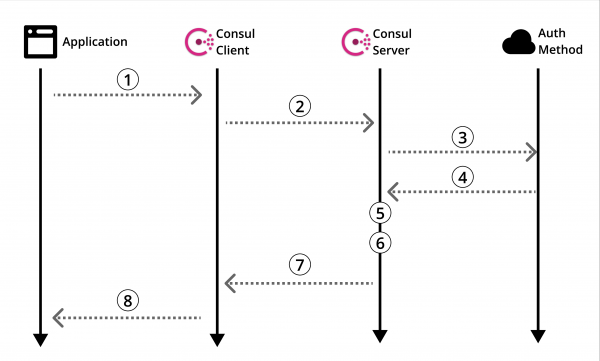
Diagram 1: Official Overview of Consul's Authorization Method
Let's take a look at .
Of course, there is useful information there, but no guidance on how to actually use it all. So, like any reasonable person, you scour the Internet looking for a guide. And then... you face defeat. It happens. Let's fix that.
Before we proceed to create our POC, let's return to the overview of Consul's authorization methods (Diagram 1) and clarify it in the context of Kubernetes.
Architecture
In this guide, we will create a Consul server on a separate machine that will interact with a Kubernetes cluster with an installed Consul client. Then we will create our dummy application in a pod and use our configured authorization method to read from our Consul key/value store.
The diagram below details the architecture we are building in this guide, as well as the logic of the authorization method, which will be explained later.
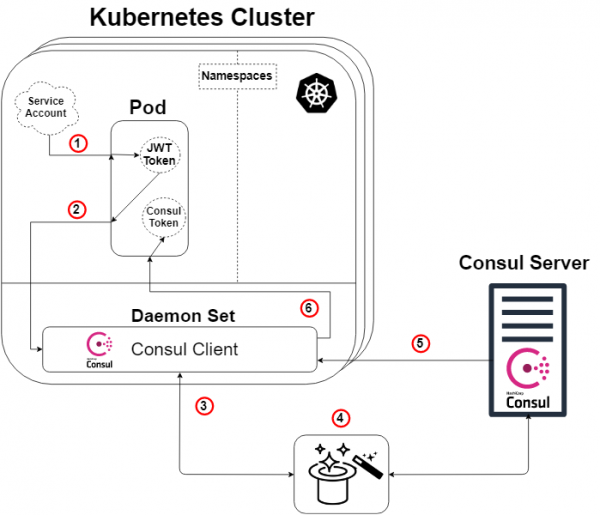
Diagram 2: Overview of the Authorization Method in Kubernetes
A small note: The Consul server does not need to live outside the Kubernetes cluster for this to work. But yes, it can go either way.
So, taking the overview diagram of Consul (Diagram 1) and applying it to Kubernetes, we get the diagram above (Diagram 2), and here the logic will be as follows:
- Each pod will be attached to a service account containing a JWT token generated and known by Kubernetes. This token is also inserted into the pod by default.
- Our application or service within the pod initiates a login command to our Consul client. The login request will also specify our token and indicate the name of the specially created authorization method (of the Kubernetes type). This step #2 corresponds to step 1 of the Consul schema (Schema 1).
- Our Consul client then forwards this request to our Consul server.
- MAGIC! This is where the Consul server validates the request, gathers the identity information of the request, and compares it with any associated predefined rules. Below will be another schema to illustrate this. This step corresponds to steps 3, 4, and 5 of the Consul overview schema (Schema 1).
- Our Consul server generates a Consul token with permissions according to the rules we defined for the authorization method (which we specified) regarding the identity of the requester. Then it sends this token back. This corresponds to step 6 of the Consul schema (Schema 1).
- Our Consul client redirects the token to the requesting application or service.
Our application or service can now use this Consul token to interact with our Consul data, as defined by the token's privileges.
The magic is revealed!
For those of you who are not satisfied with just a rabbit from a hat and want to know how it works… let me "show you how deep the rabbit hole».
As mentioned earlier, our "magic" step (Schema 2: Step 4) is that the Consul server validates the request, gathers the information about the request, and compares it with any associated predefined rules. This step corresponds to steps 3, 4, and 5 of the Consul overview schema (Schema 1). Below is a schema (Schema 3) aimed at visually showing what actually happens under the hood of the specific Kubernetes authorization method.
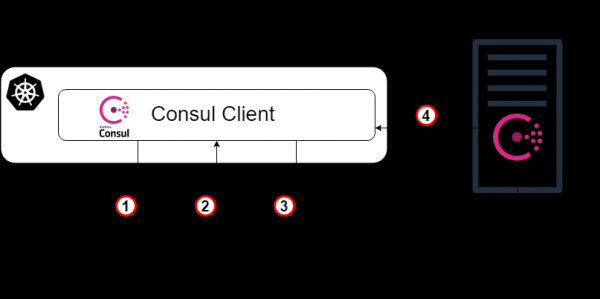
Schema 3: The magic is revealed!
- As a starting point, our Consul client redirects the login request to our Consul server with the Kubernetes account token and the specific instance name of the authorization method that was created earlier. This step corresponds to step 3 in the previous explanation of the schema.
- Now the Consul server (or leader) needs to authenticate the received token. Therefore, it will consult with the Kubernetes cluster (via the Consul client) and, if the appropriate permissions are in place, we'll determine whether the token is valid and who it belongs to.
- Then the verified request returns to the Consul leader, and the Consul server searches for the authorization method instance specified in the login request (of the Kubernetes type).
- The Consul leader identifies the specified authorization method instance (if found) and reads the set of binding rules attached to it. It then reads these rules and compares them with the verified identity attributes.
- Voilà! We move on to step 5 in the previous explanation of the scheme.
Run the Consul server on a standard virtual machine.
From this point onward, I will mainly provide instructions for creating this POC, often in bullet points, without explanatory complete sentences. As noted before, I will be using GCP to build the entire infrastructure, but you can create a similar setup anywhere else.
- Run a virtual machine (instance/server).
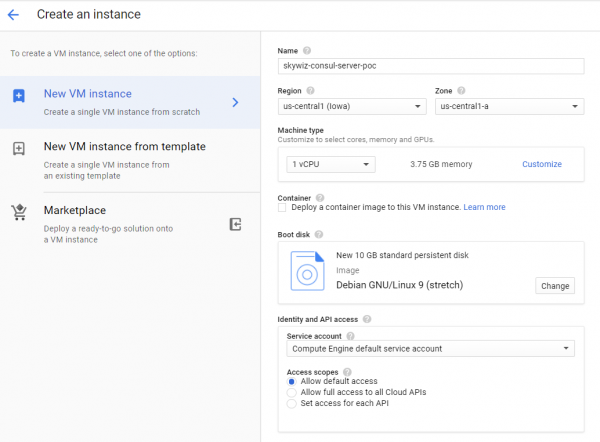
- Create a firewall rule (security group in AWS):
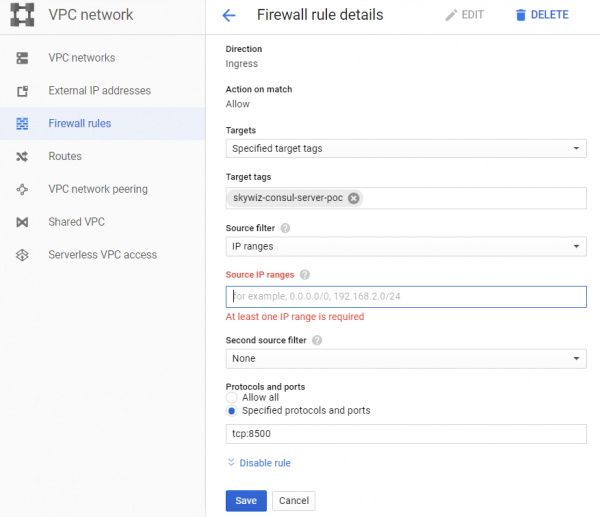
- I like to assign the same name to the machine, the rule, and the network tag; in this case, it's 'skywiz-consul-server-poc'.
- Find the IP address of your local computer and add it to the list of source IPs so we can access the user interface (UI).
- Open port 8500 for the UI. Click Create. We will modify this firewall again soon [].
- Add a firewall rule to the instance. Go back to the VM dashboard on the Consul server and add 'skywiz-consul-server-poc' in the network tags field. Click Save.
- Install Consul on the virtual machine; check here. Remember, you need Consul version ≥ 1.5 [link]
- Let's create a single node Consul — the configuration is as follows.
groupadd --system consul
useradd -s /sbin/nologin --system -g consul consul
mkdir -p /var/lib/consul
chown -R consul:consul /var/lib/consul
chmod -R 775 /var/lib/consul
mkdir /etc/consul.d
chown -R consul:consul /etc/consul.d- For a more detailed guide on installing Consul and setting up a 3-node cluster, see. .
- Create the file /etc/consul.d/agent.json as follows []:
### /etc/consul.d/agent.json
{
 "acl" : {
 "enabled": true,
 "default_policy": "deny",
 "enable_token_persistence": true
 }
}- Run our Consul server:
consul agent
-server
-ui
-client 0.0.0.0
-data-dir=/var/lib/consul
-bootstrap-expect=1
-config-dir=/etc/consul.d- You should see a lot of output and ultimately "... update blocked by ACLs".
- Find the external IP address of the Consul server and open a browser with that IP address on port 8500. Make sure the UI opens.
- Try adding a couple of key/value pairs. There should be an error. This is because we loaded the Consul server with ACLs and blocked all rules.
- Return to your shell on the Consul server and run the process in the background or in another way to keep it running, and enter the following:
consul acl bootstrap- Find the "SecretID" value and return to the UI. On the "ACL" tab, enter the secret token ID you just copied. Copy the SecretID somewhere else, as we will need it later.
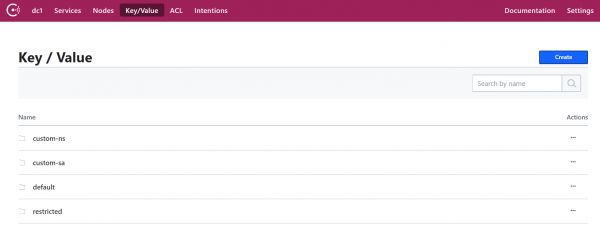
- Now add a couple of key/value pairs. For this POC, we will add the following: key: "custom-ns/test_key", value: "I’m in the custom-ns folder!"
Running a Kubernetes cluster for our application with the Consul client as a DaemonSet.
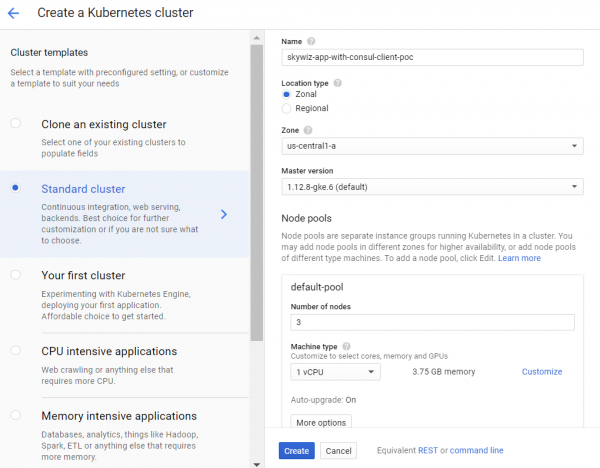
- Create a K8s (Kubernetes) cluster. We will create it in the same zone as the server for faster access, and so we can use the same subnet for easy connectivity with internal IP addresses. We will call it "skywiz-app-with-consul-client-poc."
- As a note, here's a good guide I came across for setting up the POC Consul cluster with Consul Connect.
- We will also use the Hashicorp helm chart with an extended values file.
- Install and configure Helm. Configuration steps:
kubectl create serviceaccount tiller --namespace kube-system
kubectl create clusterrolebinding tiller-admin-binding
   --clusterrole=cluster-admin --serviceaccount=kube-system:tiller
./helm init --service-account=tiller
./helm update- helm chart:
- Use the following values file (note that I disabled most):
### poc-helm-consul-values.yaml
global:
 enabled: false
 image: "consul:latest"
# Expose the Consul UI through this LoadBalancer
ui:
 enabled: false
# Allow Consul to inject the Connect proxy into Kubernetes containers
connectInject:
 enabled: false
# Configure a Consul client on Kubernetes nodes. GRPC listener is required for Connect.
client:
 enabled: true
 join: ["<PRIVATE_IP_CONSUL_SERVER>"]
 extraConfig: |
{
  "acl" : {
 "enabled": true,
 "default_policy": "deny",
 "enable_token_persistence": true
  }
}
# Minimal Consul configuration. Not suitable for production.
server:
 enabled: false
# Sync Kubernetes and Consul services
syncCatalog:
enabled: false- Apply the helm chart:
./helm install -f poc-helm-consul-values.yaml ./consul-helm --name skywiz-app-with-consul-client-poc- When attempting to start, it will need permissions for the Consul server, so let's add them.
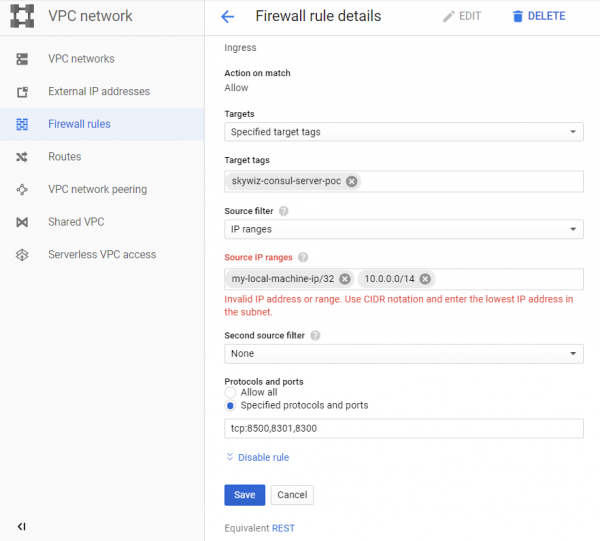
- Note the "Pod address range" located on the cluster dashboard, and return to our firewall rule "skywiz-consul-server-poc."
- Add the pod address range to the list of IP addresses and open ports 8301 and 8300.
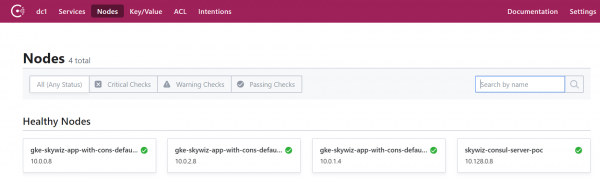
- Go to the Consul UI, and in a few minutes, you will see our cluster appear on the nodes tab.
Setting up the authorization method by integrating Consul with Kubernetes.
- Return to the Consul server shell and export the token you saved earlier:
export CONSUL_HTTP_TOKEN=- We will need information from our Kubernetes cluster to create an auth method instance:
- kubernetes-host
kubectl get endpoints | grep kubernetes- kubernetes-service-account-jwt
kubectl get sa -consul-client -o yaml | grep "- name:"
kubectl get secret -o yaml | grep token:- The token is encoded in base64, so decode it with your favorite tool []
- kubernetes-ca-cert
kubectl get secret -o yaml | grep ca.crt:- Take the certificate 'ca.crt' (after decoding from base64) and write it into the file 'ca.crt'.
- Now create the auth method instance, replacing the placeholders with the values you just obtained.
consul acl auth-method create
-type "kubernetes"
-name "auth-method-skywiz-consul-poc"
-description "This is an auth method using kubernetes for the cluster skywiz-app-with-consul-client-poc"
-kubernetes-host ""
-kubernetes-ca-cert=@ca.crt
-kubernetes-service-account-
jwt=""- Next, we need to create a rule and attach it to the new role. For this part, you can use the Consul UI, but we will use the command line.
- Write the rule
### kv-custom-ns-policy.hcl
key_prefix "custom-ns/" {
 policy = "write"
}- Apply the rule
consul acl policy create
-name kv-custom-ns-policy
-description "This is an example policy for kv at custom-ns/"
-rules @kv-custom-ns-policy.hcl- Find the rule ID you just created from the output.
- Create a role with the new rule.
consul acl role create
-name "custom-ns-role"
-description "This is an example role for custom-ns namespace"
-policy-id- Now we will link our new role to the auth method instance. Note that the 'selector' flag determines whether our entry request receives this role. Check here for other selector options:
consul acl binding-rule create
-method=auth-method-skywiz-consul-poc
-bind-type=role
-bind-name='custom-ns-role'
-selector='serviceaccount.namespace=="custom-ns"'
Configuration at last
Access rights
- Create access rights. We need to grant Consul permission to verify and identify the token of the K8s service account.
- Write the following into a file :
###skywiz-poc-consul-server_rbac.yaml
---
kind: ClusterRoleBinding
apiVersion: rbac.authorization.k8s.io/v1
metadata:
 name: review-tokens
 namespace: default
subjects:
- kind: ServiceAccount
 name: skywiz-app-with-consul-client-poc-consul-client
 namespace: default
roleRef:
 kind: ClusterRole
 name: system:auth-delegator
 apiGroup: rbac.authorization.k8s.io
---
kind: ClusterRole
apiVersion: rbac.authorization.k8s.io/v1
metadata:
 name: service-account-getter
 namespace: default
rules:
- apiGroups: [""]
 resources: ["serviceaccounts"]
 verbs: ["get"]
---
kind: ClusterRoleBinding
apiVersion: rbac.authorization.k8s.io/v1
metadata:
 name: get-service-accounts
 namespace: default
subjects:
- kind: ServiceAccount
 name: skywiz-app-with-consul-client-poc-consul-client
 namespace: default
roleRef:
 kind: ClusterRole
 name: service-account-getter
apiGroup: rbac.authorization.k8s.io- Let's create access rights
kubectl create -f skywiz-poc-consul-server_rbac.yamlConnecting to the Consul Client
- As noted , there are several options for connecting to daemonset, but we will move to the next simple solution:
- Apply the following file [].
### poc-consul-client-ds-svc.yaml
apiVersion: v1
kind: Service
metadata:
 name: consul-ds-client
spec:
 selector:
   app: consul
   chart: consul-helm
   component: client
   hasDNS: "true"
   release: skywiz-app-with-consul-client-poc
 ports:
 - protocol: TCP
   port: 80
targetPort: 8500- Then apply the following built-in command to create the configmap []. Note that we refer to the name of our service; replace it as necessary.
cat <<EOF | kubectl apply -f -
apiVersion: v1
kind: ConfigMap
metadata:
 labels:
   addonmanager.kubernetes.io/mode: EnsureExists
 name: kube-dns
 namespace: kube-system
data:
 stubDomains: |
   {"consul": ["$(kubectl get svc consul-ds-client -o jsonpath='{.spec.clusterIP}')"]}
EOF
Testing the auth method
Now let’s see the magic in action!
- Create a few more key folders with the same top-level key (i.e. /sample_key) and a value of your choice. Create corresponding policies and roles for the new key paths. We will set the bindings later.
User testing of the namespace:
- Let’s create our own namespace:
kubectl create namespace custom-ns- Let’s create a pod in our new namespace. Write the configuration for the pod.
###poc-ubuntu-custom-ns.yaml
apiVersion: v1
kind: Pod
metadata:
 name: poc-ubuntu-custom-ns
 namespace: custom-ns
spec:
 containers:
 - name: poc-ubuntu-custom-ns
   image: ubuntu
   command: ["/bin/bash", "-ec", "sleep infinity"]
restartPolicy: Never- Create a pod:
kubectl create -f poc-ubuntu-custom-ns.yaml- Once the container is running, enter it and install curl.
kubectl exec poc-ubuntu-custom-ns -n custom-ns -it /bin/bash
apt-get update && apt-get install curl -y- Now we will send a login request to Consul using the authorization method we created earlier [].
- To view the entered token from your service account:
cat /run/secrets/kubernetes.io/serviceaccount/token- Write the following in a file inside the container:
### payload.json
{
 "AuthMethod": "auth-method-test",
 "BearerToken": "<jwt_token>"
}- Login!
curl
--request POST
--data @payload.json
consul-ds-client.default.svc.cluster.local/v1/acl/login- To execute the above steps in one line (as we will be running several tests), you can do the following:
echo "{
"AuthMethod": "auth-method-skywiz-consul-poc",
"BearerToken": "$(cat /run/secrets/kubernetes.io/serviceaccount/token)"
}"
| curl
--request POST
--data @-
consul-ds-client.default.svc.cluster.local/v1/acl/login- It works! At least it should. Now take the SecretID and try to access the key/value that we should have access to.
curl
consul-ds-client.default.svc.cluster.local/v1/kv/custom-ns/test_key --header “X-Consul-Token: ”- You can decode the "Value" base64 and see that it matches the value in custom-ns/test_key in the UI. If you used the same value mentioned above in this guide, your encoded value will be IkknbSBpbiB0aGUgY3VzdG9tLW5zIGZvbGRlciEi.
User account testing of the custom service:
- Create a custom ServiceAccount using the following command [].
kubectl apply -f - <<EOF
apiVersion: v1
kind: ServiceAccount
metadata:
 name: custom-sa
EOF- Create a new configuration file for the pod. Note that I included the installation of curl to save some trouble 🙂
###poc-ubuntu-custom-sa.yaml
apiVersion: v1
kind: Pod
metadata:
 name: poc-ubuntu-custom-sa
 namespace: default
spec:
 serviceAccountName: custom-sa
 containers:
 - name: poc-ubuntu-custom-sa
   image: ubuntu
   command: ["/bin/bash","-ec"]
   args: ["apt-get update && apt-get install curl -y; sleep infinity"]
restartPolicy: Never- After this, run a shell inside the container.
kubectl exec -it poc-ubuntu-custom-sa /bin/bash- Login!
echo "{
"AuthMethod": "auth-method-skywiz-consul-poc",
"BearerToken": "$(cat /run/secrets/kubernetes.io/serviceaccount/token)"
}"
| curl
--request POST
--data @-
consul-ds-client.default.svc.cluster.local/v1/acl/login- Permission denied. Oh, we forgot to add a new rule binding with the appropriate permissions, let's do that now.
Repeat the previous steps above:
a) Create an identical Policy for the prefix "custom-sa/".
b) Create a Role, call it "custom-sa-role"
c) Attach the Policy to the Role.
- Create a Rule Binding (possible only from cli / api). Note the different value of the selector flag.
consul acl binding-rule create
-method=auth-method-skywiz-consul-poc
-bind-type=role
-bind-name='custom-sa-role'
-selector='serviceaccount.name=="custom-sa"'- Repeat the login from the container "poc-ubuntu-custom-sa". Success!
- Check our access to the key path custom-sa/.
curl
consul-ds-client.default.svc.cluster.local/v1/kv/custom-sa/test_key --header "X-Consul-Token: "- You can also verify that this token does not grant access to kv in "custom-ns/". Just repeat the command above after replacing "custom-sa" with the prefix "custom-ns".
Permission denied.
Example overlay:
- It is worth noting that all rule-binding mappings will be added to the token with these rights.
- Our container "poc-ubuntu-custom-sa" is in the default namespace — so let's use it for another rule-binding.
- Repeat the previous steps:
a) Create an identical Policy for the key prefix "default/".
b) Create a Role, call it "default-ns-role"
c) Attach the Policy to the Role. - Create a Rule Binding (possible only from cli / api)
consul acl binding-rule create
-method=auth-method-skywiz-consul-poc
-bind-type=role
-bind-name='default-ns-role'
-selector='serviceaccount.namespace=="default"'- Return to our container "poc-ubuntu-custom-sa" and try accessing the path "default/" kv.
- Permission denied.
You can view the specified credentials for each token in the UI under ACL > Tokens. As you can see, only one "custom-sa-role" is attached to our current token. The token we are currently using was generated when we logged in, and at that time, there was only one rule-binding that matched. We need to log in again and use a new token. - Make sure you can read both from the paths "custom-sa/" and "default/" kv.
Success!
This is because our "poc-ubuntu-custom-sa" matches the rule bindings "custom-sa" and "default-ns".
Conclusion
TTL token management?
At the time of writing this article, there is no integrated way to determine TTL for tokens generated by this authorization method. This would be a fantastic feature — to enable safe automation of Consul authorization.
There is an option to manually create a token with TTL:
Expiration Time — the time when this token will be revoked. (Optional; added in Consul 1.5.0)- Only available for manual creation / update
Hopefully, soon we will be able to control how tokens are generated (for each policy or authorization method) and add TTL.
Until then, it is suggested to use the logout endpoint in your logic.
Also, read other articles in our blog:
Source: habr.com
