

The OneDrive service from Microsoft is integrated into the school portal of the Moscow Region. a year earlier, wrote . The hour of using cloud technologies has also struck for the high school. Anyone who had to send homework to , please under cat. The images in the article are provided to illustrate the technology and do not always reflect the sequence of actions in its application. UPD1.There is a lively discussion in the comments - in which systems you can still study remotely.UPD2.Thanks to the commentators, I provide a direct link to the documentation for the School Portal of the Moscow Region by Svetlana Gelfman. .

And here is a plot recommended for use even for children's institutions
Introduction
A child approached me and said that he wanted to upload the results of homework not in three files, but in a large number of them. The size of the files with artistic reading and performance of songs does not allow checking them, since the player on the site is designed for 10 seconds of playback. After downloading the assignment from the teacher, the file cannot be found in the directory, because its name is lost. In such a situation, I must help my child.
If the problem of the player cannot be dealt with, then we switch to messenger programs as a class. Correcting the wrong file name requires more serious effort, the bug in MS Edge has been around for more than 4 years, until an acceptable solution is found.
Why not use the cloud in such a situation as a universal medium for sending homework to the site and receiving assignments from teachers? Even without installing MS Office on the local computer?
Thus, it was necessary to understand whether the following actions are possible according to the schemes:
- “Student-> Local directory of his computer-> Cloud directory of the student-> Teacher mail on the portal”;
- “Student-> Local directory of his computer-> Cloud directory of the student-> Cloud directory of the teacher”;
- “Student->Browser->Cloud application (Word, Excel)->Student cloud directory->Teacher cloud directory”;
- “Teacher->Browser->Cloud Application(Word, Excel)->Teacher Cloud Directory->Student Cloud Directory”.
Has the cloudy future we could only dream of arrived?
1. We go to the educational portal, it is best if the login and password are already remembered by our browser.

Rice. 1 - Entrance to the "School Portal of the Moscow Region"
2. To send homework through a letter to the teacher on the portal, there are three main ways to transfer files: uploading files from the portal itself, uploading files from the file system of our computer, uploading from the cloud storage system.
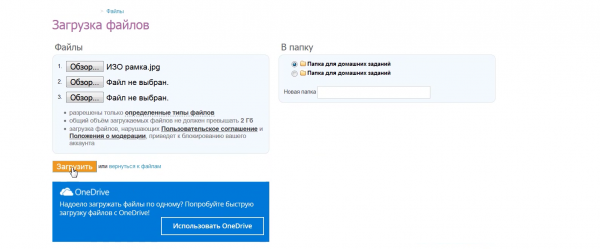
Rice. 2 - Uploading a file from a computer
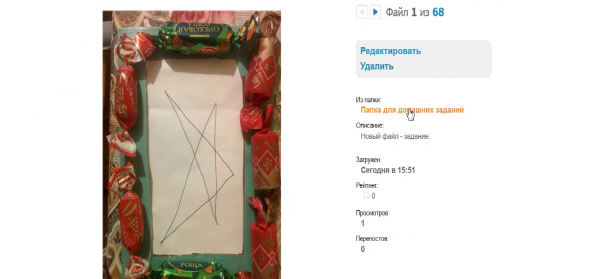
Rice. 3 - File content
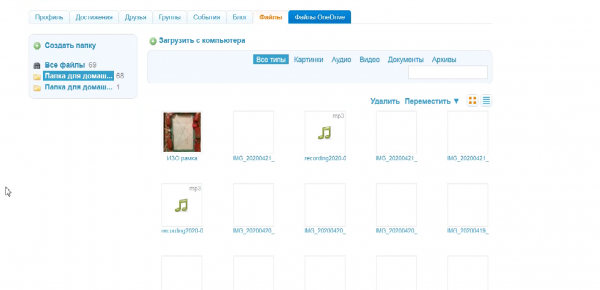
Rice. 4 - File in the portal directory
The first method requires files already uploaded, with a total limited volume of 2GB and a limited storage period; the second method is slow due to file transfer over the network and then falls into the already listed restrictions, plus files must be downloaded 3 pieces at a time; the third way - cloud uploading homework - is much easier and more convenient. Let's see how it works.
Uploading files from the portal itself: we assume that we already have the uploaded files in the folder, so it's enough to take the ones you need and attach them to the letter to the teacher.
If you need to upload files, then we press the upload from computer button and add the necessary files from the file system.
But a more modern and faster download option is Microsoft's OneDrive app. We won't describe how to install it, as Windows 10 It is installed immediately, and for most other systems the overview is given above.
Our task is to simplify as much as possible the life of a student, allowing him to massively upload files, and to himself, if necessary, by controlling the appearance of the files we need with the OneDrive client.
Our actions:
1. Click on the big blue button - use OneDrive.
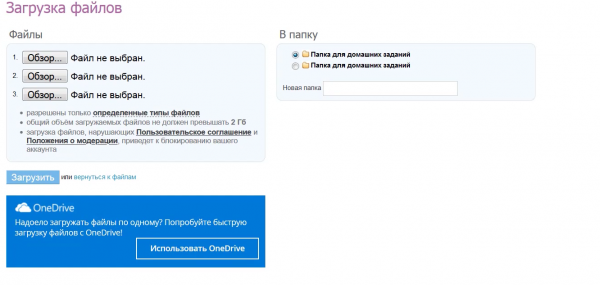
Rice. 5 - OneDrive - Getting Started
2. When the authorization window appears, click "do not log out".
transition to cloud storage. We uploaded files here earlier for the storage test - let's delete them. 10 files have been deleted, we can look at the recycle bin and delete them permanently. This is done with the "empty trash" button and we delete the files completely.
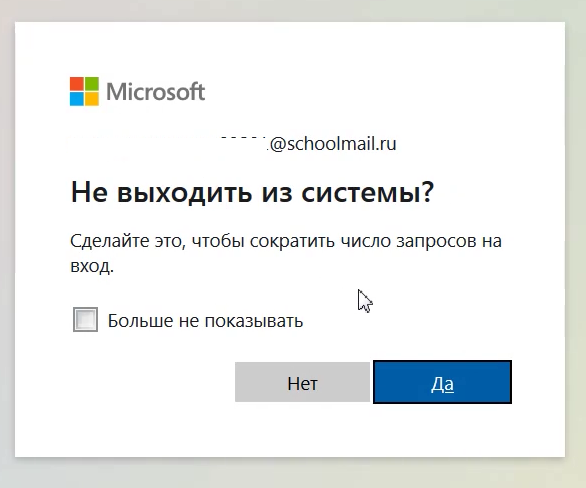
Rice. 6 - OneDrive login
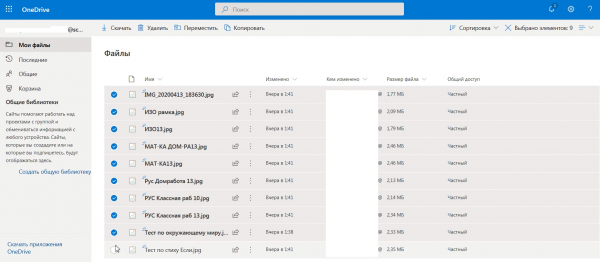
Rice. 7 - There were previously files in the cloud directory
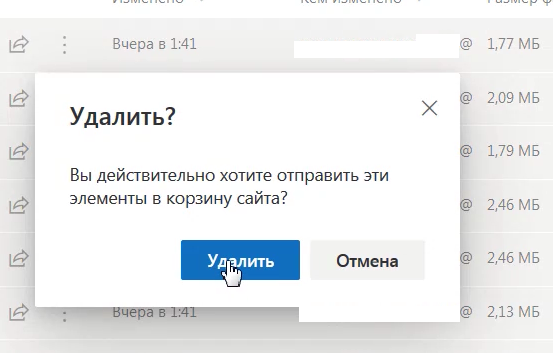
Rice. 8 - Deleting previously downloaded files
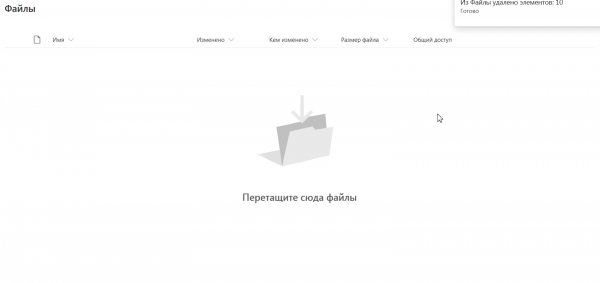
Rice. 9 - Drag files here
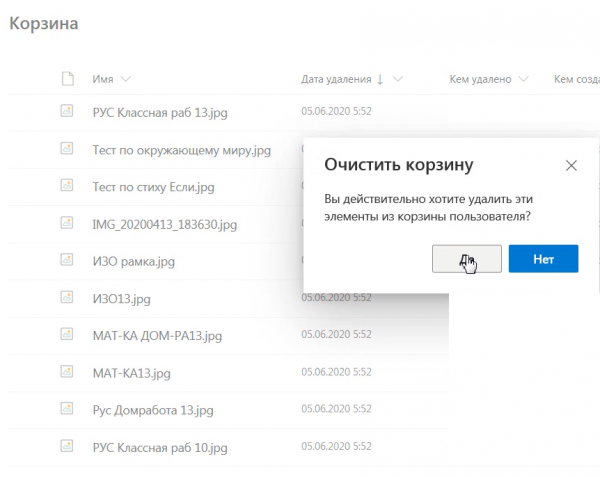
Rice. 10 - Emptying the trash
3. To upload new files here in bulk, no complicated actions are required from us - we go to the folder with our completed homework, selecting several files. After selecting the files, the files are loaded.
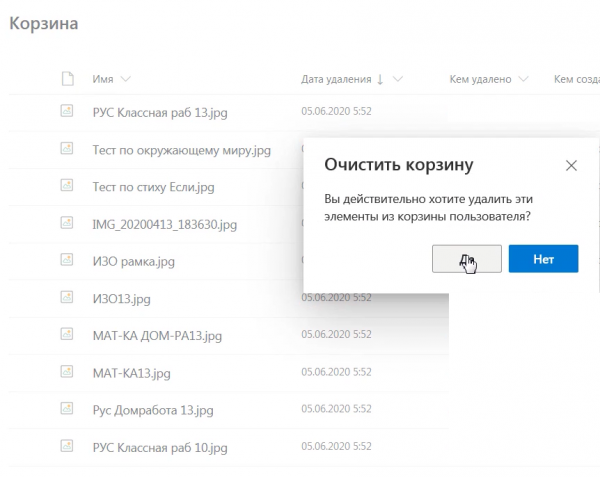
Rice. 11 - Confirmation of cleaning
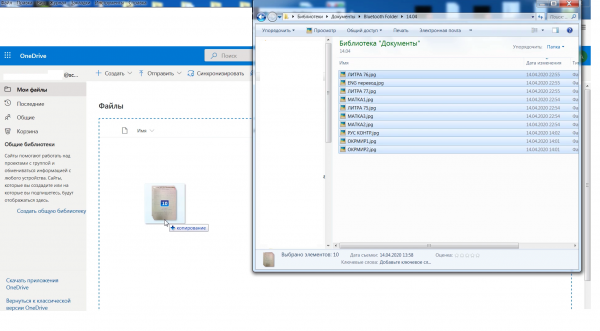
Rice. 12 - Download Files by Drag and Drop
We immediately notice that working with the site has become much more comfortable: we do not load three files at a time. We look that our files are in the cloud directory. For control, we see that the files were loaded one minute ago.
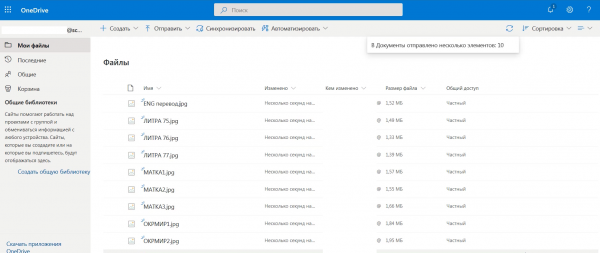
Rice. 13 - Files appeared after upload
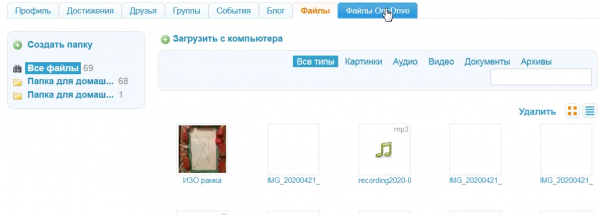
Rice. 14 - Going to the portal with checking files
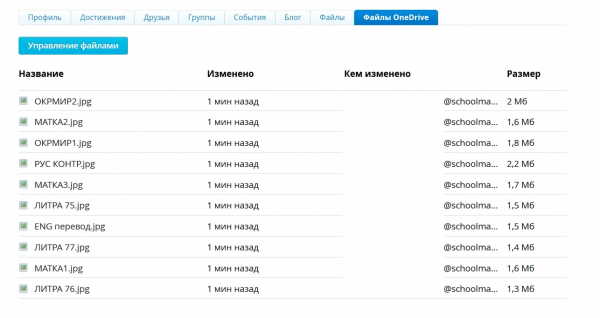
Rice. 15 - Uploaded files were synchronized with the portal
The question that tormented many parents: “Is it possible to automate sending homework to the school portal?”
Yes, this can be done through installing the OneDrive application on our computer.
How it works?
1. We launch OneDrive, enter our login and password into it, changed according to the specified sample - you need to make an email from the login according to the scheme email = login + @ + server_name indicated in the screenshot. The server name may vary, be careful!
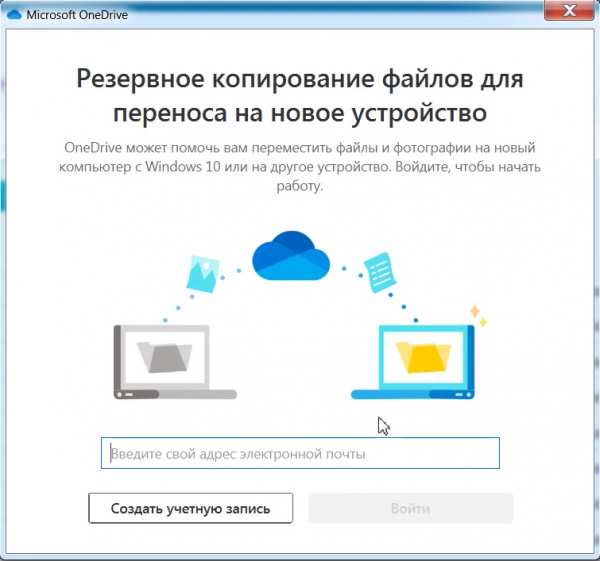
Rice. 16 - Start OneDrive app
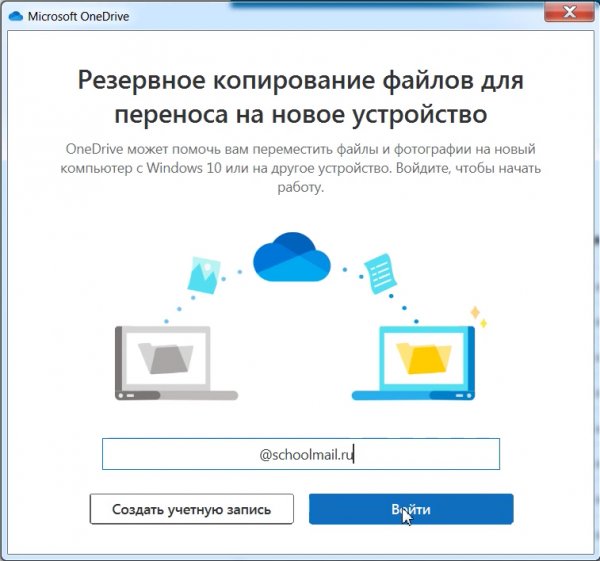
Rice. 17 - Sign in to OneDrive locally with our login
If additional steps are needed to study this program, or additional settings, then we can do them right away, we can postpone the actions until the end of working with the program.
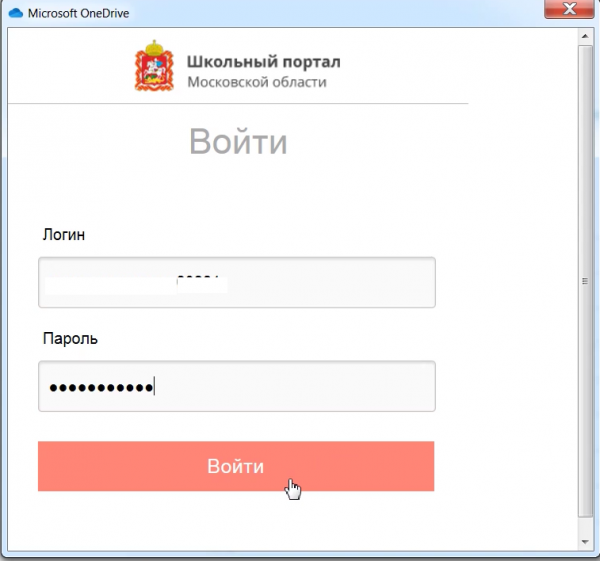
Rice. 18 — Login to the school portal from OneDive with your login
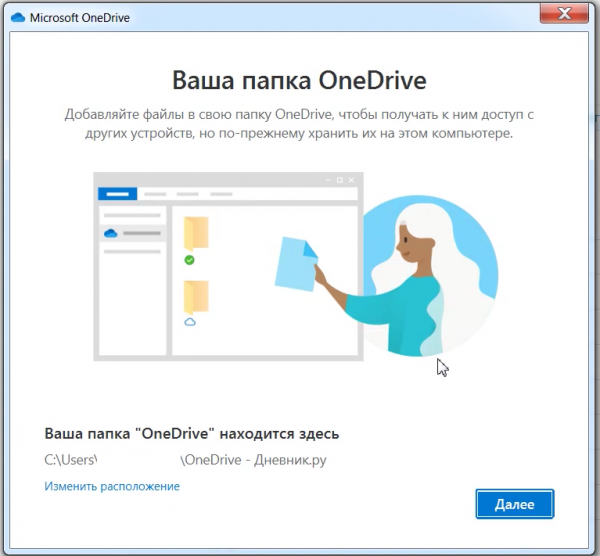
Rice. 19 - The name of the directory to be created
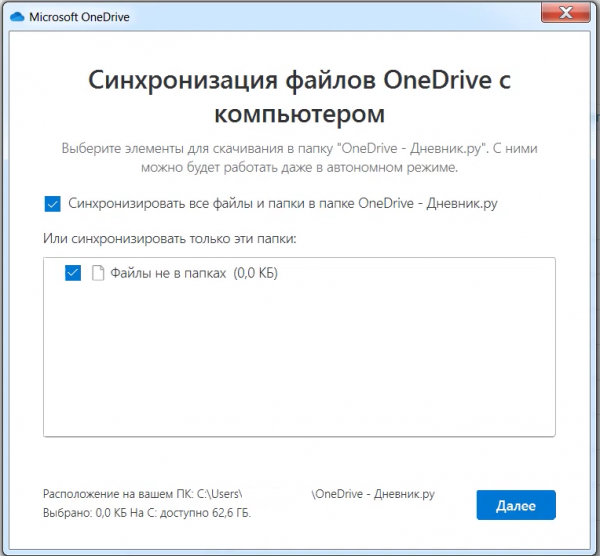
Rice. 20 - First cloud sync
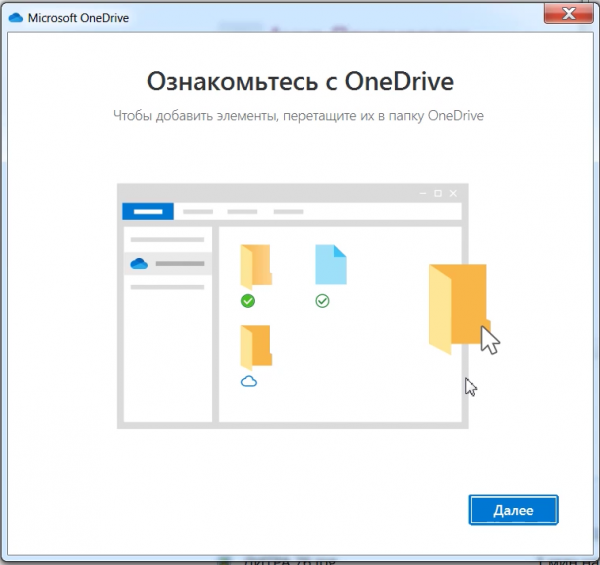
Rice. 21 - Check out OneDrive
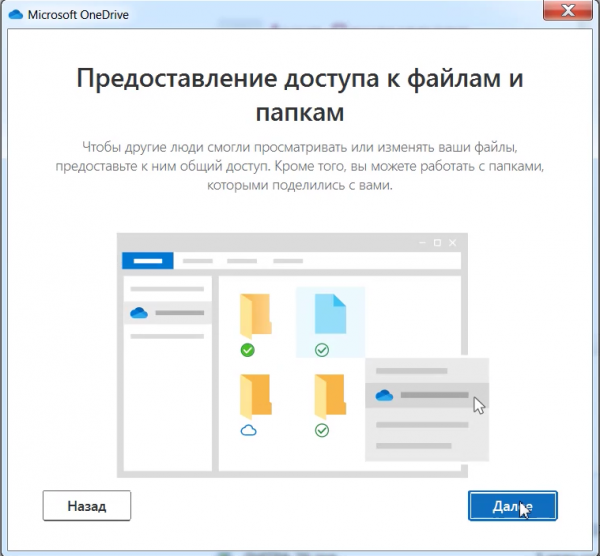
Rice. 22 - Granting access to files and folders
Rice. 23 - Download the mobile app
Rice. 24 - You can start working with OneDrive
As a result, we will see how the directory is created in the place where it was specified by default.
This directory will be synchronized with the cloud directory. Let's take a look at this.
All files previously uploaded to the portal have been added to our folder.
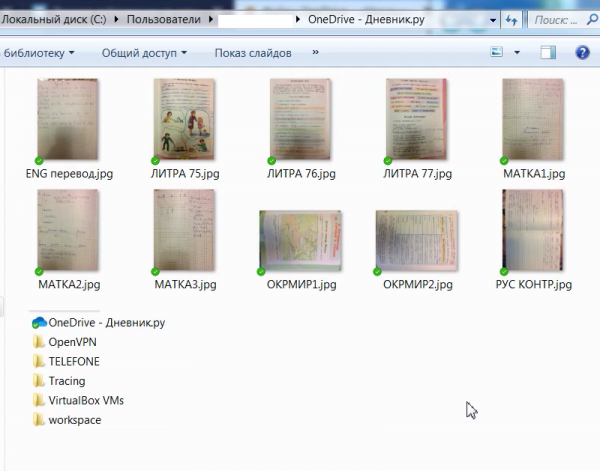
Rice. 25 - Files synced with local directory
2. Let's imagine that we have completed our homework.
We take our homework (let's say we need to transfer a large file, for example, a textbook on a subject).
Copy the textbook for homework.
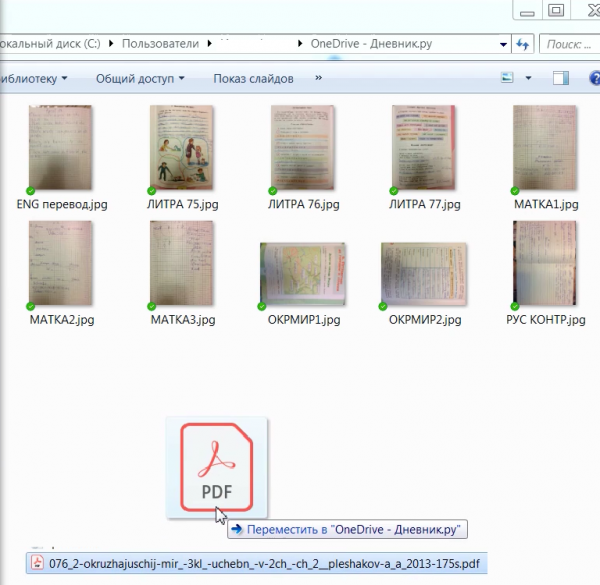
Rice. 26 – Did your homework
He had a jackdaw on a green background, like all synchronized files.
To check that this file is available in our directory, we go to it in the portal.
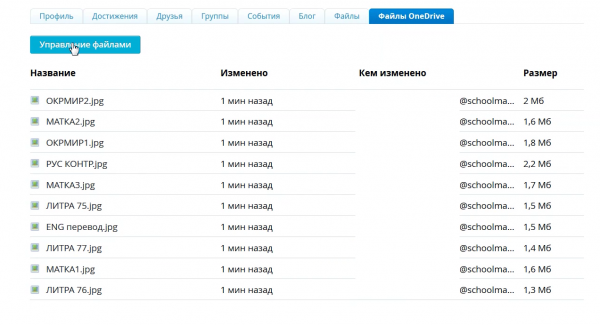
Rice. 27 - Checking that the file has been synced
Browsing works well, it's easy to navigate through the directory.
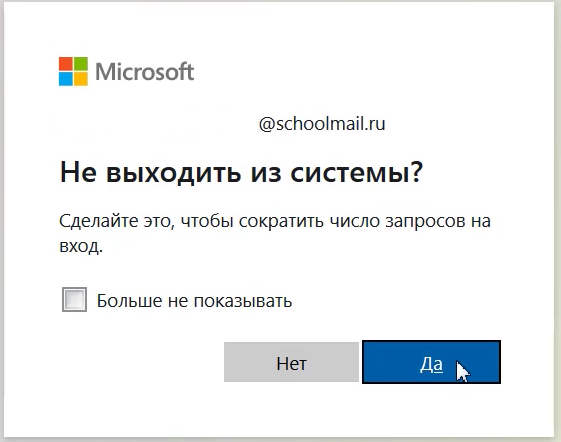
Rice. 28 - Takes us back to cloud storage
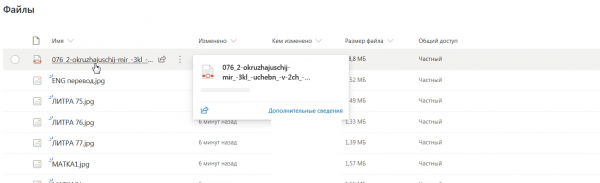
Rice. 29 — The file from the directory went to cloud storage
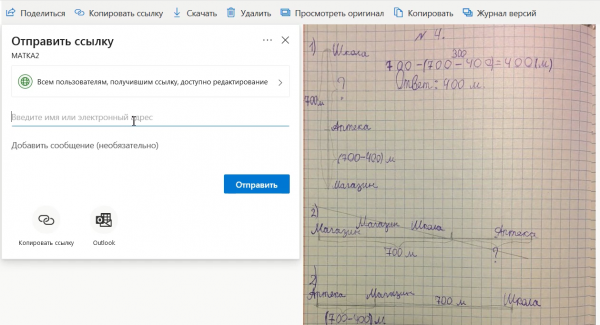
Rice. 30 - Can share the file with other users
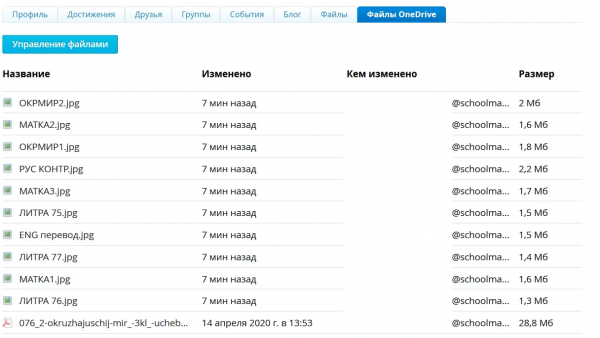
Rice. 31 - The file was synchronized with the portal after the update
You can share this file with other users and do a number of other actions, including calling the cloud-based MS Word or MS Excel applications.
To make sure that the file has loaded normally through the application, we update the directory.
3. Now you can send the file with the task to our teacher as we did before.
We take “Messages”, select a teacher, send him an assignment from our OneDrive folder.
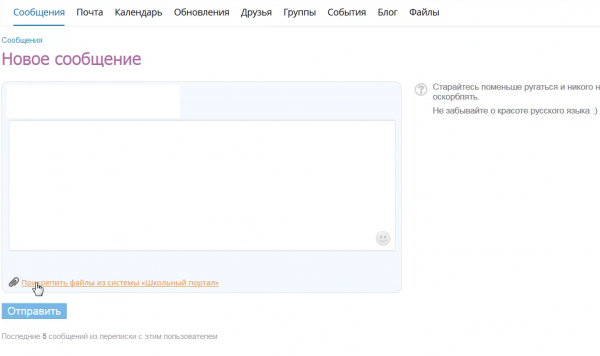
Rice. 32 - Attach a file from the cloud with a message
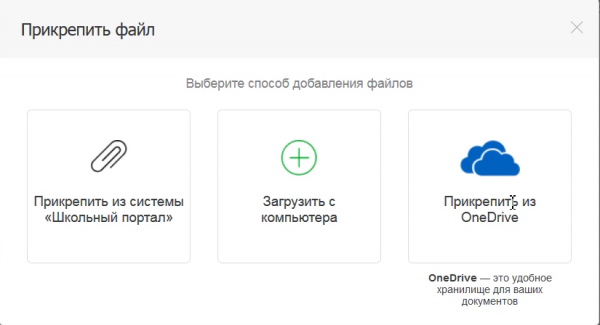
Rice. 33 - Choosing how to download OneDrive
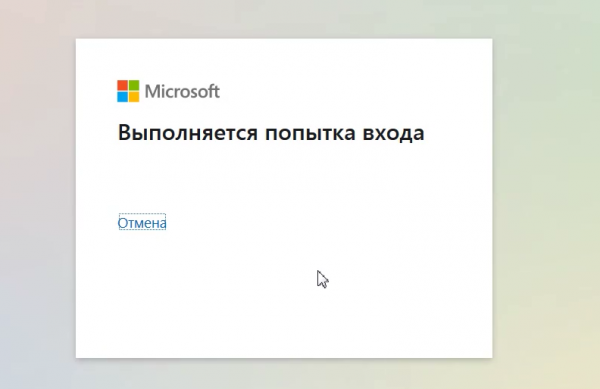
Rice. 34 - Input for selecting one file
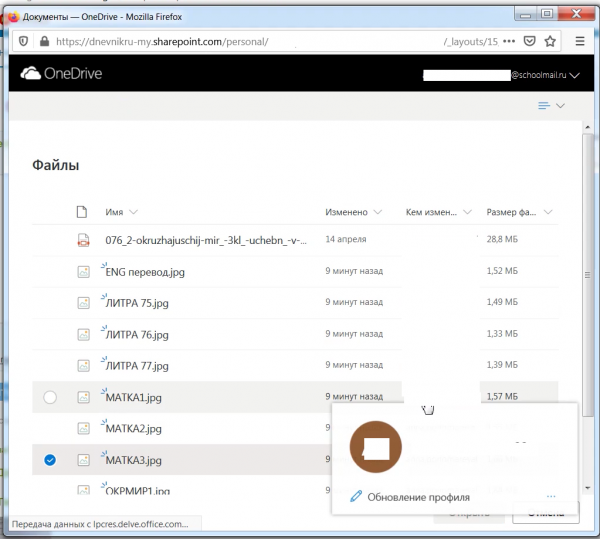
Rice. 35 - Selecting a file to attach from the OneDrive directory
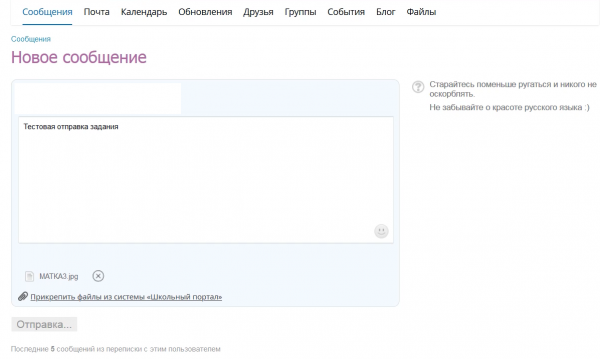
Rice. 36 - Sending a single file
Note that all files have splash screens in the form of icons in the local directory, which makes them easier to navigate. Although, if there are a lot of files, they need to be named according to some general naming rules. For example, day_month_subject_student or subject_task_type_date_student.
There was no separation between class and homework, so there was some confusion in the heads and files.
Bulk uploading files from the cloud directory requires an additional click on the “refresh” button on the browser.
We send several files to the teacher.
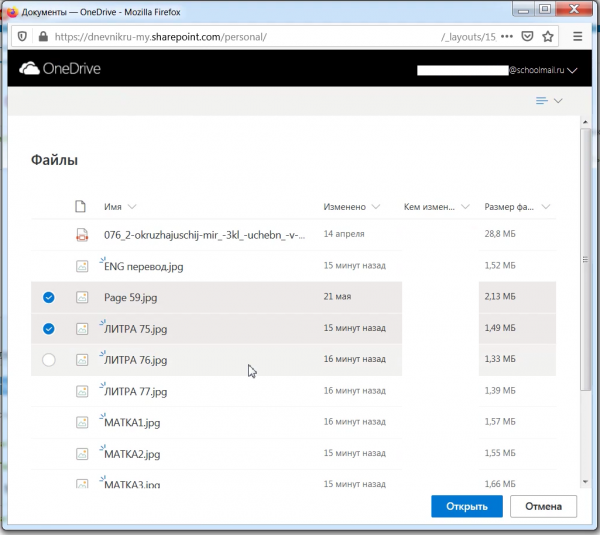
Rice. 37 - Selecting two or more files from the cloud
We check the mass attachment of files from the cloud directory to the letter to the teacher.
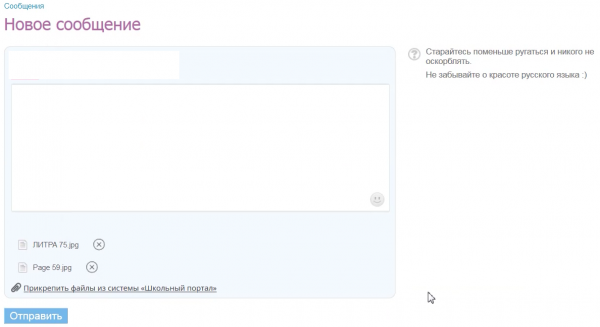
Rice. 38 - Sending two or more files from the cloud
Regarding the joint work of the teacher and the student on the same file
If the teacher wants, he gives the rights to the student or group of students to change the file. Then the student from the browser, working with the cloud application, changes the file, saving it in the teacher's cloud environment. Similarly, a student can create a file and give permission to the teacher to review the contents of the file and check homework.
As a conclusion
At the time of mass use of the portal, there were some problems with synchronization and sending files. I think that there is nothing wrong with that, once everything will work well. At least it is larger and better than the inscription from the portal itself, that the amount of downloaded information is limited to 2GB. We wish all students further automation of learning and the ability to use new technologies! After all, there is a whole 1TB for experiments, creativity and deep assimilation of knowledge. And the whole summer ahead!
Source: habr.com
