

About 7 years ago, the very first projects moved to our cloud simply and straightforwardly. Virtual machine images were uploaded to an FTP server, or they were brought on hard drives. Then, through a special import server, VMs were uploaded to the cloud.
If it's not an issue for the client to turn off the virtual machine for a day or two (or there are no other options), then that can work. But if downtime should be a maximum of one hour, then this method won't be suitable. Today, I will discuss the tools that can help migrate to the cloud with minimal downtime and how our migration process is structured.

Migration using Veeam Backup and Replication
Veeam Backup and Replication is widely known as a tool for creating backups and replicas. We use it for migration between our sites and for transferring clients from private virtualization to our cloud. The client’s virtual machines are replicated to our vCenter, and then the engineer adds them to vCloud Director.
The initial replication is performed on the powered-on virtual machine. At a scheduled time, the machine on the client's side is turned off. Replication is initiated once more to transfer the changes that occurred since the first replication. After that, the virtual machine is started in our cloud.
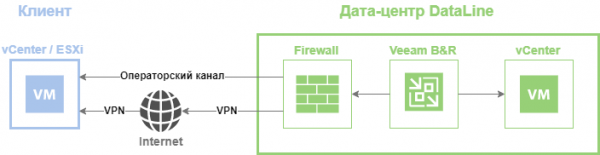
Typically, the time from when the machine is turned off on the client’s infrastructure to when it is turned on in our cloud does not exceed half an hour, more often it takes 15-20 minutes.
Meanwhile, the original virtual machine remains on the client's site. If something goes wrong, it's always possible to roll back and turn it back on. This method is also convenient for the client as it does not require them to have Veeam.
Case 1
The client had their virtual infrastructure based on VMware – 40 VMs totaling 30 TB. The equipment on which the cluster was deployed was already outdated, and the client decided not to deal with purchasing new hardware and to move to a public cloud. The requirement for critical systems' downtime was no more than one hour. Veeam Replication was chosen as the tool. A plus was that the client's internet service provider was present in our data center, which allowed for a good channel to be organized. The migration took about a month, with downtime during the switch of up to 30 minutes for one group of virtual machines.
Migration using Veeam Cloud Connect
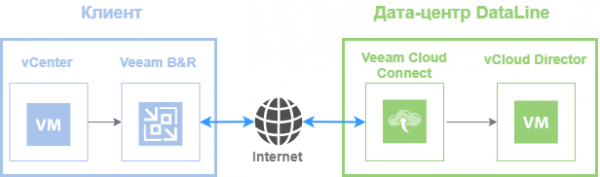
Veeam Cloud Connect is a tool that helps set up the replication of virtual machines and run replicas in the cloud of a service provider. After the update in the year, it became possible to replicate virtual machines directly to vCloud Director. The only requirement is that the client must have their own Veeam Backup and Replication deployed, version 9 or higher. In short (the detailed version ), the entire process looks like this.
In vCloud Director, an organization is created with the necessary resources and networks. In Veeam Cloud Connect, we create an account, which the client connects to from their Veeam B&R, selects the DataLine provider and organization, and sets up replication tasks. Aside from the fact that this type of migration has minimal downtime of about 15–20 minutes, the client is not dependent on the provider's support and manages the entire process independently: creating replication tasks, performing the replication, shutting down machines, and starting them up at the new site.
Case 2
The client's infrastructure, from where the migration was planned, was located in Belarus. It was necessary to transfer 90 VMs with a total volume of 27 TB, while the internet channel was 100 Mbps. If a backup was made and immediately uploaded to our cloud, it would take several days for some VMs. During that time, a large delta would accumulate on the VMs, which could negatively affect the performance of the machines or, even worse, cause the datastore to run out of space. The following actions were taken: first, the client made a local full backup and transferred its copy to our cloud via Veeam Cloud Connect. Then they created and transferred an increment to the cloud. The original virtual machine continued to operate. After shutting down the VM, the client made one more increment and also transferred it to the cloud. On our side, we deployed the virtual machine from the full backup, and then applied the two increments. This scheme ultimately minimized downtime to 2 hours when switching to our site.
Migration using VMware vCloud Availability
In March of this year, VMware released vCloud Availability 3.0, which allows for the migration of virtual machines between different clouds (vCloud Director – vCloud Director) and from the client's private virtualization environments to the cloud (vCenter – vCloud Director). The main convenience is the integration with the vCloud Director interface. This significantly simplifies the replication management process and minimizes downtime during switching.
Using this tool, we migrated one of our clients from our Moscow cloud to our cloud in St. Petersburg. We needed to transfer 18 virtual machines with a total capacity of 14 TB. An organization was created for the client in the St. Petersburg cloud, and the necessary networks were set up. Next, from the vCloud Director interface, the client proceeded to the vCloud Availability settings, created replication tasks, and switched to the St. Petersburg site at a convenient time. The downtime during the switch was 12 minutes.
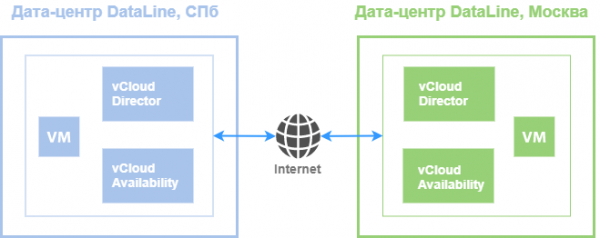
The migration scheme between DataLine clouds in St. Petersburg and Moscow.
vCloud Availability has a VM migration mechanism from the client's site to our cloud. For this, a special vCloud Availability appliance is deployed in the client's vCenter. After a simple setup, a connection to the cloud is established and migration tasks are configured. The client also independently manages the entire process, minimizing the migration time.
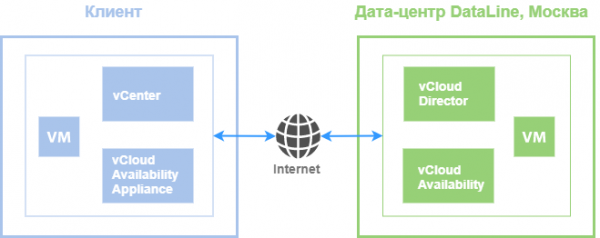
The scheme for migrating virtual machines from a private installation to the cloud.
VMware vCloud Availability has many other use cases, and we will discuss them in detail in a separate article soon.
Preparation for migration
To select a tool and actually start the migration, it is essential to determine the following points:
Where we are migrating from. If you are migrating from a private solution, you have complete freedom in choosing tools. If you are leaving a provider, it gets more complicated. Most likely, connecting the infrastructures of two providers and simply transferring the VMs will not be possible due to security concerns. Sometimes, the provider that the client intends to leave may even sabotage the process and delay things. Leaving a provider can still be done the old-fashioned way: by exporting VMs to disks and using FTP or migrating at the application level. The name of the latter is conditional, and it looks something like this.
Case 3
It was necessary to migrate the client's SAP system from a European provider: 34 VMs with a total size of 54 TB. Resources were allocated to the client in our cloud. A network connection was established between us and the European provider's infrastructure. Application servers were redeployed with the required configurations applied. Large databases were migrated by uploading backups to our cloud. Subsequently, replication was set up between the databases on our and the original sites. At the agreed time, we switched to the databases in our cloud.
Data volume and internet channel. We usually ask the client to provide a report on the systems with memory, CPU, and disk parameters. We assess whether the channel is sufficient to directly send replicas or backups of the virtual machines.
Acceptable downtime. For different systems and, accordingly, virtual machines, it can vary depending on their criticality for the business. Usually, the client comes with predefined requirements for downtime during migration, and based on that, we select the appropriate tool and migration plan. We try to schedule the final switch for the nighttime or weekends so that even minimal downtime goes unnoticed by the end users of the client.
Based on this data, we can choose the tool and proceed with the migration itself. Here's what happens next.
- Setting up network connectivity. We establish network connectivity between our cloud and the client's infrastructure. Virtual machines will be copied over this network. If Veeam Backup and Replication is used, it is a dedicated channel, less often a VPN channel. If Veeam Cloud Connect is used, everything goes through the internet or the same dedicated channel.
Then, the network for the VMs in the cloud is configured. Machines usually move in batches over several days. After the VMs have been moved to us and launched, they must interact with machines that remain at the original site.
- Migration schedule. When there are many machines, it makes sense to break them into groups and transport them in batches. Together with the client, we agree on a plan outlining when and which machines will move and when the final replication and switch to the new site will be carried out.
- Test migration. We migrate the test virtual machine and check if everything is configured correctly: network connectivity between sites, availability of the virtual machine for machines on the source site, account permissions, and more. This test helps avoid delays during the actual migration phase.
That's all from my side. Feel free to ask questions in the comments and share your migration experiences.
Source: habr.com
