

Introduction
Optimizing office infrastructure and deploying new workplaces is a significant challenge for companies of all types and sizes. The optimal solution for a new project is to rent resources in the cloud and acquire licenses that can be used both from the provider and in your own data center. One of the solutions for such a scenario is , which allows you to create a platform for collaboration and corporate communications for the enterprise in both the cloud environment and on your own infrastructure.

The solution is designed for offices of any size and has two main deployment scenarios: with up to 3,000 mailboxes and without high demands for fault tolerance, a single-server installation can be used, whereas the multi-server installation option supports reliable and responsive operation for tens and hundreds of thousands of mailboxes. In all cases, users can access email, documents, and messages through a single web interface from any OS without the need to install and configure additional software, or through mobile applications for iOS and Android. Familiar clients like Outlook and Thunderbird can also be used.
For the project deployment, the partner Zextras — chose Yandex.Cloud, as its architecture is similar to AWS and it supports S3-compatible storage, which will reduce the cost of storing a large volume of emails, messages, and documents and increase the fault tolerance of the solution.
In the Yandex.Cloud environment, basic tools for managing virtual machines and capabilities for managing virtual networks are used for single-server installations. For multi-server installations, in addition to the aforementioned tools, technologies may also be used as needed (depending on the scale of the system), as well as , and a network load balancer .
S3-compatible object storage can be used in both installation options and can also be connected to systems deployed on-premise for economical and fault-tolerant data storage of the mail server in Yandex.Cloud.
For a single-server installation, depending on the number of users and/or mailboxes, the following is required: for the main server, 4-12 vCPUs, 8-64 GB of vRAM (the specific vCPU and vRAM values depend on the number of mailboxes and actual load), at least 80 GB of disk space for the operating system and applications, as well as additional disk space for storing mail, indexes, logs, etc., which depends on the number and average size of mailboxes and may dynamically change during system operation; for auxiliary Docs servers: 2-4 vCPUs, 2-16 GB of vRAM, 16 GB of disk space (the specific resource values and number of servers depend on the actual load); additionally, a TURN/STUN server may be required (its necessity as a separate server and resources depend on the actual load). For multi-server installations, the number and designation of role-based virtual machines and their allocated resources are determined individually based on user requirements.
Purpose of the article
Description of the deployment of Zextras Suite products in the Yandex.Cloud environment based on the Zimbra mail server in a single-server installation. The resulting installation can be used in a production environment (experienced users can configure necessary settings and add resources).
The Zextras Suite/Zimbra system includes:
- Zimbra — corporate email with the ability to share mailboxes, calendars, and contact lists (address books).
- Zextras Docs — a built-in office suite based on LibreOffice online for creating and collaborating on documents, spreadsheets, and presentations.
- Zextras Drive – individual file storage that allows you to edit, store, and share files and folders with other users.
- Zextras Team – a messenger supporting audio and video conferencing. Available versions are Team Basic, which allows only 1:1 communications, and Team Pro, which supports multi-user conferences, channels, screen sharing, file sharing, and other features.
- Zextras Mobile – support for mobile devices via Exchange ActiveSync for synchronizing mail with mobile devices with MDM (Mobile Device Management) functionality. Allows using Microsoft Outlook as a mail client.
- Zextras Admin – implementation of multi-tenant system administration with delegation of administrators for managing client groups and service classes.
- Zextras Backup – complete cycle data backup and recovery in real-time
- Zextras Powerstore — a hierarchical object storage for the mail system supporting data processing classes, with the ability to store data locally or in S3 architecture cloud storage, including Yandex Object Storage.
Upon completion of installation, the user receives a system operational in the Yandex.Cloud environment.
Terms and Conditions
- It does not describe the allocation of disk space for mailboxes, indexes, and other types of data, since Zextras Powerstore supports various types of storage. The type and size of the storage depend on tasks and system parameters. If necessary, this can be done later in the process of transitioning the described installation to production.
- To simplify installation, the use of a DNS server managed by an administrator for resolving internal (non-public) domain names is not considered; the standard DNS server of Yandex.Cloud is used. For production environments, it is recommended to use a DNS server that may already exist in the corporate infrastructure.
- It is assumed that a Yandex.Cloud account with default settings is used (in particular, when entering the service's "Console," there is only one directory available in the list of "Available clouds" under the name default). Users familiar with working in Yandex.Cloud can, at their discretion, create a separate directory for the test site or use the existing one.
- The user must have a public DNS zone to which they must have administrative access.
- The user must have access to the directory in the Yandex.Cloud "Console" with at least the role of "editor" (the "Cloud Owner" has all necessary rights by default; guidelines for granting access to other users in the cloud are available: , , )
- This article does not describe the installation of custom X.509 certificates used to secure network communications via TLS mechanisms. After installation, self-signed certificates will be used, which allows browsers to access the installed system. They generally show a notification about the lack of a verifiable certificate from the server but allow continued operation. Until verifiable certificates (signed by public and/or corporate certification authorities) are installed, applications for mobile devices may not work with the installed system. Therefore, the installation of these certificates in a production environment is necessary and is done after completing testing in accordance with corporate security policies.
Description of the Zextras/Zimbra system installation process in the 'single-server' variant
1. Preliminary preparation
Before starting the installation, ensure the following:
a) Changes to the public DNS zone (creating an A record for the Zimbra server and an MX record for the serviced mail domain).
b) Configuration of the virtual network infrastructure in Yandex.Cloud.
After making changes to the DNS zone, some time is needed for these changes to propagate. However, on the other hand, an A record cannot be created without knowing the associated IP address.
Therefore, the actions are carried out in the following sequence:
1. Reserve a public IP address in Yandex.Cloud
1.1 In the 'Yandex.Cloud Console' (selecting a catalog in 'available clouds' if necessary), go to the Virtual Private Cloud section, IP addresses subsection, then click the 'Reserve Address' button, choose the preferred availability zone (or accept the suggested value; this availability zone should later be used for all actions described in Yandex.Cloud if there is an option to choose an availability zone on the relevant forms), in the opened dialog, you can optionally select the 'DDoS Protection' option, and click the 'Reserve' button (see also ).
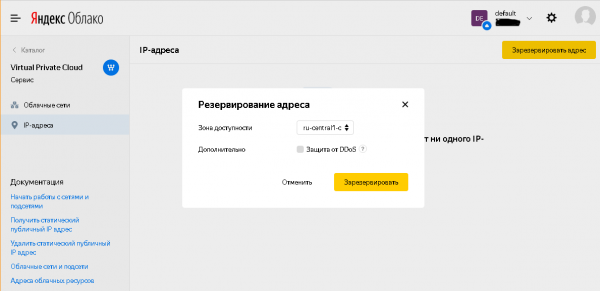
After closing the dialog, a static IP address allocated by the system will be available in the list of IP addresses, which can be copied and used in the next step.
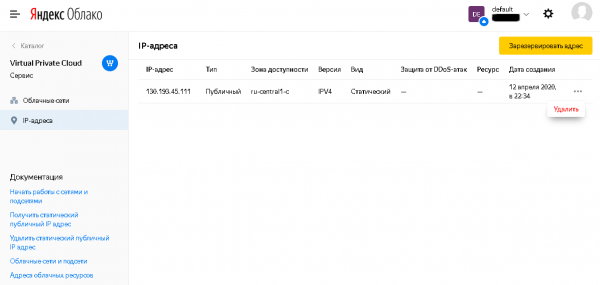
1.2 In the 'direct' DNS zone, create an A record for the Zimbra server pointing to the previously allocated IP address, an A record for the TURN server pointing to the same IP address, and an MX record for the hosted email domain. In our example, these will be mail.testmail.svzcloud.ru (Zimbra server), turn.testmail.svzcloud.ru (TURN server), and testmail.svzcloud.ru (email domain) respectively.
1.3 In Yandex.Cloud, enable NAT to the Internet for the subnet that will be used for deploying virtual machines in the selected availability zone.
To do this, in the Virtual Private Cloud section, under 'Cloud Networks', select the corresponding cloud network (by default, only the default network is available), choose the appropriate availability zone, and in its settings, select the option 'Enable NAT to the Internet'.
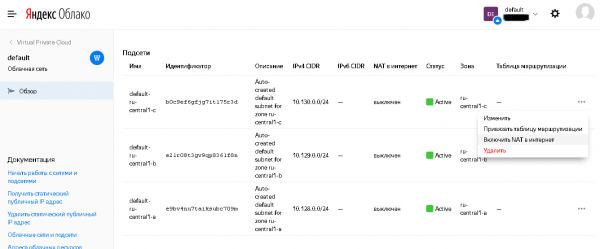
The status will change in the list of subnets:
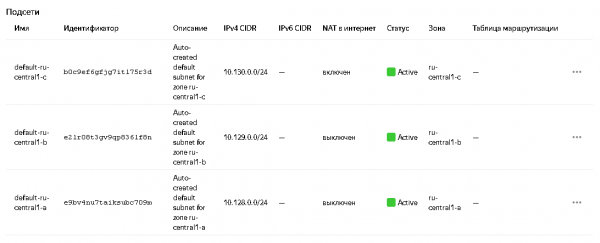
See more in the documentation: and .
2. Creating Virtual Machines
2.1. Creating a virtual machine for Zimbra
Sequence of actions:
2.1.1 In the 'Yandex.Cloud Console', go to the Compute Cloud section, under 'Virtual Machines', click the 'Create VM' button (see more about creating VMs ).
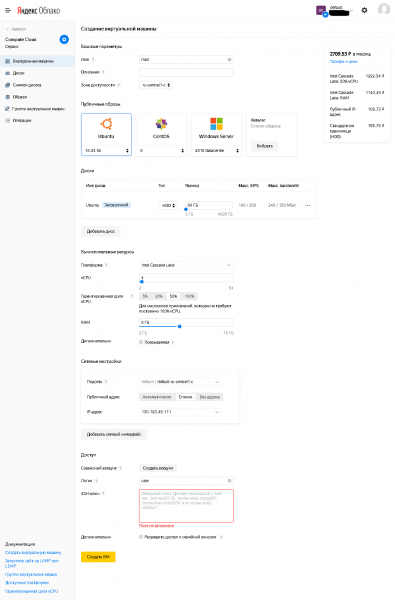
2.1.2 Here you need to specify:
- Name – arbitrary (in accordance with the format supported by Yandex.Cloud)
- Availability zone – must match the one previously chosen for the virtual network.
- In 'Public Images', select Ubuntu 18.04 lts
- In disks, set the boot disk size to at least 80GB. For testing purposes, HDD type is sufficient (and also for production use under the condition of moving certain types of data to SSD type disks). Additional disks can be added after the VM is created if necessary.
In 'Compute Resources', specify:
- vCPU: at least 4.
- Guaranteed share of vCPU: for the duration of the actions described in the article, at least 50%, after the installation is completed, it can be reduced if necessary.
- RAM: 8GB recommended.
- Subnet: select the subnet for which NAT to the Internet was enabled during the preliminary preparation stage.
- Public address: choose from the list of IP addresses previously used to create the A record in DNS.
- User: at your discretion, but different from the root user and system accounts of Linux.
- You must specify a public (open) SSH key.
→
See also Appendix 1. Creating SSH keys in OpenSSH and PuTTY and converting keys from PuTTY format to OpenSSH.
2.1.3 After completing the setup, click 'Create VM'.
2.2. Creating a virtual machine for Zextras Docs
Sequence of actions:
2.2.1 In the 'Yandex.Cloud Console', go to the Compute Cloud section, under 'Virtual Machines', click the 'Create VM' button (see more about creating VMs ).
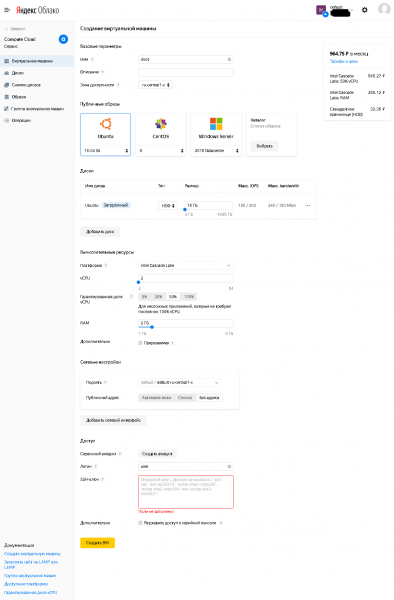
2.2.2 Here you need to specify:
- Name – arbitrary (in accordance with the format supported by Yandex.Cloud)
- Availability zone – must match the one previously chosen for the virtual network.
- In 'Public Images', select Ubuntu 18.04 lts
- In disks, set the boot disk size to at least 80GB. For testing purposes, HDD type is sufficient (and also for production use under the condition of moving certain types of data to SSD type disks). Additional disks can be added after the VM is created if necessary.
In 'Compute Resources', specify:
- vCPU: at least 2.
- Guaranteed share of vCPU: for the duration of the actions described in the article, at least 50%, after the installation is completed, it can be reduced if necessary.
- RAM: at least 2GB.
- Subnet: select the subnet for which NAT to the Internet was enabled during the preliminary preparation stage.
- Public address: no address (this machine does not require Internet access, only outgoing access from this machine to the Internet, provided by the 'NAT to Internet' option of the used subnet).
- User: at your discretion, but different from the root user and system accounts of Linux.
- You must specify a public (open) SSH key; it can be the same as the one for the Zimbra server, or you can generate a separate key pair, as the private key for the Zextras Docs server will need to be placed on the Zimbra server's disk.
See also Appendix 1. Creating SSH keys in OpenSSH and PuTTY and converting keys from PuTTY format to OpenSSH.
2.2.3 After completing the setup, click 'Create VM'.
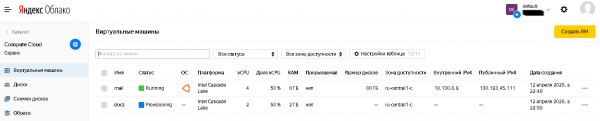
2.3 The created virtual machines will be available in the list of virtual machines, which shows, among other things, their status and the IP addresses used, both public and internal. Information about the IP addresses will be required in the subsequent installation steps.
3. Preparing the Zimbra server for installation
3.1 Installing updates
You need to access the Zimbra server via its public IP address using your preferred SSH client with the private SSH key and the username specified when creating the virtual machine.
After logging in, execute the commands:
sudo apt update
sudo apt upgrade
(when executing the last command, answer 'y' to the question about whether you are sure you want to install the proposed list of updates)
After updating, you may (but are not required to) execute the command:
sudo apt autoremoveAnd to complete the step, run the command
sudo shutdown –r now3.2 Installing additional applications
You need to install the NTP client for synchronizing system time and the screen application using the following command:
sudo apt install ntp screen(when executing the last command, answer 'y' to the question about whether you are sure you want to install the proposed list of packages)
You can also install additional utilities for the administrator's convenience. For example, Midnight Commander can be installed with the command:
sudo apt install mc3.3. Changing system configuration
3.3.1 In the file /etc/cloud/cloud.cfg.d/95-yandex-cloud.cfg change the value of the parameter manage_etc_hosts c true to false.
Note: The editor to modify this file must be run with root user permissions, for example, “sudo vi /etc/cloud/cloud.cfg.d/95-yandex-cloud.cfg” or, if the mc package is installed, you can use the command “sudo mcedit /etc/cloud/cloud.cfg.d/95-yandex-cloud.cfg»
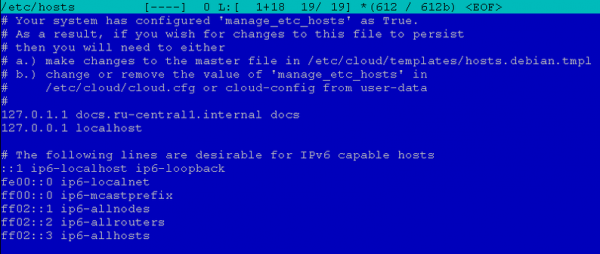
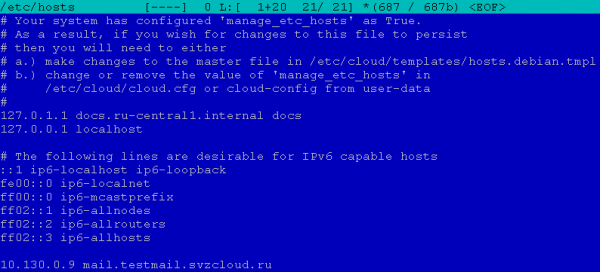
3.3.2 Edit /etc/hosts as follows, replacing the address 127.0.0.1 in the line defining the FQDN of the host with the internal IP address of this server, and replacing the name from the full name in the .internal zone with the public name of the server specified earlier in the A record of the DNS zone, and accordingly changing the hostname (if it differs from the short hostname in the public DNS A record).
For example, in our case, the hosts file looked like:

After editing, it looked like:
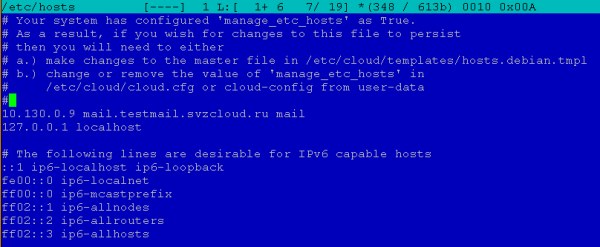
Note: The editor to modify this file must be run with root user permissions, for example, “sudo vi /etc/hosts” or, if the mc package is installed, you can use the command “sudo mcedit /etc/hosts»
3.4 Set user password
This is necessary because further firewall setup will be performed, and in case of any issues with it, having a user password will allow access to the virtual machine using the serial console from the Yandex.Cloud web console to disable the firewall and/or fix the issue. When the virtual machine is created, the user does not have a password, and therefore access is only possible via SSH using key authentication.
To set a password, you need to execute the command:
sudo passwdFor example, in our case, it will be the command “sudo passwd user”.
4. Installation of Zimbra and Zextras Suite
4.1. Downloading the distributions of Zimbra and Zextras Suite
4.1.1 Downloading the Zimbra distribution
Sequence of actions:
1) Go to the browser at the URL and fill out the form. You will receive an email with links to download Zimbra for different OS.
2) Select the relevant version of the distribution for Ubuntu 18.04 LTS and copy the link
3) Download the Zimbra distribution to the Zimbra server and unpack it. For this, in an SSH session on the zimbra server, execute the commands
cd ~
mkdir zimbra
cd zimbra
wget
tar –zxf
(in our example, it is “tar –zxf zcs-9.0.0_OSE_UBUNTU18_latest-zextras.tgz”)
4.1.2 Downloading the Zextras Suite distribution
Sequence of actions:
1) Go to the browser at the URL
2) Fill out the form with the required information and click the “DOWNLOAD NOW” button
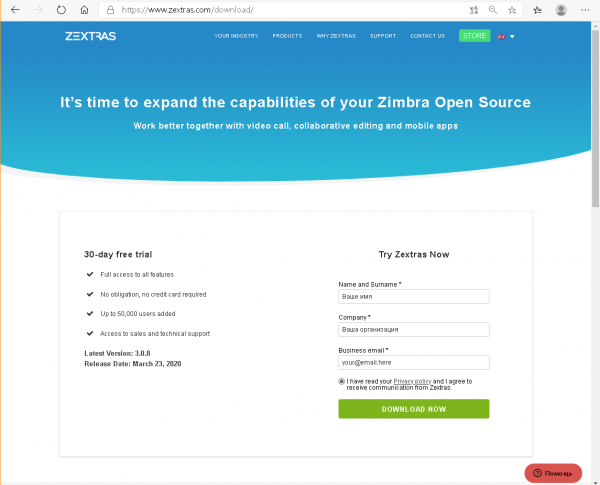
3) A download page will open
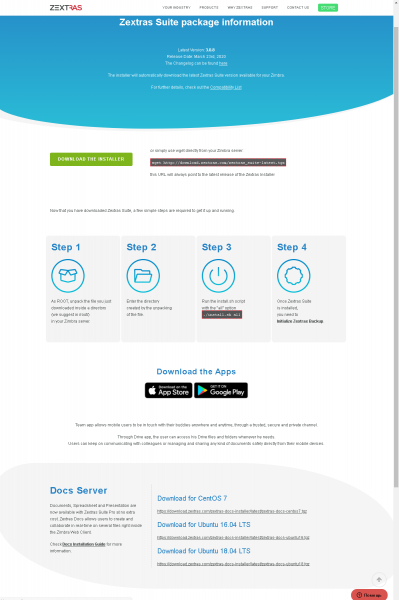
There are two URLs of interest: one at the top of the page for the Zextras Suite, which we will need now, and another at the bottom in the Docs Server block for Ubuntu 18.04 LTS, which will be needed later for installing Zextras Docs on the VM for Docs.
4) Download the Zextras Suite distribution on the Zimbra server and extract it. For this, execute the following commands in the SSH session on the Zimbra server:
cd ~
mkdir zimbra
cd zimbra
(if the current directory hasn’t changed since the previous step, you can skip the above commands)
wget http://download.zextras.com/zextras_suite-latest.tgz
tar –zxf zextras_suite-latest.tgz
4.2. Installing Zimbra
Sequence of actions
1) Navigate to the directory where the files were extracted in step 4.1.1 (you can view it with the ls command while in the ~/zimbra directory).
In our example, this will be:
cd ~/zimbra/zcs-9.0.0_OSE_UBUNTU18_latest-zextras/zimbra-installer2) Start the Zimbra installation with the command
sudo ./install.sh3) Answer the installer’s questions
You can respond to the installer’s questions with “y” (for yes), “n” (for no), or leave the installer’s suggestion unchanged (it offers options, showing them in square brackets, e.g., “[Y]” or “[N]”).
Do you agree with the terms of the software license agreement? – yes.
Use Zimbra’s package repository? – by default (yes).
“Install zimbra-ldap?”, “Install zimbra-logger?”, “Install zimbra-mta?– by default (yes).
Install zimbra-dnscache? – no (the operating system already has its own caching DNS server enabled, so there will be a conflict with this package due to used ports).
Install zimbra-snmp? – optional; you can leave the default option (yes), or choose not to install this package. In our example, the default option is kept.
“Install zimbra-store?”, “Install zimbra-apache?”, “Install zimbra-spell?”, “Install zimbra-memcached?”, “Install zimbra-proxy?– by default (yes).
Install zimbra-snmp? – no (the package is actually not supported and functionally replaced by Zextras Drive).
Install zimbra-imapd? – by default (no).
Install zimbra-chat? – no (functionally replaced by Zextras Team).
After which the installer will ask whether to continue the installation.
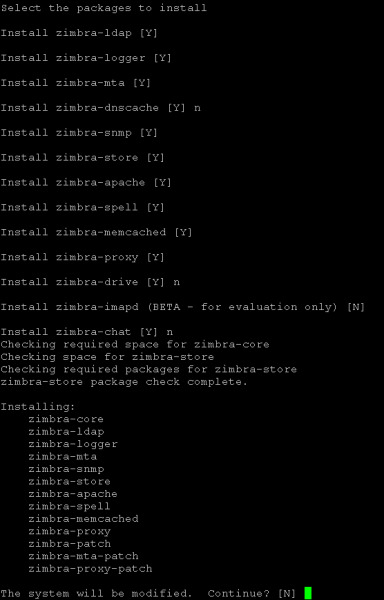
Answer “yes” if you can continue; otherwise, answer “no” to have the opportunity to change your answers to the previously asked questions.
After agreeing to continue, the installer will execute the package installations.
4.) Answer the questions of the initial configurator.
4.1) Since our example differentiates between the DNS name of the mail server (A record name) and the name of the serviced mail domain (MX record name), the configurator displays a warning and suggests setting the name of the serviced mail domain. We agree with its suggestion and enter the MX record name. In our example, this looks as follows:

Note: You can set a serviced mail domain that is different from the server name even if there is an MX record with the same name for the server name.
4.2) The configurator displays the main menu.
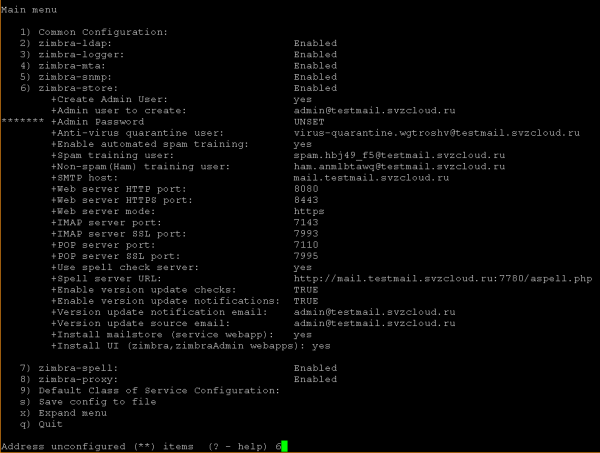
We need to set the administrator password for Zimbra (menu item 6 in our example), without which the installation cannot continue, and change the zimbra-proxy setting (menu item 8 in our example; this setting can also be changed after installation if necessary).
4.3) Changing zimbra-store settings
In the configurator prompt, we enter the menu item number and press Enter. We arrive at the storage configuration menu:
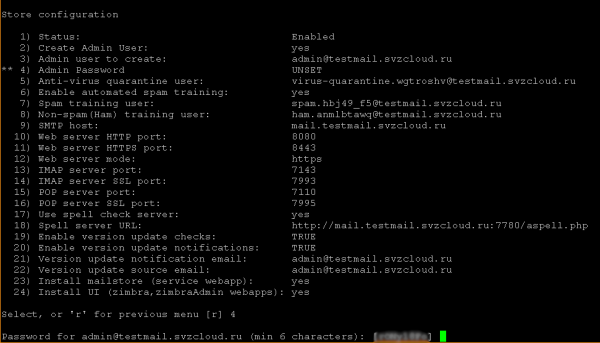
where in the configurator prompt we enter the menu item number Admin Password (in our example 4), press Enter, after which the configurator offers a randomly generated password, which we can accept (remembering it) or enter our own. In both cases, at the end, we need to press Enter, after which the waiting marker for input will be removed from the 'Admin Password' item:
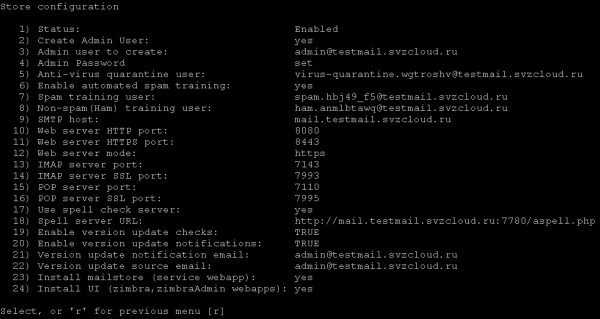
We return to the previous menu (agreeing with the configurator's suggestion).
4.4) Changing zimbra-proxy settings
Following the previous step, we select the number for 'zimbra-proxy' in the main menu and enter it in the configurator prompt.
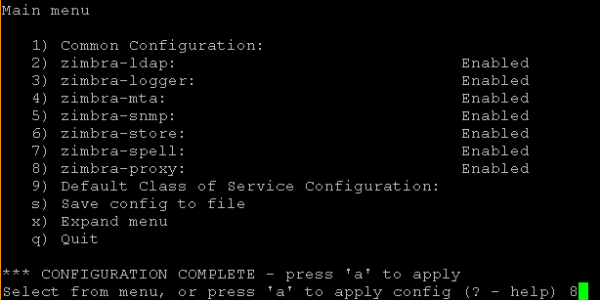
In the opened Proxy configuration menu, we select the item number for 'Proxy server mode' and enter it in the configurator prompt.
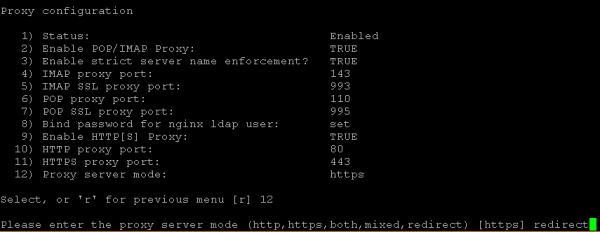
The configurator will suggest choosing one of the modes, we enter 'redirect' in its prompt and press Enter.
After which we return to the main menu (agreeing with the configurator's suggestion).
4.5) Starting configuration
To start the configuration, enter "a" at the configurator prompt. It will then ask if you want to save the entered configuration to a file (which can be used for reinstallation) - you can agree with the default suggestion. If saving is to be done, it will ask which file to save the configuration in (you can also agree with the default suggestion or enter your own file name).
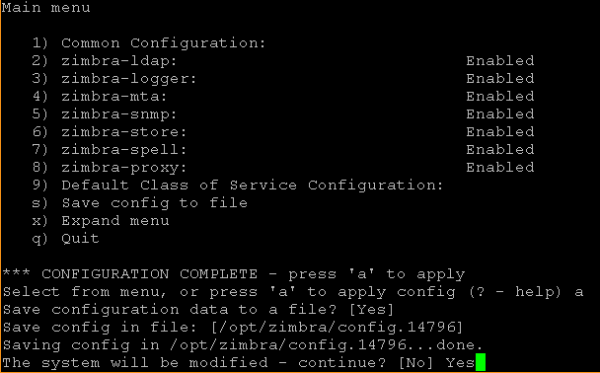
At this stage, you can still refuse to continue and make changes to the configuration by agreeing to the default response to the question "The system will be modified – continue?".
To begin the installation, you must answer "Yes" to this question, after which the configurator will take some time to apply the previously entered settings.
4.6) Completing the Zimbra installation
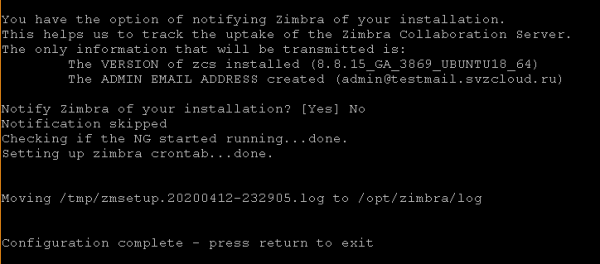
Before finishing, the installer will ask if you want to notify Zimbra of the completed installation. You can either agree with the default suggestion or refuse (by answering "No") to the notification.
After that, the installer will perform some final operations and display a message indicating the completion of the system configuration, with an instruction to press any key to exit the installer.
4.3. Installing Zextras Suite
More about installing Zextras Suite can be found at .
Sequence of actions:
1) Navigate to the directory where the files were unpacked in step 4.1.2 (you can check it with the command ls while in the ~\/zimbra directory).
In our example, this will be:
cd ~\/zimbra\/zextras_suite2) Run the Zextras Suite installation with the command
sudo .\/install.sh all3) Answer the installer’s questions
The installer works similarly to the Zimbra installer, except there is no configurator. You can respond to the installer’s questions with “y” (which corresponds to "yes"), “n” (which corresponds to "no") or leave the installer's suggestion unchanged (it offers options displayed in square brackets, for example, “[Y]” or “[N]”).
To start the installation process, you must sequentially answer "yes" to the following questions:
Do you agree with the terms of the software license agreement?
Do you wish for Zextras Suite to automatically download, install and upgrade the ZAL Library?
After that, a notification will be displayed suggesting pressing Enter to continue:
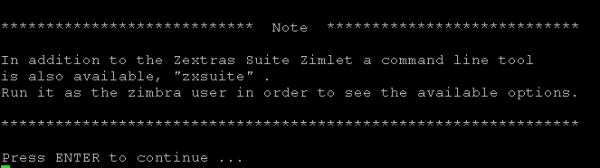
After pressing Enter, the installation process will begin, occasionally interrupted by questions, to which, however, we respond by agreeing with the default suggestions ("yes"), namely:
Zextras Suite Core will now be installed. Proceed?
Do you wish to stop the Zimbra Web Application (mailbox)?
The Zextras Suite Zimlet will now be installed. Proceed?
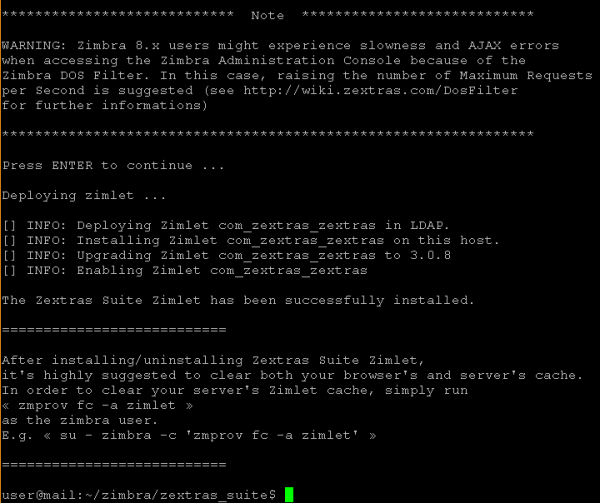
Before the final part of the installation begins, a notification will be displayed regarding the need to configure the DOS filter, prompting you to press Enter to continue. After pressing Enter, the final part of the installation starts, and a final notification is displayed at the end, concluding the installer session.
4.4. Initial tuning of settings and determination of LDAP configuration parameters
1) All subsequent actions are performed under the zimbra user. To do this, execute the command
sudo su - zimbra2) Change the DOS filter setting with the command
zmprov mcf zimbraHttpDosFilterMaxRequestsPerSec 1503) To install Zextras Docs, you'll need information about some configuration parameters of Zimbra. You can obtain this by executing the command:
zmlocalconfig –s | grep ldapIn our example, the following information will be displayed:
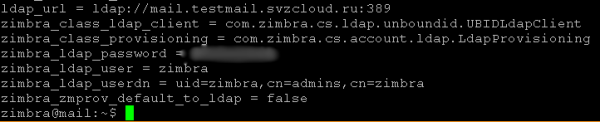
For further use, ldap_url and zimbra_ldap_password will be needed (and zimbra_ldap_userdn, although the Zextras Docs installer generally provides correct assumptions about the LDAP username).
4) Log out from the zimbra user by executing the command
logout
5. Preparing the Docs server for installation
5.1. Uploading the SSH private key to the Zimbra server and logging into the Docs server
You need to place the SSH private key of the key pair whose public key was used in step 2.2.2 pt.2.2 when creating the Docs virtual machine on the Zimbra server. It can be uploaded to the server via SSH (e.g., using sftp) or pasted through the clipboard (if permitted by the SSH client used and the execution environment).
Assuming the private key is placed in the file ~/.ssh/docs.key and the user logging into the Zimbra server is its owner (if this file was uploaded/created under this user, they automatically become its owner).
You need to execute the command once:
chmod 600 ~/.ssh/docs.keyIn the future, to log into the Docs server, follow this sequence of actions:
1) Log into the Zimbra server
2) Execute the command
ssh -i ~/.ssh/docs.key user@The value can be found in the "Yandex.Cloud Console", for example, as shown in pt.2.3.
5.2. Installing updates
After logging into the Docs server, execute commands similar to those for the Zimbra server:
sudo apt update
sudo apt upgrade
(when executing the last command, answer 'y' to the question about whether you are sure you want to install the proposed list of updates)
After updating, you may (but are not required to) execute the command:
sudo apt autoremoveAnd to complete the step, run the command
sudo shutdown –r now5.3. Installing additional applications
You need to install the NTP client to synchronize the system time and the screen application, similar to the action for the Zimbra server, using the following command:
sudo apt install ntp screen(when executing the last command, answer 'y' to the question about whether you are sure you want to install the proposed list of packages)
You can also install additional utilities for the administrator's convenience. For example, Midnight Commander can be installed with the command:
sudo apt install mc5.4. Changing system configuration
5.4.1. In the file /etc/cloud/cloud.cfg.d/95-yandex-cloud.cfg, just like for the Zimbra server, change the parameter manage_etc_hosts from true to false.
Note: The editor to modify this file must be run with root user permissions, for example, “sudo vi /etc/cloud/cloud.cfg.d/95-yandex-cloud.cfg” or, if the mc package is installed, you can use the command “sudo mcedit /etc/cloud/cloud.cfg.d/95-yandex-cloud.cfg»
5.4.2. Edit /etc/hosts, adding the public FQDN of the Zimbra server, but with the internal IP address assigned by Yandex.Cloud. If there is a managed internal DNS server used by virtual machines (for example, in production environments) that can resolve the public FQDN of the Zimbra server to the internal IP address when queried from the internal network (for queries from the Internet, the Zimbra server's FQDN should resolve to the public IP address, and the TURN server should always resolve to the public IP address, including when accessed from internal addresses), this operation is not required.
For example, in our case, the hosts file looked like:
After editing, it looked like:
Note: The editor to modify this file must be run with root user permissions, for example, “sudo vi /etc/hosts” or, if the mc package is installed, you can use the command “sudo mcedit /etc/hosts»
6. Installation of Zextras Docs
6.1. Access the Docs server
The procedure for logging into the Docs server is described in section 5.1.
6.2. Downloading the Zextras Docs distribution
Sequence of actions:
1) From the page where in section 4.1.2 you downloaded the Zextras Suite distribution (in step 3), copy the URL for the Docs build for Ubuntu 18.04 LTS (if it hasn't been copied earlier).
2) Download the Zextras Suite distribution on the Zimbra server and extract it. For this, execute the following commands in the SSH session on the Zimbra server:
cd ~
mkdir zimbra
cd zimbra
wget
(in our case, executing the command "wget »)
tar -zxf(in our case, executing the command "tar -zxf zextras-docs-ubuntu18.tgz")
6.3. Installation of Zextras Docs
For more information on installing and configuring Zextras Docs, see .
Sequence of actions:
1) Navigate to the directory where the files were extracted in step 4.1.1 (you can view it with the ls command while in the ~/zimbra directory).
In our example, this will be:
cd ~/zimbra/zextras-docs-installer2) Start the installation of Zextras Docs with the command
sudo ./install.sh3) Answer the installer’s questions
You can respond to the installer’s questions with “y” (corresponds to “yes”), “n” (corresponds to “no”), or leave the installer’s suggestion unchanged (it suggests options, displaying them in square brackets, such as “[Y]” or “[N]”).
System will be modified, would you like to proceed? – accept the default option (“yes”).
After that, the installation of dependencies will begin: the installer will show which packages it wants to install and ask for confirmation to install them. In all cases, agree with the default suggestions.
For example, it may askpython2.7 not found. Would you like to install it?», «python-ldap not found. Would you like to install it?and so on.
After installing all required packages, the installer will request consent to install Zextras Docs:
Would you like to install Zextras DOCS? – accept the default option (“yes”).
After this, the installation of the packages, specifically Zextras Docs, takes some time, followed by the configuration questions.
4) Answer the configuration questions
The configurator sequentially requests configuration parameters; the values obtained in Step 3 in p.4.4 are entered in response. Initial tuning of the settings and defining LDAP configuration parameters.
In our example, the settings appear as follows:

5) Completion of the Zextras Docs installation
After answering the configurator's questions, the installer finishes the local Docs configuration and registers the installed service on the previously set up Zimbra server.
For a single-server installation, this is usually sufficient, but in some cases (if documents will not open in Docs on the Drive tab in the web client), it may require an action mandatory for multi-server installation – in our example, the command needs to be executed under the Zimbra user on the main Zimbra server. /opt/zimbra/libexec/zmproxyconfgen and zmproxyctl restart.
7. Initial configuration of Zimbra and Zextras Suite (except Team)
7.1. Initial login to the admin console
Log in via a browser at URL: https://:7071
If desired, you can log in to the web client at URL: https://
When logging in, browsers show a warning about an unsafe connection due to the inability to verify the certificate. You must indicate to the browser that you're willing to proceed to the site despite this warning. This is because a self-signed X.509 certificate for TLS connections is used after installation, which can later (in production use – must) be replaced with a commercial certificate or another certificate recognized by the used browsers.
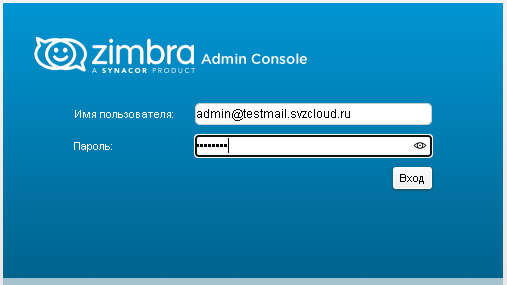
In the authentication form, enter the username in the format admin@ and the Zimbra administrator password set during the Zimbra server installation in step 4.3 in p.4.2.
In our example, it looks like this:
Admin console:
Web client:
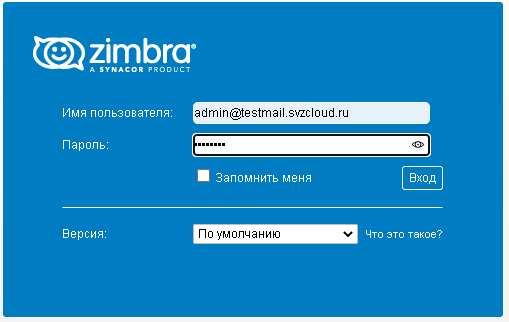
Note 1. If the mail domain is not specified when logging into the admin console or web client, users will authenticate using the mail domain created during the Zimbra server installation. After installation, this is the only existing mail domain on this server, but additional mail domains may be added during system operation, making explicit domain specification in the username important.
Note 2. When logging into the web client, the browser may request permission to display notifications from the site. Consent must be given to receive notifications from this site.
Note 3. After logging into the admin console, a notification may appear regarding messages for the administrator, typically reminding them to configure Zextras Backup and/or to purchase a Zextras license before the expiration of the default trial license. These actions can be taken later, so the messages present at the time of login can be ignored and/or marked as read in the Zextras menu: Zextras Notification.
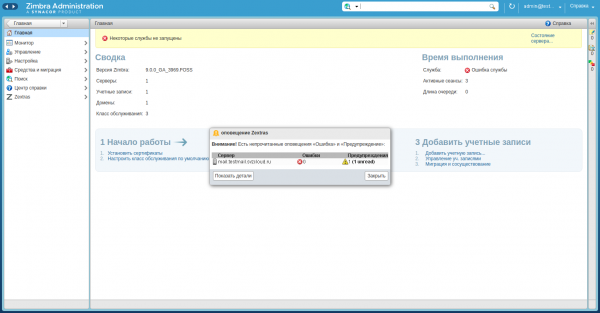
Note 4. It is particularly important to note that in the server status monitor, the status of the Docs service displays as 'unavailable' even if Docs is functioning correctly in the web client:
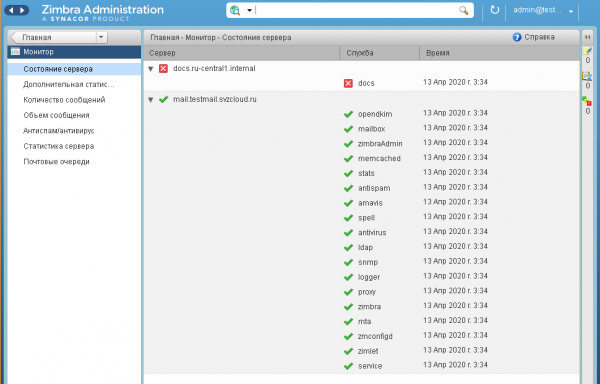
This is a feature of the trial version and can only be resolved after purchasing a license and contacting support.
7.2. Deployment of Zextras Suite components
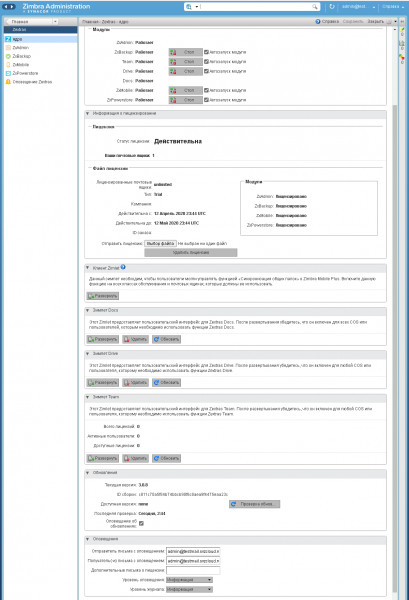
In the Zextras menu: Core, the 'Deploy' button must be pressed for all zimlets that are intended to be used.
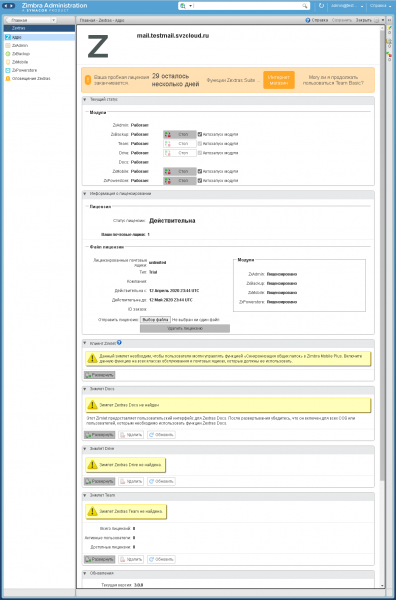
When deploying zimlets, a dialog with the result of the operation is displayed as follows:
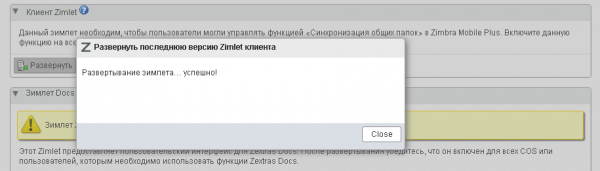
In our example, the deployment of all Zextras Suite zimlets is taking place, after which the Zextras: Core form will look as follows:
7.3. Changing access settings
7.3.1. Changing global settings
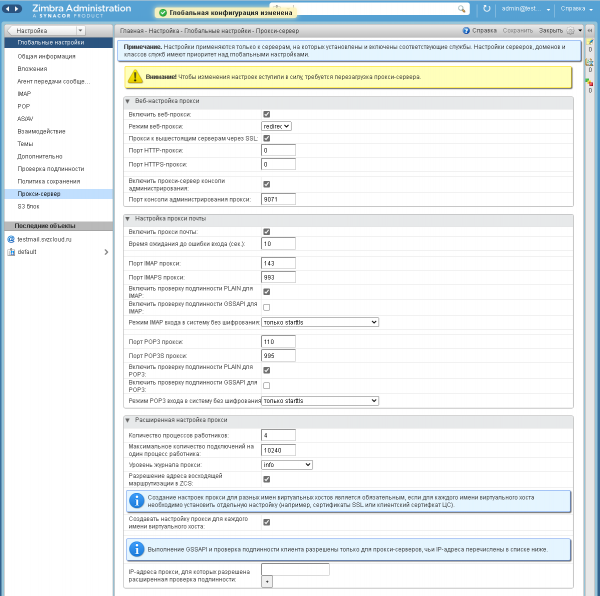
In the Settings menu: Global settings, in the Proxy submenu, change the following parameters:
Web Proxy mode: redirect
Enable the console administration proxy server: check the box.
Then, in the upper right part of the form, click on 'Save'.
In our example, after the changes, the form looks as follows:
7.3.2. Changes to the main Zimbra server settings
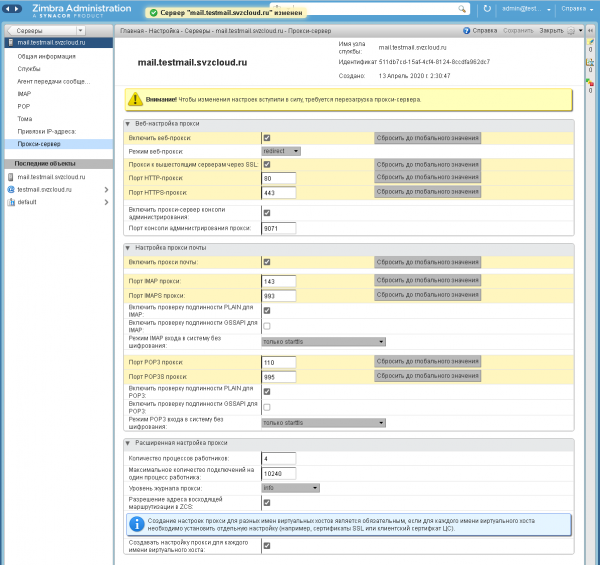
In the Settings menu: Servers: , under the Proxy Server submenu, change the following parameters:
Web proxy mode: click on the 'Reset to default value' button (the value itself will not change, as it was already set during installation). Enable the console administration proxy server: make sure the checkbox is checked (the default value should be applied; if not, you can click the 'Reset to default value' button and/or set it manually). After that, in the upper right corner of the form, click 'Save'.
In our example, after the changes, the form looks as follows:
Note: (a restart may be necessary if access through this port does not work)
7.4. New login to the admin console
Log in to the admin console in your browser using the URL: https://:9071
Use this URL for future logins
Note: for a single-server installation, usually, the change made in the previous step is sufficient; however, in some cases (if the server page does not display when accessing the specified URL), it may be necessary to perform an action required for multi-server installations – in our example, on the main Zimbra server, commands should be executed as the Zimbra user /opt/zimbra/libexec/zmproxyconfgen and zmproxyctl restart.
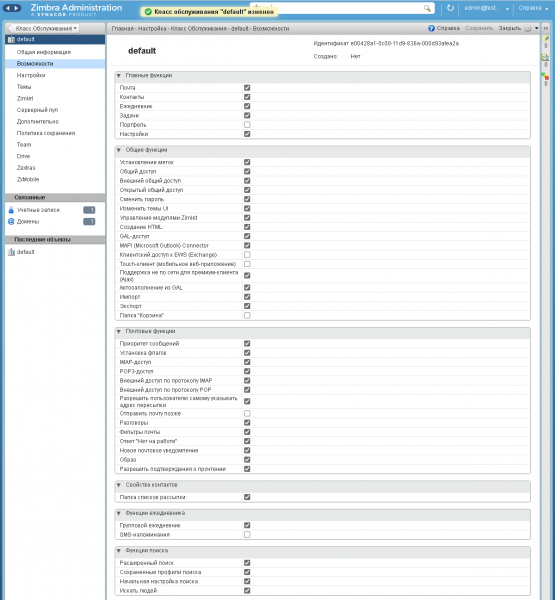
7.5. Editing the default COS
In the Settings menu: Class of Service, select the COS named 'default'.
In the 'Features' submenu, uncheck the checkbox for the 'Portfolio' feature, then in the upper right corner of the form, click 'Save'.
In our example, after configuration, the form looks as follows:
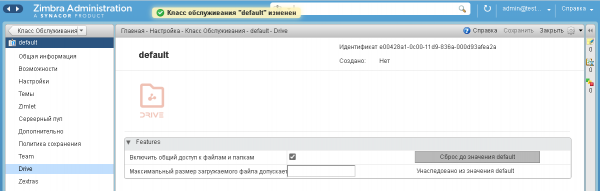
It is also recommended to check the checkbox in the Drive submenu for the 'Enable file and folder sharing' setting, then in the upper right corner of the form, click 'Save'.
In our example, after configuration, the form looks as follows:
In the test environment, within the same class of service, you can enable Team Pro features by checking the checkbox in the Team submenu with the same name, after which the configuration form will look as follows:
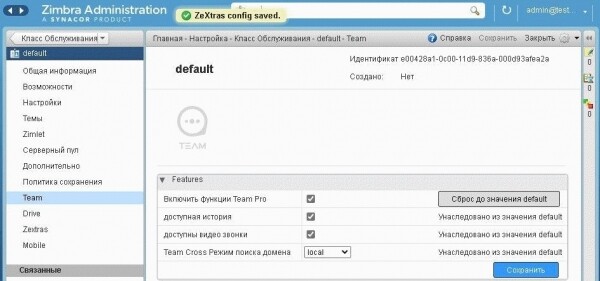
When Team Pro features are disabled, users will only have access to Team Basic features.
Please note that Zextras Team Pro is licensed independently from Zextras Suite, allowing it to be purchased for fewer mailboxes than Zextras Suite itself; the Team Basic features are included in the Zextras Suite license. Therefore, when used in a production environment, it may be necessary to create a separate service class for Team Pro users that includes the corresponding features.
7.6. Firewall Configuration
Required for the main Zimbra server:
a) Allow access from the Internet to ports ssh, http/https, imap/imaps, pop3/pop3s, smtp (main port and additional ports for use by mail clients), and the administration console port.
b) Allow all connections from the internal network (for which NAT was enabled in step 1.3 of point 1).
No firewall configuration is required for the Zextras Docs server, as it has no access from the Internet.
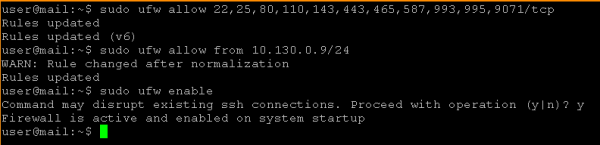
To do this, follow the steps below:
1) Access the text console of the main Zimbra server. When logging in via SSH, execute the command 'screen' to avoid interruption of command execution during temporary loss of connection to the server due to firewall configuration changes.
2) Run the commands
sudo ufw allow 22,25,80,110,143,443,465,587,993,995,9071/tcp
sudo ufw allow from /
sudo ufw enable
In our example, it looks like this:
7.7. Check access to the web client and the admin console
To verify the firewall functionality, you can visit the following URLs in your browser
Admin console: https://:9071
Web client: http:// (will automatically redirect to https://)
Note that the admin console should not be accessible via the alternative URL https://:7071.
The web client in our example looks as follows:
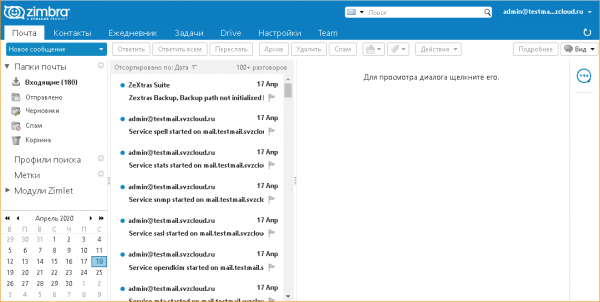
Note: When logging into the web client, the browser may prompt for permission to display notifications from the site. You should agree to receive notifications from this site.
8. Ensuring the operation of audio and video conferences in Zextras Team
8.1. General information
The actions described below are not required if all Zextras Team clients interact with each other without using NAT (while interaction with the Zimbra server itself can occur using NAT, i.e., it is important that there is no NAT specifically between clients), or if only a text messenger is being used.
To ensure client interaction in audio and video conferencing mode:
a) It is necessary to set up or use an existing TURN server.
b) Since TURN servers typically also have STUN server functionality, it is recommended to use it for that purpose as well (alternatively, public STUN servers can be used, but the STUN functionality alone is usually insufficient).
In a production environment, due to the potentially high load, it is recommended to run the TURN server on a separate virtual machine. For testing and/or light load, the TURN server can be combined with the main Zimbra server.
In our example, we consider the installation of the TURN server on the main Zimbra server. Installing TURN on a separate server is similar, except that the steps related to the installation and configuration of the TURN software are performed on the TURN server, while the steps for configuring the Zimbra server to use this TURN server are performed on the main Zimbra server.
8.2. Installing the TURN server
First, log in via SSH to the main Zimbra server and execute the command
sudo apt install resiprocate-turn-server8.3. Configuring the TURN server
Note: The editor for modifying all configuration files mentioned below must be run with root user privileges, e.g.,sudo vi /etc/reTurn/reTurnServer.config” or, if the mc package is installed, you can use the command “sudo mcedit /etc/reTurn/reTurnServer.config»
Simplified user creation
To simplify the creation and debugging of a test connection to the TURN server, we will disable the use of hashed passwords in the TURN server's user database. In a production environment, it is recommended to use hashed passwords; in this case, hash generation for them must be performed according to the instructions in the files /etc/reTurn/reTurnServer.config and /etc/reTurn/users.txt.
Sequence of actions:
1) Edit the file /etc/reTurn/reTurnServer.config
Change the value of the parameter 'UserDatabaseHashedPasswords' from 'true' to 'false'.
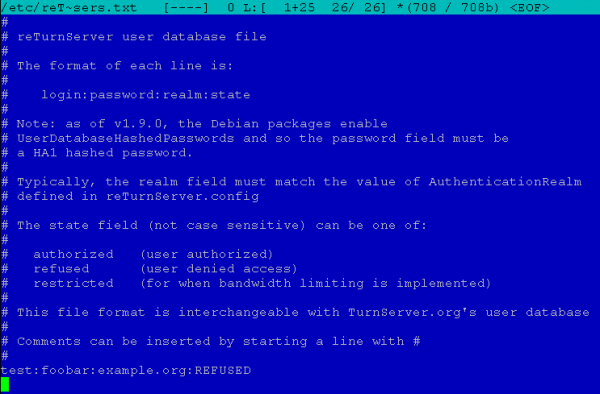
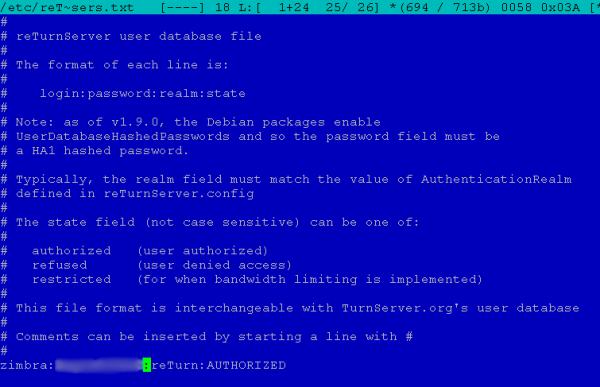
2) Edit the file /etc/reTurn/users.txt
Set a username, password, realm (arbitrary, not used when configuring Zimbra connection) and set the account status to 'AUTHORIZED'.
In our example, the file initially looked like this:
After editing, it looked like this:
3) So, let’s load our configuration into the connector:
Execute the command
sudo systemctl restart resiprocate-turn-server8.4. Configuring the TURN server firewall
At this stage, additional firewall rules necessary for the TURN server operation are established. Access must be allowed to the main port on which the server receives requests, and to the dynamic port range used by the server to facilitate media streams.
The ports are specified in the file /etc/reTurn/reTurnServer.config, in our case they are:

and
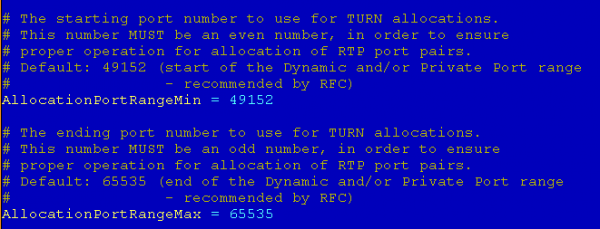
To set the firewall rules, execute the commands
sudo ufw allow 3478,49152:65535/udp
sudo ufw allow 3478,49152:65535/tcp
8.5. Configuring TURN server usage in Zimbra
For configuration, use the FQDN of the TURN server created in step 1.2 p.1, which should resolve with DNS servers to the same public IP address for both Internet requests and internal requests.
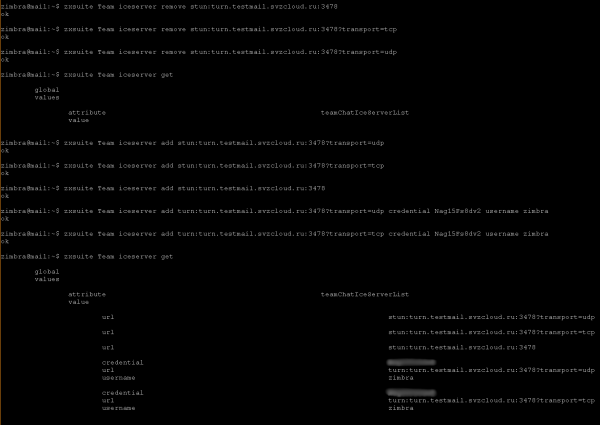
View the current connection settings with 'zxsuite team iceServer get', executed as the user zimbra.
For more information on configuring TURN server usage, see the section 'Installing Zextras Team to Use the TURN Server' in .
To configure, the following commands must be executed on the Zimbra server:
sudo su - zimbra
zxsuite team iceServer add stun::3478?transport=udp
zxsuite team iceServer add turn::3478?transport=udp credential  username
zxsuite team iceServer add stun::3478?transport=tcp
zxsuite team iceServer add turn::3478?transport=tcp credential  username
zxsuite team iceServer add stun::3478
logout
The values for and are the username and password defined in step 2 p.8.3.
In our example, it looks like this:
9. Allowing mail to pass through the SMTP protocol
In accordance with , in Yandex.Cloud, outgoing traffic on TCP port 25 is always blocked to the Internet and to virtual machines in Yandex Compute Cloud when accessed via a public IP address. This will not prevent testing mail reception on the hosted mail domain, sent from another mail server, but it will hinder sending mail outside of the Zimbra server.
The documentation states that Yandex.Cloud can open TCP port 25 upon a request to support, provided you comply with , and reserves the right to block the port again in case of rule violations. To open the port, you need to contact Yandex.Cloud support.
Application
Creating SSH keys in OpenSSH and PuTTY and converting keys from PuTTY format to OpenSSH
1. Creating key pairs for SSH
In Windows using PuTTY: run the command puttygen.exe and click the 'Generate' button
In Linux: execute the command
ssh-keygen2. Converting keys from PuTTY format to OpenSSH
In Windows:
Sequence of actions:
- Run the program puttygen.exe.
- Load the private key in ppk format by using the menu item File → Load private key.
- Enter the code (passphrase) if required for this key.
- The public key in OpenSSH format is displayed in PuTTYgen with the label 'Public key for pasting into OpenSSH authorized_keys file field'
- To export the private key to OpenSSH format, select Conversions → Export OpenSSH key from the main menu
- Save the private key to a new file.
In Linux
1. Install the PuTTY tools package:
in Ubuntu:
sudo apt-get install putty-toolsin Debian-based distributions:
apt-get install putty-toolsin RPM-based distributions using yum (CentOS, etc.):
yum install putty2. To convert the private key, execute the command:
puttygen -O private-openssh -o3. To generate a public key (if necessary):
puttygen -O public-openssh -oResult
After installation according to the recommendations, the user receives a mail server Zimbra set up in the Yandex.Cloud infrastructure with the Zextras extension for corporate communications and document collaboration. The settings are made with certain limitations for the testing environment, but transitioning the installation to production mode and adding options for using Yandex.Cloud object storage and others is not difficult. For questions regarding deployment and usage of the solution, please contact Zextras partner — or representatives .
The safety alphabet in Kubernetes: authentication, authorization, auditing
Source: habr.com
