

At the beginning of December, a new decision was published Veeam Backup for AWS for backup and recovery of Amazon Elastic Compute Cloud (Amazon EC2) cloud infrastructures.
It can be used to back up EC2 instances and save them to Amazon Simple Storage Service (Amazon S3) cloud storage, as well as create native EC2 snapshot chains.
Veeam Backup for AWS offers the following options for data recovery:
- Restoring an entire EC2 instance
- Recovery of instance volumes
- Restoring Files and Folders in the Guest OS of an Instance
In addition, since the solution backs up in Veeam format, you can use Veeam Backup & Replication to store copies of EC2 backups in an on-premises repository, and then migrate data between cloud, virtual and on-premises infrastructures.
And, of course, users will be pleased with the fact that the new solution has a free version. For a more detailed acquaintance with Veeam Backup for AWS, welcome under cat.
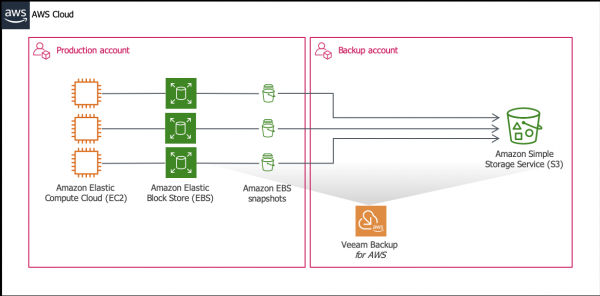
Main Features
In addition to the already mentioned features for automatically creating Amazon EBS snapshots and storing backups in the cloud Amazon S3, the solution implements:
- Multi-factor authentication for backup administrators
- Policy based data protection
- IAM role separation support
- Support for cross-regional configurations
- A built-in algorithm for preliminary cost estimation for the operation of services, which helps to control payment.
Well, as already mentioned, there is a free license, and BYOL (build your own license), and a license based on resource consumption - everyone can choose the right one.
Stages of work
In short, the main steps are:
- We check our infrastructure for compliance with the system requirements described .
- Install Veeam Backup for AWS as described below.
- Specify IAM roles. They are needed to access AWS resources involved in backup and restore:
- If you plan to back up EC2 instances within the same AWS account, you can use the Default Backup Restore - It is created during the installation of Veeam Backup for AWS. This role has the necessary rights to access all EC2 instances and S3 buckets within the AWS account where Veeam Backup for AWS is deployed (original AWS account).
- If you plan to back up or restore EC2 instance data between two different AWS accounts, or want to use a dedicated IAM role with minimal privileges for each operation, you will need to create the necessary IAM roles within the original AWS account and then add them to Veeam Backup for AWS. This is discussed in detail in .
- We set up the backup infrastructure, namely:
- Configuring the S3 repository.
Note: If you are going to use natively created snapshots instead of backups to protect your data, then you can skip this step, because. You won't need an S3 repository in this scenario.
- Set network settings for auxiliary components worker instances.
Workers — these are auxiliary EC2 instances running the OS LinuxThey are launched only during backup (or restore) and act as a backup proxy. In the worker settings, you will need to specify the Amazon VPC, subnet, and security group to which these auxiliary instances will connect. You can read more about this here. .
- Configuring the S3 repository.
- Then we create a policy based on which backup copies or snapshots of EC2 instances will be created. I will briefly discuss this below.
- You can restore from a backup - more on that below.
Deployment and configuration
Veeam Backup for AWS is available at .
Deploying the solution is done like this:
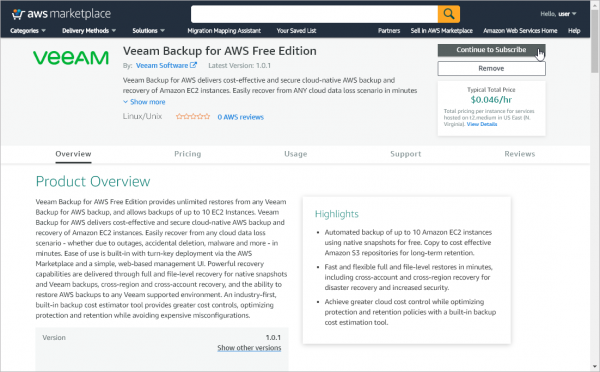
- We go to the AWS Marketplace under the AWS account that we plan to use to install the solution.
- We open the Veeam Backup for AWS page, select the edition we need (paid or free). Read more about editions .
- Veeam Backup for AWS Free Edition
- Veeam Backup for AWS Paid Edition
- Veeam Backup for AWS BYOL Edition
- Click on the top right Continue to Subscribe.

- On the subscription page, go to the section Terms and Conditions (terms of use) and click there Show Details, follow the link End User License Agreement read the license agreement.
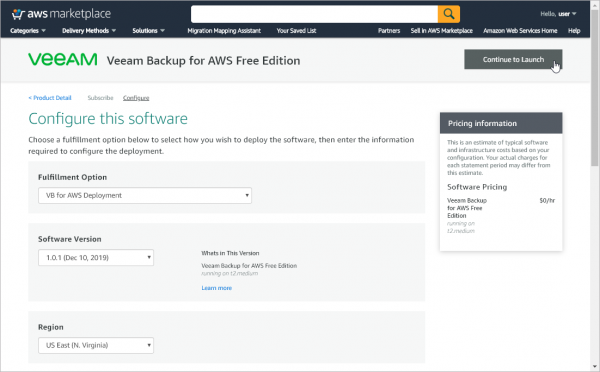
- Then we press the button Continue to Configuration and proceed to the configuration.
- On page Configure this software set the settings for installation:
- In the list of the Fulfillment Options (deployment options) select an option for our product − VB for AWS Deployment.
- From the list of versions Software Version select the latest version of Veeam Backup for AWS.
- From the list of regions Region select the AWS region where the EC2 instance with Veeam Backup for AWS will be deployed.
Note: Read more about AWS Regions .
- Then we press the button Continue to Launch to go to launch.
- On page Launch this software we perform these steps:
- In the Configuration Details Check if all settings are correct.
- From the action list Choose Action Choose Launch Cloud Formation.
- Veeam Backup for AWS is installed using the AWS CloudFormation stack.
Note: Here, the stack is a collection of cloud resources that can be managed as a separate unit: create, delete, use to launch applications. You can read more in the AWS documentation.
Click here Launch and run the stack creation wizard Create stack wizard.
Building an AWS CloudFormation stackBuilding an AWS CloudFormation stack:
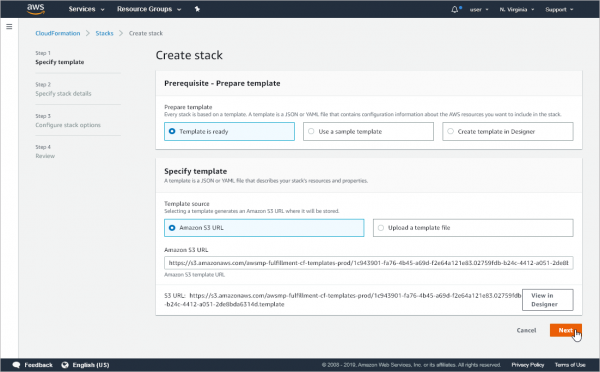
- On the move Specify template you can leave the default stack template settings.
- On the move Specify stack details enter the settings for our stack.
- In the stack name enter a name; you can use upper and lower case letters, numbers and dashes.
- In the settings section Instance Configuration:
In the list of the Instance type for Veeam Backup for AWS server you need to select the type of EC2 instance on which Veeam Backup for AWS will be installed (hereinafter we will call it Veeam Backup for AWS server). It is recommended to select the type t2 medium.
In the list of the Key Pair for Veeam Backup for AWS Server you must select a key pair to be used when authenticating to this new server. If the desired key pair is not in the list, you need to create it, as described .
Specify whether to enable automatic backup of EBS volumes for the Veeam Backup for AWS server (by default, it is necessary, i.e. true).
Specify whether to restart the Veeam Backup for AWS server in the event of a software failure.
Specify whether to restart the Veeam Backup for AWS server in the event of an infrastructure failure.
- In the network settings section Network Configuration:
- Specify whether you want to create an Elastic IP address for the Veeam Backup for AWS server. See here for more details.
- In the Allowed Source IP Addresses for connection to SSH Specify the range of IPv4 addresses that will allow access to the Veeam Backup for AWS server via SSH.
- In the Allowed Source IP Addresses for connection to HTTPS Specify the range of IPv4 addresses that will allow access to the Veeam Backup for AWS web interface.
The IPv4 address range is specified in CIDR notation (for example, 12.23.34.0/24). To allow access from all IPv4 addresses, you can enter 0.0.0.0/0. (However, this option is not recommended because it reduces the security of the infrastructure.)
- Based on the specified IPv4 addresses, AWS CloudFormation creates a security group for Veeam Backup for AWS, with appropriate rules for incoming SSH and HTTPS traffic. (By default, port 22 is used for incoming SSH traffic, and port 443 for HTTPS.) verify that it is allowed to access AWS services (listed in the Requirements section of the user guide).
- In section VPC and Subnet you need to select Amazon Virtual Private Cloud (Amazon VPC) and the subnet to which the Veeam Backup for AWS server will be connected.
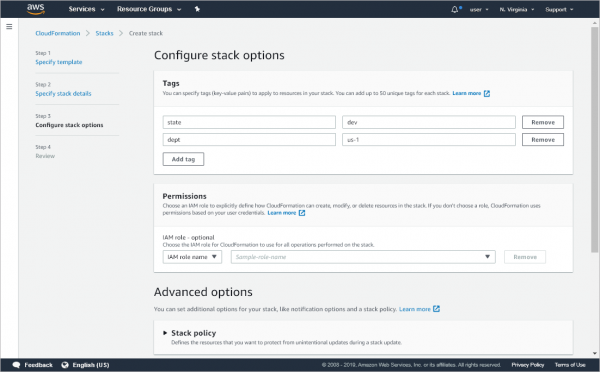
- On the move Configure stack options specify AWS tags, IAM role permissions, and other stack settings.
- On the move Review check all settings, select option I acknowledge that AWS CloudFormation might create IAM resources and press Create stack.
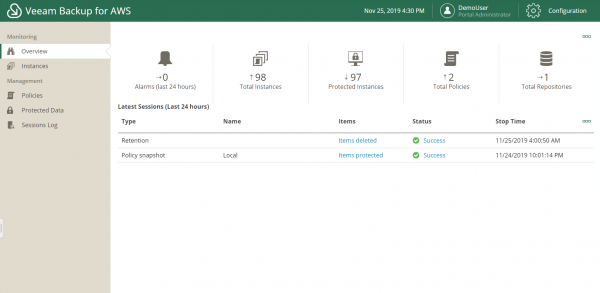
After installation, open the web console by entering the DNS or IP address of the EC2 instance where Veeam Backup for AWS is installed in the browser, for example:
https://ec2-135-169-170-192.eu-central-1.compute.amazonaws.com
The console displays resources that are configured to protect their data with Veeam Backup for AWS:
Necessary settings for infrastructure, roles, etc. described in detail in .
Backup Policies
To protect instances, we create policies.
For different types of objects, you can configure different policies: for example, a policy designed to protect tier 3 applications (the least critical), or policies for tier 2 and tier 1 applications. In the policy settings, specify:
- Account with IAM roles
- Regions - you can select multiple
- What is planned to be protected - it can be all resources (all resources) or selected instances or (tags)
- Resources to exclude
- Snapshot settings, including whether to use snapshots and how long they should be stored
- Backup settings: path to the repository, schedule and duration of storage
- Estimating the cost of services (more on that below)
- Schedule and notification settings
Built-in service cost estimation
Veeam Backup for AWS has built-in automatic service pricing to instantly calculate how much your backup services will cost based on a specific policy. The calculation includes the following metrics:
- Backup cost
- Snapshot cost
- Traffic cost - this is especially important if the repository is located outside the region where infrastructure facilities operate (Amazon AWS charges traffic to other regions)
- Transaction cost
- Total cost
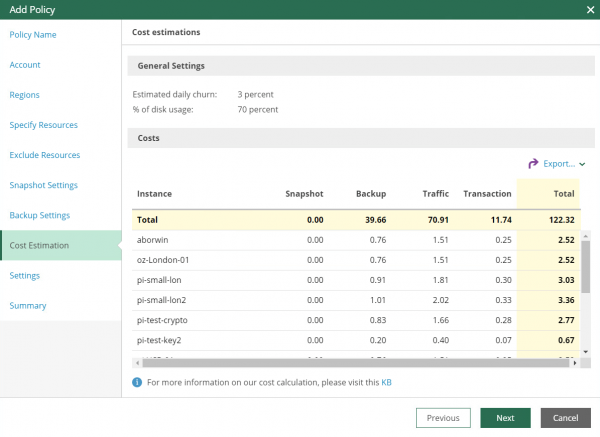
The data can be exported to a CSV or XML file.
Auxiliary Components - Workers
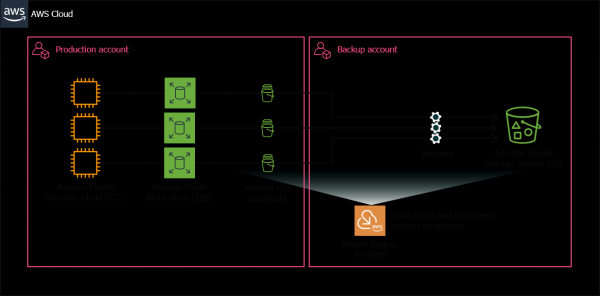
To reduce traffic costs, you can configure the automatic creation of auxiliary components − workers — in the same AWS region as the securable objects. Workers are automatically launched only during data transfer from / to the Amazon S3 cloud or during recovery, and after the operations are completed, they are turned off and deleted.
Резервное копирование
For backup operations, Veeam Backup for AWS uses native snapshots (see below). ). During a backup, Veeam Backup for AWS uses AWS CLI commands to create snapshots of EBS volumes attached to an EC2 instance. Then, depending on the backup scenario you choose, Veeam Backup for AWS creates either a native snapshot chain or an image-level backup for the EC2 instance.
Native snapshots
Veeam Backup for AWS creates native snapshots of an EC2 instance as follows:
- First, snapshots of the EBS volumes attached to this instance are taken.
- EBS snapshots are assigned AWS tags when they are created. The keys and values of these tags contain encrypted metadata. Veeam Backup for AWS treats EBS snapshots with metadata as native snapshots for an EC2 instance.
- If the EC2 instance has already been processed by a backup policy, then Veeam Backup for AWS checks the number of recovery points in the snapshot chain. If it exceeds the limit specified in the policy, then the oldest point is deleted. Note: The storage and automatic deletion policy (retention) does not apply to snapshots created manually (we are talking about snapshots created separately). You can delete such snapshots as described . (If by “manually” we mean manual launch of the policy outside of the schedule, then the retention will work for the snapshot created in this way.)
Image level backups
And here is how Veeam Backup for AWS performs image-level backups:
- First, snapshots of EBS volumes attached to this instance are taken.
- Veeam Backup for AWS uses EBS snapshots as backup sources. After the backup process is completed, these snapshots are deleted.
- A helper worker is then launched in the AWS Region where the instance resides to help process the EC2 instance data.
- EBS volumes are created from temporary snapshots and attached to the worker instance.
- Data is read from the EBS volumes on the worker instance, then the data is transferred to the S3 repository, where it will be stored in the Veeam format.
- During an incremental session, Veeam Backup for AWS reads backup metadata from the S3 repository and uses it to identify blocks that have changed since the previous session.
- When the backup is complete, Veeam Backup for AWS deletes the EBS temporary snapshots and the worker instance from Amazon EC2.
Восстановление данных
With Veeam Backup for AWS, you can restore data in the following ways:
- To the original location, overwriting the original instance. All data on this instance will be overwritten by those stored in the backup, and the instance configuration is preserved.
- To a new location by creating a new instance. In this scenario - if you choose to restore to a new location or with new settings - you will need to specify the configuration settings that will be applied to the instance when the restore is completed:
- Region
- Encryption settings
- Instance name and type
- Network settings: Virtual Private Cloud (VPC), subnet, security group
Volume Recovery
It also supports restoring EC2 instance volumes from a snapshot or backup, to the original location or to a new location. In the second case, for the new location, you need to specify the AWS region, Availability Zone, and other parameters.
A worker is also involved in the recovery process.
The process itself briefly looks like this (using the example of restoring from a backup):
- Veeam Backup for AWS launches a worker in the desired AWS region, creates the required number of empty EBS volumes, and attaches them to the worker instance.
- Restores data from a backup to these volumes.
- Performs EBS volume detachment and migration to the desired location (original or another AWS region), where these volumes are stored as separate volumes.
- Deletes the worker instance when operations complete.
Note: Don't forget that the volume will not be automatically attached to the EC2 instance after recovery (it will just be saved to the specified location as a separate EBS volume).
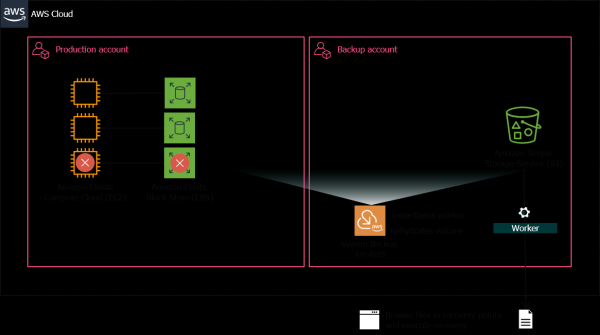
File recovery
Allows you to restore individual files without having to restore the entire instance.
When you initiate a file-level restore, you get a URL (based on the worker's public DNS name) where you can see the entire file structure on the guest OS, find the files you need in it, and upload them to the local machine.
Also, for security, you can check the certificate and its thumbprint to be sure that MiTM is not present.
Integration with Veeam Backup & Replication
If Veeam Backup & Replication is deployed in your infrastructure, then you can set up recovery of the machines included in it to the Amazon EC2 cloud using the Direct Restore to AWS functionality, and then protect this cloud data with Veeam Backup for AWS.
Veeam Backup & Replication also supports Amazon S3 repositories created by Veeam Backup for AWS - you can restore backups of Amazon EC2 instances to on-premises infrastructure.
Features of the free version
The free version of Veeam Backup for AWS allows you to backup up to 10 EC2 instances; Restoring from backups is performed without restrictions.
Note: Recommended Use t2 medium.
Estimated resource cost is $9.8/month based on XNUMX/XNUMX usage with the following default settings:
- EC2 - 1 t3.micro instance
- EBS - 1 2 GB GP8 volume
- Configuration for S3 repository - 50 GB Standard S3 storage, 13 S000 PUT requests, 3 S10 GET requests, 000 GB S3 Select usage
Useful links
Veeam Backup for AWS on
(in English).
Source: habr.com
