


We have launched the official Terraform provider to work with Selectel. This product allows users to fully implement resource management through the Infrastructure-as-code methodology (infrastructure as code).
The provider currently supports service resource management (hereinafter VPC). In the future, we plan to add resource management of other services provided by Selectel to it.
As you already know, the VPC service is built on top of OpenStack. However, due to the fact that OpenStack does not provide native tools for serving the public cloud, we have implemented the missing functionality in a set of additional APIs that simplify the management of complex composite objects and make work more convenient. Part of the functionality available in OpenStack is closed from direct use, but is available through .
The Selectel Terraform provider now has the ability to manage the following VPC resources:
- projects and their quotas;
- users, their roles and tokens;
- public subnets, including cross-regional and VRRP;
- software licenses.
The provider uses our public Go library to work with the VPC API. Both the library and the provider itself are open-source, they are being developed on Github:
- library repository ,
- provider repository .
To manage the rest of the cloud resources, such as virtual machines, disks, Kubernetes clusters, you can use the OpenStack Terraform provider. Official documentation for both providers is available at the following links:
- Selectel resource documentation: ,
- OpenStack resource documentation: .
Beginning of work
To get started, you need to install Terraform (instructions and links to installation packages can be found at ).
To work, the provider needs a Selectel API key, which is created in .
Manifests for working with Selectel are created using Terraform or using a set of ready-made examples that are available in our Github repository: .
The repository with examples is divided into two directories:
- modules, containing small reusable modules that take a set of parameters as input and manage a small set of resources;
- examples, containing examples of a complete set of interconnected modules.
After installing Terraform, creating a Selectel API key, and reviewing the examples, let's move on to practical examples.
Example of creating a server with a local disk
Consider an example of creating a project, a user with a role and a virtual machine with a local disk: .
In file vars.tf all parameters that will be used when calling modules are described. Some of them have default values, for example, the server will be created in the zone en-3a with the following configuration:
variable "server_vcpus" {
default = 4
}

variable "server_ram_mb" {
default = 8192
}

variable "server_root_disk_gb" {
default = 8
}

variable "server_image_name" {
default = "Ubuntu 18.04 LTS 64-bit"
}
In file main.tf the Selectel provider is initialized:
provider "selectel" {
token    = "${var.sel_token}"
}
This file also contains the default value for the SSH key that will be installed on the server:
module "server_local_root_disk" {
...
server_ssh_key      = "${file("~/.ssh/id_rsa.pub")}"
}
If necessary, you can specify a different public key. The key does not need to be specified as a path to the file, you can also add the value as a string.
Further in this file modules are launched project_with_user и server_local_root_diskthat manage the required resources.
Let's take a closer look at these modules.
Create a project and a user with a role
The first module creates a project and a user with a role in that project: .
The created user will be able to log in to OpenStack and manage its resources. The module is simple and manages only three entities:
- selectel_vpc_project_v2,
- selectel_vpc_user_v2,
- selectel_vpc_role_v2.
Creating a virtual server with a local disk
The second module deals with managing the OpenStack objects that are needed to create a server with a local disk.
You should pay attention to some of the arguments that are specified in this module for the resource openstack_compute_instance_v2:
resource "openstack_compute_instance_v2" "instance_1" {
  ...

  lifecycle {
    ignore_changes = ["image_id"]
  }

  vendor_options {
    ignore_resize_confirmation = true
  }
}
Argument ignore_changes allows to ignore attribute change id for the image used to create the virtual machine. In the VPC service, most public images are updated automatically once a week and at the same time they are id also changes. This is due to the peculiarities of the operation of the OpenStack component - Glance, in which images are considered immutable entities.
If you create or modify an existing server or disk that has as an argument image_id used id public image, then after that image is updated, running the Terraform manifest again will recreate the server or disk. Using an argument ignore_changes avoids such a situation.
note: argument ignore_changes appeared in Terraform a long time ago: .
Argument ignore_resize_confirmation needed to successfully resize the local disk, cores, or memory of the server. Such changes are made through the OpenStack Nova component using the request resize. Default Nova upon request resize puts the server in status verify_resize and waits for additional confirmation from the user. However, this behavior can be changed so that Nova does not have to wait for the user to take additional action.
The specified argument allows Terraform not to wait for the status verify_resize for the server and be prepared for the fact that the server will be in active status after changing its parameters. The argument is available since version 1.10.0 of the OpenStack Terraform provider: .
Resource Creation
Before launching the manifests, it should be noted that in our example two different providers are launched, and the OpenStack provider depends on the resources of the Selectel provider, since without creating a user in the project, it is impossible to manage objects belonging to him. Unfortunately, for the same reason, we cannot simply run the command terraform apply inside our example. We need to first do Apply for module project_with_user and after that for everything else.
Note: The reported issue is not yet resolved in Terraform, you can follow the discussion on Github at и .
To create resources, go to the directory , its content should be like this:
$ ls
README.md	   main.tf		vars.tf
We initialize the modules using the command:
$ terraform init
The output shows that Terraform downloads the latest versions of the providers used and checks all the modules described in the example.
First apply the module project_with_user. This requires manually passing values for variables that have not been set:
- sel_account with your Selectel account number;
- sel_token with your Selectel API key;
- user_password with a password for the OpenStack user.
The values for the first two variables must be taken from .
For the last variable, you can come up with any password.
To use the module, you need to replace the values SEL_ACCOUNT, SEL_TOKEN и USER_PASSWORD by running the command:
$ env
TF_VAR_sel_account=SEL_ACCOUNT
TF_VAR_sel_token=SEL_TOKEN
TF_VAR_user_password=USER_PASSWORD
terraform apply -target=module.project_with_user
After running the command, Terraform will show what resources it wants to create and require confirmation:
Plan: 3 to add, 0 to change, 0 to destroy.

Do you want to perform these actions?
Terraform will perform the actions described above.
Only 'yes' will be accepted to approve.

Enter a value: yes
Once the project, user, and role are created, you can start creating the rest of the resources:
$ env
TF_VAR_sel_account=SEL_ACCOUNT
TF_VAR_sel_token=SEL_TOKEN
TF_VAR_user_password=USER_PASSWORD
terraform apply
When creating resources, pay attention to the Terraform output with the external IP address where the created server will be available:
module.server_local_root_disk.openstack_networking_floatingip_associate_v2.association_1: Creating...
  floating_ip: "" => "x.x.x.x"
You can work with the created virtual machine via SSH using the specified IP.
Editing Resources
In addition to creating resources through Terraform, they can also be modified.
For example, let's increase the number of cores and memory for our server by changing the values for the parameters server_vcpus и server_ram_mb in file examples/vpc/server_local_root_disk/main.tf:
-  server_vcpus        = "${var.server_vcpus}"
-  server_ram_mb       = "${var.server_ram_mb}"
+  server_vcpus        = 8
+  server_ram_mb       = 10240
After that, we check what changes this will lead to using the following command:
$ env
TF_VAR_sel_account=SEL_ACCOUNT
TF_VAR_sel_token=SEL_TOKEN
TF_VAR_user_password=USER_PASSWORD
terraform plan
As a result, Terraform made a resource change openstack_compute_instance_v2 и openstack_compute_flavor_v2.
Please note that this will entail rebooting the created virtual machine.
To apply the new virtual machine configuration, use the command terraform apply, which we have already launched earlier.
All created objects will be displayed in :
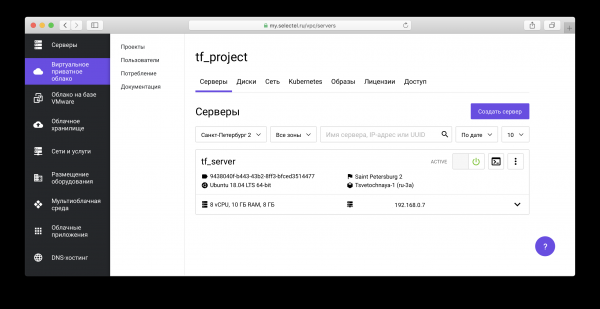
In our You can also see manifests for creating virtual machines with network drives.
An example of creating a Kubernetes cluster
Before moving on to the next example, we'll clean up the resources we created earlier. To do this, in the root of the project run the command to delete OpenStack objects:
$ env
TF_VAR_sel_account=SEL_ACCOUNT
TF_VAR_sel_token=SEL_TOKEN
TF_VAR_user_password=USER_PASSWORD
terraform destroy -target=module.server_local_root_disk
Then run the command to clear the Selectel VPC API objects:
$ env
TF_VAR_sel_account=SEL_ACCOUNT
TF_VAR_sel_token=SEL_TOKEN
TF_VAR_user_password=USER_PASSWORD
terraform destroy -target=module.project_with_user
In both cases, you will need to confirm the deletion of all objects:
Do you really want to destroy all resources?
Terraform will destroy all your managed infrastructure, as shown above.
There is no undo. Only 'yes' will be accepted to confirm.

Enter a value: yes
The following example is in the directory .
This example creates a project, a user with a role in the project, and raises one Kubernetes cluster. In file vars.tf you can see the default values, such as the number of nodes, their characteristics, Kubernetes version, and more.
To create resources, similarly to the first example, first of all, let's start the initialization of modules and the creation of module resources project_with_userand then creating everything else:
$ terraform init

$ env
TF_VAR_sel_account=SEL_ACCOUNT
TF_VAR_sel_token=SEL_TOKEN
TF_VAR_user_password=USER_PASSWORD
terraform apply -target=module.project_with_user

$ env
TF_VAR_sel_account=SEL_ACCOUNT
TF_VAR_sel_token=SEL_TOKEN
TF_VAR_user_password=USER_PASSWORD
terraform apply
Let's transfer the creation and management of Kubernetes clusters through the OpenStack Magnum component. You can learn more about how to work with a cluster in one of our , and so in .
When preparing the cluster, disks, virtual machines will be created and all necessary components will be installed. Preparation takes about 4 minutes, during which time Terraform will display messages like:
module.kubernetes_cluster.openstack_containerinfra_cluster_v1.cluster_1: Still creating... (3m0s elapsed)
After the installation is complete, Terraform will report that the cluster is ready and display its ID:
module.kubernetes_cluster.openstack_containerinfra_cluster_v1.cluster_1: Creation complete after 4m20s (ID: 3c8...)

Apply complete! Resources: 6 added, 0 changed, 0 destroyed.
To manage the created Kubernetes cluster through the utility kubectl you need to get the cluster access file. To do this, go to the project created via Terraform in the list of projects in your account:
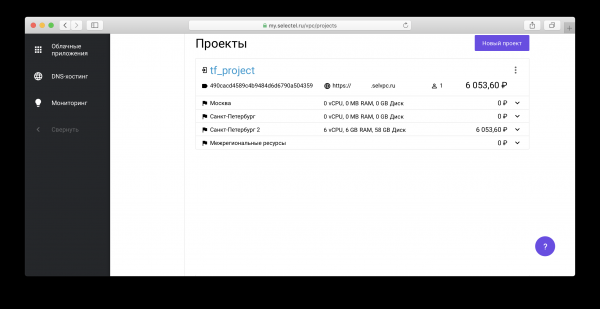
Next follow the link , which is displayed below the project name:
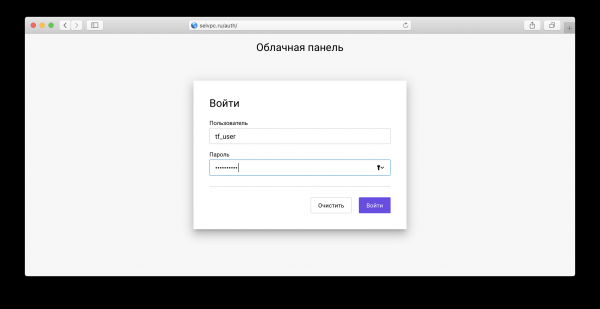
Use the username and password that were created through Terraform as the login information. If you haven't changed vars.tf or main.tf for our example, the user will have the name tf_user. The value of the variable must be used as the password TF_VAR_user_password, which was specified at startup terraform apply earlier.
Inside the project, you need to go to the tab Kubernetes:
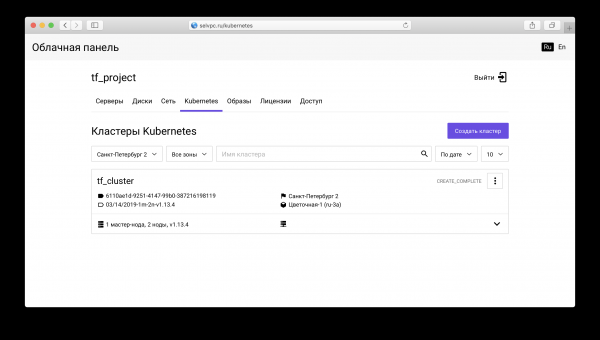
Here is a cluster created through Terraform. Download file for kubectl you can on the "Access" tab:
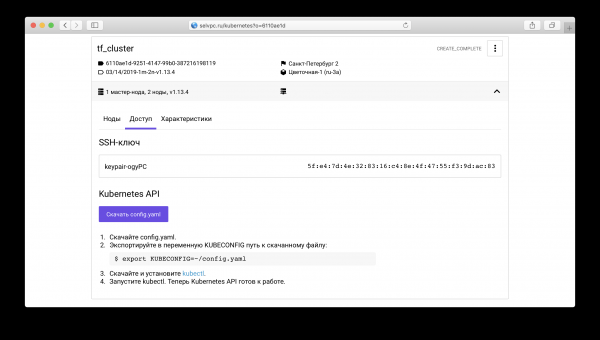
This tab contains installation instructions. kubectl and use the downloaded config.yaml.
After starting the kubectl and setting the environment variable KUBECONFIG you can use Kubernetes:
$ kubectl get pods --all-namespaces

NAMESPACE        NAME                                    READY  STATUS  RESTARTS AGE
kube-system   coredns-9578f5c87-g6bjf                      1/1   Running   0 8m
kube-system   coredns-9578f5c87-rvkgd                     1/1   Running   0 6m
kube-system   heapster-866fcbc879-b6998                 1/1   Running   0 8m
kube-system   kube-dns-autoscaler-689688988f-8cxhf             1/1   Running   0 8m
kube-system   kubernetes-dashboard-7bdb5d4cd7-jcjq9          1/1   Running   0 8m
kube-system   monitoring-grafana-84c97bb64d-tc64b               1/1   Running   0 8m
kube-system   monitoring-influxdb-7c8ccc75c6-dzk5f                1/1   Running   0 8m
kube-system   node-exporter-tf-cluster-rz6nggvs4va7-minion-0 1/1   Running   0 8m
kube-system   node-exporter-tf-cluster-rz6nggvs4va7-minion-1 1/1   Running   0 8m
kube-system   openstack-cloud-controller-manager-8vrmp        1/1   Running   3 8m
prometeus-monitoring   grafana-76bcb7ffb8-4tm7t       1/1   Running   0 8m
prometeus-monitoring   prometheus-75cdd77c5c-w29gb           1/1   Running   0 8m
The number of cluster nodes is easily changed through Terraform.
In file main.tf the following value is given:
cluster_node_count = "${var.cluster_node_count}"
This value is substituted from vars.tf:
variable "cluster_node_count" {
default = 2
}
You can change either the default value in vars.tf, or specify the required value directly in main.tf:
-  cluster_node_count = "${var.cluster_node_count}"
+  cluster_node_count = 3
To apply the changes, as in the case of the first example, use the command terraform apply:
$ env
TF_VAR_sel_account=SEL_ACCOUNT
TF_VAR_sel_token=SEL_TOKEN
TF_VAR_user_password=USER_PASSWORD
terraform apply
If the number of nodes changes, the cluster will remain available. After adding a node via Terraform, you can use it without additional configuration:
$ kubectl get nodes
NAME                               STATUS                     ROLES     AGE   VERSION
tf-cluster-rz6nggvs4va7-master-0   Ready,SchedulingDisabled   master    8m    v1.12.4
tf-cluster-rz6nggvs4va7-minion-0   Ready                      <none>    8m    v1.12.4
tf-cluster-rz6nggvs4va7-minion-1   Ready                      <none>    8m    v1.12.4
tf-cluster-rz6nggvs4va7-minion-2   Ready                      <none>    3m    v1.12.4
Conclusion
In this article, we got acquainted with the main ways of working with via Terraform. We will be glad if you use the official Selectel Terraform provider and provide feedback.
All found bugs of the Selectel Terraform provider can be reported via .
Source: habr.com
